Showing Prices on the Booking Widget
The booking widget can display prices directly on each available time slot, so customers can see what they'll pay before clicking through. You can also add a player count dropdown so prices adjust based on group size, and optionally show per-person pricing instead of the total.
All of these settings are found on the Styling tab of your widget configuration. Navigate to Settings > Booking Widget, select a widget, then click the Styling tab and scroll down to the Layout section.
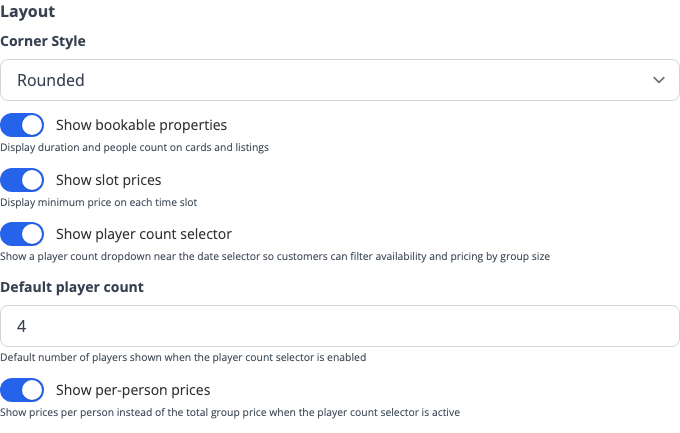
Show Slot Prices
Turn on Show slot prices to display a price on each available time slot.
When enabled, each slot shows the minimum price for that time. If every option costs the same, just the price is shown -- for example, "$70". If a slot has different pricing depending on ticket type or options, you'll see "From $22" to indicate there's a range.
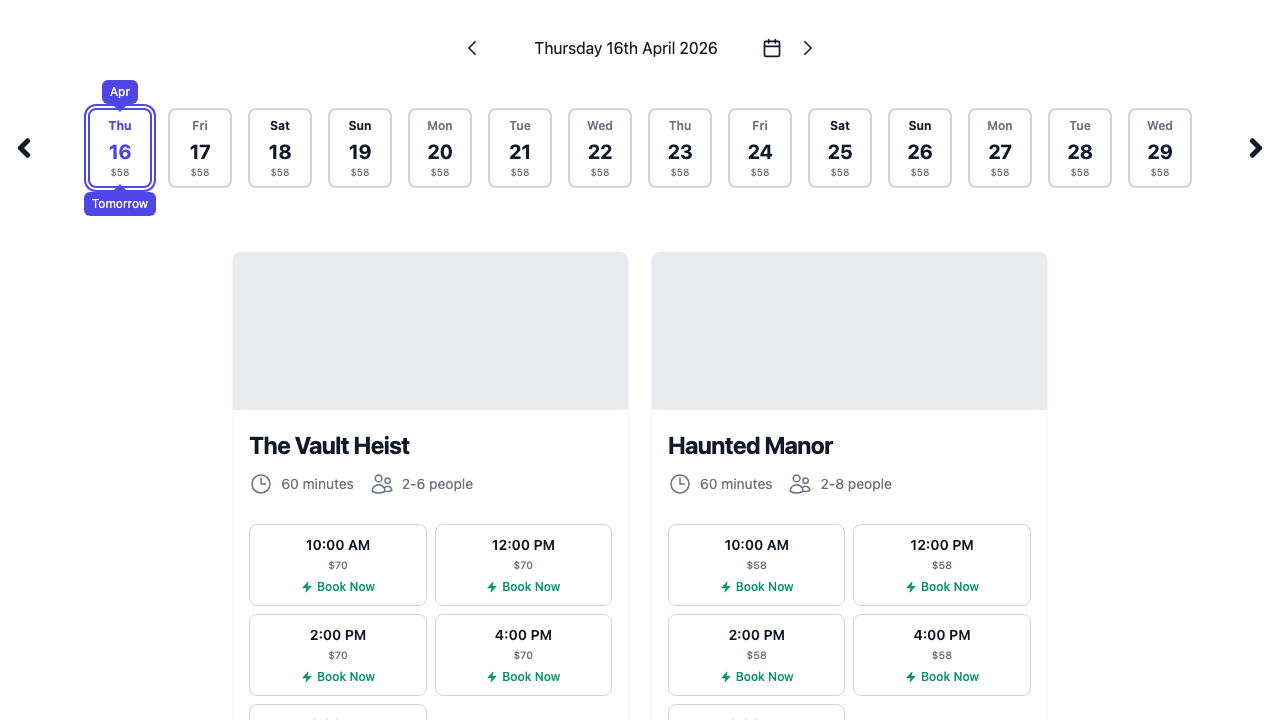
This is useful when your prices vary by time of day or day of the week -- for example, if you charge more for peak times. Customers can instantly see which slots are cheaper without needing to click into each one.
Note: Prices shown on slots are before taxes and fees. The final price at checkout may differ depending on the ticket types, add-ons, and any taxes or fees applied to the order.
Player Count Selector
Turn on Show player count selector to add a group size dropdown near the date selector. This lets customers choose how many players are in their group, and the widget will update prices and availability accordingly.
Important: The player count selector does not display prices on its own. You must also enable Show slot prices for prices to appear on the time slots.
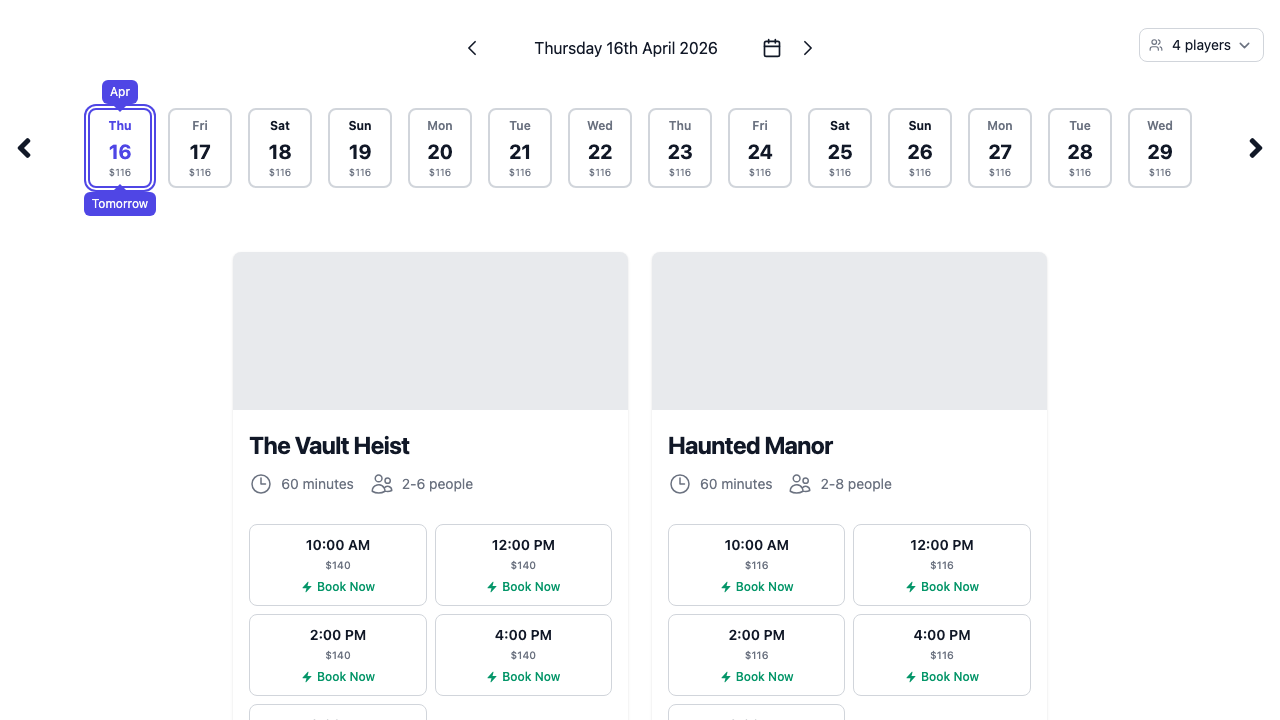
When the player count selector is active:
- Prices update to reflect the total cost for the selected group size
- Availability filters to show only slots that can accommodate the chosen number of players
- The price shown is the exact price for that group size, not a range -- so you'll see "$140" instead of "From $35"
- When a customer clicks a slot, the selected player count carries through to checkout and pre-fills the ticket quantity
The range of the dropdown is determined by the minimum and maximum group sizes configured on your bookable items.
Default Player Count
When you enable the player count selector, a Default player count field appears. This sets the initial value of the dropdown when a customer first opens the widget. The default is 4, but you can change it to whatever group size is most common for your venue.
Per-Person Pricing
If you have both Show slot prices and Show player count selector enabled, a third option appears: Show per-person prices.
When turned on, prices on each slot are shown per person instead of as a total. For example, if a game costs $140 for a group of 4, the slot will show "$35 per person" instead of "$140".
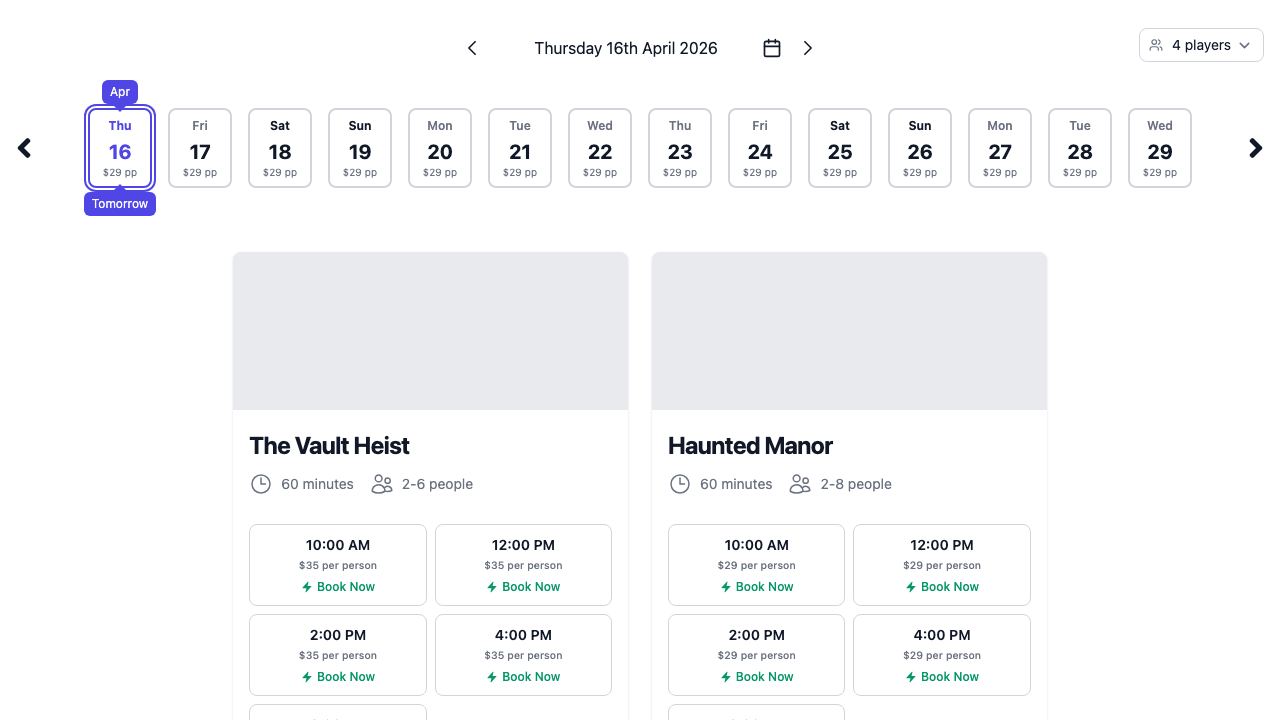
This can make pricing feel more accessible to customers, especially when your total group prices are high. It's also useful if your customers tend to think in terms of "how much will it cost me" rather than "how much for the whole group."
The per-person price updates automatically as the customer changes the player count.
Note: Per-person pricing works best when your tickets are priced per person (Per Item pricing). If you use a flat room rate (Total pricing), there isn't a meaningful per-person figure to display. See Setting Up Pricing for details on pricing modes.