Buzzshot Bookings: Custom Fields
Custom Fields let you collect additional information from your customers during the booking process. Whether you need to ask how they heard about you, collect team names, or gather dietary requirements -- custom fields give you the flexibility to capture exactly the data you need.
Order Fields vs Booking Fields
There are two types of custom field, and understanding the difference is important:
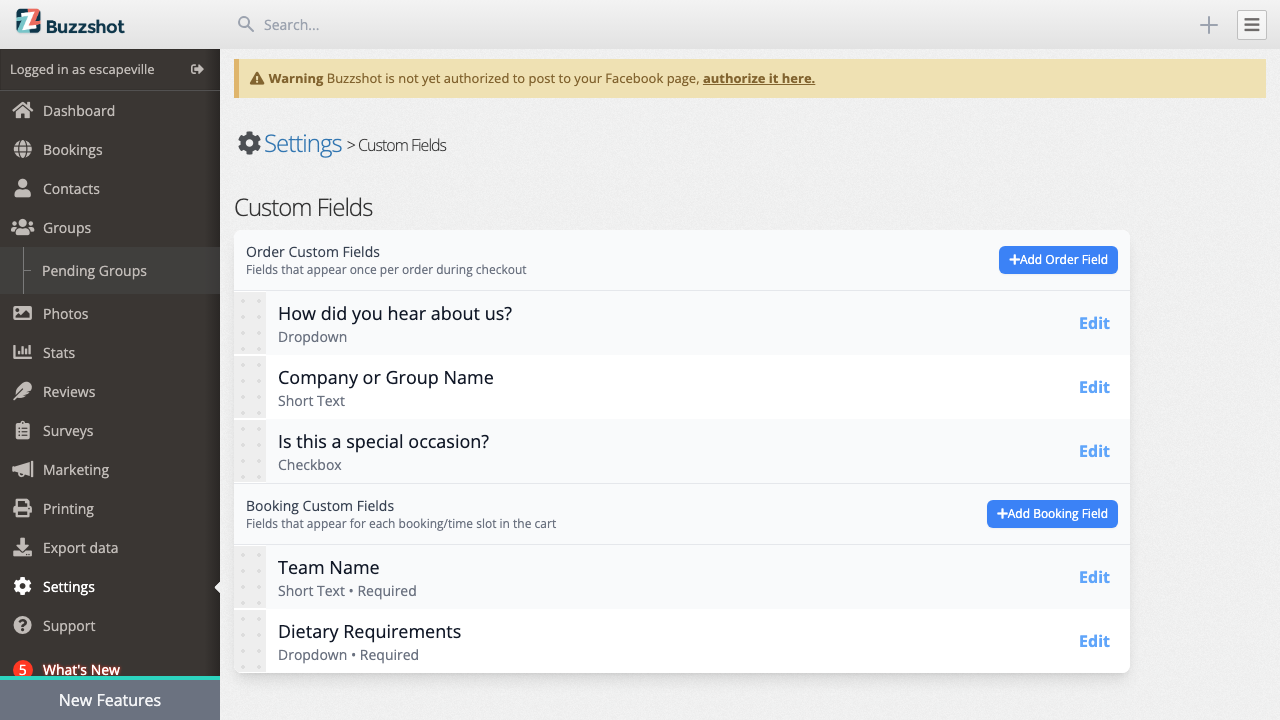
Order Fields appear once per order during checkout, regardless of how many rooms the customer is booking. Use these for information that applies to the customer or the order as a whole. For example:
- "How did you hear about us?"
- "Is this a special occasion?"
- "Do you have a promotional code?"
Booking Fields appear for each room or time slot in the customer's cart. If a customer is booking two rooms, they will see the booking fields twice -- once for each room. Use these for information that relates to a specific game session. For example:
- "What is your team name?"
- "What difficulty level would you like?"
- "Any special requests for this session?"
Getting to Custom Fields Settings
- Log in to your Buzzshot admin panel
- Go to Settings
- Click Custom Fields (under the Bookings section)
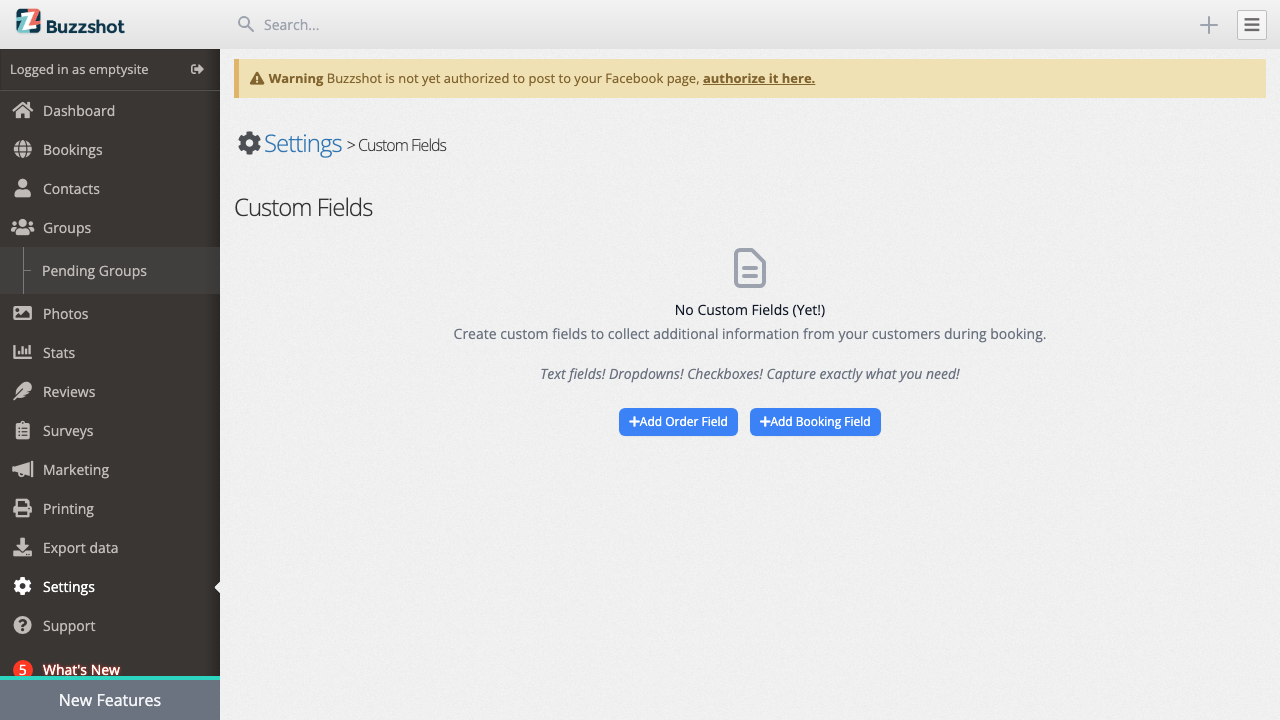
If you haven't created any custom fields yet, you'll see an empty state with buttons to add your first order or booking field.
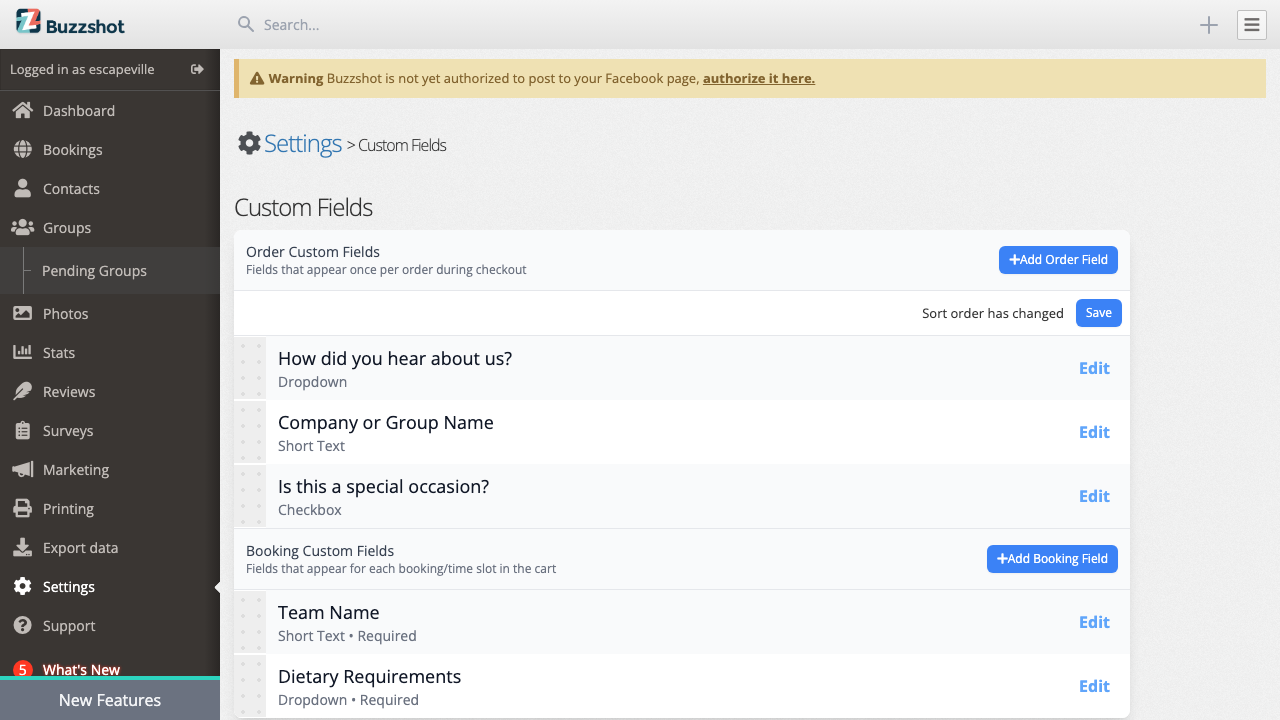
Once you have created some fields, you'll see them listed in two sections -- one for order fields and one for booking fields.
Field Types
When creating a custom field, you need to choose what type of input your customers will see:
Checkbox
A simple yes/no toggle. Great for:
- Opt-ins ("This is a birthday party")
- Simple yes/no questions
The default can be set to checked or unchecked.
Dropdown
A dropdown menu where customers select from a list of options you define. Great for:
- "How did you hear about us?" (Google, Facebook, Friend, etc.)
- Difficulty level selection (Easy, Medium, Hard)
- T-shirt sizes or similar fixed choices
You must add at least one option when using the dropdown type.
Short Text
A single-line text input. Great for:
- Team names
- Company names
- Brief answers
Long Text
A multi-line text area for longer responses. Great for:
- Special requests
- Additional notes or instructions
Creating a Custom Field
- Go to Settings > Custom Fields
- Click Add Order Field or Add Booking Field depending on which type you need
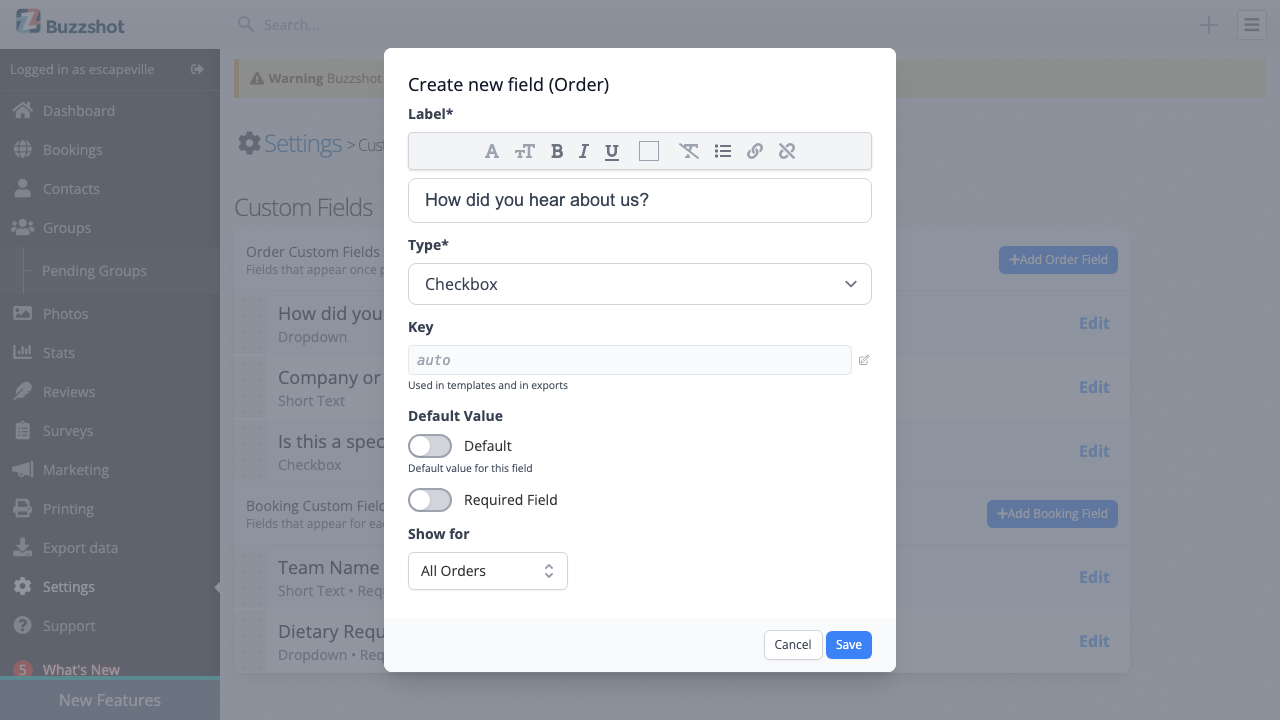
- A modal will open where you can configure the field:
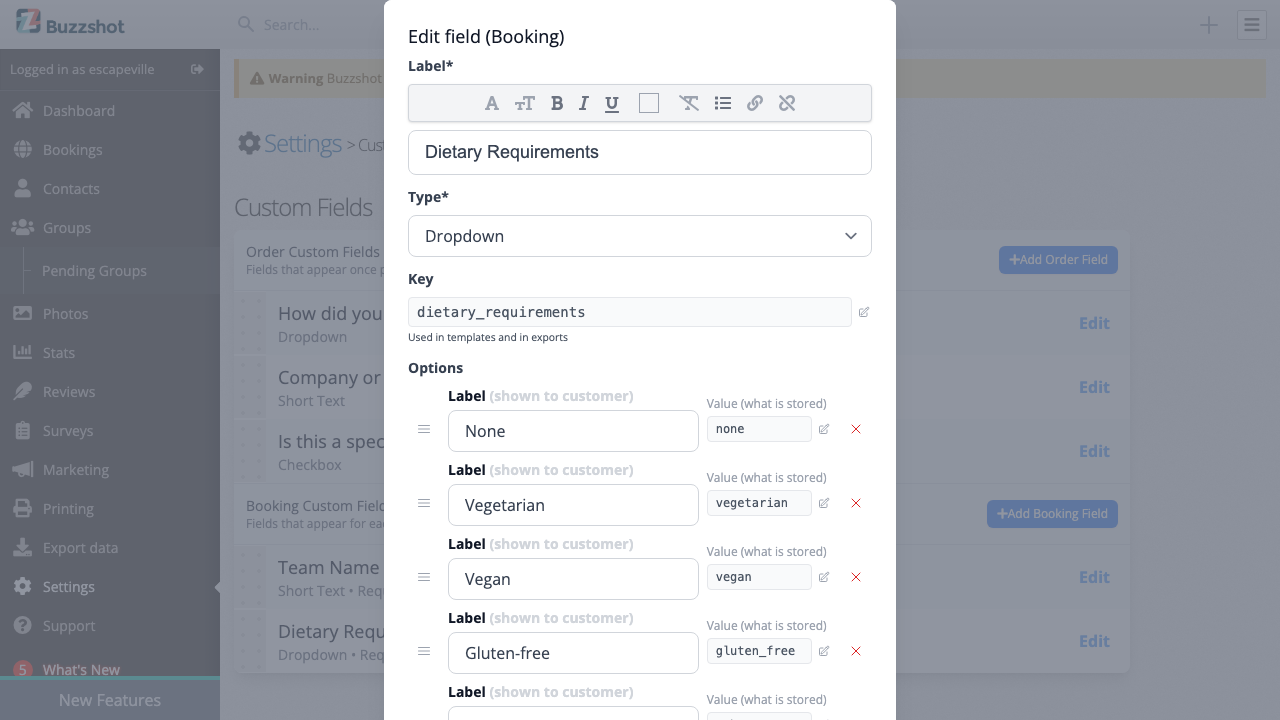
Label
Enter the text your customers will see. This is the question or prompt, for example "How did you hear about us?" or "Team Name".
Type
Choose the field type: Checkbox, Dropdown, Short Text, or Long Text.
Key
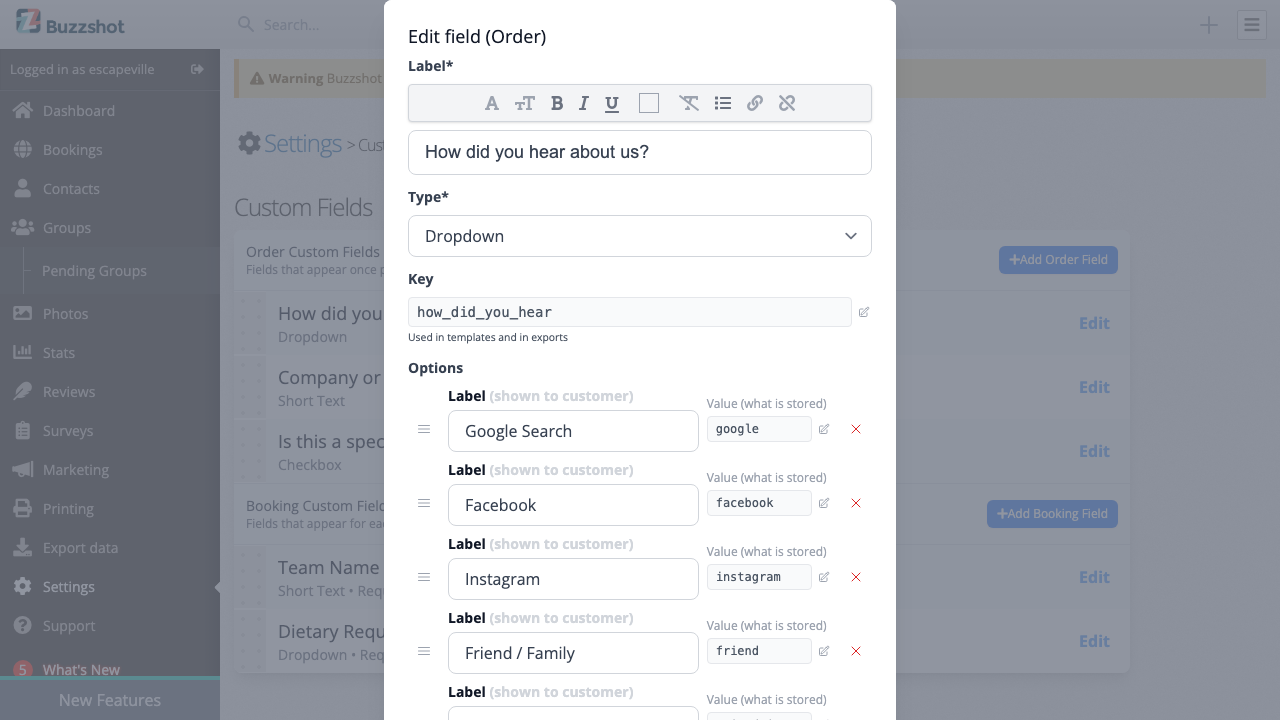
The key is used in CSV exports as the column header. It is automatically generated from your label text (for example, "How did you hear about us?" becomes how_did_you_hear_about_us). You can change the key if you prefer something shorter or more descriptive.
Warning: Once you have started collecting data, treat the key as permanent. Changing it later will break any spreadsheet workflows, integrations, or exports that reference the old key -- old export files will have the old column header and new exports will use the new one, so they will no longer match.
Options (Dropdown only)
When you select "Dropdown" as the type, an options section will appear. Click Add Option to add each choice that will appear in the dropdown. You can set both a value (what gets stored) and a label (what the customer sees). You can reorder options by dragging them.
Default Value
Optionally set a default value for the field. For checkboxes, this determines whether the toggle starts checked or unchecked. For dropdowns, you can pre-select one of your options. For text fields, you can provide default text.
Required
Toggle this on if customers must fill in this field before they can proceed through checkout. Use this sparingly -- every required field adds friction to the booking process. For checkbox fields, "required" means the checkbox must be checked to proceed.
Note: Remember that required booking fields must be completed for each room in the cart. A customer booking 3 rooms will see each required booking field 3 times, so the friction multiplies quickly.
Controlling Where Fields Appear
Order Fields -- "Show for" Filter
By default, order custom fields appear for all orders. You can use the Show for filter to restrict which orders see the field. This uses the same powerful filter system available elsewhere in Buzzshot Bookings. For example, you could show a field only for orders that contain a specific bookable item or product.
For most use cases, leaving this set to "All Orders" is what you want.
Booking Fields -- Bookable Items and Filters
Booking custom fields have two layers of control over where they appear:
Bookable Items Selection
Choose which rooms or experiences the field appears for:
- All bookable items -- the field appears for every room (default)
- Selected bookable items -- the field only appears for the rooms you choose
- All bookable items except selected -- the field appears for all rooms except the ones you choose
This is useful when a question only applies to certain rooms. For example, if only one of your rooms includes a food experience, you can show a "Dietary Requirements" field only for that room.
Additional Booking Filter
You can add further conditions to control when the field appears. For example, you could show a "Large Group Coordinator" field only for bookings with 4 or more people.
Note: Fields can be filtered based on order and booking properties (such as which room is being booked or the group size), but you cannot currently make one custom field appear or hide based on how a customer answered another custom field. For example, you cannot set up a "Please describe your accessibility needs" text field that only appears if the customer checked "Yes" on a separate accessibility question.
Reordering Fields
You can change the order in which fields appear by dragging them on the custom fields settings page. After dragging, a "Sort order has changed" bar will appear -- click Save to confirm the new order.
Editing and Deleting Fields
To edit an existing field, click the Edit button next to it on the custom fields settings page. The edit modal is the same as the create modal, with the addition of a Delete button.
Important: Deleting a custom field removes the field definition. Data that was already collected for that field remains stored in your orders and bookings, but it will no longer be displayed or included in exports. Similarly, if you delete an option from a dropdown field, any existing orders that selected that option will still have the old value stored, but it will no longer match a current option.
How Custom Fields Appear in Checkout
Custom fields appear on the details step of your booking widget checkout, alongside the contact and billing details form.
Order custom fields appear after the standard contact fields.
Booking custom fields appear per-booking. When a customer is booking multiple rooms, each room's fields appear under a heading showing the room name and time slot.
Required fields must be filled in before the customer can proceed to payment. If a required field is left empty, a validation error will be shown.
Where Custom Field Data Shows Up
Once your customers have filled in their custom fields, the data appears in several places:
Order Details
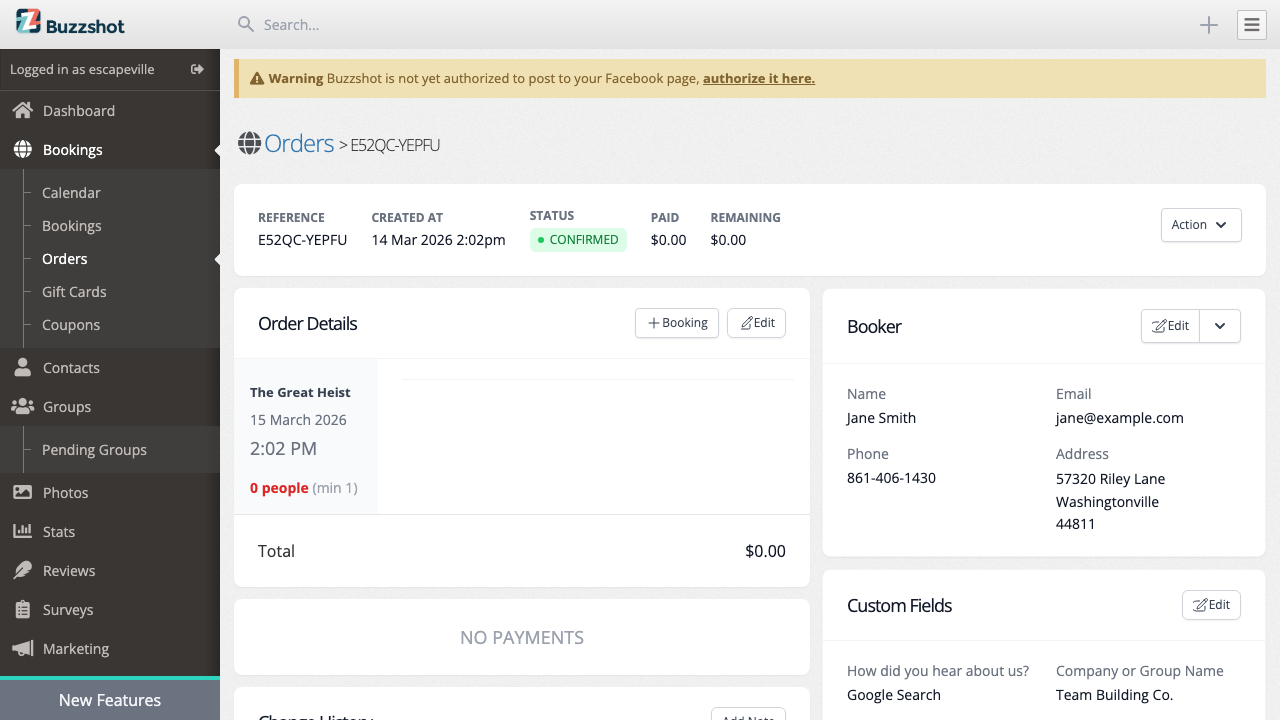
On the order details page in your admin panel, you will see a Custom Fields section showing all the captured data. If there are both order-level and booking-level custom fields, they are displayed together -- booking fields are grouped under the room name and time slot.
You can click Edit to modify the custom field values directly from the order details page.
CSV Exports
When you export orders or bookings as CSV, custom field values are included as additional columns. The column headers use the key you set when creating the field.
- In order exports, order custom fields appear as columns
- In booking exports, both order and booking custom fields appear. Order-level fields are prefixed with "Order - " to distinguish them
For checkbox fields, the exported values are "Yes" or "No".
Staff Notification Emails
If you have order notification emails set up (so that your staff receive an email when a new booking comes in), custom field data is automatically included in those notification emails. Both order-level and booking-level custom field values are shown.
Tips and Best Practices
- Keep it simple. Every field you add is one more thing between your customer and completing their booking. Only ask for information you genuinely need.
- Use meaningful keys. The key is used in exports. A key like
team_nameis much easier to work with thancustom_field_1. - Use required sparingly. Making a field required means the customer cannot proceed without filling it in. This is appropriate for things like team names, but for "nice to have" information, leave it optional.
- Choose the right level. If the information relates to the customer or the overall order, use an order field. If it relates to a specific game session or room, use a booking field.
- Test your checkout. After setting up custom fields, go through the booking process yourself to make sure everything looks right and the fields make sense in context.