Gift Cards
Gift cards (sometimes called vouchers) let your customers pay for bookings using a prepaid balance. They are a great way to boost revenue -- customers buy them as presents, and recipients come back to book an experience. You can create gift cards manually for in-store sales, or sell them online through your booking widget so customers can purchase and send them digitally.
Looking for discount codes? Gift cards carry a monetary balance that gets spent like a payment method. If you want to offer percentage or fixed-amount discounts with promo codes, see Coupons instead.
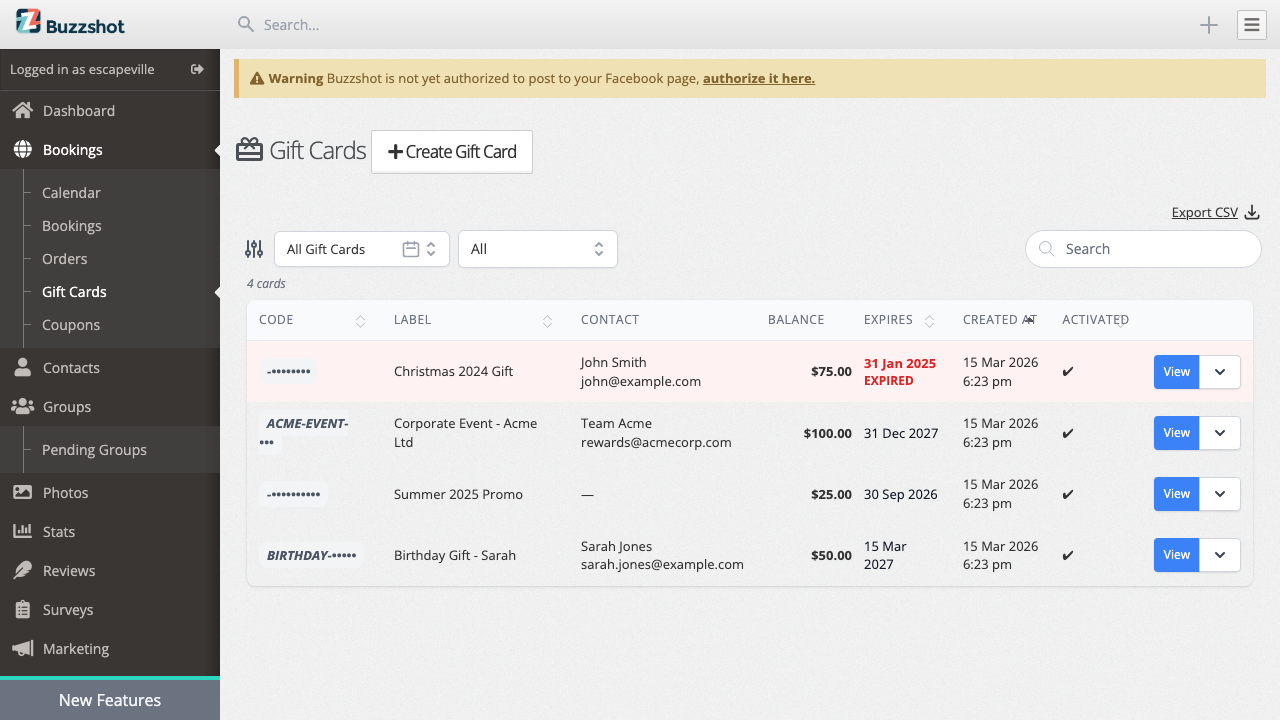
Gift cards are managed from Bookings > Gift Cards in your admin area.
How Gift Cards Work
Each gift card has a unique code and a balance. When a customer uses the code during checkout, the balance is applied to their order total. If the gift card does not cover the full amount, the customer pays the difference using their chosen payment method. If there is remaining balance, the card can be used again on a future booking.
Key details about each gift card:
| Field | Description |
|---|---|
| Card Code | A unique code the customer enters to redeem the gift card |
| Label | An internal label to help you identify the card (e.g. "Christmas 2025 Promo") |
| Status | Whether the card is Activated (usable) or Not Activated |
| Balance | The current remaining balance on the card |
| Expires On | The date the gift card expires, after which it can no longer be redeemed |
| Contact details | Optional name and email of the gift card recipient |
Creating a Gift Card Manually
You can create gift cards one at a time from the admin -- useful for in-store purchases, promotional giveaways, or customer service situations.
- Go to Bookings > Gift Cards.
-
Click Create Gift Card.
-
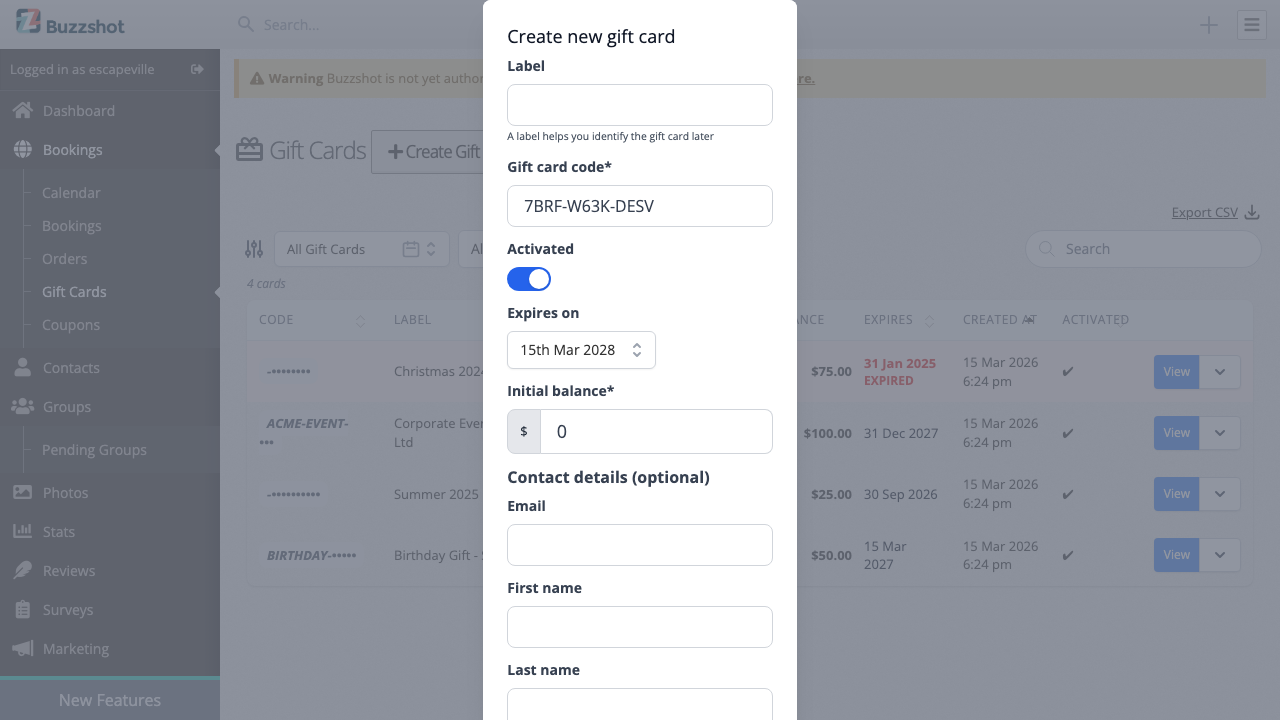
Fill in the fields:
- Label -- An internal label to help you identify the card later. Customers do not see this.
- Gift card code -- A unique code is generated automatically. You can change it if you prefer a custom code (e.g. "BIRTHDAY-SARAH"). Codes must be unique.
- Activated -- Leave this on so the card is immediately usable. Turn it off if you want to prepare cards in advance without making them redeemable yet.
- Expires on -- By default, gift cards have no expiry date (the field is blank). You can set an expiry date if needed -- for example, to comply with local regulations or for promotional cards.
- Initial balance -- The amount to load onto the card.
- Contact details (optional) -- Enter the recipient's email, first name, and last name if you want to send them the gift card by email.
- Click Save.
If you entered an email address, you will be prompted to send the gift card email immediately. You can send it now or skip and send it later.
Selling Gift Cards Online
You can sell gift cards through your booking widget so customers can purchase them online, just like any other product. When a customer buys a gift card product, a gift card is created automatically and delivered by email.
To set this up:
- Go to Settings > Products.
- Create a new product group (or edit an existing one).
-
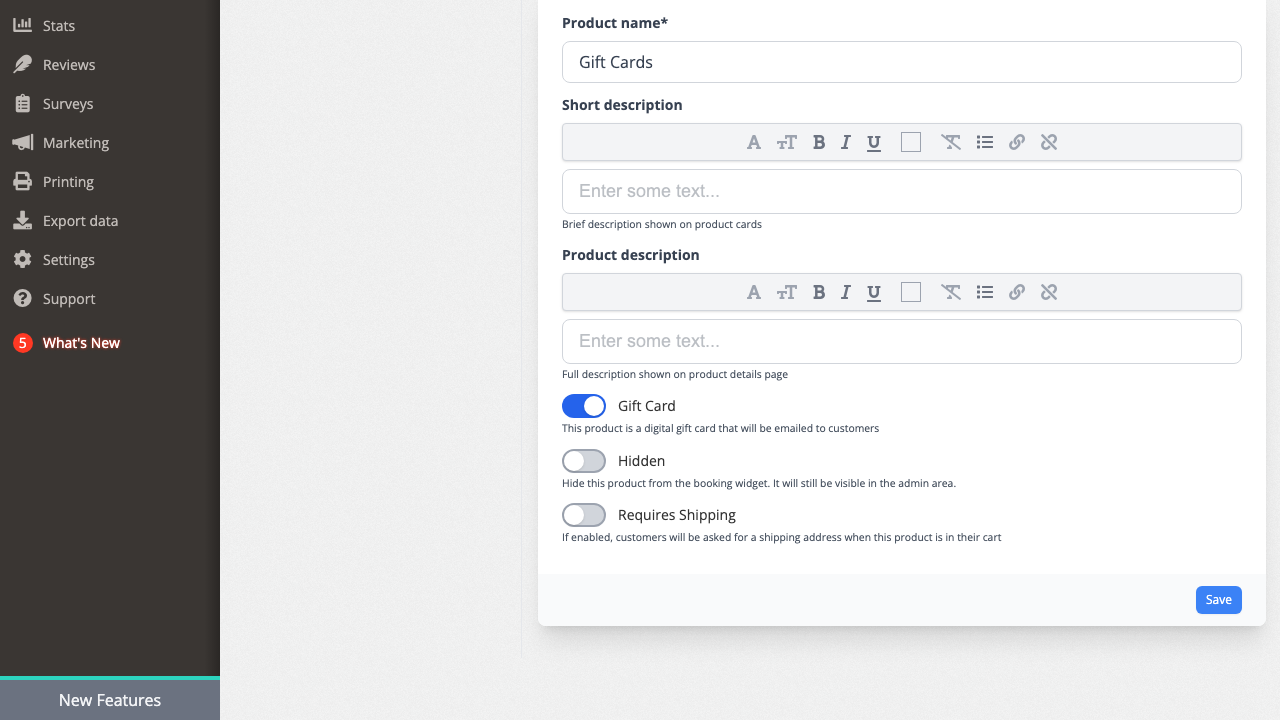
Toggle Gift Card to on. This tells the system that products in this group are digital gift cards that will be emailed to customers.
-
Add one or more products (variants) with different values -- for example, a "25 Gift Card", "50 Gift Card", and "100 Gift Card".
- Set prices for each variant on the Prices tab.
Once set up, the gift card products appear in your booking widget alongside your other products. When a customer purchases one, a gift card is created with the appropriate balance and delivered by email.
Customers receive two emails: an order confirmation and a separate gift card delivery email containing the code and balance.
Note: Coupon and promo codes can be applied to gift card purchases in the booking widget. If you don't want customers using discount codes when buying gift cards, you can exclude your gift card product group from the coupon's conditions -- see Coupons for details.
How Customers Redeem a Gift Card
Customers redeem gift cards during checkout in the booking widget.
- The customer adds a booking (or product) to their cart as normal.
- In the cart or checkout, they will see a Discount code or gift card field. (This is the same field used for coupon and promo codes. For information about discount and promo codes, see Coupons.)
- They enter the gift card code and click Apply.
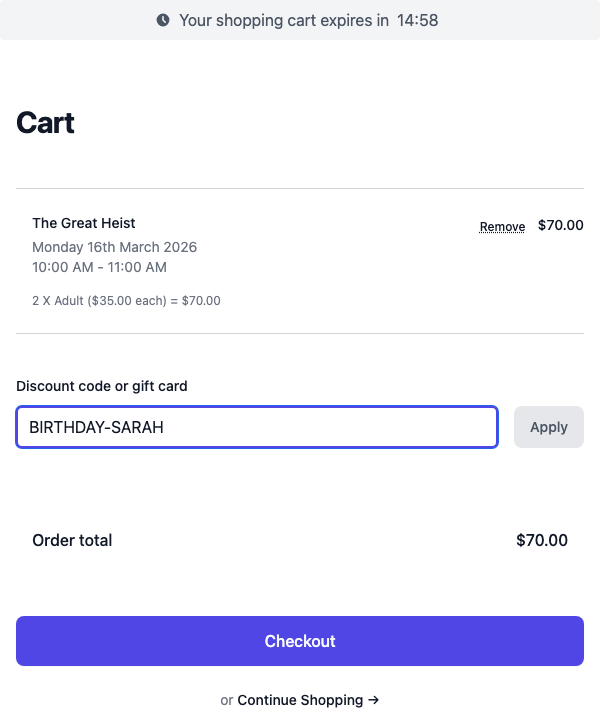
If the code is valid and the card has a balance, the gift card amount is deducted from the order total. The cart shows:
- From Gift Card -- The amount being deducted from the gift card balance.
- Remaining to Pay -- The amount the customer still needs to pay using another payment method.
If the gift card covers the entire order, no further payment is needed. If it only covers part of the order, the customer pays the remainder as normal.
Note: Expired or deactivated gift cards cannot be redeemed.
Managing Gift Cards
Viewing the Gift Card List
Go to Bookings > Gift Cards to see all your gift cards. The list shows each card's code, label, contact, balance, expiry date, creation date, and activation status.
You can filter the list by:
- Date range -- Show cards created within a specific period, or select "All Gift Cards" to see everything.
- Status -- Filter by Activated, Deactivated, or Expired.
You can also search for a specific gift card by code, name, or email.
To export your gift cards, click the export button to download a CSV file.
Viewing Gift Card Details
Click on any gift card in the list (or click View) to see its detail page.
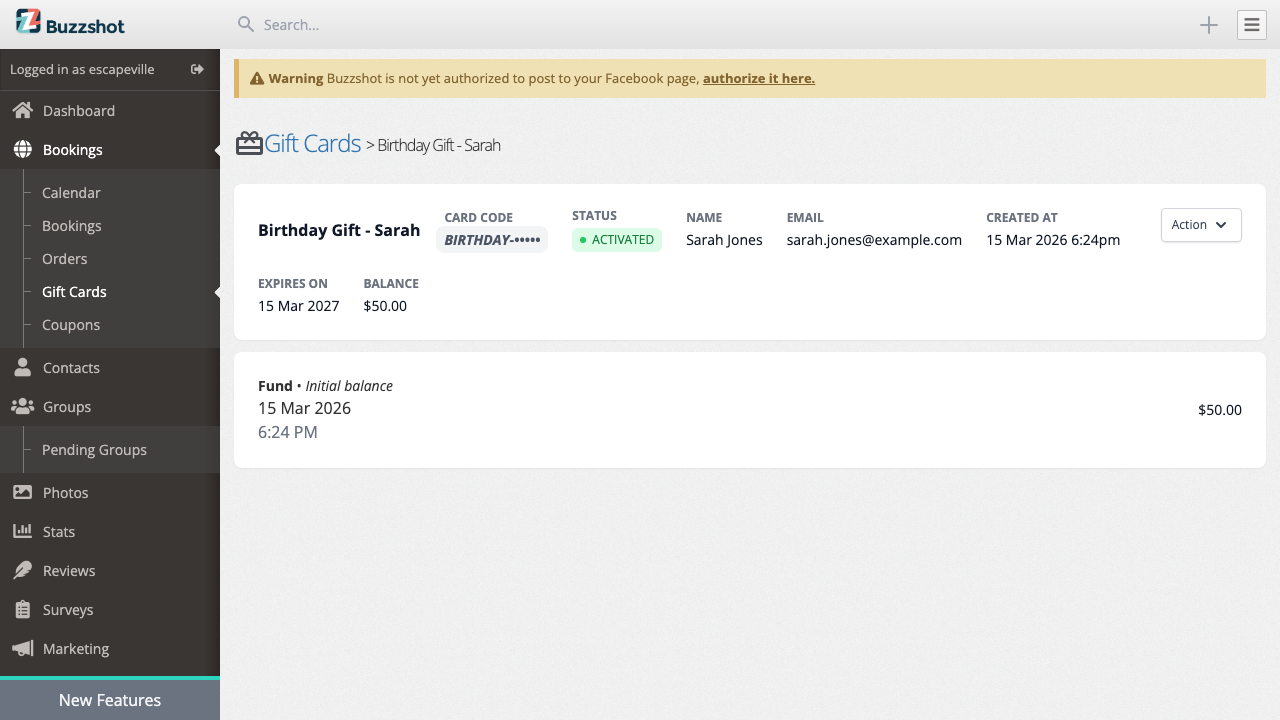
The detail page shows:
- All card details at the top -- code, status, name, email, creation date, expiry, and current balance.
- A transaction history below, showing every time funds were added to or charged from the card. Each transaction shows whether it was a Fund (money added) or Charge (money deducted), along with the date, time, and a description. If the charge was linked to an order, you will see a clickable link to that order.
Editing a Gift Card
From the gift card detail page, click Action > Edit to update the label, activation status, expiry date, or contact details.
Note: You cannot change the gift card code after creation.
Adding Funds
To top up a gift card's balance:
- From the gift card detail page, click Action > Add funds.
- Enter the Amount to fund and a Description (e.g. "Top-up" or "Bonus credit").
- Click Save.
The new funds appear immediately in the transaction history and the balance updates.
Charging a Gift Card Manually
You can manually deduct an amount from a gift card -- for example, if a customer pays in person using their gift card for something not processed through the booking widget.
- From the gift card detail page, click Action > Charge card.
- Enter the Amount to charge (up to the card's current balance) and a Description.
- Click Save.
Sending the Gift Card Email
If you created a gift card manually and want to email it to the recipient, or if you need to resend the email:
- From the gift card detail page, click Action > Send email.
- Review or change the Email Address.
- Customise the email content if needed using the email editor.
- Click Send Email.
The email includes the gift card code and balance so the recipient knows how to use it.
You can also re-send the gift card email from the order detail page. Open the order, scroll to the Digital Deliveries section, and use the resend option there. This is useful when a customer purchased a gift card online and needs the delivery email sent again.
Deactivating a Gift Card
To prevent a gift card from being used -- for example, if it was issued in error or reported as stolen -- you can deactivate it:
- From the gift card detail page, click Action > Edit.
- Toggle Activated to off.
- Click Save.
A deactivated gift card cannot be redeemed at checkout, but its balance is preserved. You can reactivate it at any time by toggling Activated back on.
Gift Card Expiry
Gift cards can have an expiry date, after which they can no longer be redeemed. By default, gift cards have no expiry date -- they remain valid indefinitely. If you want gift cards to expire automatically, you can configure a default expiry period in your booking site settings. Any default you set there will be applied to newly created gift cards, but you can always override it on individual cards.
Expired gift cards are highlighted in red on both the gift cards list and the detail page, with an "EXPIRED" label. You can filter for expired cards using the status filter.
Cross-Account Gift Cards
If your organisation has multiple accounts (for example, different locations or brands), you can allow gift cards purchased on one account to be redeemed on another. This means a customer who receives a gift card from your downtown location can use it to book at your westside location -- or any other account you choose to accept cards from.
Requirements
To set up cross-account gift cards, you need:
- An organisation -- Your accounts must be grouped under the same organisation.
- Organisation-wide access -- Your user login must have access to all accounts in the organisation. If you only have access to some accounts, you will see a message explaining that you need broader access.
- Same currency -- Gift cards can only be accepted across accounts that use the same currency.
Setting It Up
- Go to Settings > Gift Cards.
- Under Cross-Account Gift Cards, you will see a toggle for each other account in your organisation.
- Turn on the toggle for each account whose gift cards you want to accept at the current account.
- Click Save.
Repeat this for each account where you want cross-account redemption to work. The setting is one-directional -- turning on "Accept cards from Account B" on Account A does not automatically mean Account B accepts cards from Account A. You need to configure each account separately.
How It Works for Customers
From the customer's perspective, nothing changes. They enter the gift card code at checkout as normal. The system automatically checks both the current booking site and any accepted cross-account sites when looking up the code. If the gift card is found and has a balance, it is applied to the order.
Viewing Cross-Account Gift Cards in the Admin
When a cross-account gift card is used on an order, you can view the gift card details from the order page as usual. If you click through to the gift card itself and it belongs to a different account, you will be prompted to switch to that account (if you have access) so you can view or manage it there.
Gift Cards and Orders
When a customer uses a gift card on an order, the order details page in your admin shows a Gift Cards section. This section displays which gift cards were applied, how much was charged, and the remaining balance on each card. Staff can also manually add a gift card to an existing order or charge a gift card against an order from this page.
Tips and Best Practices
- Configure an expiry date if regulations require it. Gift cards default to no expiry, but some jurisdictions require gift cards to have a stated validity period. If this applies to you, set a default expiry period in your booking site settings or set an expiry date on each card when you create it. Check your local regulations to be sure.
- Use labels for organisation. When creating gift cards for promotions or events, use the label field to group them (e.g. "Summer 2025 Promo", "Corporate Event -- Acme Ltd"). Labels are for your team only and are not shown to customers.
- Sell gift cards online. Setting up a gift card product group is the easiest way to sell gift cards. Customers can buy and send them without you needing to create each one manually.
- Use gift cards for refunds. Instead of refunding to a payment method, you can create a gift card and load it with the refund amount. This keeps the money within your business while still making the customer whole.