Pipelined Games and Staggered Entry
In a pipelined game, teams don't all start together. They go in a few minutes apart, so several teams are inside at once, each at a different stage of the game. Two limits apply:
- The most people inside at once. For example, 24.
- The most that can start together. For example, one team every 15 minutes.
Each group let in together is a wave. This article shows how to set up staggered entry with a bookable item and one shared resource.
The Example
The rest of this article uses this game:
- "The Mine" lasts 60 minutes.
- A new wave can start every 15 minutes.
- One team can start in each wave, up to 6 people.
- Up to 24 people can be inside at once.
Step 1: Schedule Overlapping Slots
Each slot is one start time, and slots overlap because a new one starts before the last one ends.
- Go to Settings > Bookable items and select your game.
- On the Details tab, set Duration (minutes) to the length of the game (60 minutes).
- Set Reset time (minutes) to 0. A reset time would hold each team's places after it leaves, so the next wave couldn't use them.
- On the Schedules tab, add a slot for every start time: 10:00, 10:15, 10:30 and so on. Click Repeat on the first slot and set the interval to 15 minutes to fill the day quickly. See Schedules & Availability for more on the schedule editor.
Step 2: Set the Most Inside at Once
- Click the Capacity & limits tab.
- Set Slot type to Multiple.
- Set Maximum people at once to 24.
- Set Maximum bookings at once to the most teams inside at once (4), or high enough that it never gets in the way.
- Set Maximum people per booking to your largest team (6).
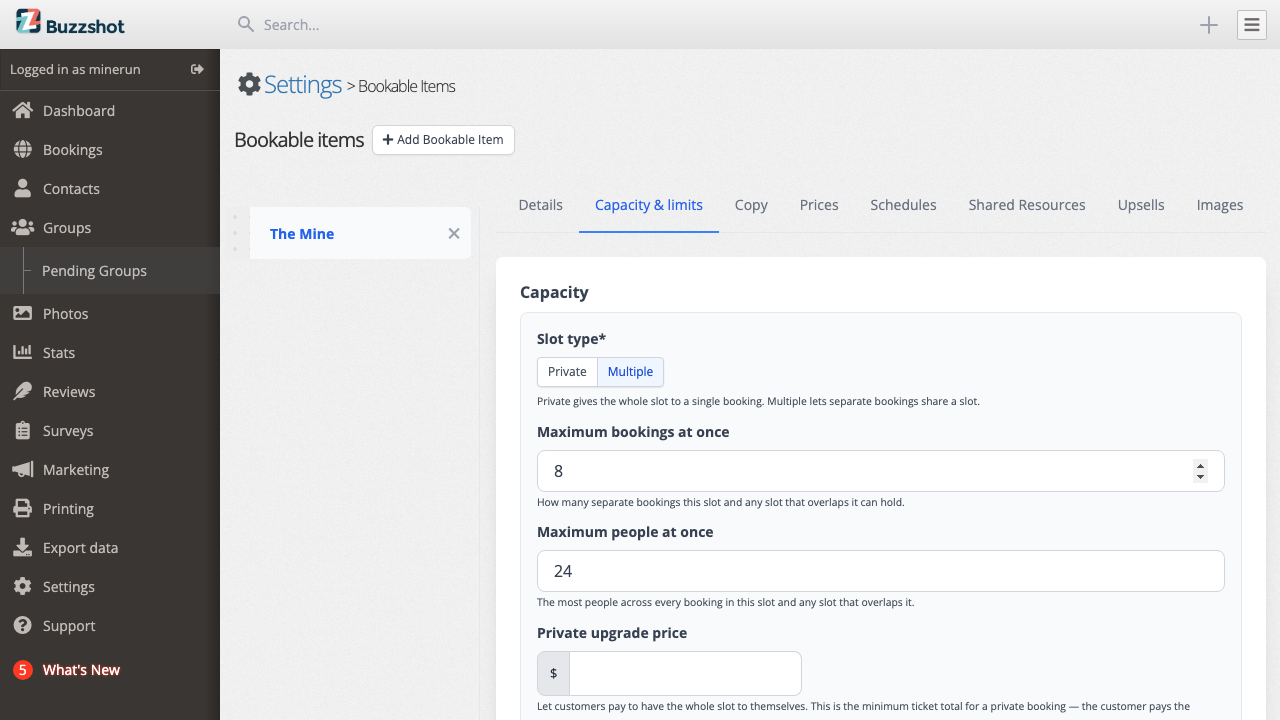
A booking counts against every slot it overlaps, not only its own. A team that starts at 10:00 is still inside at 10:15, 10:30 and 10:45, so it uses places in those slots too, and its places come free at 11:00 when it leaves.
Step 3: Create the Entrance
A shared resource limits how many teams start in each wave. It is held only for the first part of each booking (15 minutes in this example, or whatever gap you need between waves), so it counts the teams starting together rather than the teams inside.
- Go to Settings > Shared Resources and click Add Shared Resource.
- Name it after your entrance, for example "Mine Entrance".
- Set Resource Type to Per booking.
- Set Default Capacity to the number of teams per wave (1).
- Leave Reset Time (minutes) at 0.
- Click Save.
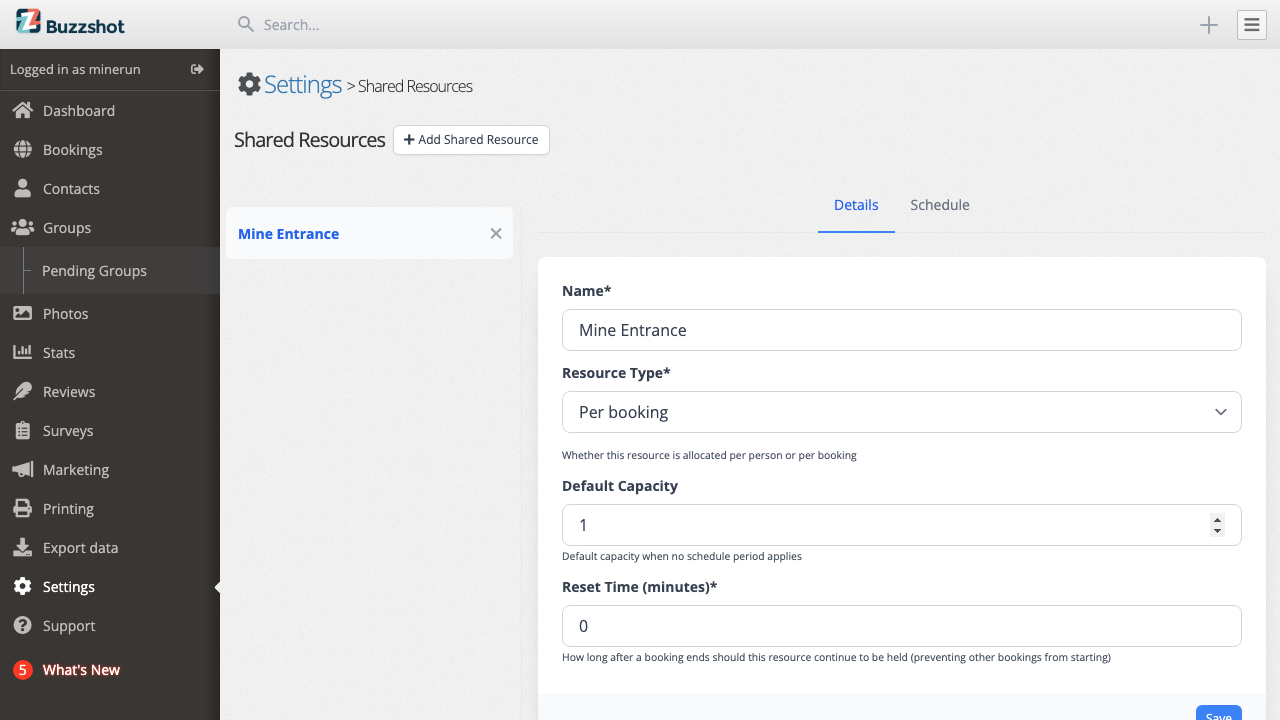
If you'd rather limit each wave by people, so that several small teams can share one, set Resource Type to Per person and Default Capacity to the number of people per wave. Keep Maximum people per booking no higher than that number, or a large team could never fit in a wave and could never book.
Step 4: Hold the Entrance for One Wave
- Go back to Settings > Bookable items, select your game and click the Shared Resources tab.
- Tick the entrance and leave Quantity at 1.
- Click Set resource use offset time.
- Leave Start offset at 0, and set Duration to the time between waves (15 minutes).
- Click Save.
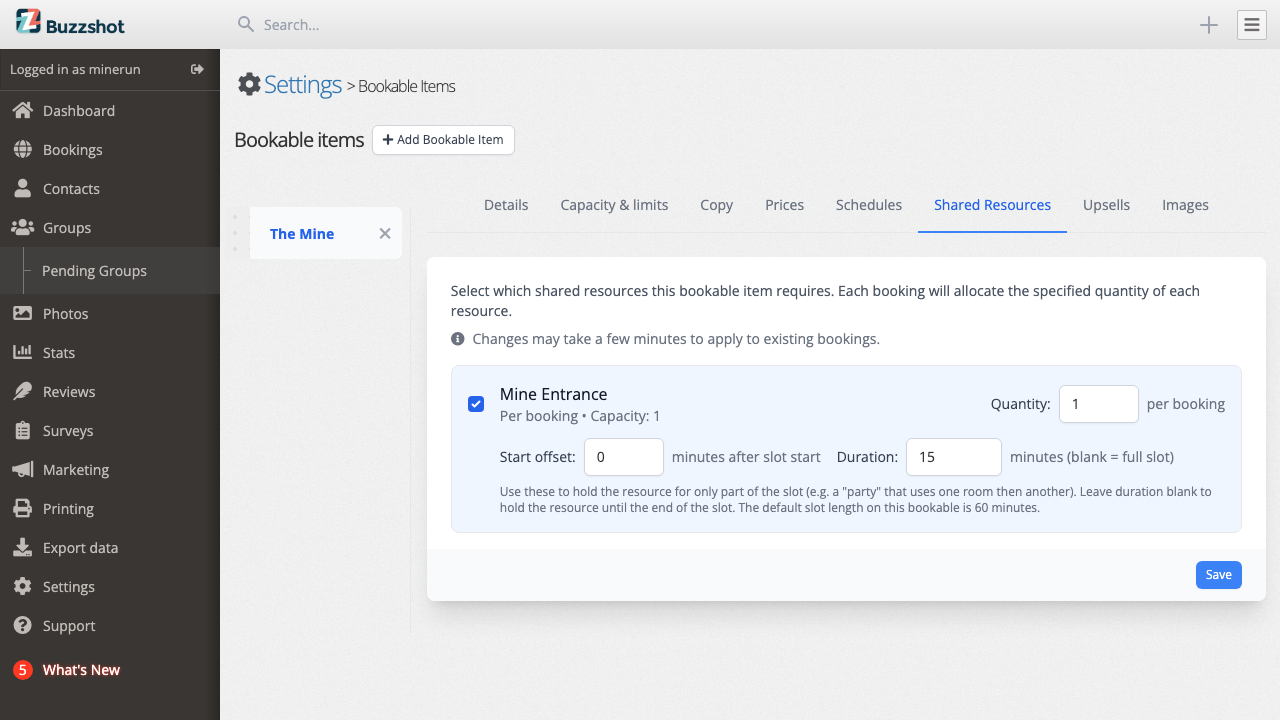
Each booking now holds the entrance from its start time for 15 minutes. Once a team is booked to start at 10:00, the 10:00 slot is full, but 10:15 is a new wave and can take another team.
What Customers See
Customers book as normal. A start time shows as full when its wave is full, or when the game would have too many people inside at once. They never see the entrance itself.
Checking Why a Slot Is Full
To see which limit filled a slot, go to Bookings > Calendar, click the slot, then click explain availability at the bottom of the panel.
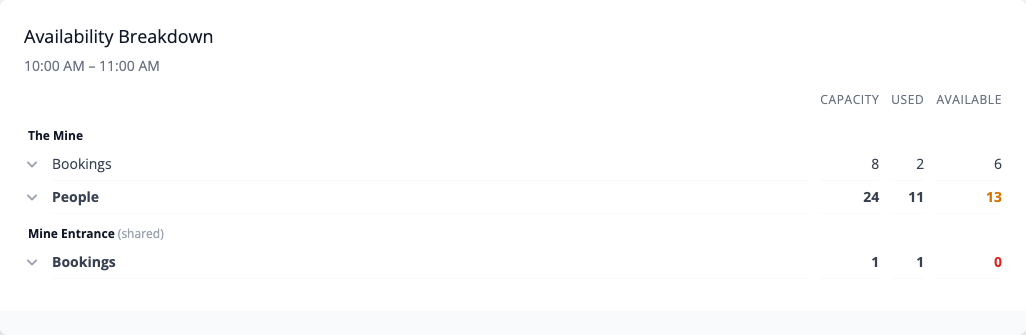
In this example, a team of 5 has booked 10:00 and a team of 6 has booked 10:15:
- The Mine, People shows 11 used out of 24. That counts everyone inside during the 10:00 game, including the 10:15 team, who are inside before it ends.
- Mine Entrance, Bookings shows 1 used out of 1. That counts only the team starting in the 10:00 wave, so 10:00 is full.
Click a row to see which bookings it counts.
When Several Bookable Items Share One Physical Space
Sometimes more than one bookable item uses the same physical space, for example a public listing and a private-hire listing of the same game. A bookable item's own limits only count its own bookings, so they can't hold the "most inside at once" limit for both.
In that case, use a second shared resource for it:
- Create a shared resource such as "The Mine (inside)", Per person, with Default Capacity set to the most inside at once (24).
- Add it to every bookable item that uses the space on their Shared Resources tab, with no offset and Duration left blank, so it is held for the whole game.
- Add the entrance to every bookable item too, set up as in Step 4.
See Resources & Capacity for more on shared resources.