Capacity Schedules
By default, a shared resource has the same capacity at all times. But you might need different capacities at different times. For example, you might have extra VR headsets available on weekends, or a room that is only available for bookings during certain hours. A capacity schedule sets this up week by week, and you can change a single day from the bookings calendar.
This article assumes you already have a shared resource. See Resources & Capacity to create one and assign it to your bookable items.
Setting Up a Schedule
To set up variable capacity:
- Go to Settings > Shared Resources and select the resource.
-
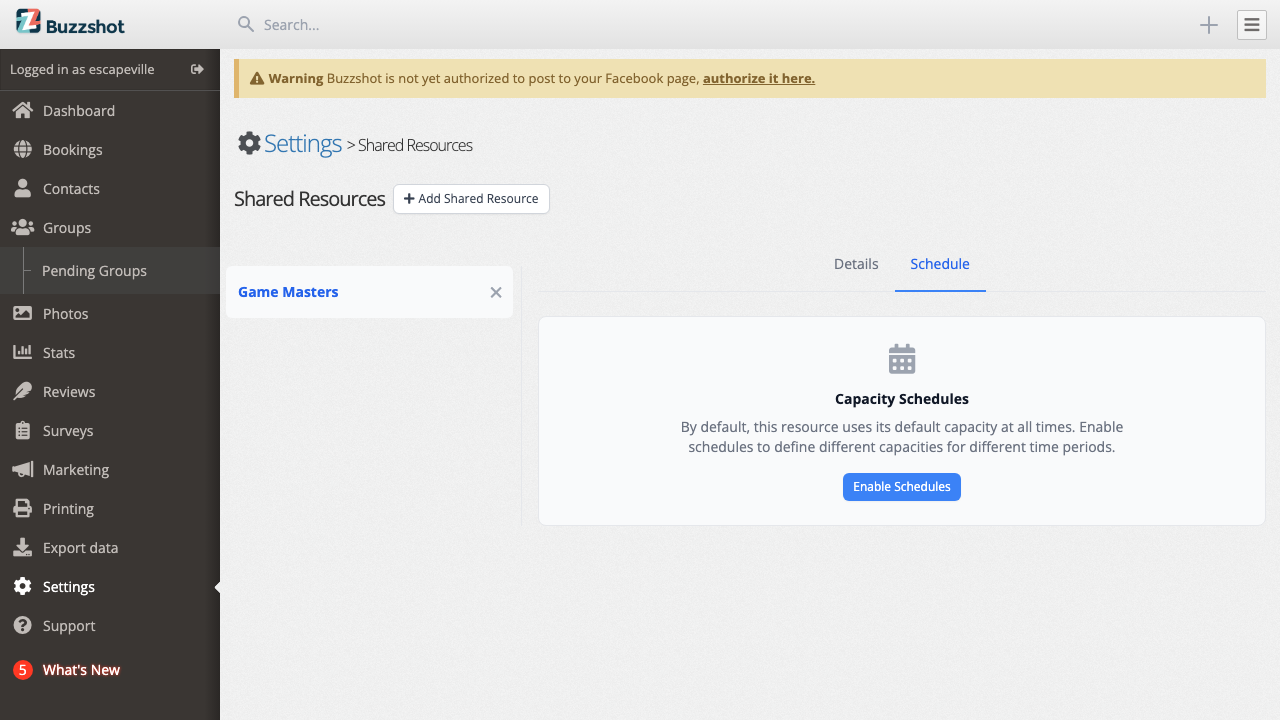
Click the Schedule tab.
-
Click Enable Schedules.
- Create schedule entries with different capacity values for different time periods and days.
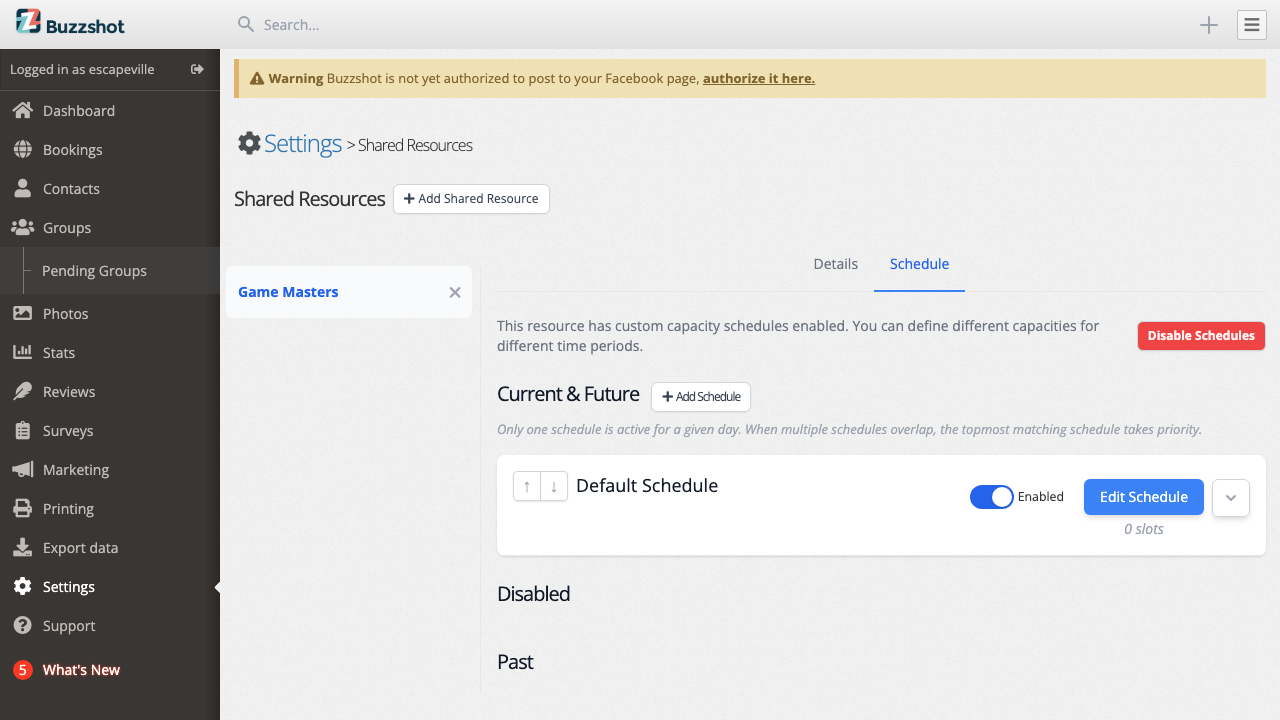
When a booking slot overlaps multiple schedule periods with different capacities, Buzzshot uses the lowest capacity among them. This ensures you never over-allocate, even if capacity changes partway through a slot.
If a time period is not covered by any schedule entry, the resource's default capacity applies.
To remove capacity schedules and go back to a fixed capacity, click Disable Schedules on the Schedule tab.
Warning: Clicking Disable Schedules will permanently delete all schedule entries for the resource. This cannot be undone. If you need to temporarily go back to a fixed capacity, consider setting all schedule entries to the same value instead of disabling schedules entirely.
Changing Capacity for One Day
Sometimes a resource needs a different capacity for a single day. A game master calls in sick, or a room is out of use for an afternoon. You can change that day from the bookings calendar without touching the weekly schedule, and the next day goes back to normal.
Showing a Resource on the Calendar
- Go to Settings > Shared Resources and select the resource.
- On the Details tab, turn on Show in bookings calendar and click Save.
- To change capacity from the calendar, open the Schedule tab and click Enable Schedules if schedules are off.
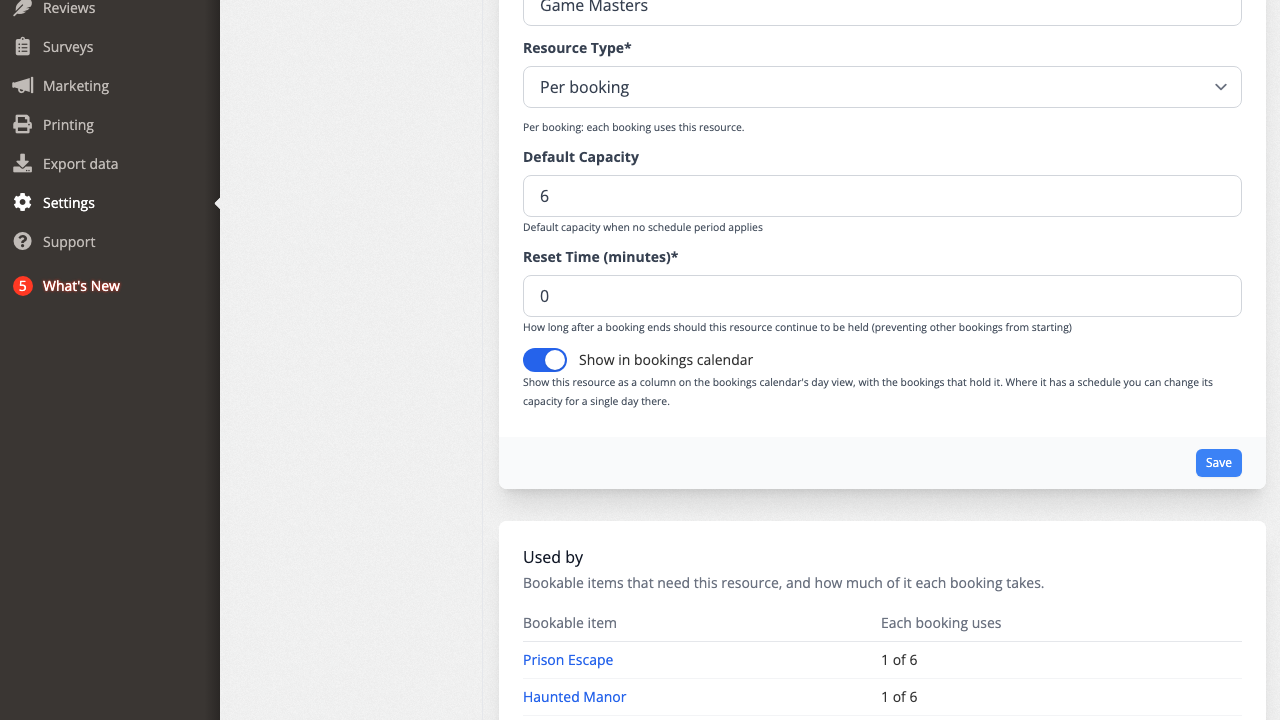
Enabling schedules on its own changes nothing: the default capacity still applies at all times until you add a period.
Clicking Disable Schedules keeps the column on the calendar. It still shows the bookings that hold the resource, but without periods.
Reading the Column
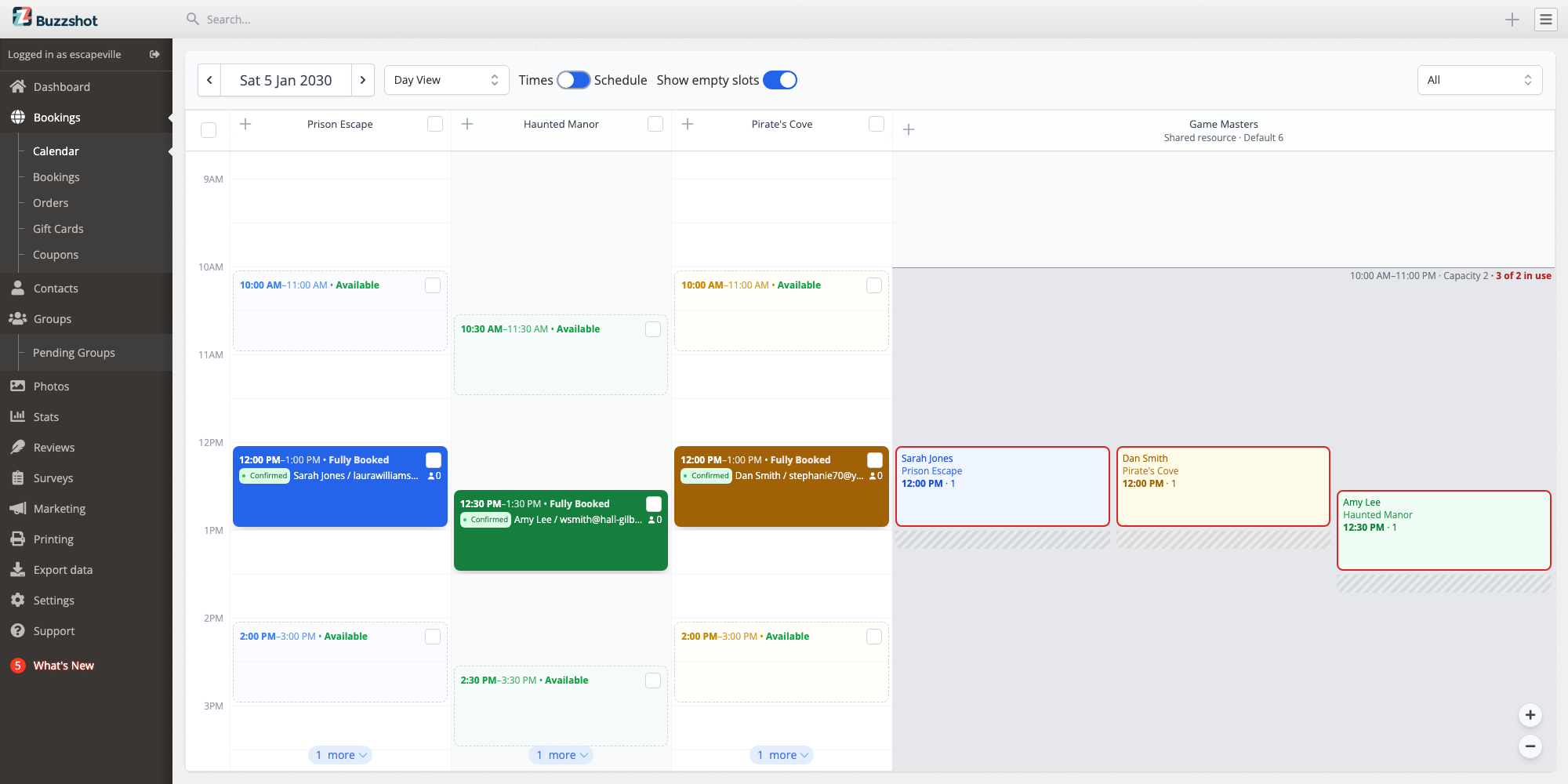
Go to Bookings > Calendar and open the day view. Each resource you turned on has its own column after your bookable items. The header shows the resource's name and its default capacity, for example "Default 6".
The coloured blocks are the bookings that hold the resource, in the colour of their room. Each shows the booker, the room, the start time and how much of the resource it holds. The hatched band under a block is the resource's reset time, the same way your rooms show theirs. A dashed orange border means the booking is still in a cart. For a resource counted per slot or per bookable item, one block covers the bookings that share a use and says how many there are. Click a block to open the booking's slot. If more than four bookings overlap, the rest are behind a +N block.
Behind the bookings, grey bands show the resource's periods for that day. Each band shows its times and its capacity. If the capacity comes from the resource's default, the band says "(default)". Between the bands, the default capacity applies.
If the bookings hold more than a period's capacity, for example after you lower it, the band says how much is in use in red ("3 of 2 in use") and the bookings involved get a red border. They keep their places; new bookings just can't take the resource until there's room.
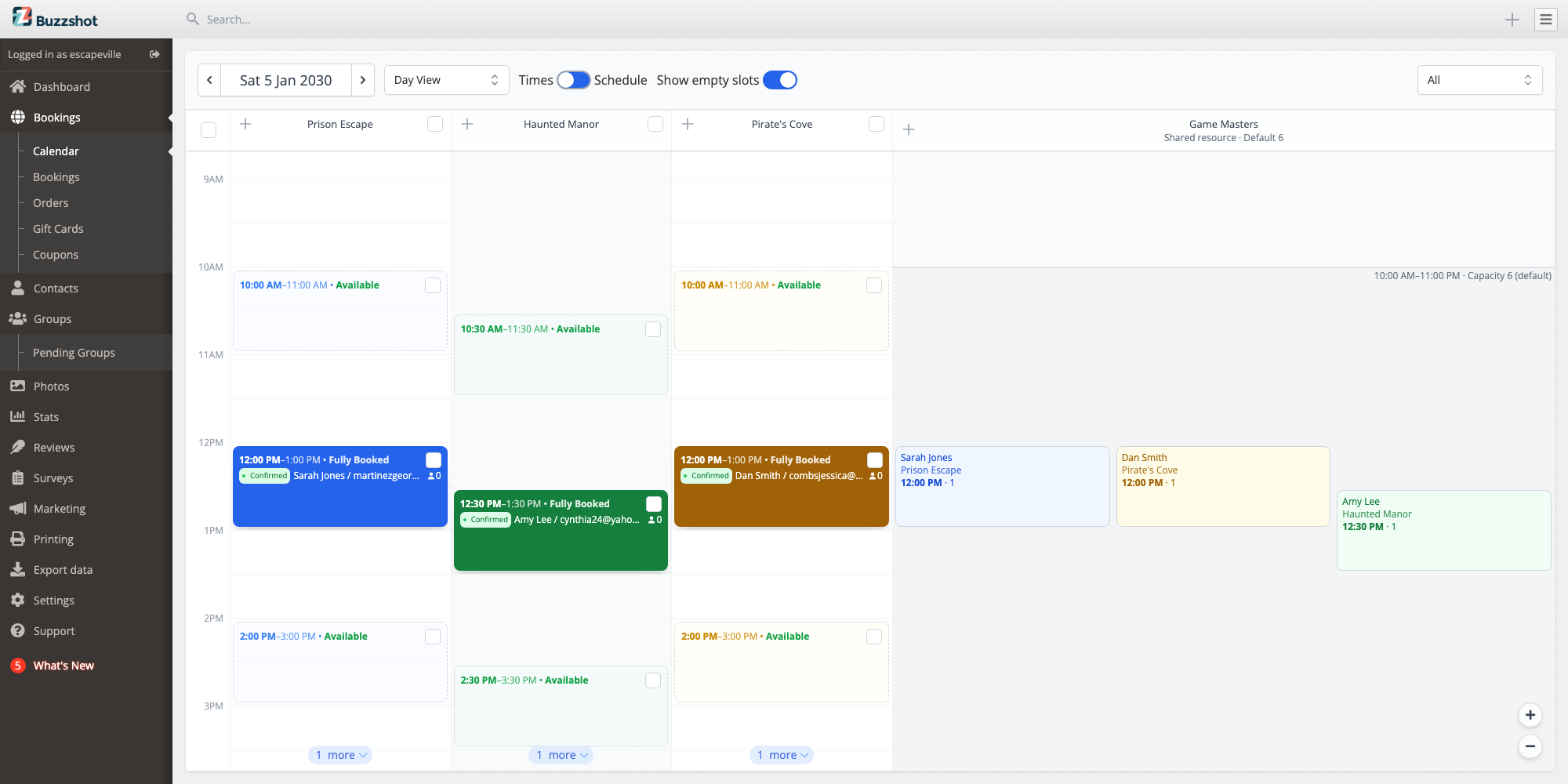
The column only shows on the day view. To hide it, use the room filter: your shared resources are listed there with your bookable items, each marked "Shared resource".
Changing a Period
Click a band where no booking covers it to open Edit period. There you can:
- Change the start and end time for this day.
- Set a capacity for this day only. Leave it blank to go back to the scheduled capacity, shown greyed out in the box.
- Click Delete to remove the period for this day. Other periods at those times still apply; where none does, the default capacity applies.
To add a period, click the + in the column header and choose Add a period. The form is the same as Edit period: a start time, an end time and a capacity. For a period that runs past midnight, enter an end time earlier than the start, and +1 day appears under it. If you leave the capacity blank, the default applies.
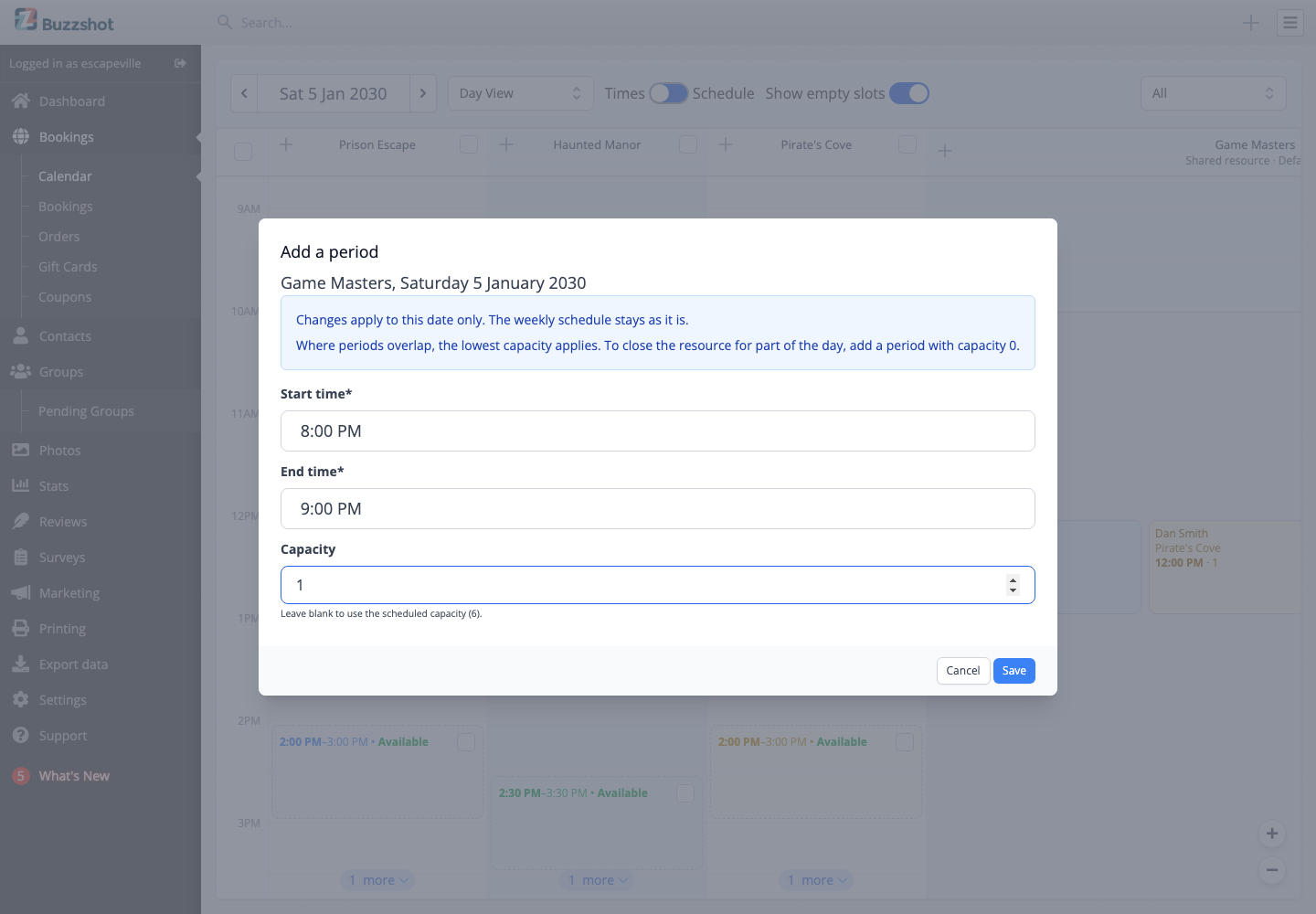
Where two periods overlap, the lowest capacity applies. So to lower capacity for an hour, add a short period over that hour; you don't need to split the longer one. To close the resource for part of the day, add a period with capacity 0.
Every change applies to that date only. The weekly schedule stays as it is.
To take a change back, make the opposite change: clear the capacity, set the times back, or add a deleted period again.
Changing a period never moves or cancels a booking. Bookings already made keep their places; a lower capacity only stops new ones.