Rules
Rules let you automatically change how your bookable slots behave based on conditions you define. Instead of manually adjusting pricing, availability, or booking settings for individual time slots, you set up rules that do it for you -- across all your rooms or just specific ones.
For example, you might create a rule that switches to peak pricing on weekends, blocks slots that start in less than two hours, or shows a "Happy Hour" label on evening slots. Rules are evaluated in order for every slot, so you can layer multiple rules to build up exactly the booking behaviour you need.
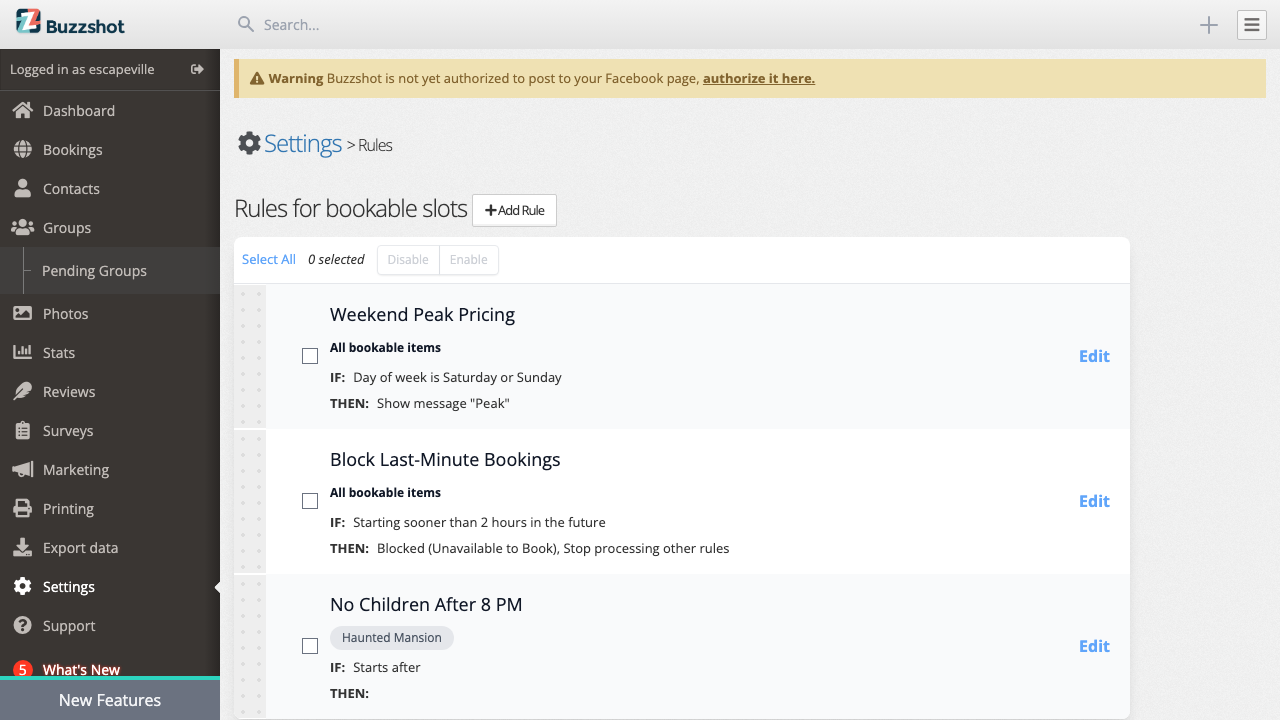
How Rules Work
Each rule has three parts:
- Which bookable items -- Does this rule apply to all your rooms, only selected rooms, or all rooms except certain ones?
- Conditions (IF) -- When should this rule activate? You can match based on day of week, time of day, date range, weather, and more.
- Actions (THEN) -- What should happen when the conditions are met? Change the booking mode, switch pricing, apply a discount, disable a ticket type, show a message, and so on.
When a customer views your booking widget, Buzzshot evaluates your rules in order against each available time slot. If a slot matches a rule's conditions, the rule's actions are applied to that slot. Multiple rules can apply to the same slot -- each one builds on the changes from the previous one.
Rule Order Matters
Rules are processed from top to bottom. If two rules both change the same setting (for example, both try to set a different price group), the second rule's action will override the first. You can drag rules into your preferred order on the Rules page to control priority.
The Stop Option
If you turn on Stop for a rule, no further rules will be processed for a slot once that rule matches. This is useful when you want a rule to have the final say -- for example, a "Christmas closure" rule that blocks slots and prevents any other rules from overriding it.
Creating a Rule
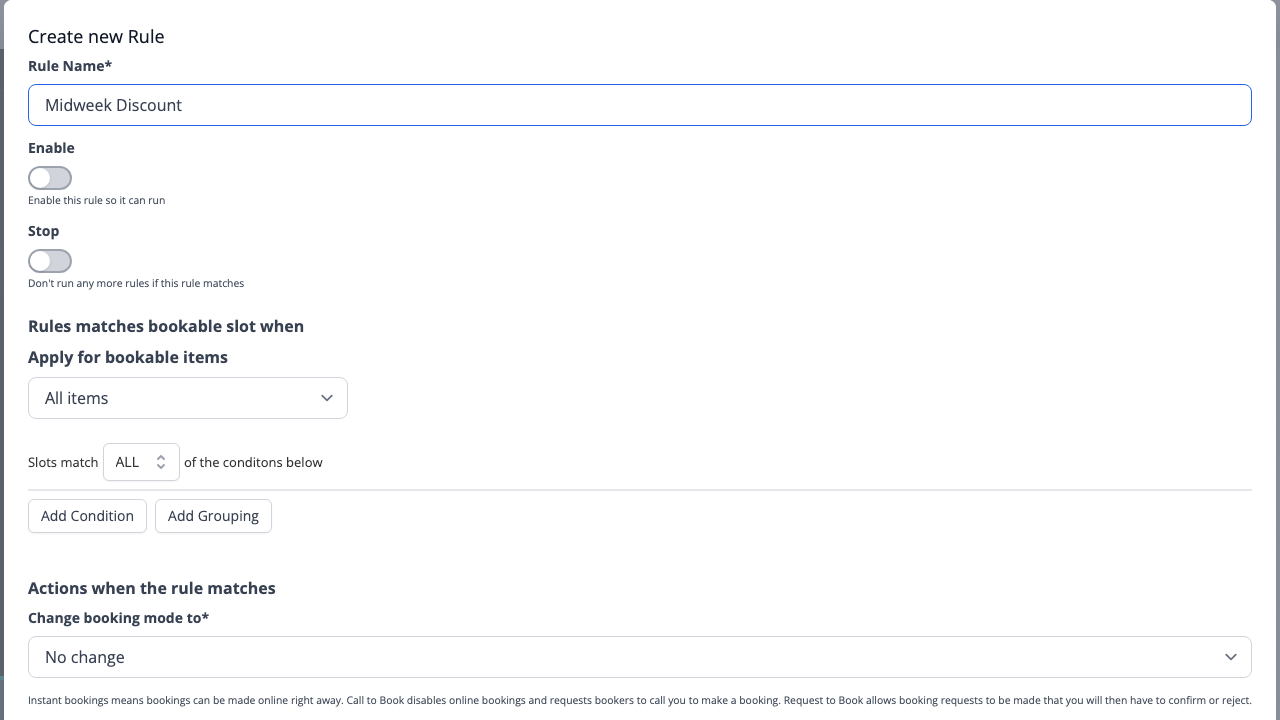
- Go to Settings > Rules.
-
Click Add Rule.
-
Fill in the fields described below, then click Save.
Rule Name
Give your rule a descriptive name so you can recognise it at a glance on the Rules list -- for example, "Weekend Peak Pricing" or "Block Same-Day Bookings".
Enable
The Enable toggle controls whether the rule is active. You can disable a rule without deleting it, which is handy for seasonal rules you want to reuse later.
Stop
When Stop is turned on, if this rule matches a slot, no rules below it in the list will be evaluated for that slot. Leave this off unless you specifically need to prevent later rules from applying.
Apply for Bookable Items
Choose which rooms or experiences this rule applies to:
- All items -- The rule applies to every bookable item on your site.
- Selected items -- The rule only applies to the specific rooms you choose.
- All items except selected -- The rule applies to everything except the rooms you choose.
This is useful when you have rules that should only affect certain rooms. For example, a horror room might have different rules to a family room.
Conditions
Conditions define when a rule should activate. You build conditions using the condition builder, which lets you combine multiple conditions with AND/OR logic.
See Condition Types below for the full list of available conditions.
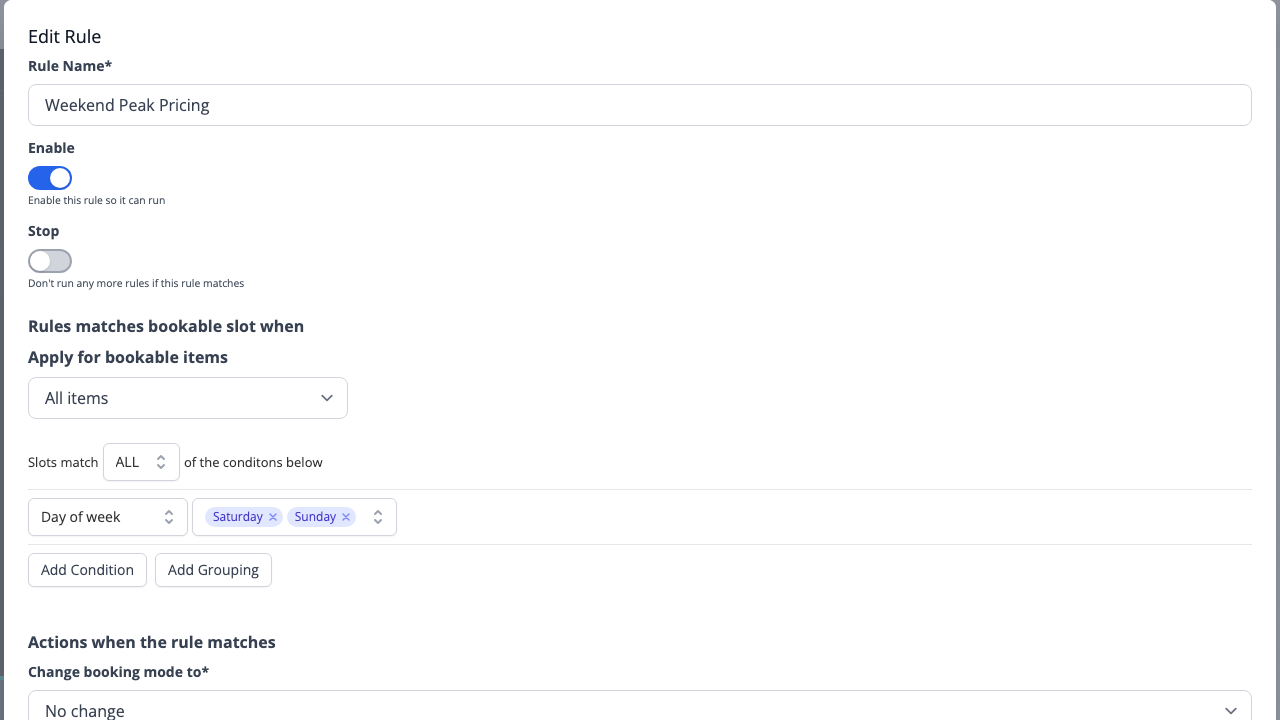
Actions
Actions define what happens when a rule's conditions are met. You can set one or more actions per rule.
See Action Types below for the full list of available actions.
Condition Types
Conditions are the "IF" part of a rule. You can add multiple conditions and combine them with AND (all must be true) or OR (any can be true) logic.
Slot Starting
Matches based on how far in the future a slot is from the current time. Options:
- Sooner than -- The slot starts less than the specified duration from now.
- Later than -- The slot starts more than the specified duration from now.
The duration is set in minutes. For example, "Sooner than 120 minutes" matches all slots starting within the next 2 hours.
Common use: Block last-minute bookings by creating a rule that blocks slots starting sooner than 2 hours from now.
Time of Day
Matches based on when a slot starts or ends. Options:
- Starts after -- The slot's start time is after the specified time.
- Ends before -- The slot's end time is before the specified time.
Common use: Apply evening pricing to all slots starting after 6:00 PM.
Current Time
Matches based on the current time (the time the customer is viewing the booking widget), regardless of when the slot itself is. Options:
- After -- The current time is after the specified time.
- Before -- The current time is before the specified time.
Common use: Show a "Book now!" message to customers browsing after 8:00 PM to encourage late bookings for the next day.
Day of Week
Matches based on which day of the week the slot falls on. Select one or more days from Monday to Sunday.
Common use: Apply weekend pricing on Saturdays and Sundays, or offer a midweek discount on Tuesdays and Wednesdays.
Date Conditions
Three date-based conditions are available:
| Condition | Description |
|---|---|
| On or before | Matches slots on or before a specific date |
| On or after | Matches slots on or after a specific date |
| Between | Matches slots between two dates (inclusive) |
Common use: Create seasonal pricing that runs between specific dates, or block all slots after a certain date for a planned closure.
Weather Conditions
Weather-based conditions let you adjust your booking behaviour based on the forecast. These require a weather location to be configured for your site.
| Condition | Description |
|---|---|
| Chance of rain | Matches when the rain probability is greater than or less than a percentage (e.g., "Greater than 60%") |
| Weather condition | Matches when the forecast condition is or is not one of: Clear/Sunny, Cloudy, Rain, Snow, Sleet/Ice, Thunderstorm, or Fog/Mist |
| Temperature | Matches when the maximum, minimum, or average temperature is greater or less than a value, in either Celsius or Fahrenheit |
Common use: Offer a rainy-day discount when the chance of rain is greater than 70%, or show a "Sunny!" message when the forecast is Clear/Sunny.
Combining Conditions
You can add multiple conditions to a single rule and choose how they combine:
- All -- All conditions must be true for the rule to match. For example, "Day of week is Saturday" and "time starts after 18:00" with All selected only matches Saturday evening slots.
- Any -- Any condition being true is enough. For example, "Day of week is Saturday" or "Day of week is Sunday" with Any selected matches all weekend slots.
You can also nest groups of conditions to create more advanced logic -- for example, a group set to Any containing Saturday and Sunday, nested inside a group set to All with "Starts after 18:00", gives you weekend evening slots only.
Blocking a Date Range (Venue Closure)
One of the most common uses of rules is blocking a date range -- for example, closing your venue over a holiday period or for refurbishment. There is no separate "block dates" feature in Buzzshot; rules are the way to do this.
To block a date range:
- Go to Settings > Rules and click Add Rule.
- Set Enable to on.
- Turn on Stop -- this prevents any later rules from overriding your closure.
- Under Conditions, add a Between date condition and enter the start and end dates of the closed period.
- Under Actions, set Change booking mode to to Blocked (Unavailable to Book).
- Click Save.
- Back on the Rules list, drag the new rule to the top so it is processed first. Click Save to confirm the new order.
The Stop option is important here because it ensures no other rules (such as pricing or availability rules further down the list) can override the closure and make those slots bookable again.
Action Types
Actions are the "THEN" part of a rule -- what happens to matching slots. You can set multiple actions on a single rule.
Change Booking Mode
Controls how customers can book a matching slot. Options:
| Mode | Description |
|---|---|
| No change | Leaves the booking mode as-is (the default) |
| Instant bookings | Customers can book online immediately |
| Call to Book | Disables online booking and asks customers to call you instead |
| Request to Book | Customers can submit a booking request which you then approve or reject. Their card is pre-authorized (held but not charged). When you accept the request the card is charged; if you decline, the hold is released |
| Blocked (Unavailable to Book) | The slot is completely unavailable -- customers cannot book it at all |
Common use: Set slots starting within 2 hours to "Call to Book" so you can manage last-minute availability by phone. Or block all slots on Christmas Day.
Pricing
Switch matching slots to a different price group. Price groups let you maintain separate sets of prices for the same ticket types -- for example, you might have a "Default Pricing" group and a "Peak Pricing" group with higher rates.
If you have not set up additional price groups yet, see Setting Up Pricing for details on how to create them.
Common use: Apply a "Weekend Pricing" price group to Saturday and Sunday slots, with higher per-person rates than your weekday default.
Apply Discount or Fee
Add a percentage-based discount or fee to matching slots. You need to provide:
- Type -- Choose "Discount" or "Fee".
- Label -- A name that appears to customers on the booking summary (e.g., "Off-Peak Discount", "Peak Surcharge").
- Amount -- The percentage to apply.
Common use: Offer a 15% midweek discount on Tuesday and Wednesday slots, or add a 10% surcharge on bank holiday weekends.
Modify Ticket Types
Enable or disable specific ticket types for matching slots. When you toggle this on, two fields appear:
- Disable ticket types -- Select ticket types that should be unavailable for matching slots. Disabled ticket types will not appear as options for customers.
- Enable ticket types -- Select ticket types to re-enable. This is useful when an earlier rule disables a ticket type and a later rule needs to bring it back for certain slots.
A ticket type cannot be both disabled and enabled in the same rule.
For more on ticket types, see Ticket Types.
Common use: Disable the "Child" ticket type for evening horror-themed sessions, or disable the "Family" ticket type on weekends when you are already at peak demand.
Show Message on Slot
Display a short coloured label (up to 20 characters) on matching slots in the booking widget. You can customise:
- Message text -- The text shown on the slot (e.g., "Happy Hour", "Peak", "Last Few!").
- Message background colour -- The colour of the label background.
- Message text colour -- The text colour, or leave set to "Auto" to automatically pick a readable colour based on the background.
Common use: Show "Off-Peak" in green on weekday morning slots, or "Peak" in red on weekend evening slots, so customers can see at a glance which slots have different pricing.
Editing and Deleting Rules
To edit a rule, click Edit next to it on the Rules page. You can change any of its settings -- conditions, actions, name, or which bookable items it applies to.
To delete a rule, open the edit dialog and click the Delete button. This is permanent and cannot be undone.
Enabling and Disabling Rules in Bulk
You can quickly enable or disable multiple rules at once from the Rules list:
- Use the checkboxes (or click Select All) to select the rules you want to change.
- Click Enable or Disable in the toolbar at the top.
This is useful for toggling seasonal rules on or off without having to edit each one individually.
Reordering Rules
Because rules are processed in order, you may need to rearrange them. On the Rules page:
- Drag rules into your preferred order using the handles on the left side of each rule.
- A notification will appear saying "Sort order has changed".
- Click Save to confirm the new order.
How Rules Interact with Slot Overrides
Each slot starts with the defaults set for the bookable item (booking mode, pricing, etc.). Rules are then evaluated in order and can change those defaults. Finally, any overrides you set on a specific date's time slot via the calendar are applied last, taking priority over everything else.
This means if you use a rule to set weekend peak pricing but then manually override a specific Saturday slot to have a different price, the manual override wins.
Important: When editing a time slot on the calendar, the booking mode dropdown includes a "Use default" option and an "Instant bookings" option. If a slot is set to "Instant bookings" (or any other explicit mode) rather than "Use default", it will override ALL rules for that slot -- including Request-to-Book restrictions or blocked status set by rules. To allow rules to control a slot's booking mode, make sure the slot is set to "Use default". This is a common source of confusion when rules appear not to be working for specific slots.
Tips and Best Practices
- Name your rules clearly. You will thank yourself later when you have ten rules and need to remember which one controls what. Names like "Weekend Peak Pricing" and "Block Last-Minute" are much better than "Rule 1".
- Keep it simple. Start with a few straightforward rules and add complexity as needed. It is easy to create conflicting rules that produce unexpected results.
- Use the Stop option sparingly. Stop prevents later rules from running, which can make debugging harder if you have many rules. Only use it when you genuinely need to prevent overrides.
- Test your rules. After setting up rules, open your booking widget and check different days and times to make sure slots display the correct pricing, availability, and messages.
- Disable rather than delete. If you have seasonal rules (e.g., summer pricing, holiday closures), disable them when they are not needed instead of deleting them. You can re-enable them next year.
- Use messages to communicate. Slot messages like "Peak", "Off-Peak", or "Happy Hour" help customers understand why pricing differs across time slots.
- Remember rule order. If a later rule is not having the effect you expect, check whether an earlier rule's Stop option is preventing it from running, or whether the later rule is unintentionally overriding the earlier one.