Setting Up Pricing
This guide walks you through setting up pricing for your bookable items in Buzzshot Bookings. Whether you charge a simple per-person rate or need tiered pricing with group discounts and different rates for weekends, this article covers it all.
Before You Start
You'll need to have at least one bookable item (your escape room or experience) created in Settings > Bookable Items. If you haven't done that yet, create one first.
You'll also need at least one ticket type set up. Your site comes with a default ticket type, but you may want to add more -- see Ticket Types for details.
Understanding How Pricing Works
Pricing in Buzzshot Bookings is built around a few key concepts:
- Ticket Types define who is paying (e.g., Adult, Child, Family). Each ticket type specifies how many people it covers.
- Bookable Items are your rooms or experiences.
- Prices are the actual amounts you charge, set for each ticket type on each bookable item.
- Price Tiers let you offer volume-based pricing within a single price (e.g., cheaper per-person rates for larger groups).
- Price Groups let you define entirely different sets of prices that can be activated based on rules (e.g., weekend pricing, off-peak discounts).
Set Prices for a Bookable Item
Once you have your ticket types ready, you can set prices for each of your bookable items.
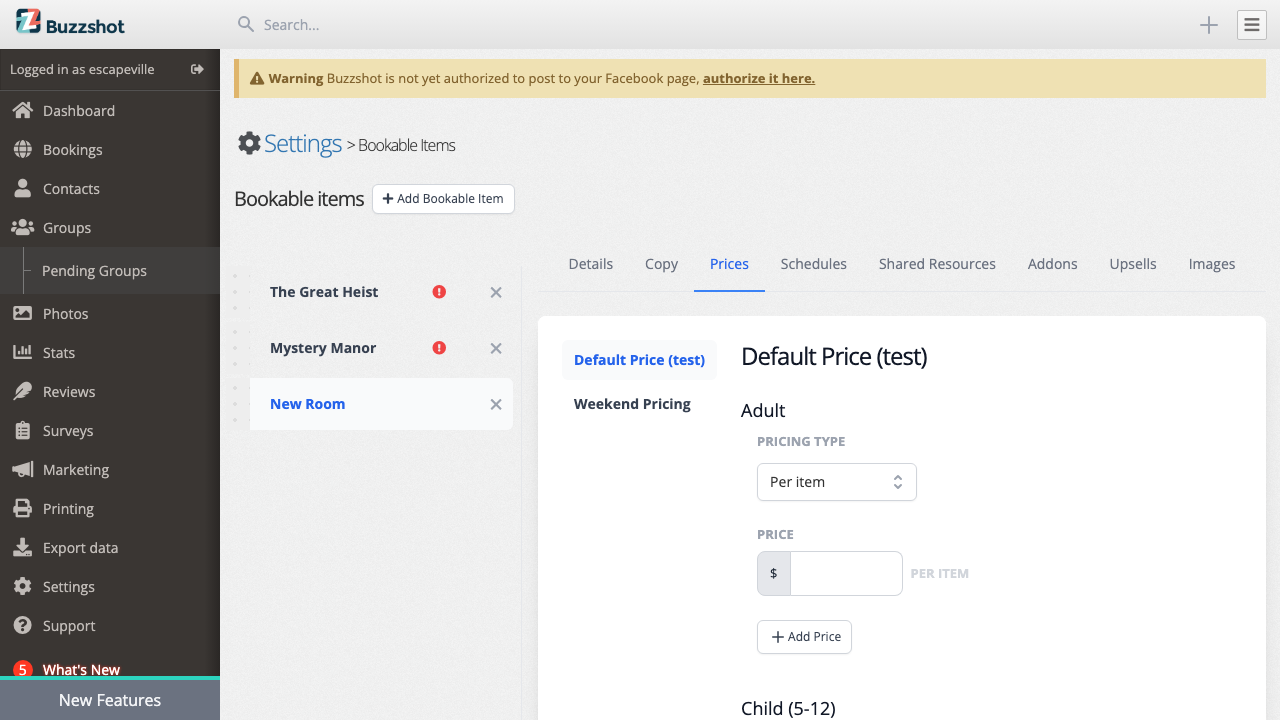
- Go to Settings > Bookable Items
- Click on the bookable item you want to price
- Click the Prices tab
You'll see a section for each of your ticket types, plus a section at the bottom for add-on products (if any).
Setting a Simple Price
For each ticket type:
- Click Add Price
- Enter the amount (e.g., 25.00)
- The price defaults to Per item, which means it's charged per ticket purchased
That's it for basic pricing! Click Save at the bottom of the page.
Per Item vs. Total Pricing
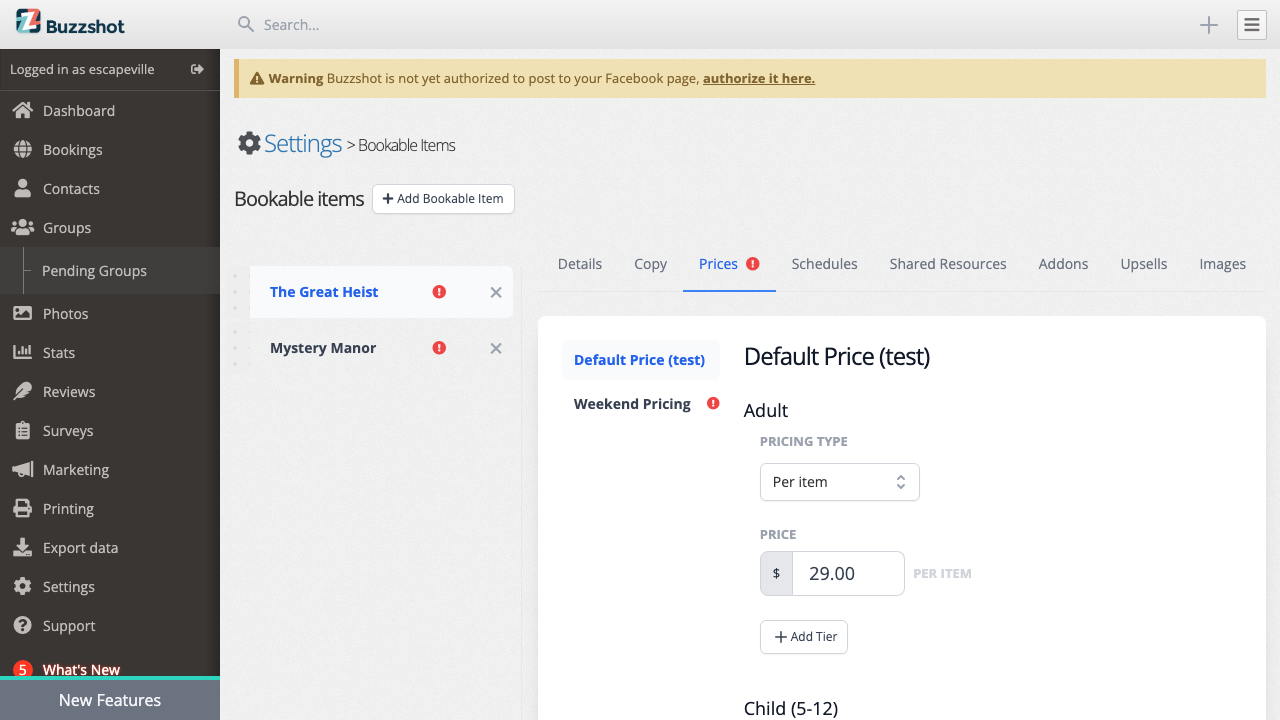
When you add a price, you'll see a Pricing Type selector with two options:
- Per item -- The amount is charged per ticket. If an adult ticket is $25 and someone buys 3, they pay $75. This is the most common choice.
- Total -- The amount is a flat total regardless of quantity. Useful for private bookings where you want to charge a fixed rate for the room.
Tiered Pricing
Tiered pricing lets you charge different rates based on how many tickets are purchased. This is great for encouraging larger groups.
Adding Tiers
- On the Prices tab, find the ticket type you want to add tiers to
- Click Add Tier (if you already have a price set) or add a price first
- Each time you click Add Tier, a new row appears in the pricing table
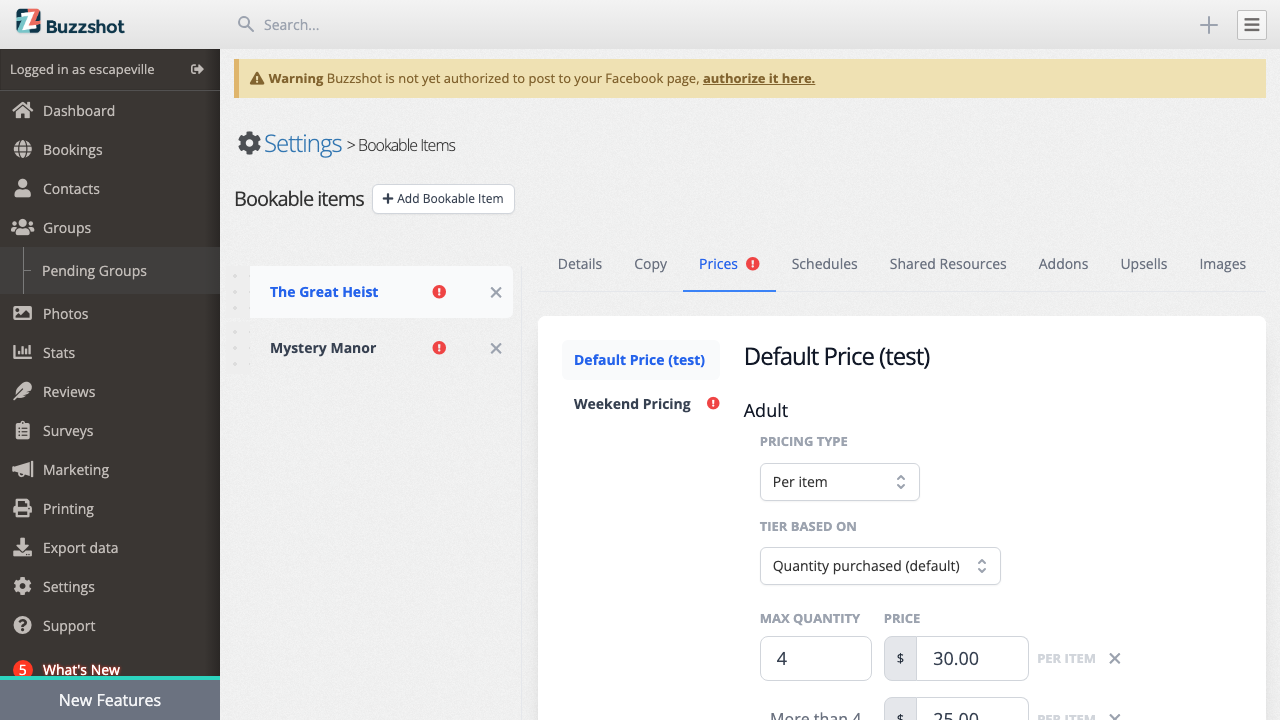
Each tier has: - Max Quantity -- The upper limit for this tier - Price -- The amount to charge (per item or total, depending on your pricing type)
The last tier always covers "More than X" and acts as the catch-all for larger quantities.
Example: Group Discounts
Say you want to charge $30 per person for small groups but $25 per person for groups of 5 or more:
| Max Quantity | Price |
|---|---|
| 4 | $30.00 per item |
| More than 4 | $25.00 per item |
With this setup: - A group of 3 pays 3 x $30 = $90 - A group of 5 pays 5 x $25 = $125 - A group of 8 pays 8 x $25 = $200
You can remove a tier by clicking the x button next to it.
Note: The pricing type (Per item or Total) applies to all tiers on a ticket type. You can't mix Per item and Total pricing within the same ticket type. If you need a minimum price floor plus per-person rates above it, you can achieve this using Total pricing with tiers -- see the example below.
Example: Minimum Booking Price
If you want to enforce a minimum booking price (e.g., at least $100 for the room, even for small groups), you can use Total pricing with tiers. Set the pricing type to Total and calculate the equivalent totals for each tier:
| Max Quantity | Price |
|---|---|
| 4 | $100.00 total |
| 5 | $125.00 total |
| 6 | $150.00 total |
| More than 6 | $175.00 total |
This ensures you always collect at least $100 regardless of group size, while larger groups still pay an effective $25 per person.
Tier Based On
When you have multiple tiers on a ticket product, you'll see a Tier based on option:
- Quantity purchased (default) -- The tier is determined by how many of this specific ticket type are being purchased. If someone buys 3 Adult tickets, the tier is based on 3.
- Total people in booking -- The tier is determined by the total number of people across all ticket types in the booking. If someone buys 2 Adult tickets and 2 Child tickets (all 1-person tickets), the tier is based on 4 people.
The "Total people in booking" option is useful when you want the group discount to apply based on the overall group size, regardless of the mix of ticket types.
Price Groups
Price groups let you maintain entirely separate sets of prices. The most common use case is offering different prices at different times -- for example, cheaper rates during off-peak hours or premium rates on weekends.
How Price Groups Work
Every booking site has a Default Pricing group that's created automatically. This is your standard pricing and can't be deleted.
You can create additional price groups that contain their own prices for the same products. These alternative price groups are then activated using Rules (covered briefly below).
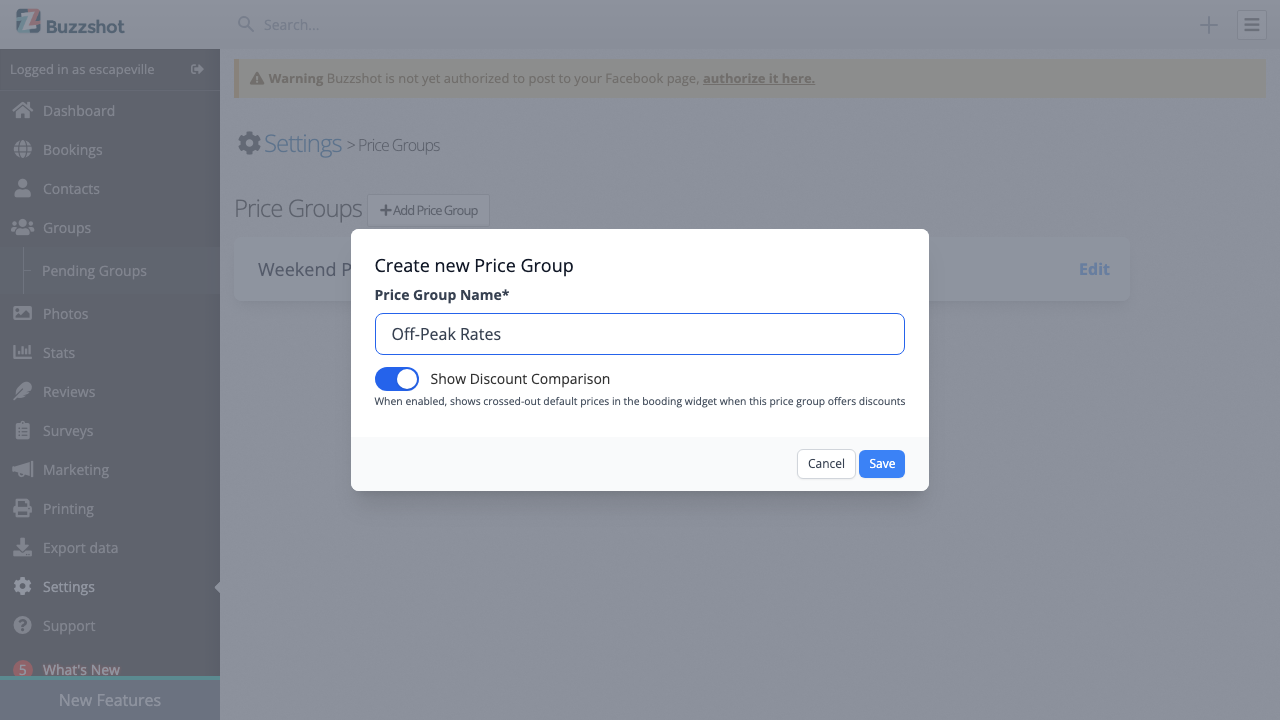
Creating a Price Group
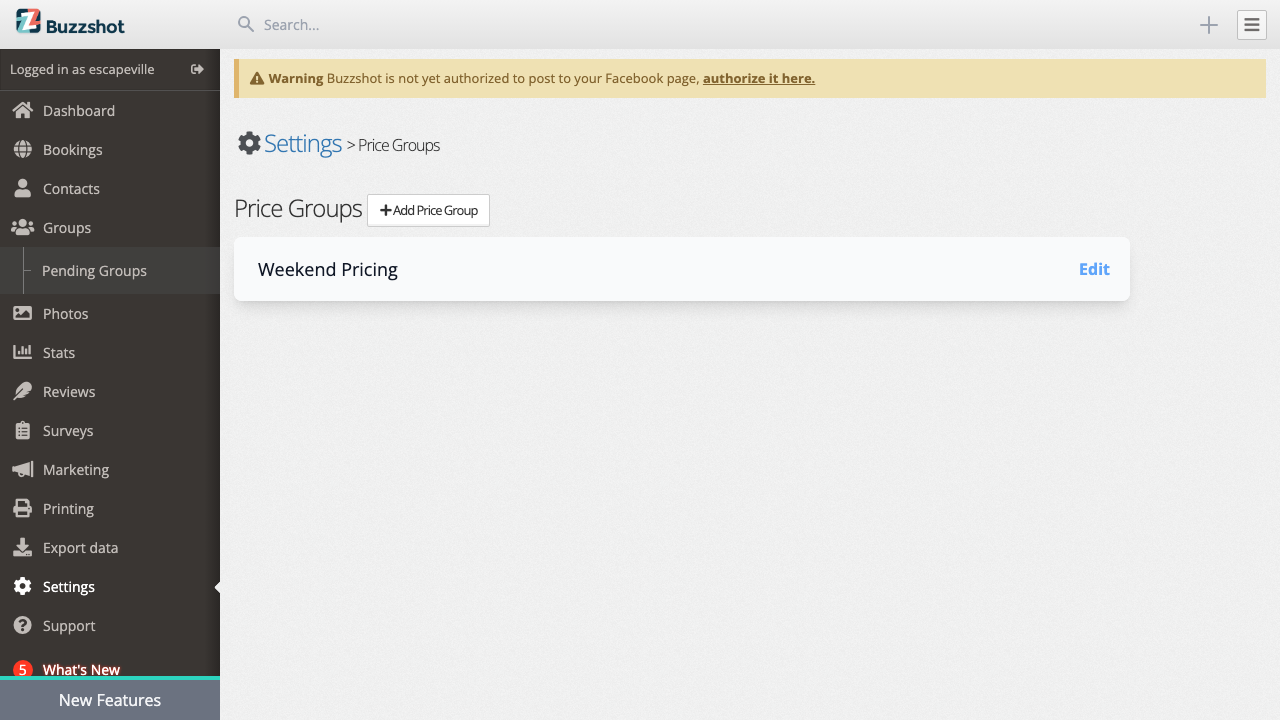
- Go to Settings > Price Groups
- Click Add Price Group
- Enter a Name -- This is for your reference only and is not shown to customers. Use something descriptive like "Weekend Pricing" or "Off-Peak Rates".
- Set the Show Discount Comparison toggle:
- On (default): When this price group is active and its prices are lower than the default, the booking widget will show the default price crossed out next to the discounted price. This is a great way to highlight savings.
- Off: Prices are shown without any comparison to default pricing.
Warning: If this price group has higher prices than the default (e.g., a weekend surcharge), make sure this toggle is set to Off. Otherwise the booking widget will show your default price crossed out alongside the higher price, which looks confusing to customers. 5. Click Save
Setting Prices for a Price Group
After creating a price group, you need to set prices for it:
- Go to Settings > Bookable Items and select an item
- Click the Prices tab
- You'll now see a sidebar on the left listing all your price groups
- Click on the price group you want to edit
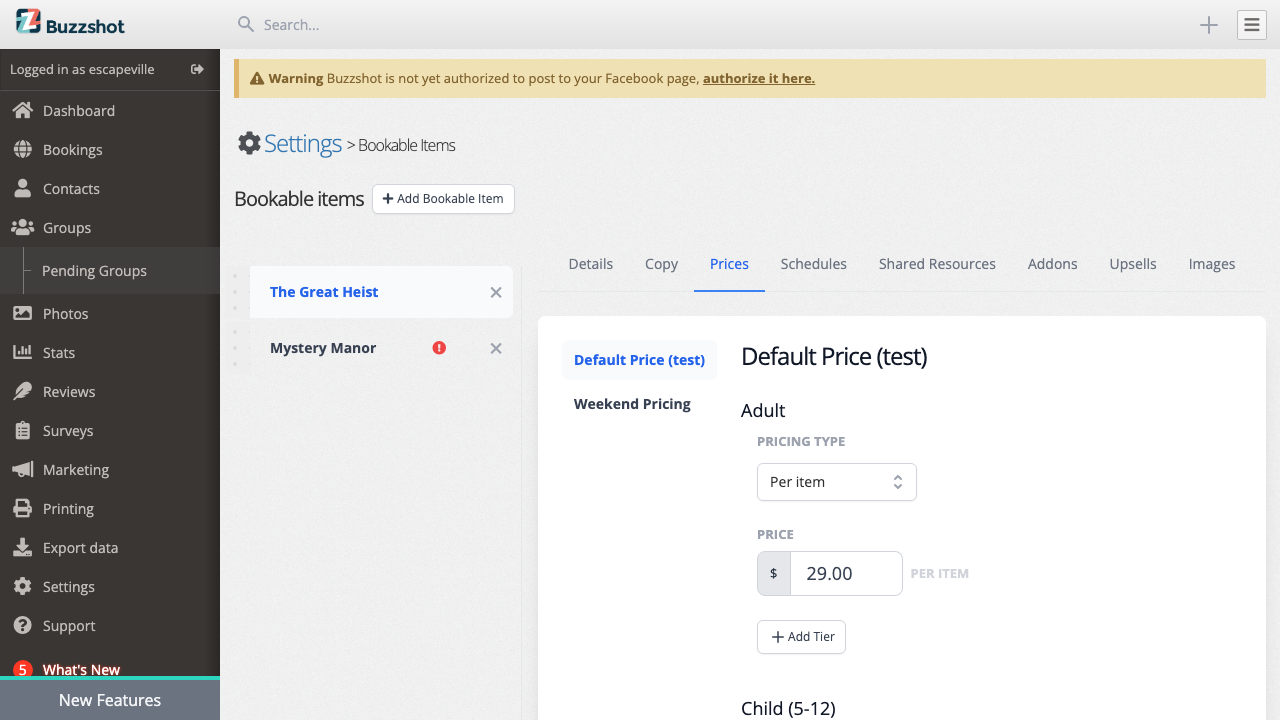
- Set prices for each ticket type just like you would for the default pricing
Important: You need to set prices for each price group independently. If a ticket type has no price in a particular price group, customers will not be able to book that product at all while that price group is active. This can make your room appear unavailable without warning, so always double-check that every ticket type has a price in every price group. The red exclamation icon indicates missing prices -- treat it as an error that needs fixing before you go live.
Activating Price Groups with Rules
Price groups on their own don't do anything until you activate them with a rule. Rules let you automatically switch to a different price group based on conditions like date, day of the week, or time.
- Go to Settings > Rules
- Create a new rule
- Set up your filter conditions (e.g., "Day of week is Saturday or Sunday")
- Under Actions, set the Pricing dropdown to your custom price group
- Save the rule
Important: If a price group rule doesn't seem to be applying to a particular slot, check the calendar view -- individual slots that have been manually set to a specific pricing group will override your rules.
Tip: If you just need a simple surcharge (like a weekend premium) without creating a full separate set of prices, you can use a rule with the "Apply extra fee" action instead of a separate price group. This adds a fixed amount or percentage on top of the existing prices.
Tip: You can use Slot Messages alongside price groups to display labels like "Happy Hour" or "Off-Peak" on discounted slots in the booking widget, making it clear to customers why the pricing is different.
For more detail on setting up rules, see Rules.
Copying Prices Between Bookable Items
If you have multiple rooms with the same pricing structure, you don't have to set everything up from scratch each time.
- Go to the Prices tab of the bookable item that already has the pricing you want
- Click the Copy prices to... button at the bottom of the page
- Toggle on the bookable items you want to copy prices to
- Click Copy Prices
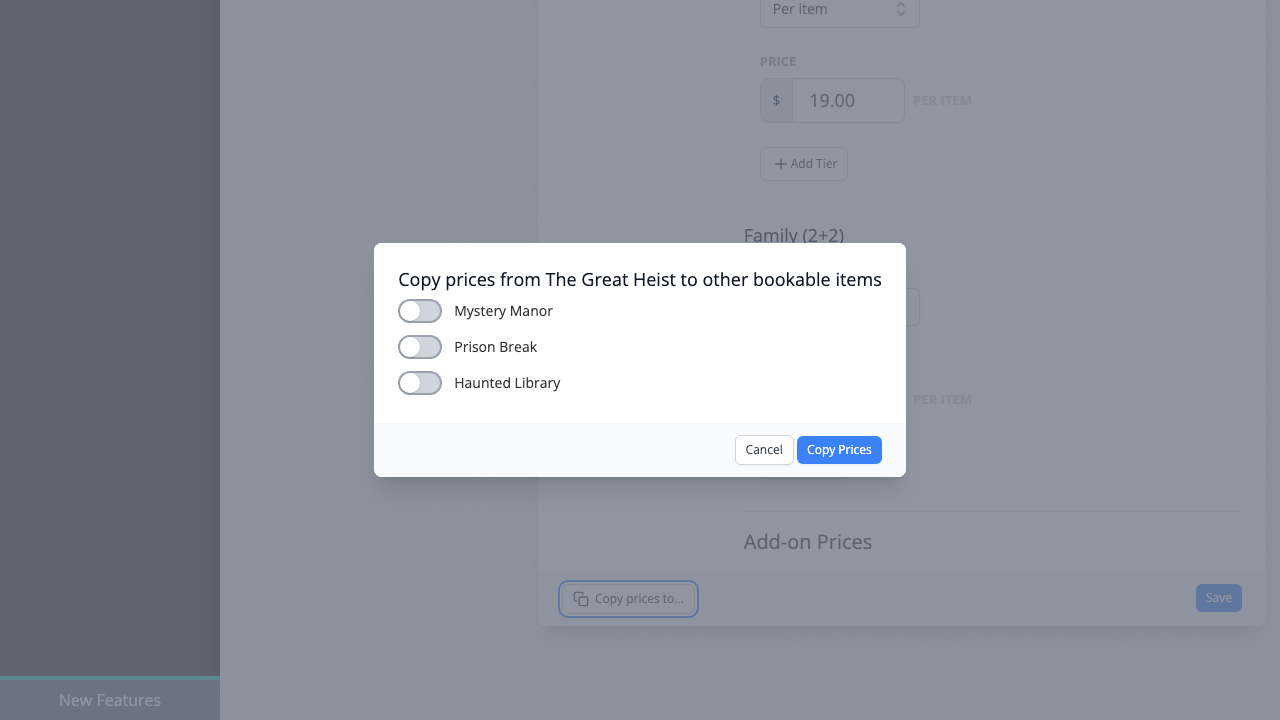
This copies all ticket type prices across all price groups, including tier configurations. Add-on prices are not copied since those are specific to each bookable item.
Note: Copying prices will overwrite any existing prices on the target bookable items for the same ticket types and price groups.
Taxes and Fees
Taxes and fees are configured separately from base pricing and are applied on top of your prices. You can set up sales tax, booking fees, and other charges in Settings > Taxes & Fees. For full details, see Taxes & Fees.
Tips
- Watch for missing price indicators. The red exclamation icon appears next to bookable items and price groups that have incomplete pricing. Make sure every ticket type has a price in every price group.
- Use copy when adding new rooms. If a new room should have the same pricing as an existing one, use the copy feature and then adjust as needed.
- Test in the booking widget. After making pricing changes, preview your booking widget to make sure everything looks right to your customers.
- Consider minimum quantities. On the bookable item's Details tab, you can set a minimum number of each ticket type that must be included in a booking. This works together with your pricing.
- Tiered + per-item pricing is powerful. Combining multiple tiers with per-item pricing is the most flexible approach for escape rooms that want to offer group discounts while still scaling by headcount.
Related Features
- Ticket Types -- Define the categories of tickets you sell (Adult, Child, Family, etc.).
- Taxes & Fees -- Add taxes, booking fees, and other charges on top of your base prices.
- Rules -- Activate price groups, apply extra fees, and enable or disable ticket types based on day, time, or other conditions.
- Coupons -- Offer promotional pricing or discount codes applied at checkout.