Taxes & Fees
Buzzshot Bookings lets you configure taxes and fees that are automatically applied to every qualifying order placed through your booking widget or created by your staff. This guide explains how to set them up and how they work.
Taxes are government-required charges such as sales tax, VAT, or GST. Fees are additional charges you define yourself, such as booking fees or service charges. Both are configured in the same place and work the same way mechanically, with one difference: only taxes support the inclusive pricing option (more on that below).
Getting to the Taxes & Fees Settings
- Log in to your Buzzshot admin panel
- Navigate to Settings > Taxes & Fees
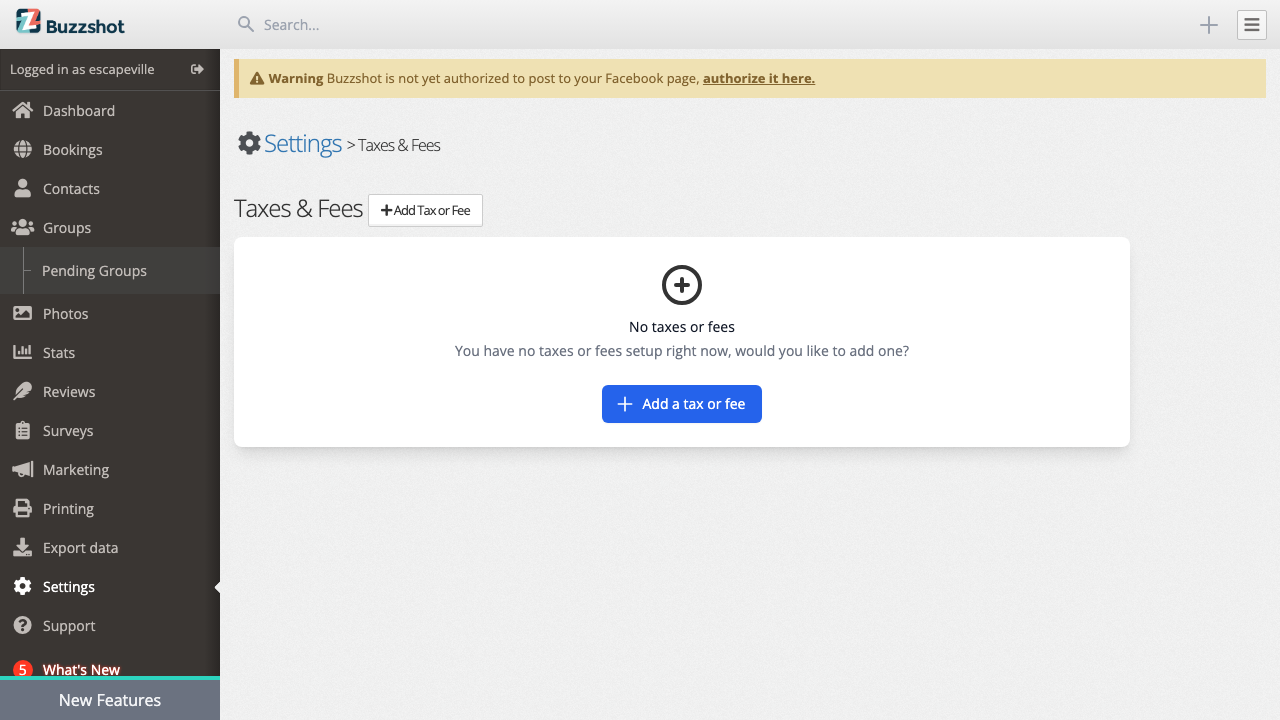
You will see a list of all taxes and fees configured for your booking site. If you have not set any up yet, you will see an empty state with a prompt to add your first one.
Creating a Tax or Fee
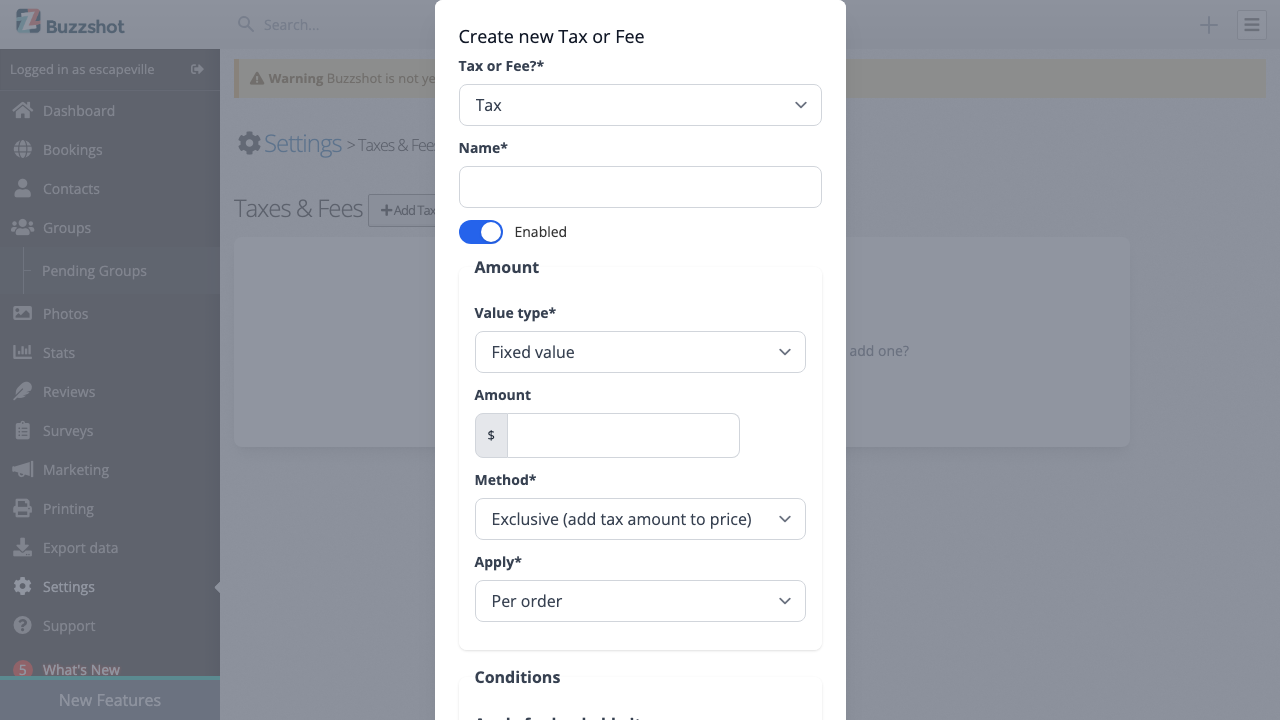
Click the Add Tax or Fee button to open the creation form.
Type
Choose whether this is a Tax or a Fee. This cannot be changed after creation, so choose carefully. The distinction matters because:
- Only taxes support inclusive pricing (where the tax is already baked into the displayed price)
- Fees are always added on top of the price (exclusive)
Name
Enter a name for the tax or fee. This is the name your customers will see in their order summary (for example, "Sales Tax", "VAT", "Booking Fee"). The name is translatable if you have multiple languages configured.
Enabled
Use this toggle to enable or disable the tax or fee. Disabled items will not be applied to new orders but will remain in your list so you can re-enable them later.
Amount
Choose between two value types:
- Fixed value -- a flat currency amount (e.g., $5.00). Good for flat booking fees or per-ticket surcharges.
- Percentage -- a percentage of the order/booking/ticket subtotal (e.g., 8.5%). Good for sales tax, VAT, and similar proportional charges.
Method (Tax Only)
This option only appears when the type is set to Tax. It controls how the tax relates to your displayed prices:
-
Exclusive (add tax amount to price) -- The tax is calculated on top of the subtotal and added to the total. This is the standard approach in the United States and many other countries. If your room costs $100 and you have a 10% exclusive tax, the customer pays $110.
-
Inclusive (price already includes the tax) -- The tax is already included in the prices you have set. The system calculates the tax component and displays it, but it does not change the total. This is the standard approach for VAT in the UK and EU. If your room costs $120 and you have a 20% inclusive VAT, the total remains $120 and the system shows that $20 of that is VAT.
Important: Only use "Inclusive" if your listed prices already have the tax built in. If you set a tax to inclusive but your prices do not actually include it, you will effectively be absorbing the tax yourself -- the total shown to customers will not change, but the tax portion will come out of your revenue.
Fees are always exclusive. If you need an inclusive-style charge, use a Tax.
Apply To (Scope)
This controls at what level the tax or fee is calculated:
- Per order -- Applied once to the entire order total. Use this for most taxes and for flat order-level fees.
- Per booking -- Applied once for each room or experience in the order. If a customer books two rooms, the adjustment is applied twice. Good for per-game booking fees.
- Per ticket -- Applied once for each individual ticket. If a booking has 6 players, the adjustment is applied 6 times. Good for per-person charges like facility fees.
Conditions
The conditions section lets you limit which orders the tax or fee applies to. This section appears after you select an Apply To value.
Bookable Items Filter
Controls which of your bookable items (rooms or experiences) this tax or fee applies to:
- All items -- Applies to bookings for any room or experience
- Selected items -- Only applies to bookings for the rooms you select
- All items except selected -- Applies to all rooms except the ones you select
- Don't apply to any bookings -- Does not apply to any room bookings (useful if you only want it to apply to add-on products)
Ticket Types Filter
Only visible when Apply To is set to Per ticket. Controls which ticket types the per-ticket charge applies to:
- All types -- Applies to every ticket type (Adult, Child, etc.)
- Selected types -- Only applies to the ticket types you select
- All types except selected -- Applies to all ticket types except the ones you select
This is useful if you need to exempt certain ticket types from a charge. For example, you might want a facility fee that applies to Adult tickets but not to Child tickets.
Important: When set to "All types", per-ticket fees apply to every ticket type including free or complimentary ones (e.g., comped staff tickets). If you have free ticket types that should not incur a fee, use "All types except selected" to exclude them.
Products Filter
Controls which product groups the tax or fee applies to:
- All products -- Applies to all product groups
- Selected products -- Only applies to the product groups you select
- All products except selected -- Applies to all product groups except those you select
- Don't apply to any products -- Does not apply to any add-on products
This is useful when certain product categories are tax-exempt. For example, gift cards might be exempt from sales tax in your jurisdiction.
Tips and Best Practices
-
Check your local tax requirements before configuring taxes. Tax regulations vary significantly by country, state, and even city. Buzzshot provides the tools to configure taxes correctly, but it is your responsibility to ensure the rates and methods comply with local law.
-
Use inclusive for VAT-style taxes where your advertised prices already include tax. Use exclusive for US-style sales tax that is added at checkout.
-
Keep names clear and recognisable. Customers see these names in their order summary and on receipts. "Sales Tax" or "VAT" is better than "Tax 1".
-
Test with a sample order after setting up taxes and fees. Create a test booking through your widget to verify the amounts are calculated correctly before going live.
-
Use conditions to handle exemptions. If certain products are tax-exempt in your jurisdiction (such as gift cards), use the product group filter to exclude them.
-
Consider the sort order when you have multiple taxes. The order determines compound calculation behaviour, which can affect the final total by small amounts.
-
Promo codes and order-level fees: Be aware that promo codes set to apply "per order" will discount the full order total including any order-level fees. If you want a promo code to discount only the booking price and not your fees, set the coupon's "Apply to" scope to "per booking" instead.
-
Need conditional or dynamic fees? The Taxes & Fees settings apply the same charge to every qualifying order. If you need fees that vary based on conditions such as day of the week, time of day, or group size, use the Rules engine (Settings > Rules) with the "Apply extra fee" action instead. Rules-based fees and Taxes & Fees are separate systems, so be careful not to configure the same fee in both places.