Using Time Slots
Various Buzzshot features, such as the Time Slot field in the app or the web pre-registration/waiver links, require that you let Buzzshot know what Time Slots are uses for each of your room.
You can set up Time Slots for Buzzshot in the Time Slots settings page. When you go to the settings page you will see a section for each of your rooms. To add Time Slots for a room click the  button. This will open the following dialog:
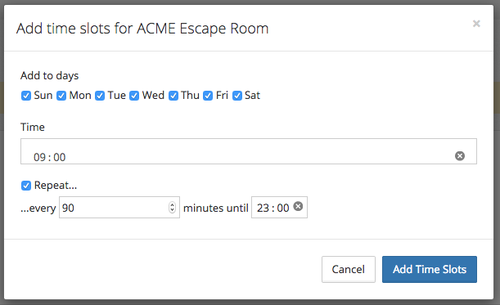
You can add time slots one at a time or you can use the "Repeat..." option to add many at the same time. You can also select which days the Time Slots you are entering apply to.
Once you have entered some Time Slots you can adjust them by turning individual slots on or off for particular days by clicking on them.
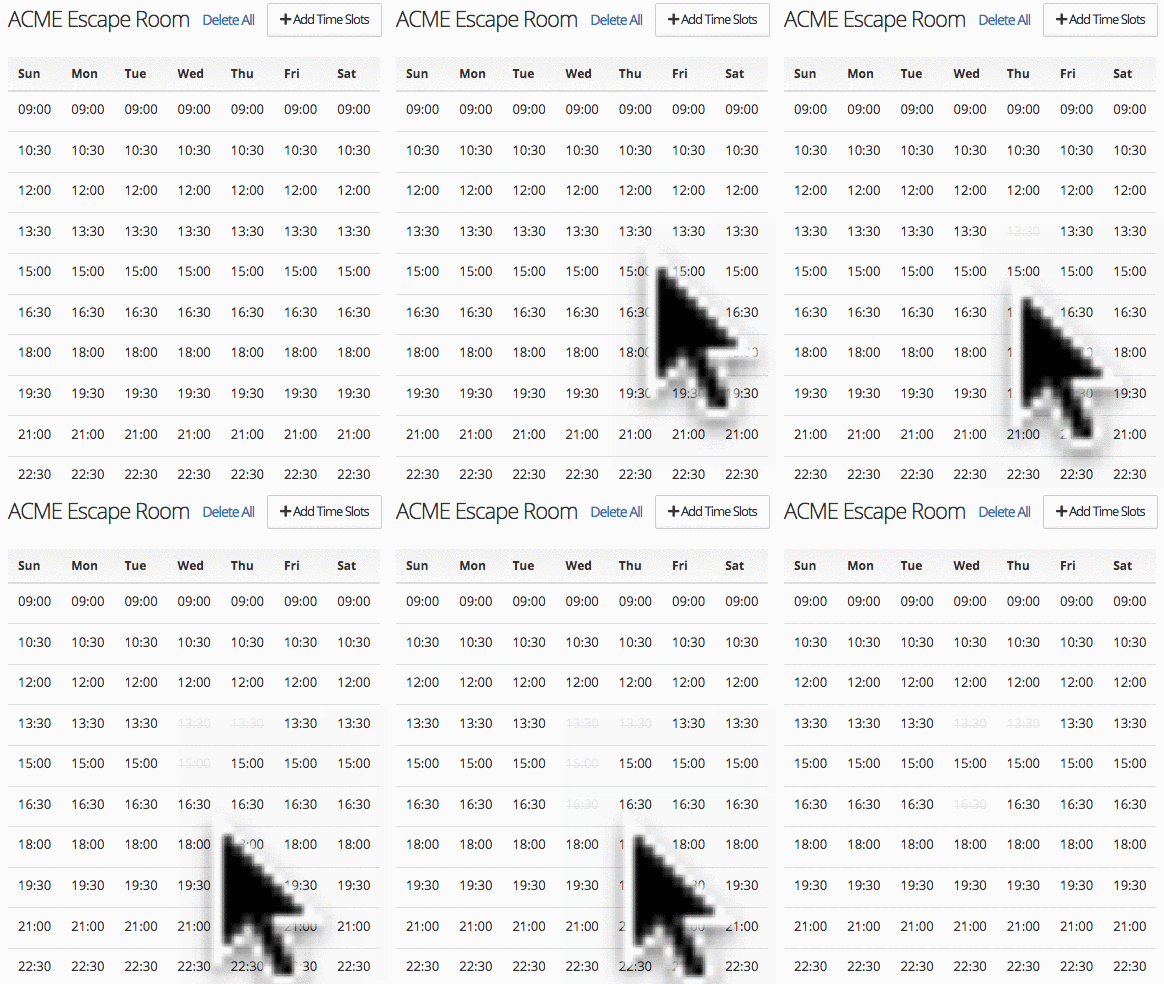
Once you are happy with you changes you must save them by clicking "Save" at the top of the page.
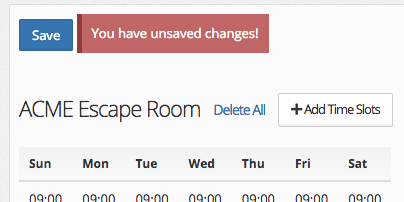
Please note that while it's important that all the Time Slots in use are entered it doesn't matter if you enter some Time Slots that aren't actually used. So it's quite normal to just specify all Time Slots for all days even if some days have a more restricted schedule.