Upsells
Upsells encourage customers to book more than one experience in a single visit. When a customer adds a room to their cart, the booking widget automatically shows a "Play an extra game?" section with other available rooms at nearby times.
This is one of two ways to increase revenue per booking in Buzzshot. For selling optional extras like photo packages or extra time alongside a booking, see Add-ons.
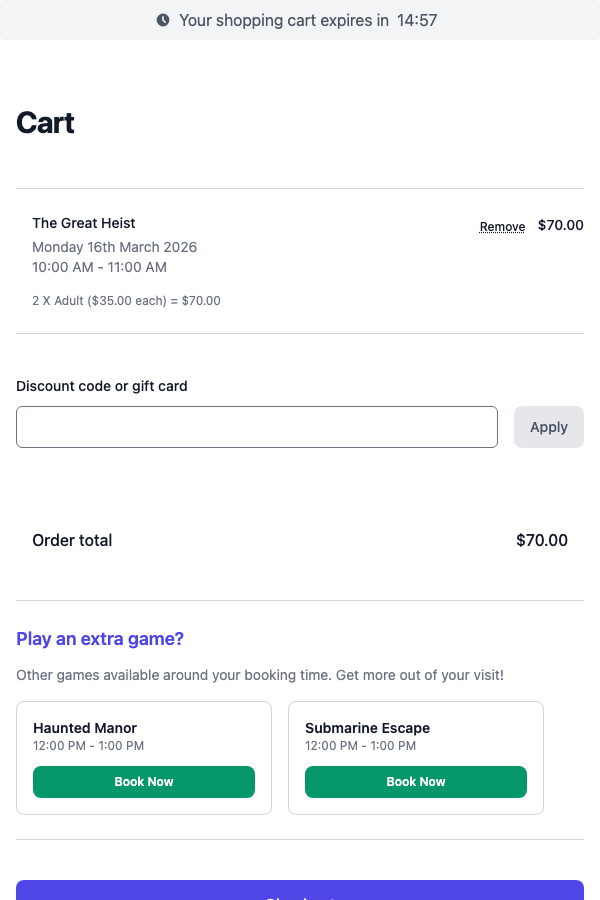
The system finds available time slots for your other rooms that start soon after (or finish soon before) the customer's existing booking. Each suggestion shows the room name, available time, and a button to book it. Up to 10 suggestions are shown, with slots after the booking prioritised over slots before.
How Timing Works
Each upsell has two timing settings:
- Minimum gap -- The shortest amount of time allowed between the existing booking and the suggested one (default: 15 minutes). This gives customers time to move between rooms.
- Maximum gap -- The longest gap allowed (default: 1 hour). Suggestions outside this window are not shown.
For example, if a customer books Room A from 2:00-3:00 PM and you have a minimum gap of 15 minutes and a maximum gap of 1 hour, the widget will suggest Room B slots starting between 3:15 PM and 4:00 PM. It may also suggest slots that finish shortly before 2:00 PM, if any are available.
Setting Up Upsells
Upsells are configured per bookable -- you choose which other bookables to suggest when a customer books a particular room.
Important: Upsells are directional. Setting up Room A to suggest Room B does not automatically make Room B suggest Room A. If you want both directions, you need to configure upsells on both bookables.
- Go to Bookable Items and select the experience you want to add upsells to.
-
Click the Upsells tab.
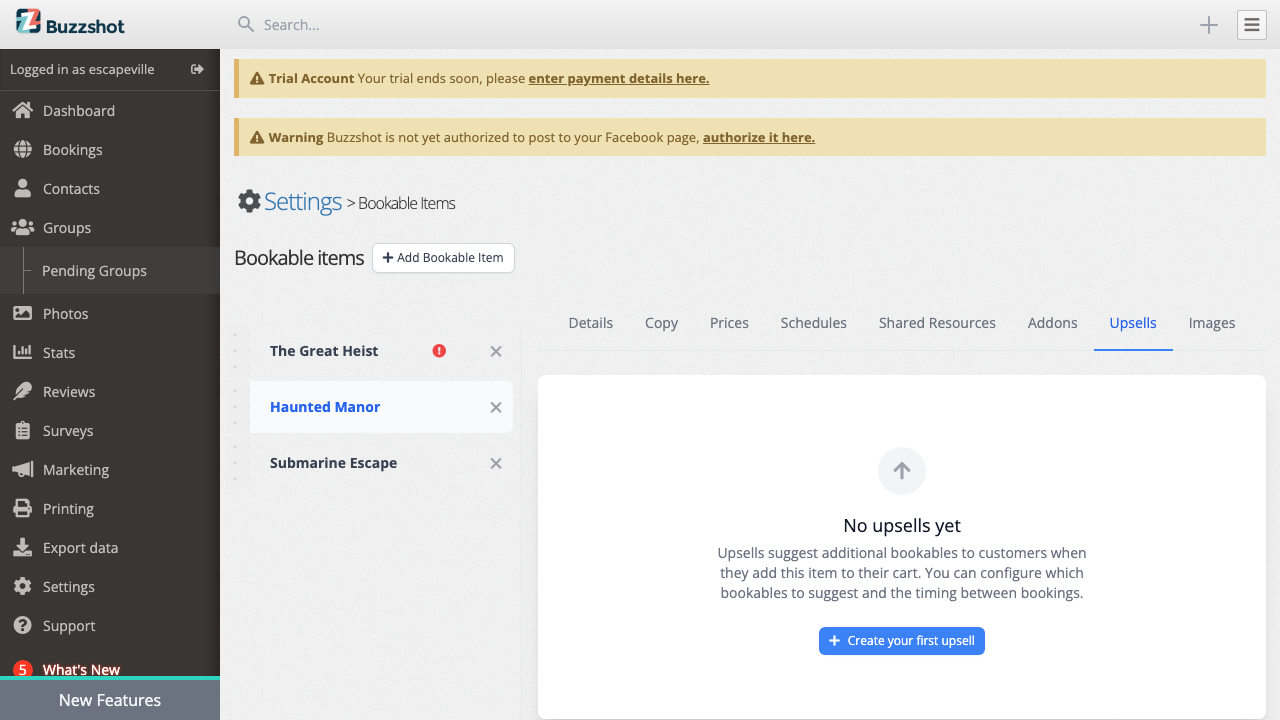
If you have not configured any upsells yet, you will see an empty state:
-
Click Create your first upsell (or Add New Upsell if you already have some).
-
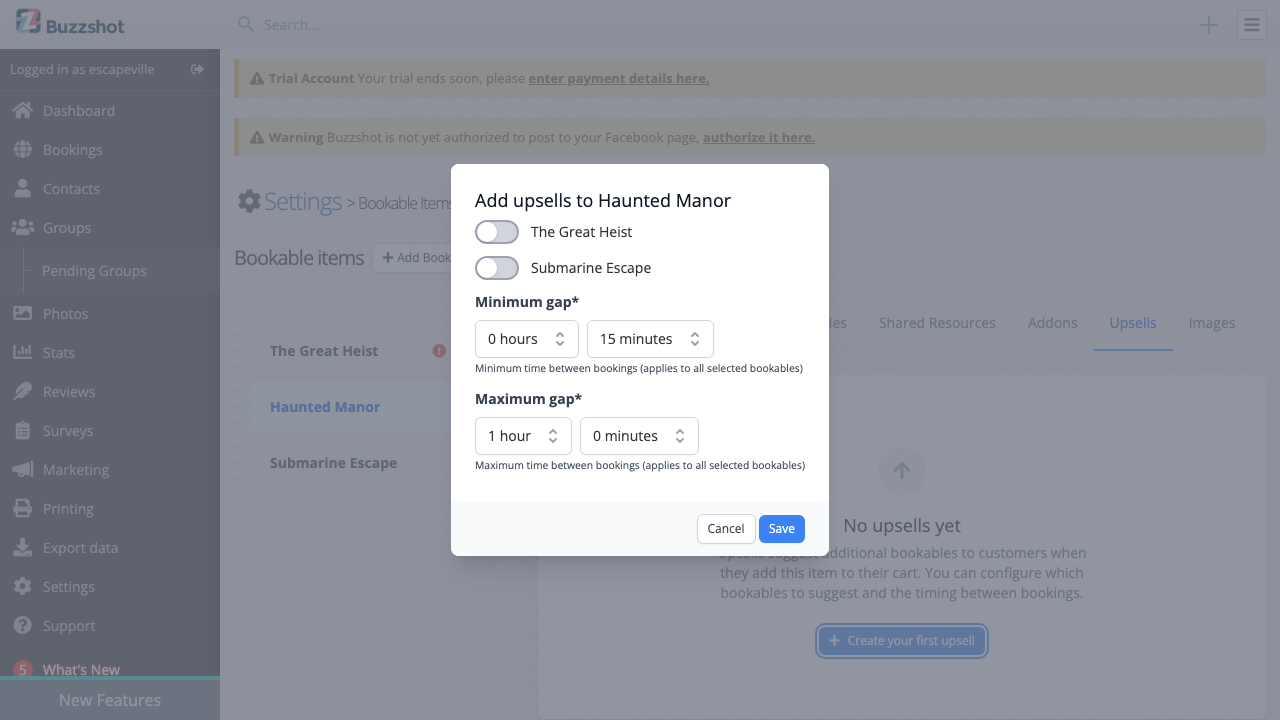
Toggle on each bookable you want to suggest as an upsell. You can select multiple at once.
- Set the Minimum gap and Maximum gap to control the timing window.
- Click Save.
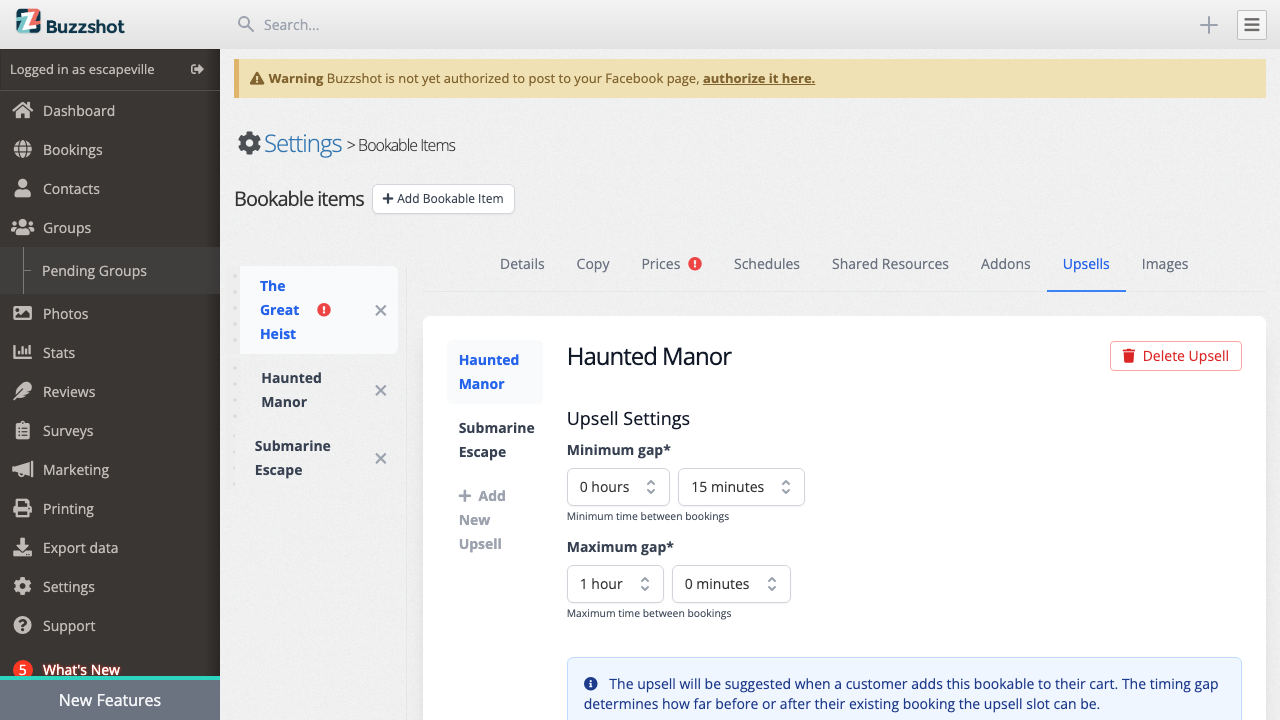
The selected bookables will appear in the Upsells tab sidebar. You can click on any one to adjust its timing settings individually.
Editing Upsell Timing
To change the timing for a specific upsell:
- Go to the Upsells tab on the bookable.
- Click the bookable name in the sidebar.
- Adjust the Minimum gap and Maximum gap values.
- Click Save.
Deleting an Upsell
To stop suggesting a specific bookable:
- Go to the Upsells tab on the bookable.
- Select the upsell in the sidebar.
- Click Delete Upsell and confirm.
This only removes the suggestion link -- it does not affect the bookable itself.
Enabling or Disabling Upsells in the Booking Widget
Upsell suggestions are enabled by default. If you want to turn them off for a particular booking widget:
- Go to Settings > Booking Widgets and select the widget.
- Find the Upsell more bookings in the shopping cart toggle.
- Turn it off to hide upsell suggestions, or on to show them.
- Click Save.
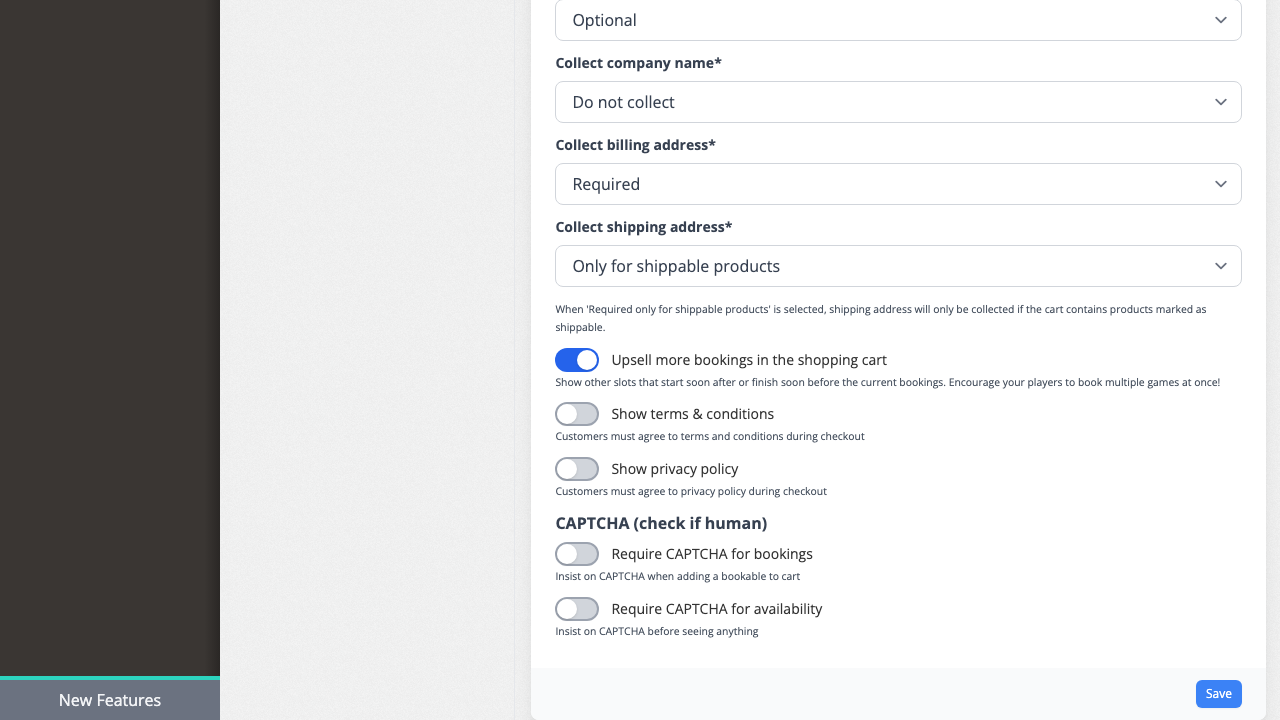
Note: Upsells only appear when you have configured upsell links between bookables (as described above) AND the widget toggle is enabled. Both are required.
Tips and Best Practices
- Use upsells when you have multiple rooms. The "Play an extra game?" feature is most effective when you have several experiences that customers can book back-to-back. It is a passive way to increase multi-game bookings without any extra effort from your team.
- Set up both directions. If you want Room A and Room B to suggest each other, configure upsells on both. Go to Room A's Upsells tab and add Room B, then go to Room B's Upsells tab and add Room A.
- Set timing gaps that make sense for your venue. A 15-minute minimum gap works well when rooms are close together. If customers need to walk between buildings or there is setup time involved, increase it. The maximum gap controls how far out suggestions reach -- 1 to 2 hours works well for most venues.
- Upsells work in both time directions. The widget can suggest slots that start after your booking or that finish before it. Slots after the booking are shown first.