Embedding the Booking Widget on Wix
This article walks you through adding the Buzzshot booking widget to your Wix website. Wix uses a feature called Custom Elements to display external widgets, and Buzzshot has built-in support for this -- so you do not need any coding knowledge to get it working.
Looking for Wix Bookings integration? This article is about embedding the Buzzshot booking widget on a Wix-hosted website. It is not about connecting Wix's own booking system to Buzzshot.
Before You Start
Make sure you have:
- A Wix site with a custom domain (e.g. myescaperoom.com). This method does not work on free Wix sites using a
.wixsite.comaddress. - A Buzzshot account with at least one booking widget configured.
For general information about configuring your booking widget's appearance, checkout options, and other settings, see Booking Widget Configuration.
Why Custom Elements?
Most website builders let you paste a snippet of embed code directly into your page. Wix does not support this for external widgets, so Buzzshot uses Wix's Custom Element feature instead.
Custom Elements allow your booking widget to resize dynamically as customers navigate through the booking flow -- selecting rooms, picking time slots, and completing checkout. The widget grows and shrinks to fit its content, so your page always looks right without any manual height adjustments.
Step 1: Get Your Embed Settings from Buzzshot
Before heading to the Wix editor, you need two pieces of information from your Buzzshot admin panel.
- Log in to your Buzzshot admin panel.
- Navigate to Settings > Booking Widget.
- Select the widget you want to embed from the sidebar (or use the default widget).
- Click the Embed tab.
- Under the "Type" dropdown, select Wix.
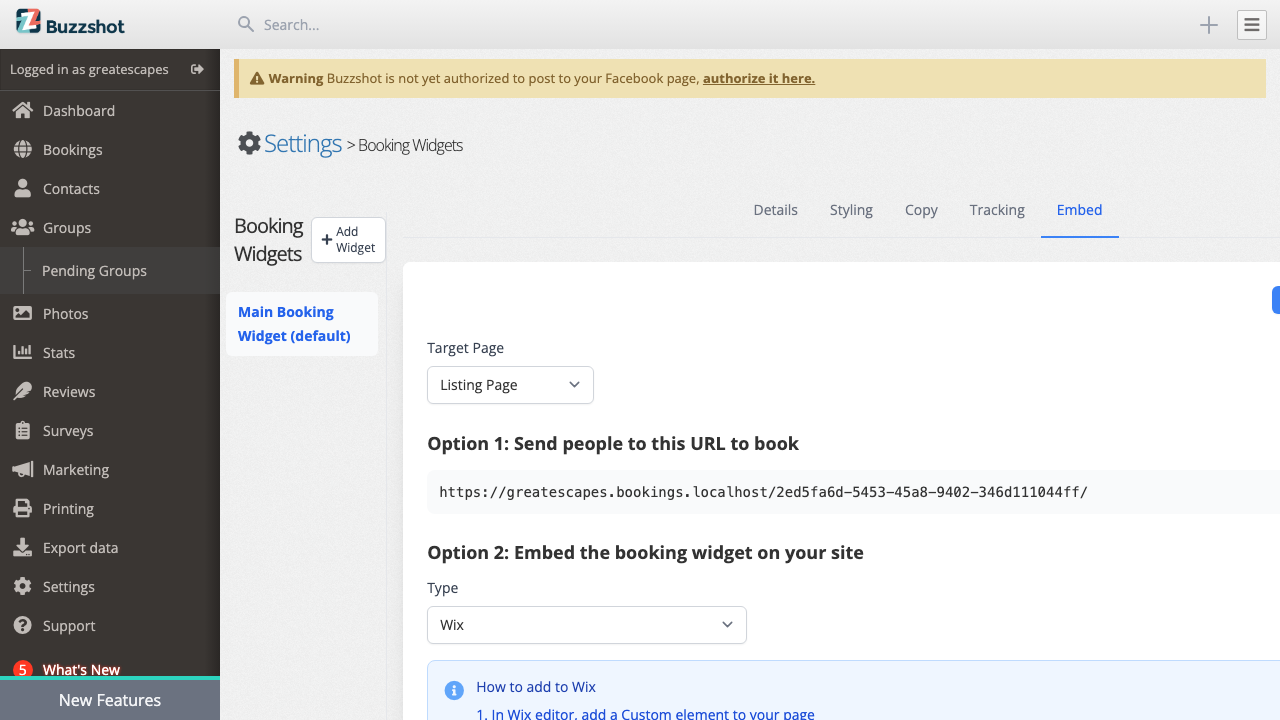
You will see two values displayed with copy buttons:
- Server URL -- This is the address Wix needs to load your booking widget. It is unique to your widget.
- Tag name -- This is the custom element name Wix uses to identify your widget (it looks something like
buzzshot-widget-42).
Keep this page open -- you will need to copy both values in the next steps.
Choosing a Target Page
By default, the embed code opens the listing page showing all your bookable rooms and experiences. If you want the widget on a specific room's page to go straight to that room, change the Target Page dropdown before copying the Server URL.
For example, if you have a dedicated page on your Wix site for "The Haunted Manor", select that room from the Target Page dropdown. The Server URL will update to point directly to that room's booking page.
Choosing a Language
If your widget has multiple languages configured, select your preferred default language from the Language dropdown. The Server URL will update accordingly. Customers can still switch languages using the language switcher within the widget.
Step 2: Add a Section to Your Wix Page
- Log in to your Wix account and open the Wix Editor for your site.
- Navigate to the page where you want the booking widget to appear.
- Click Add Section at the location on the page where you want the widget. We recommend placing it in its own full-width section, ideally near the top of your bookings page.
This gives the Custom Element a dedicated area on your page with enough space for the booking widget.
Step 3: Add a Custom Element
- In the Wix Editor, click the Add button (the + icon on the left sidebar).
- Scroll down to the Embed Code section.
- Select Custom Element.
- Drag and drop the Custom Element into the blank section you created.
Note: The Custom Element will appear invisible in the editor. This is normal -- it only shows up when you preview or publish your site. Do not worry if you cannot see anything where you placed it.
Step 4: Configure the Custom Element
Once you have added the Custom Element, a settings panel will appear. You need to enter the two values from Buzzshot:
-
Set the Server URL -- In the Server URL field, paste the Server URL you copied from the Buzzshot Embed tab. Use the copy button in Buzzshot to make sure you get the full URL.
-
Set the Tag Name -- In the Tag name field, paste or type the tag name from the Buzzshot Embed tab (e.g.
buzzshot-widget-42). Make sure it is entered exactly as shown -- all lowercase, with hyphens. -
Set the layout to full width:
- Click the stretch button (the double-headed horizontal arrow icon).
- Turn on Stretch to full width.
- This ensures the booking widget uses the full width of its section for the best experience.
Step 5: Preview and Publish
- Click Preview in the Wix Editor to see how the booking widget looks on your page. Remember, the widget is invisible in the editor itself -- you must preview to see it.
- Test the full booking flow: browse rooms, select a time slot, and go through to checkout to make sure everything works as expected.
- Check how the widget looks on mobile by using the mobile preview option in Wix.
- Once you are happy, click Publish to make your changes live.
Showing Different Rooms on Different Pages
If your Wix site has a dedicated page for each escape room, you can create a separate widget embed for each page that goes directly to that room's booking details.
- In Buzzshot, go to Settings > Booking Widget > Embed.
- Make sure Wix is selected as the Type.
- Change the Target Page dropdown to the specific room you want.
- Copy the updated Server URL (the Tag name stays the same).
- In Wix, add a new Custom Element on that room's page and configure it with the new Server URL and the same Tag name.
Alternatively, you can create separate booking widgets in Buzzshot -- each filtered to show only specific rooms -- and embed each one on its corresponding page. See Booking Widget Configuration for details on filtering which rooms appear in a widget.
Using Multiple Widgets
If you want different configurations on different pages (for example, different styling or different checkout options), you can create multiple booking widgets in Buzzshot. Each widget has its own Server URL and Tag name, and each can be embedded independently on different Wix pages.
To create additional widgets, go to Settings > Booking Widget and click + Add Widget in the sidebar.
Troubleshooting
The widget is not showing up on my site
- Make sure your Wix site is published to a custom domain (e.g. myescaperoom.com). The widget will not work on free Wix sites using a
.wixsite.comaddress. - Make sure you have published your Wix site after adding the Custom Element. The widget will not appear on the live site until you publish.
- Double-check that the Tag name in the Wix Custom Element settings exactly matches what Buzzshot shows on the Embed tab. Even a small typo will prevent the widget from loading.
- Verify the Server URL was copied in full -- use the copy button in Buzzshot rather than selecting and copying manually.
- Try viewing your site in a private/incognito browser window to rule out caching issues.
I cannot see the widget in the Wix Editor
This is expected. Wix Custom Elements are invisible in the editor and only render when you preview or publish. Use the Preview button to check that everything is working.
The widget appears but shows no available time slots
This is almost always a scheduling issue, not a Wix issue. Make sure your bookable items have schedules set up with available slots. See Schedules and Availability for help.
The widget looks too narrow or cramped
- Make sure the Custom Element is set to Stretch to full width (see Step 4 above).
- Check that the section containing the widget is wide enough. The booking widget works best when given the full width of the page.
- On mobile, the widget automatically adapts to smaller screens, but very narrow sections can cause layout issues.
I updated my widget settings in Buzzshot but the changes are not showing on my Wix site
- Widget configuration changes (colours, checkout options, which rooms are shown) take effect immediately. Try a hard refresh of your Wix site in your browser (Ctrl+Shift+R on Windows, Cmd+Shift+R on Mac).
- If changes still do not appear, wait a few minutes for any caching to clear and try again.
- Changes to the Server URL or Tag name (which only happen if you switch to a different target page or widget) do require updating the Custom Element settings in Wix.
The widget height seems wrong or there is extra whitespace
The Custom Element automatically adjusts its height based on the content. If you see unexpected whitespace or height issues, make sure you have not manually set a fixed height on the Custom Element or its containing section in Wix. Let it size itself automatically.
Tips
-
Preview before publishing -- Always use Wix's preview mode to check the widget on desktop and mobile before making changes live.
-
Give it a dedicated section -- Place the Custom Element in its own section on the page rather than alongside other content. This gives the widget room to resize as customers navigate through the booking flow.
-
Customise the widget to match your site -- Use the Styling tab in Buzzshot to set your brand colours, background, and corner style so the widget blends in with your Wix site's design.
-
Use the Direct URL for testing -- While setting things up, you can use the Direct URL from the Embed tab to test your widget configuration before embedding it on Wix. This lets you verify everything looks right without needing to publish changes to your site.
-
One widget per section -- Each Custom Element should contain only one booking widget. If you want multiple widgets on the same page (which is unusual), place each in its own section.