Add-ons
Add-ons are the optional extras customers can buy alongside a booking: a photo package, ten extra minutes, a round of drinks or party bags, for example.
You choose which bookable items sell an add-on. They live at Settings > Addons.
To suggest a second room at a nearby time instead, see Upsells. To sell something that doesn't need a booking at all, see Products.
Finding your way around
Settings > Addons lists every add-on down the left. Under each name is the Bookable Items that sell it.
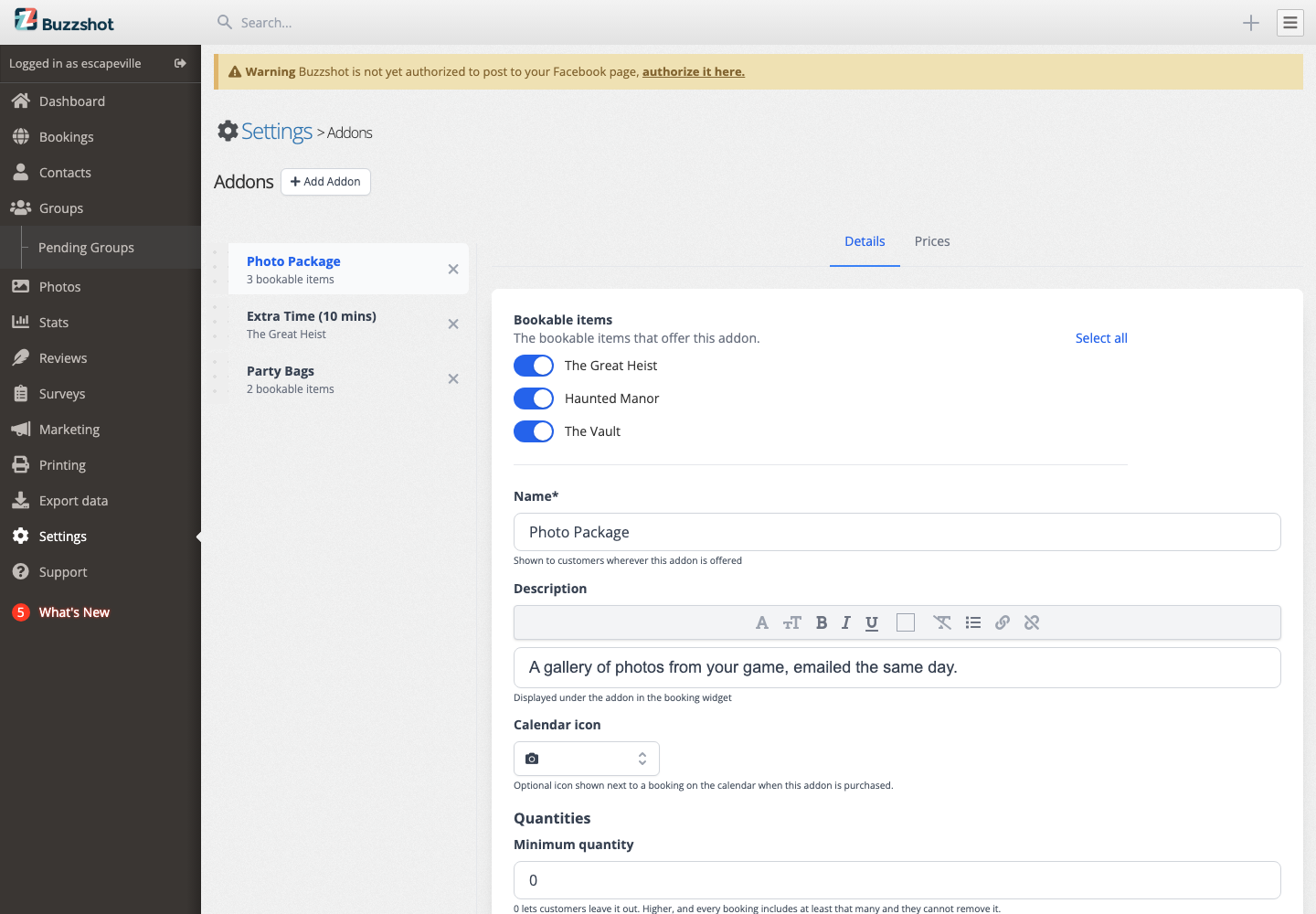
Click an add-on to open it. It has two tabs:
- Details: which bookable items sell it, plus its name, description, calendar icon and quantities.
- Prices: what it costs.
A red warning mark next to an add-on (in the list or on the Prices tab) means at least one of the bookable items selling it has no price yet.
Drag an add-on up or down to change the order customers see the add-ons in when they book.
Creating an add-on
- Go to Settings > Addons.
-
Click Add Addon (or Create your first Addon if you have none yet).
-
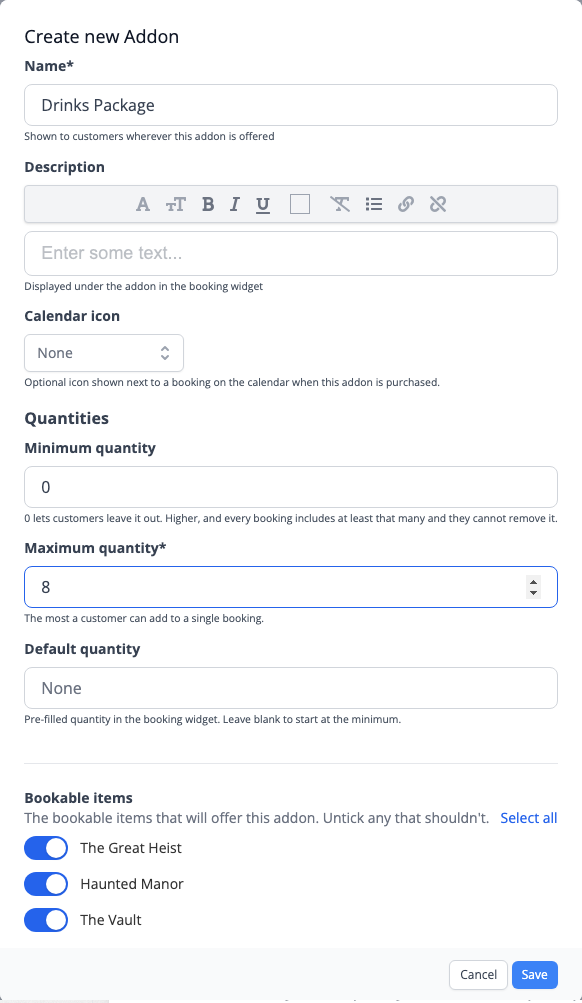
Fill in:
- Name: short and clear; customers see this.
- Description: optional, shown under the add-on in the booking widget. Good place for anything customers should know before they buy.
- Calendar icon: optional; see Calendar icons below.
- Quantities: see Quantities below.
- At the bottom is a list of your bookable items with every one already ticked. Untick any room that shouldn't sell this add-on. Select all and Select none tick or untick the lot.
- Click Save.
Your new add-on has no price yet. Open its Prices tab next.
Choosing which bookable items sell it
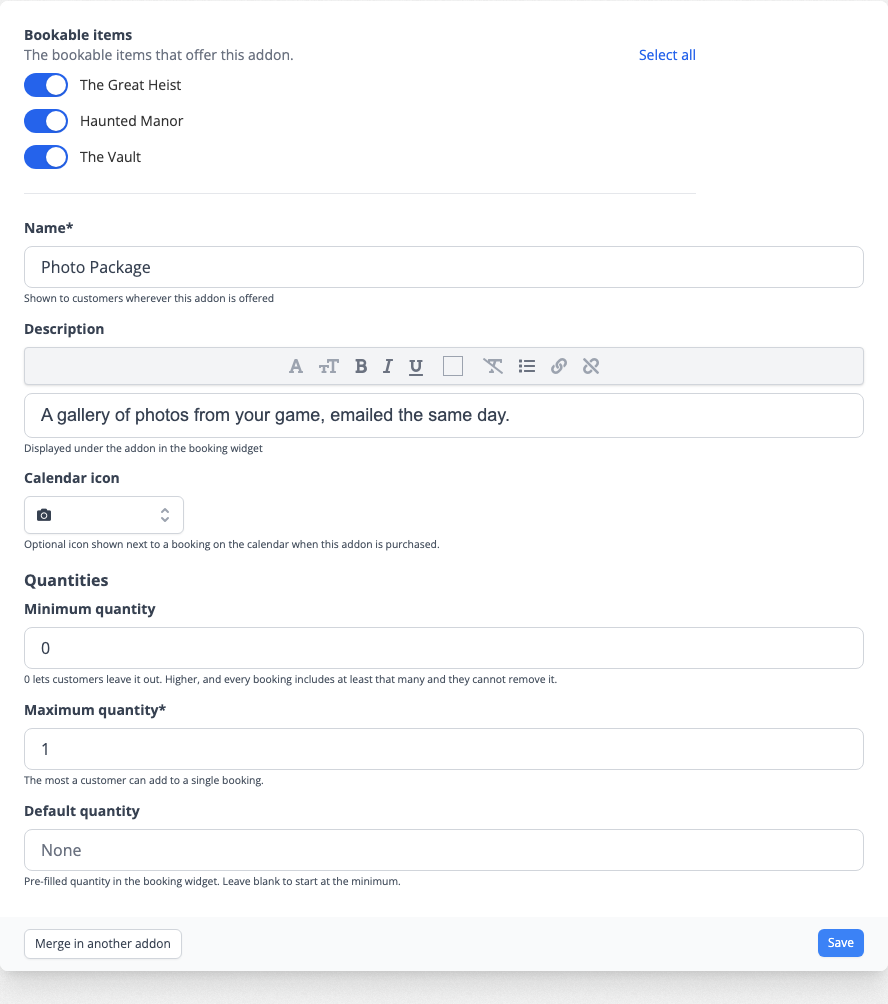
- Tick a room to start offering the add-on there. If it has never been sold there before you will need to give it a price on that room, or set one price for everywhere.
- Untick a room to stop offering it there. Bookings that already include it are not affected.
If a room is ticked but has no price, a No price set link appears beside it and takes you straight to the Prices tab.
Setting the price
Open the Prices tab.
One price everywhere
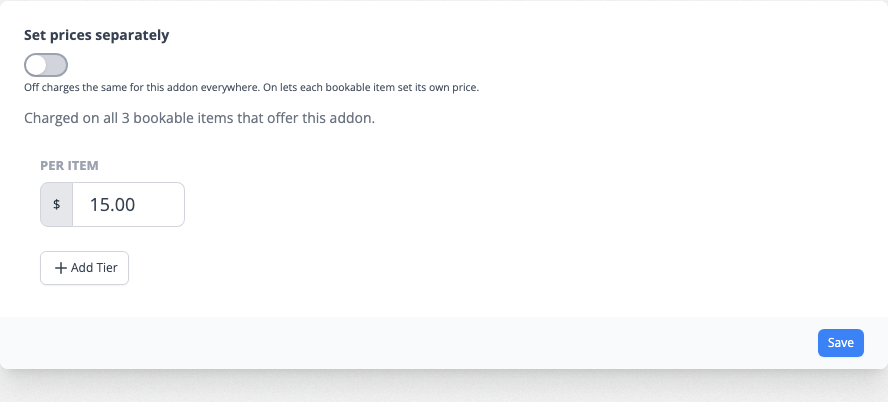
If every room charges the same, leave Set prices separately switched off. You get a single price field, and saving it writes that price to every bookable item offering the add-on.
A different price per room
Switch Set prices separately on to give each bookable item its own price.
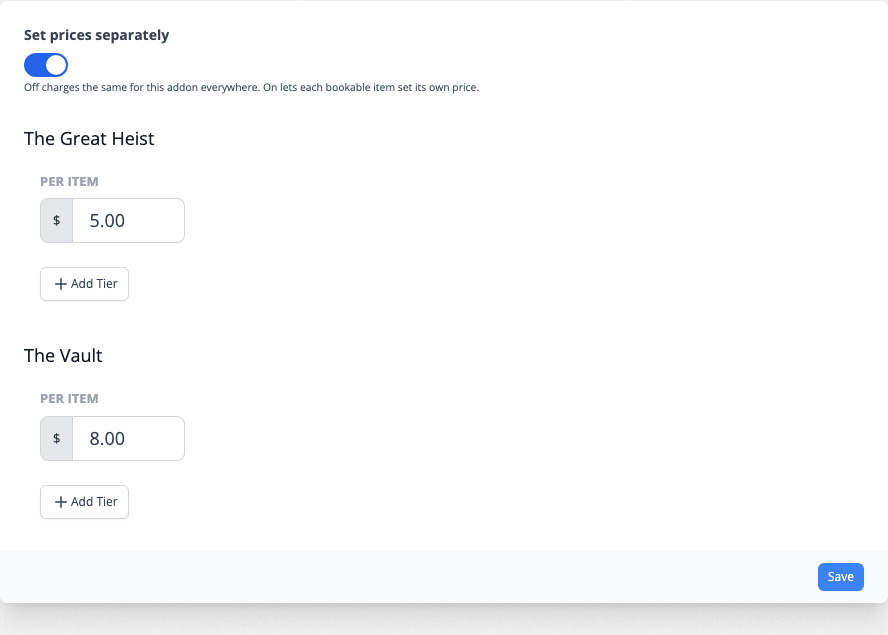
If the rooms currently charge different amounts, the switch is already on. Turning it off replaces those prices with the single price you enter. You cannot undo this, but other price groups are unaffected.
If you use several price groups, pick the one you are editing from the list on the left of the tab. Prices are set per price group, so an add-on can cost one thing at peak times and another off-peak.
Until an add-on has a price on a room, customers cannot buy it there.
Quantities
- Minimum quantity: 0 lets customers leave the add-on out entirely. Set it to 1 or more and every booking includes at least that many, and the customer cannot remove them.
- Maximum quantity: the most a customer can add to one booking. Set 1 for something that only makes sense once, like extra time; set it higher for per-person extras like drinks.
- Default quantity: the amount already filled in when the customer reaches the add-on. Leave it blank to start at the minimum.
UK accounts see a reminder on this tab when a minimum quantity of 1 or more makes an add-on unavoidable, or a default quantity pre-selects an otherwise optional one. UK consumer law has views on both. The reminder does not stop you saving.
Turning an add-on off on certain days
You can use a rule to switch an add-on off for particular time slots: no photo packages on Mondays, no party bags on the late-night sessions.
- Go to Settings > Rules and create or open a rule.
- Set the conditions for when it should apply (day of week, time of day, date range, and so on).
- Switch on Modify addons.
- Add the add-on to Disable addons.
- Save the rule.
Matching slots then hide that add-on in the booking widget. Enable addons does the reverse, undoing a disable set by an earlier rule.
See Rules for how conditions, actions and rule order work.
Calendar icons
A calendar icon is a small icon that appears next to a booking on your calendar whenever that add-on has been bought. It is a quick way to see which sessions need a photographer, a cake or a drinks tray without opening every booking.
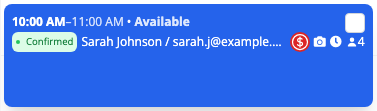
To set one, open the add-on's Details tab, choose an icon from the Calendar icon list and click Save. Choose None to remove it.
Hover over an icon on the calendar to see the add-on name and quantity. Icons are only for your team. Customers never see them.
Deleting an add-on
Click the ✕ beside its name in the list and confirm. Bookings that already include it keep it, and it still shows on their invoices. Deleting cannot be undone.
Seeing what customers bought
Open a booking from your calendar or bookings list and the add-ons purchased are listed alongside the tickets. Add-ons also come through on invoices, on exports, and in your reports.