Products
Products let you sell items through the booking widget, alongside your bookings or entirely on their own. Use Products for things like merchandise (t-shirts, mugs, branded gear), digital gift cards, and other items customers can purchase without booking a room.
This is different from Add-ons, which are optional extras bought alongside a booking (like a photo package or extra game time). Add-ons need a room booking to go with them; Products stand on their own. If you want to sell something that should only appear alongside a booking (for example, a food package offered on one room, or on all of them), an Add-on is usually the right choice instead.
Products are managed from Settings > Products in your admin area.
What You Can Sell
| Example | Use Case |
|---|---|
| T-Shirt | Branded merchandise, optionally with size variants |
| Puzzle Book | Take-home puzzles or printed materials |
| Digital Gift Card | Prepaid balance customers can buy and gift. See Selling Gift Cards Online |
| Escape Room Kit | Take-home box games |
| Branded Mug | Merchandise with or without multiple designs |
A single Product can have multiple variants: for example, one "T-Shirt" Product with variants for Small, Medium, and Large, each with its own price. Customers pick the variant they want at checkout.
Creating a Product
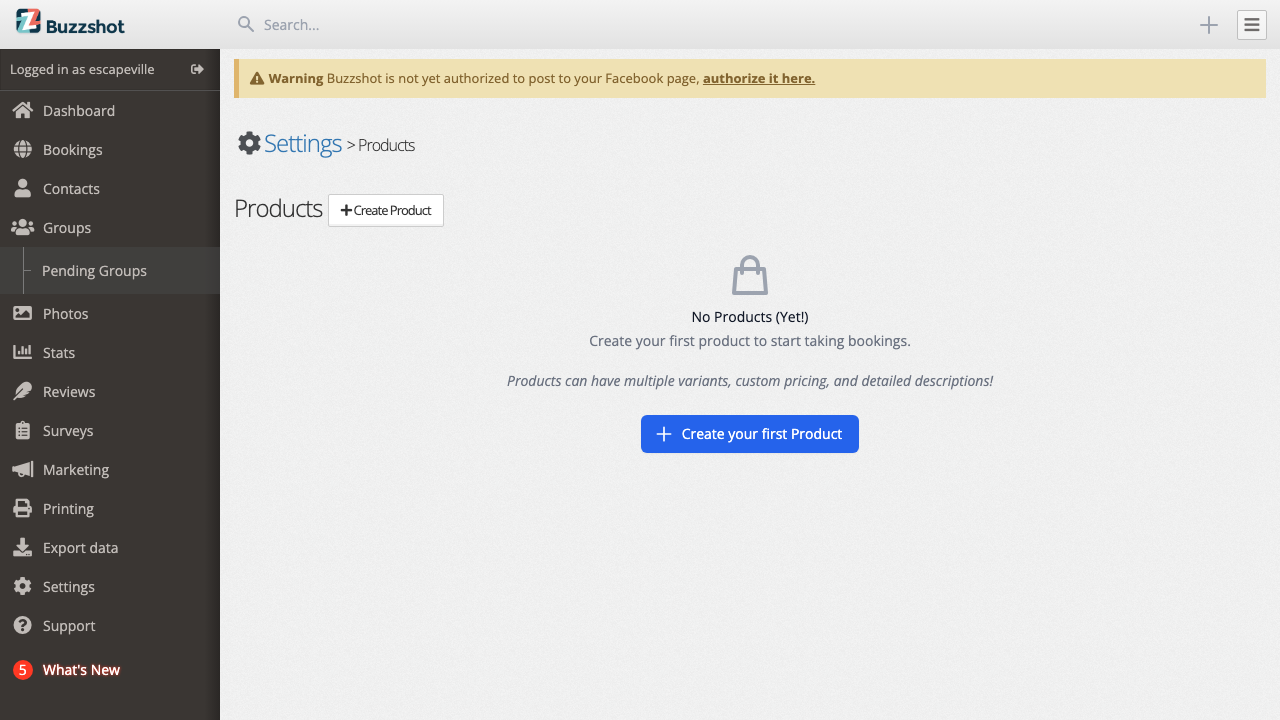
- Go to Settings > Products.
-
Click Create your first Product (or Create Product if you already have some).
-
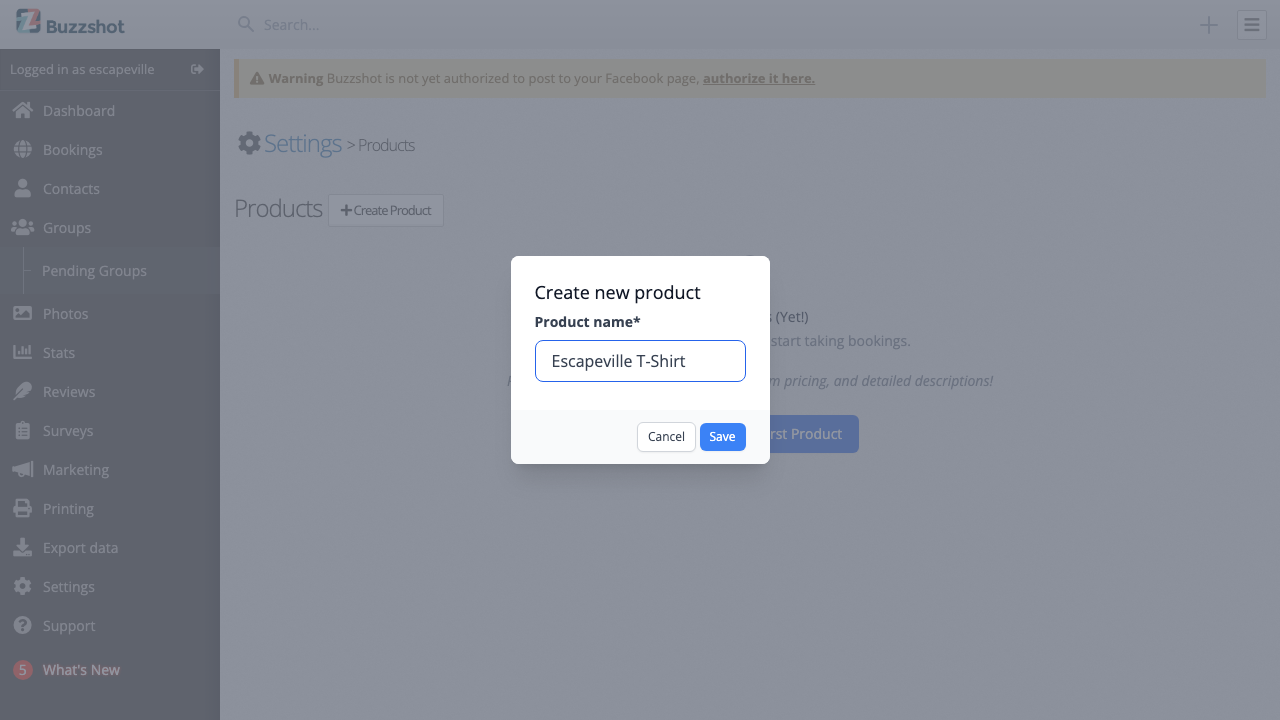
Enter a Product name and click Save.
The Product is created and you will land on the Details tab, ready to fill in the rest.
Details Tab
The Details tab is where you set the core information for the Product.
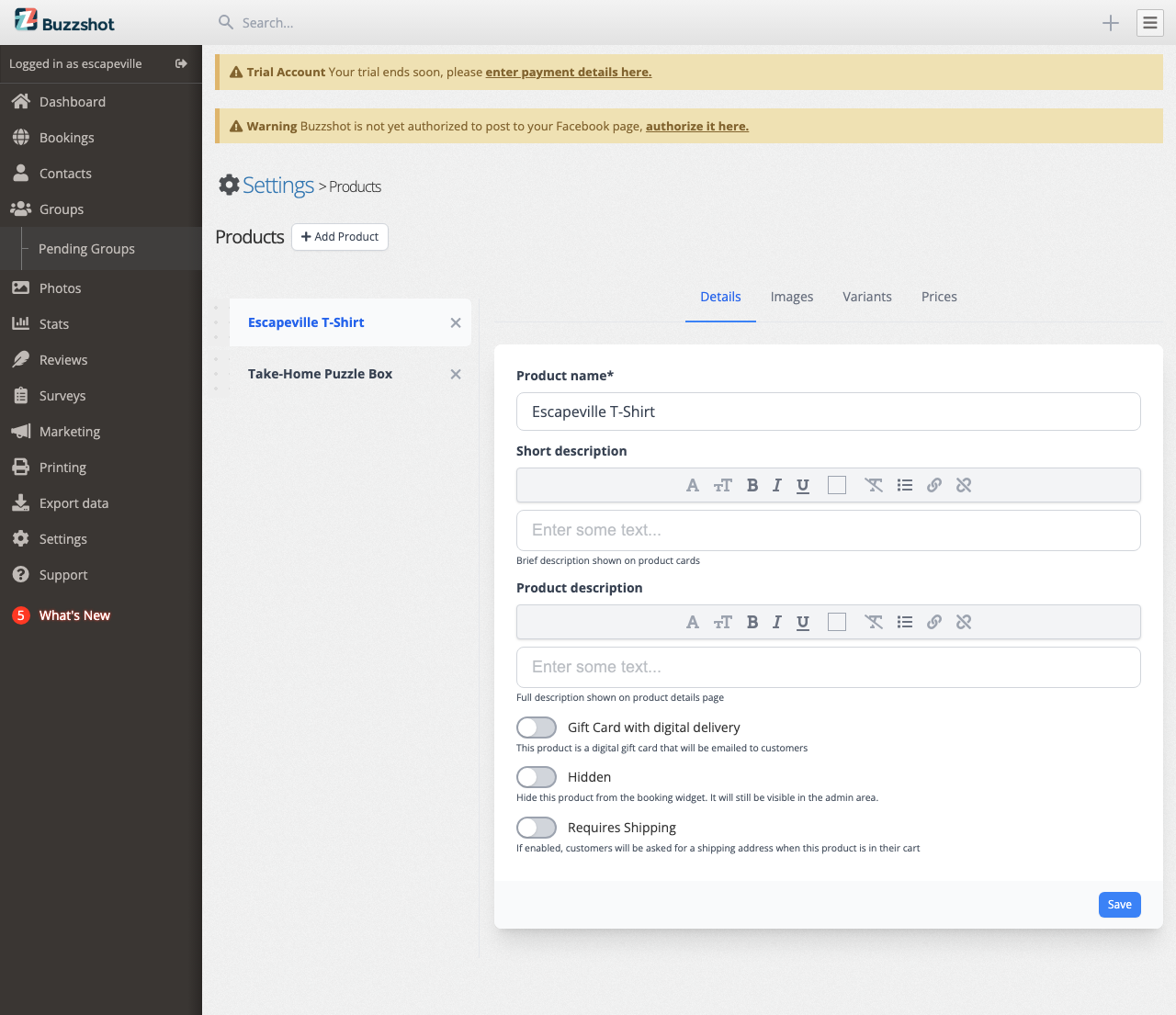
Fields:
- Product name: The name customers see on the widget (e.g. "T-Shirt", "Escape Room Kit"). If your site supports multiple languages, you can provide translations.
- Short description: A brief summary shown on the product card in the widget. Keep it short: one or two lines works best.
- Product description: The full description shown on the product details page when customers click through. You can use rich text here (bold, lists, links).
- Gift Card with digital delivery: Toggle this on if the Product is a digital gift card. When enabled, extra fields appear for gift card options. See Selling Gift Cards Online for the full setup.
- Hidden: Hide the Product from the booking widget while keeping it visible in admin. Useful for seasonal items or Products you are not quite ready to sell yet.
- Requires Shipping: Turn this on for physical items that need to be shipped. When a customer adds this Product to their cart, they will be asked for a shipping address at checkout.
- Max quantity: The most of this Product a customer can buy at once (shown only when the Product has a single variant; for Products with multiple variants, quantity limits are set per variant on the Variants tab).
- Default quantity: The pre-filled quantity shown in the widget (shown only when the Product has a single variant; set per variant on the Variants tab when you have multiple).
Click Save when you are done.
Images Tab
Good images make Products much more appealing to customers. Go to the Images tab to upload them.
- Primary image: The main image shown on the product card. Use a landscape (5:2) crop. This appears on the widget's products list and on the detail page.
- Icon image: A small square image used in compact places like the cart summary. Use a 1:1 crop.
- Video: Optionally upload a short video. The system transcodes videos automatically; this can take a few minutes after upload.
You can upload additional images in the same way. Crop each image when prompted to get the best look.
Variants Tab
Variants let a single Product have multiple options that customers choose between: for example, shirt sizes, gift card values, or merchandise colours.
When you first create a Product, it has a single default variant. The Variants tab shows an empty state with an Add Variants button.
Click Add Variants to create your first set of variants. You can enter several names at once (e.g. "Small", "Medium", "Large"), and a variant will be created for each.
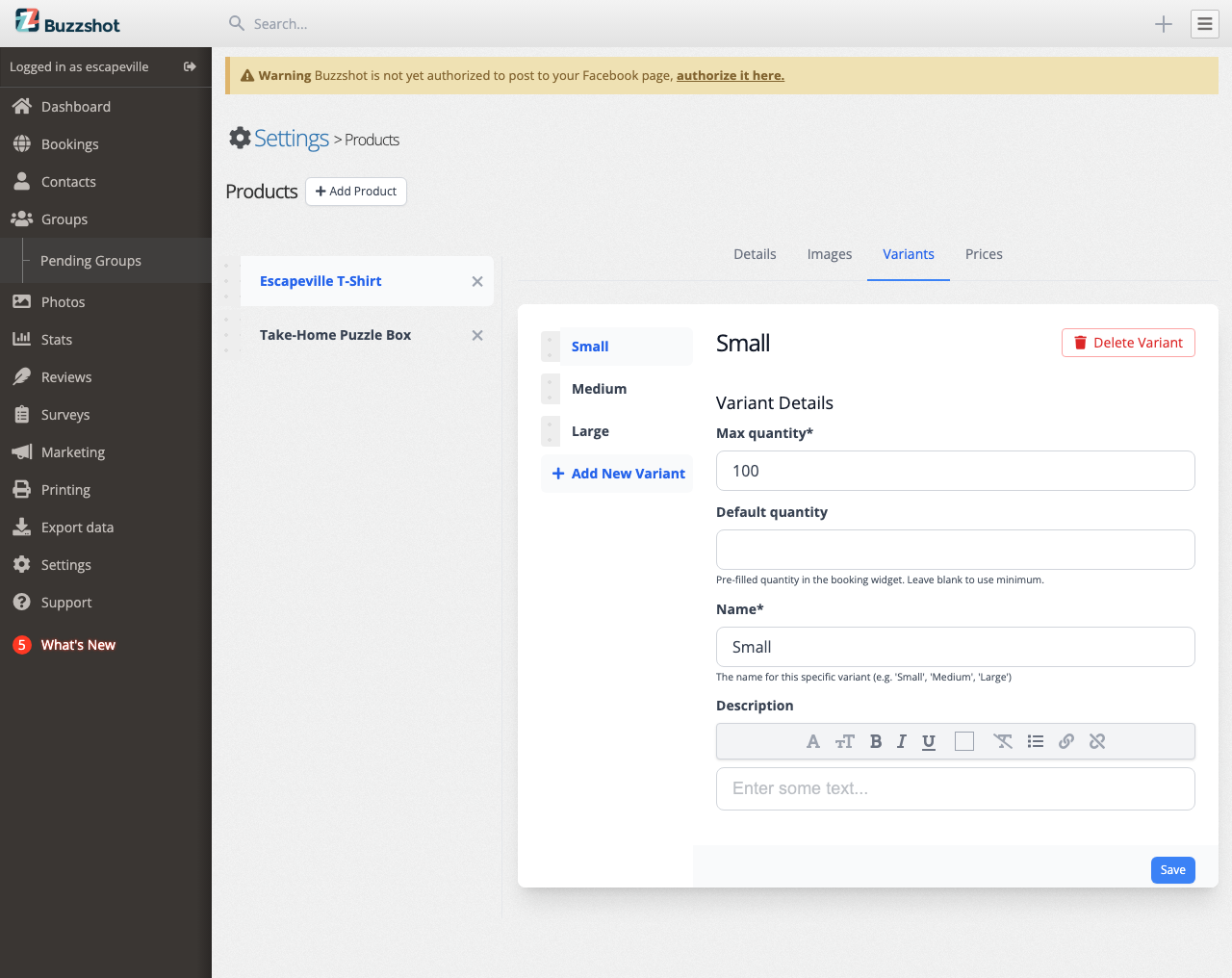
Once you have variants, the tab shows:
- A sidebar on the left with each variant listed. You can drag to reorder them. This controls the order customers see in the widget.
- An edit form on the right for the currently selected variant, where you can change the variant's name, description, and quantity limits.
- An Add New Variant link at the bottom of the sidebar for adding more variants later.
To edit a variant, click its name in the sidebar and change the fields, then click Save.
To delete a variant, open it and click Delete Variant at the bottom. If you delete all but one variant, the Product goes back to being a single-variant Product.
Tip: Use variants whenever the only thing that changes is the name, price, or quantity limit. Create separate Products only when the items are genuinely different (e.g. a t-shirt Product and a mug Product, rather than one Product with "shirt" and "mug" variants).
Prices Tab
Prices are set per variant, per price group. New Products do not have prices until you set them here.
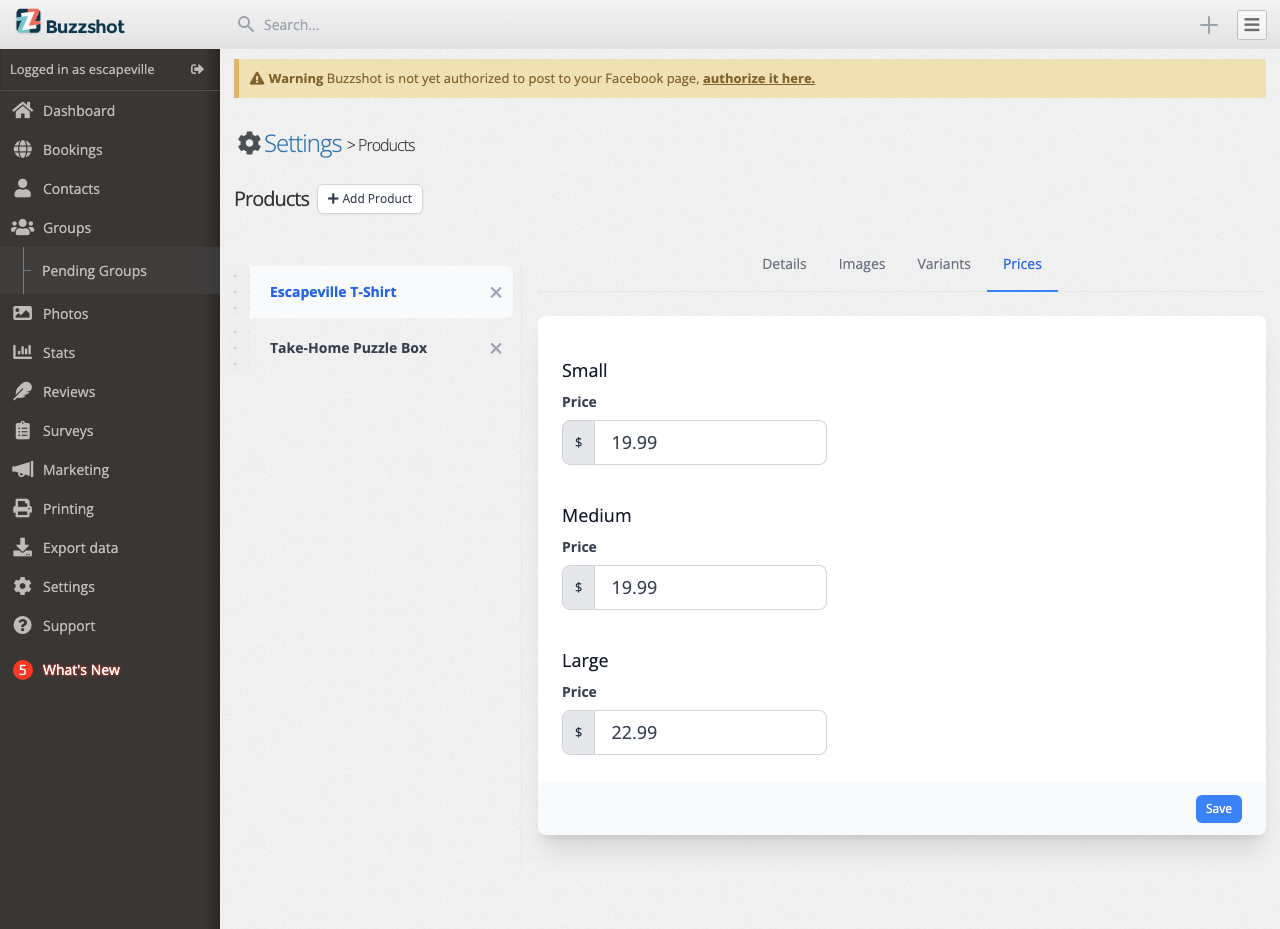
- Go to the Prices tab.
- If you have multiple price groups, pick one from the sidebar on the left.
- Enter the price for each variant.
- Click Save.
Repeat for each price group you want the Product available in. The sidebar shows a red indicator next to any price group that still has variants without a price.
Important: Until you set a price, the Product will not be purchasable in the widget. If you have variants with missing prices, customers will not be able to buy them.
How Products Appear to Customers
Products are shown in the products section of your booking widget, separate from your rooms and experiences.
Each Product appears as a card with its primary image, name, short description, and a Buy Now button. Clicking through takes the customer to a details page where they can read the full description, choose a variant, and add it to their cart.
Note: Gift card Products always take customers to the details page first (rather than a quick Buy Now), so they can enter recipient details before adding to the cart.
Hiding a Product
If you want to stop selling a Product but keep it available for future use, open the Details tab and turn on Hidden. The Product disappears from the widget but stays in your admin for editing or reactivating later.
For permanent removal, click the Delete Product button on the Details tab. This cannot be undone.
Linking to a Product from Your Website
You can send customers straight to a specific Product instead of the main widget. In Settings > Booking Widgets, open the widget you want to use, go to the Embed tab, and set the Target Page to the Product. Copy the link or embed code from there. This is useful for a "Buy a Gift Card" button on your homepage, or a dedicated merchandise page.
Reordering Products
In the sidebar on the Products pages, you can drag Products up or down to reorder them. The order here controls how they appear in the widget.
Tips and Best Practices
- Use consistent images. Primary images look best when they are all the same aspect ratio (5:2). A mix of portrait and landscape crops looks inconsistent on the widget.
- Write short descriptions that sell. The short description is what customers see on the product card, so use it to hook interest. Save the full details for the description field.
- Prefer variants over separate Products. If the items are the same thing in different sizes, colours, or values, one Product with variants is easier for customers and easier for you to manage. Use separate Products only for genuinely different items.
- Hide rather than delete. If a Product is temporarily unavailable (e.g. out of stock), turn on Hidden rather than deleting it. You keep the images, descriptions, and settings for when you bring it back.
- Don't forget the Prices tab. It is easy to miss when setting up a new Product. Your variants will not be purchasable until they have a price. The red indicator in the sidebar shows any Product that still has unpriced variants.
- Gift cards are a special kind of Product. Setting up a digital gift card Product has extra steps and options. See Selling Gift Cards Online for a full walkthrough.
- Check your tax rules. Depending on your jurisdiction, merchandise, gift cards, and other Products may have different tax treatment from room bookings. If in doubt, check your local regulations or your accountant before going live.