Selling Gift Cards Online
Selling gift cards (sometimes called gift vouchers) online is one of the easiest ways to boost revenue. Customers buy them as presents and the recipients come back to book experiences. Buzzshot can sell digital gift cards through your booking widget and deliver them by email automatically, either right away or scheduled for a specific date.
This article walks through setting up an online gift card Product. See Gift Cards for the broader picture: creating cards manually, managing balances, setting expiry, charging a card, and cross-account redemption across multiple venues. If you want to understand the Products feature in general, see Products.
How It Works
You create a digital gift card the same way you create any other Product, but with one extra toggle: Gift Card with digital delivery. Once that's on, the Product becomes a gift card sold through your booking widget.
When a customer buys one:
- They pick a value (if you have multiple).
- They choose who it is for (themselves or someone else) and, optionally, write a personalized message.
- They can have it sent right away or scheduled for a future date.
- After payment, the system creates the gift card and emails it to the recipient. The recipient gets a code they can use at checkout to pay for a booking.
Setting Up a Gift Card Product
- Go to Settings > Products.
- Click Create Product, give it a name (e.g. "Gift Card"), and click Save.
-
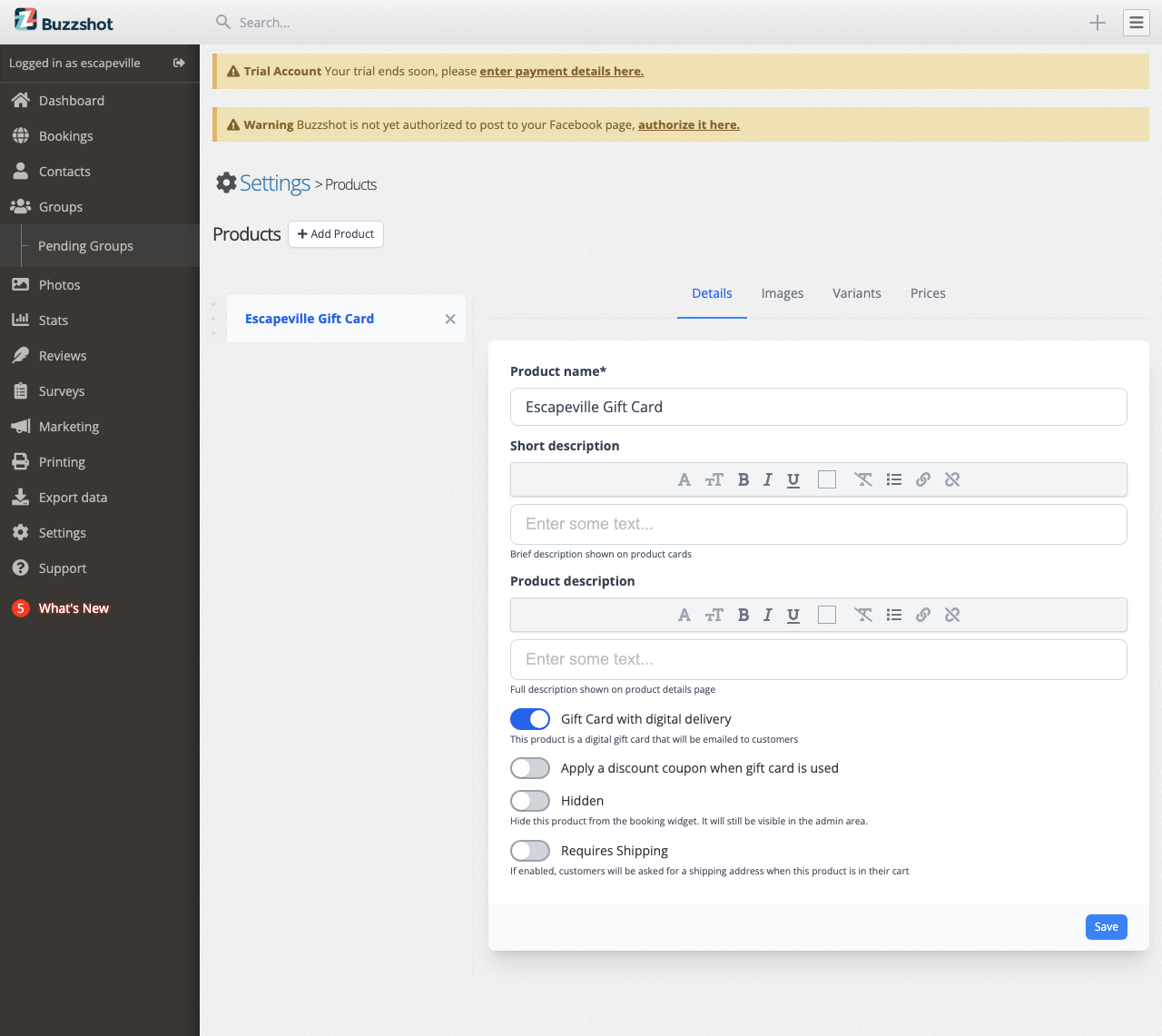
On the Details tab, turn on Gift Card with digital delivery.
-
Additional gift card fields appear. Fill them in as needed:
- Gift card type: Money for a card that holds an amount to spend, or Spaces for a card that pays for a number of tickets, one space per ticket. See Gift Cards for how spaces cards work.
- Gift card value (money cards, shown when the Product has a single variant): The face value loaded onto the gift card when purchased. If blank, the card's value equals the price the customer paid. Use this if you want the face value to be different from the price, for example selling a "$50 card" for $40 as a promotion.
- Number of spaces (spaces cards, shown when the Product has a single variant): How many tickets the card pays for. The price the customer pays is up to you.
- Apply to all ticket types (spaces cards): Turn this off to limit the card to the Allowed ticket types you tick.
- Can be used with coupons: Leave this on to let customers use a coupon code on the same order as a card from this Product. Turn it off for cards, such as a free-spaces voucher, that should not be combined with a promo.
- Apply a discount coupon when gift card is used (money cards): Turn this on to attach a coupon that is automatically applied whenever someone redeems a gift card from this Product. Useful for seasonal bonuses ("buy a gift card in December, get 10% off when redeemed") or bundled promotions.
- Gift card coupon: The coupon to apply. Only shows when the toggle above is on.
- Write a Short description and Product description. These show on the product card and details page in the widget. Good copy helps sell the idea of gifting an experience.
- Click Save.
Setting Gift Card Values
You have two options for how much the gift card is worth.
A single fixed value
If you want a single "one size fits all" card (e.g. always $50), just leave the Product with its default single variant. Set the price on the Prices tab. If you want the face value to match, also set the Gift card value field on the Details tab. If you leave it blank, the face value will equal the price.
Multiple values
Most escape rooms prefer to sell several values so customers can pick a budget that suits them. For this, use variants. For a spaces card, set Gift card type to Spaces before you add them:
- Go to the Variants tab.
- Click Add Variants and enter several names (e.g. "$25 Gift Card", "$50 Gift Card", "$100 Gift Card", "$150 Gift Card").
- Open each variant and set its Gift card value, the face value that gets loaded onto the card (or its Number of spaces for a spaces card). (This is on the variant's edit form on the Variants tab, not on the main Details tab.) You can also add a short description if useful.
-
Go to the Prices tab and set a price for each variant.
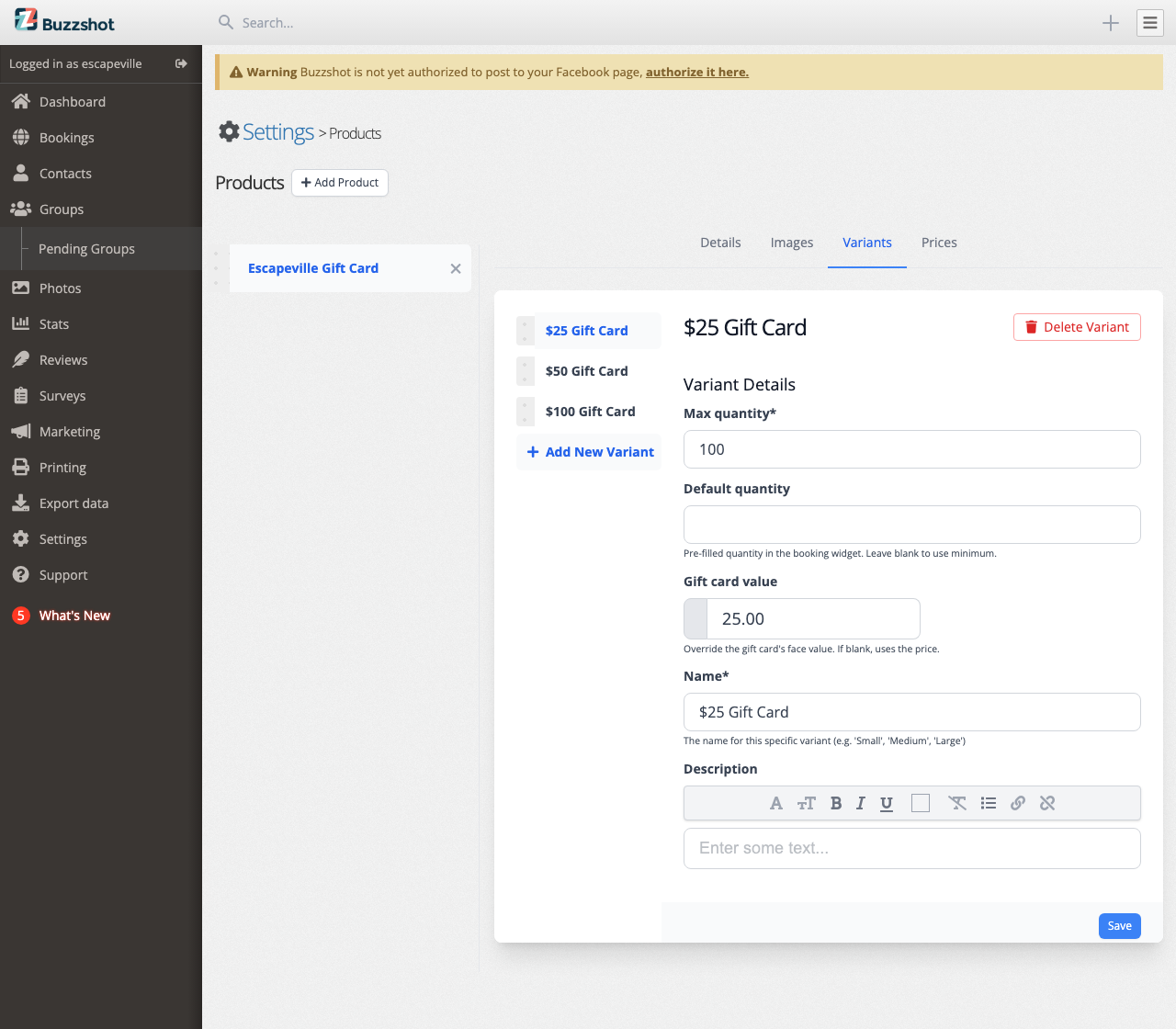
Customers see all the variants together on the gift card details page and pick the one they want.
Tip: In most cases the price and the gift card value are the same: $50 for a $50 card. The Gift card value field is for when you want them to be different, such as selling a $50 card for $45 as a promotion, or giving a bonus amount on a card purchased during a sale.
Adding an Image
A good image helps the gift card stand out. On the Images tab, upload a Primary image (landscape, 5:2 crop) showing something appealing: escape room branding, gift box, themed artwork. The image appears on the product card in the widget.
How Customers Buy a Gift Card
The gift card Product appears in the products section of your booking widget alongside any other Products you sell.
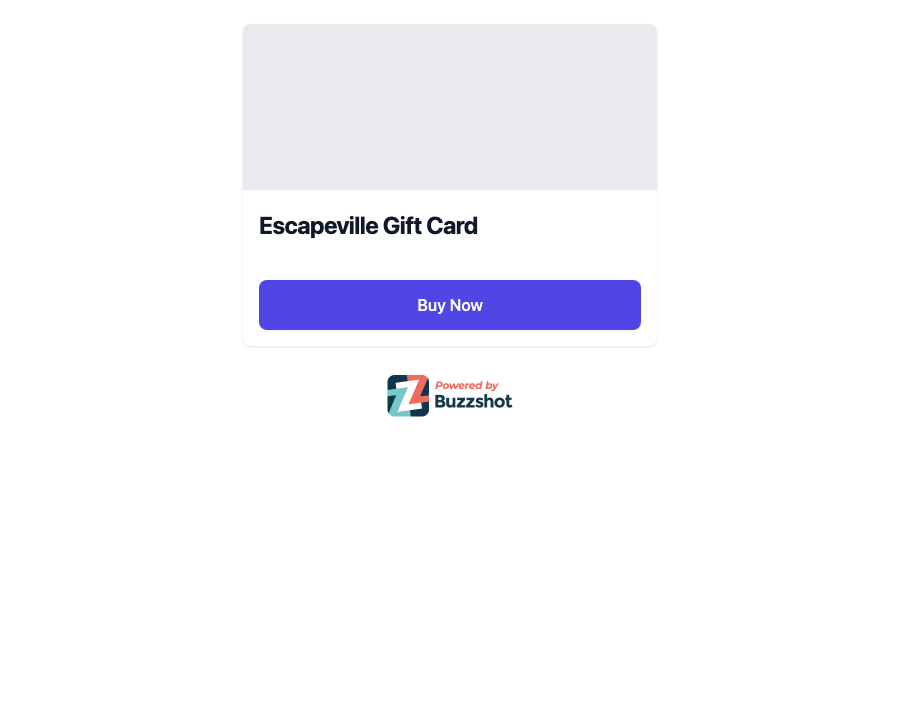
Customers click Buy Now to open the details page, where they pick a variant and fill in the delivery form:
- Who is this gift card for?: For myself, or someone else (which reveals recipient name and email fields).
- Personalized message: An optional note included in the gift card email.
- When should this be delivered?: Right away after payment, or a chosen future date (only shown when gifting to someone else).
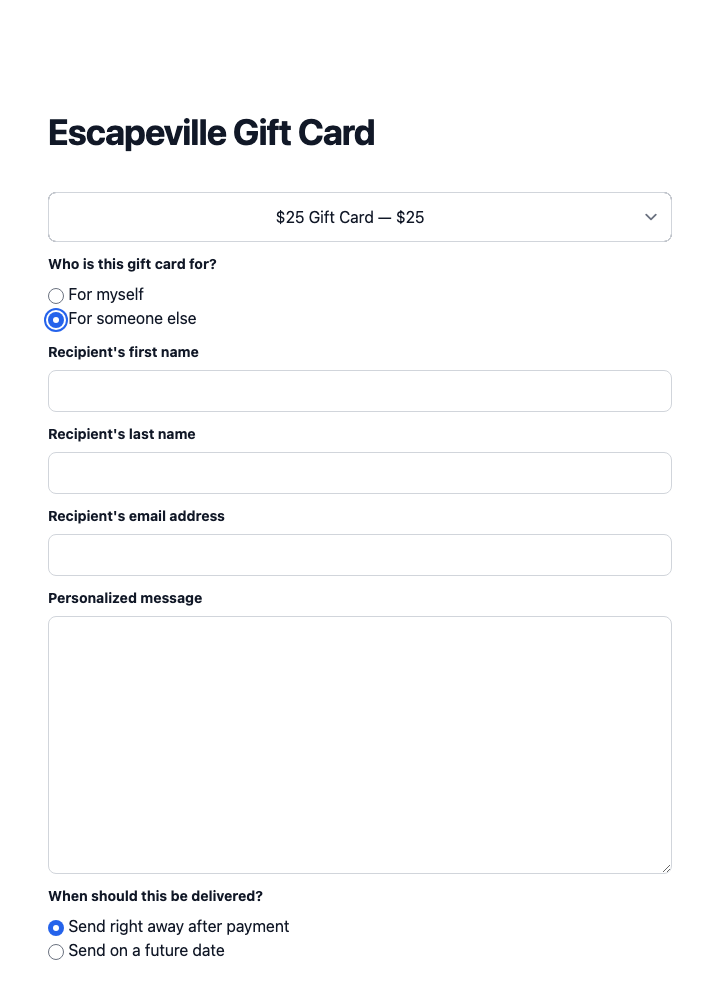
The customer then adds the gift card to their cart and pays as normal.
Emails
Once the order is paid:
- The buyer receives the standard order confirmation email.
- The recipient receives a separate gift card email containing the card code, the balance (in money or spaces), any personalized message, and redemption instructions. If the delivery is scheduled for a future date, this email is held and sent on that date instead.
If the buyer chose "For myself", the gift card email goes to the buyer's email address instead of a separate recipient.
Redeeming a Gift Card
The recipient redeems the card during checkout in your booking widget by entering the code in the Discount code or gift card field. If you attached a coupon to the Product, its discount is applied automatically at the same time.
See Gift Cards for the full redemption flow from the customer's perspective.
For multi-venue operators: If your organisation has multiple accounts, gift cards can be configured to be redeemable across locations within the organisation. See Gift Cards for setup details.
Coupons and Gift Card Purchases
Coupons and promo codes can be applied when a customer buys a gift card. For example, a "20% off" promo code would reduce the price of a $50 gift card purchase to $40 while still loading $50 onto the card. If you don't want discount codes applied to gift card purchases, exclude your gift card Product from each coupon's conditions. See Coupons for how to set coupon conditions.
Managing Online Gift Card Sales
When a customer buys a gift card online, you can see the details from the order page.
Open any order that included a gift card purchase and look for the Digital Deliveries section. It shows each gift card that was bought with the order, including:
- The gift card code (linked to the full gift card detail page)
- The status:
- Pending: the delivery has been created but the email has not been sent yet (usually because the order is not fully paid, or the send is about to happen)
- Scheduled: the customer chose a future delivery date; the email will be sent automatically on that date
- Delivered: the email has been sent
- The recipient's name and email (when gifted to someone else)
- The scheduled delivery date (if any)
You can resend or send the delivery email from this section. This is useful if the recipient says they never received it, or if you manually need to trigger a delivery.
Refunds: If you refund a gift card order, the gift card itself is not automatically deactivated. If you want to prevent it from being used, open the gift card from the Digital Deliveries section and deactivate it manually. See Gift Cards for details.
See Gift Cards for managing the gift card itself: viewing the balance, transaction history, adding funds, changing the expiry date, or deactivating the card.
Linking Directly to Your Gift Card Page
You can send customers straight to your gift card Product from your website rather than the main widget landing page. In Settings > Booking Widgets, open the widget you want to use, go to the Embed tab, and set the Target Page to your gift card Product. Copy the link or embed code from there. This is ideal for a "Buy a Gift Card" button on your homepage or a dedicated gift card page.