Gift Cards
Gift cards (sometimes called vouchers) let your customers pay for bookings using a prepaid balance of money, or a set number of free tickets. They are a great way to boost revenue. Customers buy them as presents, and recipients come back to book an experience. You can create gift cards manually for in-store sales, or sell them online through your booking widget so customers can purchase and send them digitally.
Looking for discount codes? Gift cards carry a balance that gets spent like a payment method. If you want to offer percentage or fixed-amount discounts with promo codes, see Coupons instead.
Gift cards are managed from Bookings > Gift Cards in your admin area.
How Gift Cards Work
Each gift card has a unique code and a balance. When a customer uses the code during checkout, the balance is applied to their order total. If the gift card does not cover the full amount, the customer pays the difference using their chosen payment method. If there is remaining balance, the card can be used again on a future booking.
Key details about each gift card:
| Field | Description |
|---|---|
| Card Code | A unique code the customer enters to redeem the gift card |
| Label | An internal label to help you identify the card (e.g. "Christmas 2025 Promo") |
| Status | Whether the card is Activated (usable) or Not Activated |
| Balance | The current remaining balance on the card |
| Valid From | The first date the gift card can be used. Blank means it can be used straight away |
| Expires On | The date the gift card expires, after which it can no longer be redeemed |
| Contact details | Optional name and email of the gift card recipient |
Money and Spaces Gift Cards
There are two types of gift card:
- Money: The card holds an amount of money (e.g. $50). The customer spends it like a payment, and it can pay for anything in the order.
- Spaces: The card holds a number of spaces (e.g. 4 spaces). Each space pays for one ticket, so a 4-space card covers four players. No money changes hands when the card is used: the tickets are simply free.
A spaces card suits a "free game for four" voucher, a prize, or a corporate deal sold by the head rather than by value. The card keeps paying for the same number of players even if your prices change.
How a spaces card works:
- One space pays for one ticket, whatever the ticket's person count. A family ticket that covers four people still uses one space. Free players still count towards the group size, so price bands based on the number of players work as normal.
- It only pays for tickets. Add-ons, products, and any fixed per-booking charge in your prices are still paid for as normal.
- You can limit it to chosen ticket types. For example, a card for "Adult" tickets will not pay for a "VIP" ticket. By default a card pays for any ticket type.
- Spaces left over stay on the card for a later booking, just like a money balance.
- It can carry a coupon, like a money card (see Apply a discount coupon when gift card is used below). The coupon's ticket discounts skip the tickets the card's spaces pay for.
You choose the type when you create the card, and you cannot change it afterwards.
Creating a Gift Card Manually
You can create gift cards one at a time from the admin. This is useful for in-store purchases, promotional giveaways, or customer service situations.
- Go to Bookings > Gift Cards.
-
Click Create Gift Card.
-
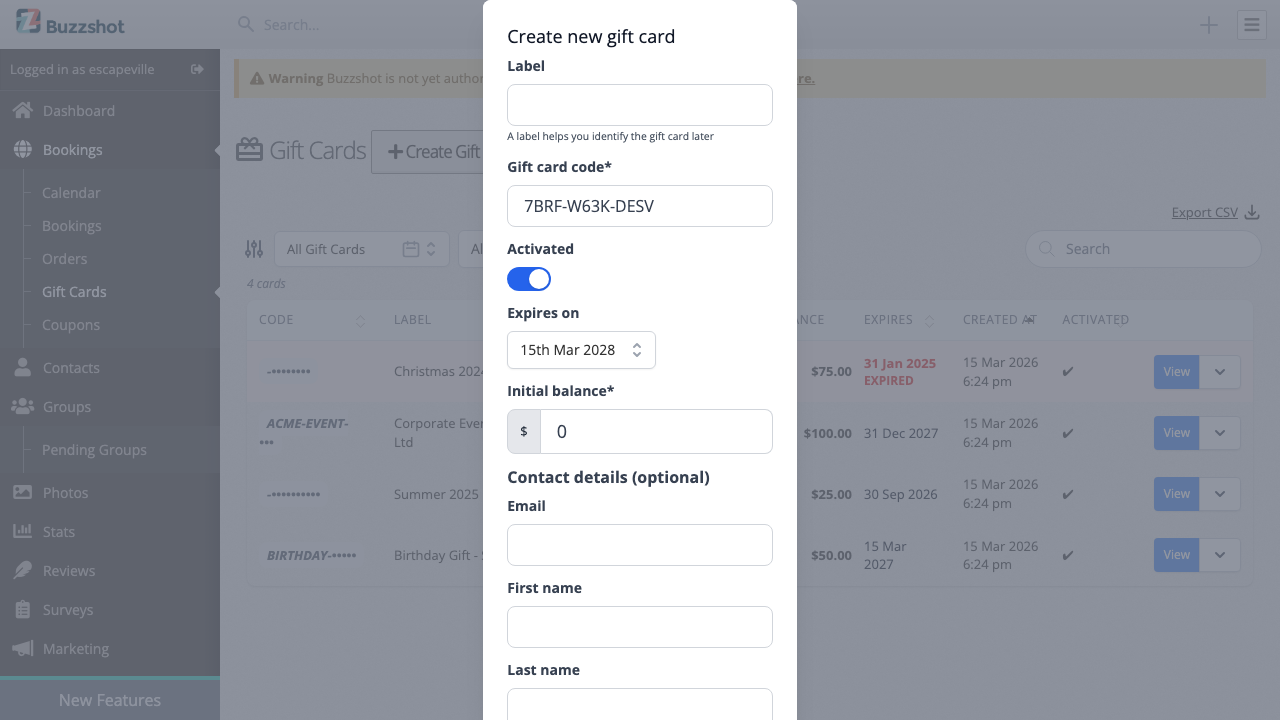
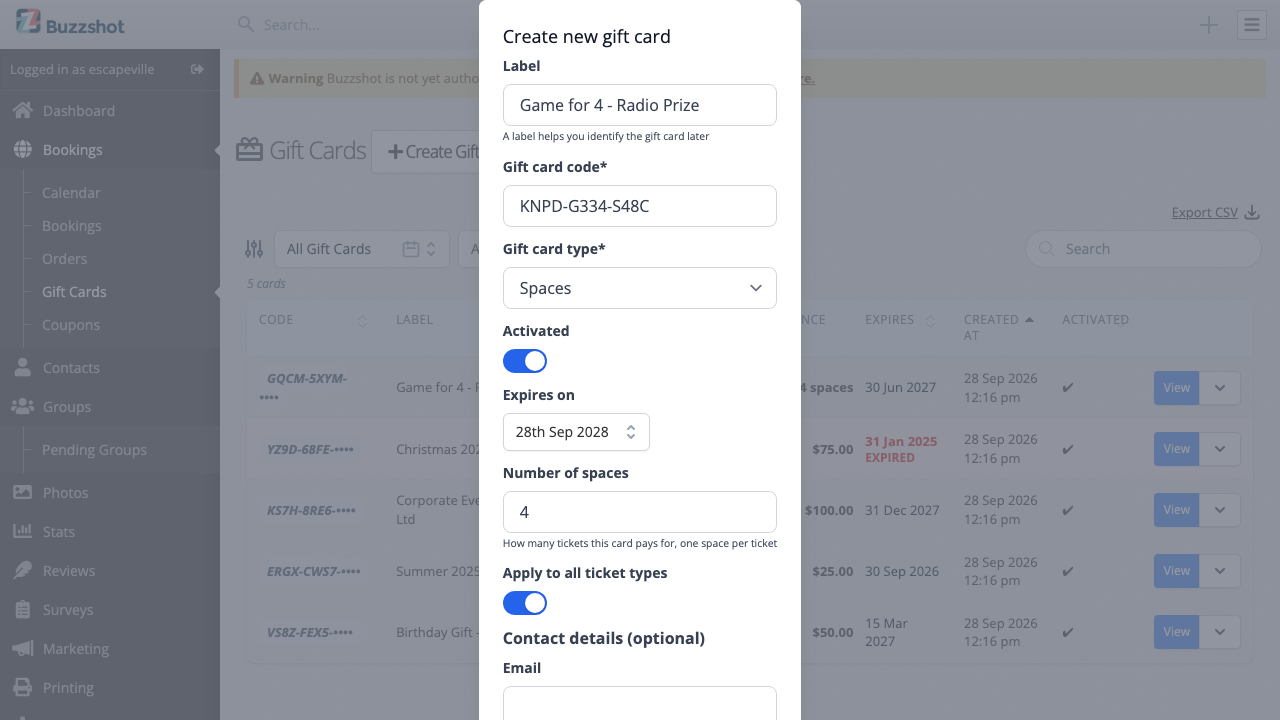
Fill in the fields:
- Label: An internal label to help you identify the card later. Customers do not see this.
- Gift card code: A unique code is generated automatically. You can change it if you prefer a custom code (e.g. "BIRTHDAY-SARAH"). Codes must be unique.
- Gift card type: Money or Spaces (see Money and Spaces Gift Cards).
- Activated: Leave this on so the card is immediately usable. Turn it off if you want to prepare cards in advance without making them redeemable yet.
- Valid from: The first date the card can be used. Leave it blank to let the card be used straight away. Set it to sell or give away cards that only work from a later date, for example Christmas cards that start working on 1 January.
- Expires on: By default, gift cards have no expiry date (the field is blank). You can set an expiry date if needed, for example to comply with local regulations or for promotional cards.
- Can be used with coupons: Leave this on to let the card go on an order that also has a coupon code. Turn it off to keep coupons away from any order the card is on. You can change it later by editing the card.
- Apply a discount coupon when gift card is used: Turn this on and choose an Associated coupon to apply that coupon automatically whenever the card is used.
- Initial balance (money cards): The amount to load onto the card.
- Number of spaces (spaces cards): How many tickets the card pays for.
- Apply to all ticket types (spaces cards): Leave this on so the card pays for any ticket. Turn it off and tick the Allowed ticket types the card may pay for.
-
Contact details (optional): Enter the recipient's email, first name, and last name if you want to send them the gift card by email.
-
Click Save.
If you entered an email address, you will be prompted to send the gift card email immediately. You can send it now or skip and send it later.
Selling Gift Cards Online
You can sell gift cards through your booking widget so customers can purchase them online, choose who to send them to, write a personalized message, and even schedule delivery for a future date. When a customer buys one, a gift card is created automatically and emailed to the recipient.
See Selling Gift Cards Online for the full walkthrough: setting up the Product, offering multiple values, bundling a coupon, and what customers see at checkout.
Note: Coupon and promo codes can be applied to gift card purchases in the booking widget. If you don't want customers using discount codes when buying gift cards, you can exclude your gift card Product from the coupon's conditions. See Coupons for details.
How Customers Redeem a Gift Card
Customers redeem gift cards during checkout in the booking widget.
- The customer adds a booking (or product) to their cart as normal.
- In the cart or checkout, they will see a Discount code or gift card field. (This is the same field used for coupon and promo codes. For information about discount and promo codes, see Coupons.)
- They enter the gift card code and click Apply.
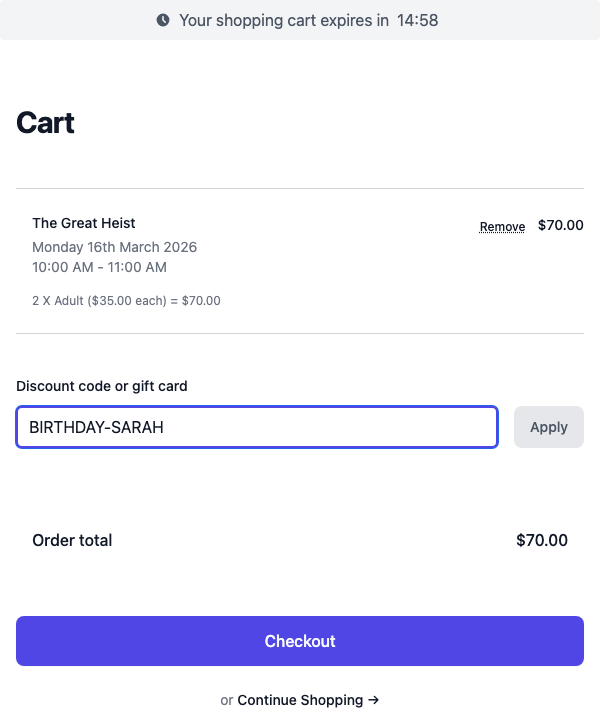
If the code is valid and the card has a balance, the gift card amount is deducted from the order total. The cart shows:
- From Gift Card: The amount being deducted from the gift card balance.
- Remaining to Pay: The amount the customer still needs to pay using another payment method.
If the gift card covers the entire order, no further payment is needed. If it only covers part of the order, the customer pays the remainder as normal.
A spaces card instead makes tickets free, one per space. The cart shows the tickets at full price, then a line such as Gift card (2 spaces) taking their value off. If a spaces card has no spaces left, the customer sees "This gift card has no spaces left". If nothing in the cart is a ticket the card can pay for, it stays applied and says "None of the tickets in your cart can use this gift card".
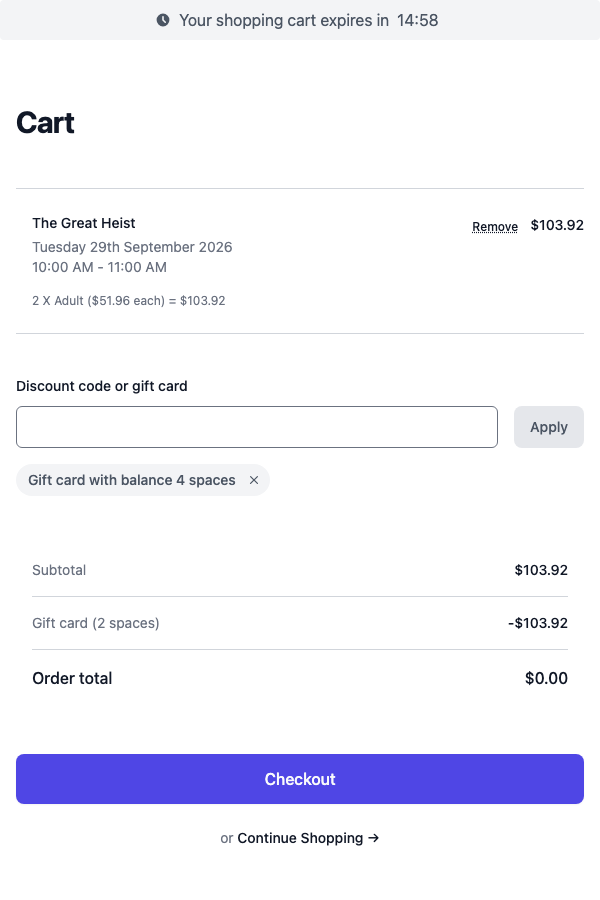
Spaces come off the card when the order is placed, and go back on if the order is cancelled.
If the card has Can be used with coupons turned off, it can't share an order with a coupon code. A customer who enters a coupon while the card is applied sees "A gift card on this order can't be used with coupons. Remove the gift card to use a coupon." One who enters the card while a coupon is applied sees "This gift card can't be used with coupons. Remove the coupon to use it." The same applies when staff add codes to an order.
If a customer tries a card before its Valid from date, they see "This gift card can be used from" followed by the date.
Note: Expired or deactivated gift cards cannot be redeemed.
Managing Gift Cards
Viewing the Gift Card List
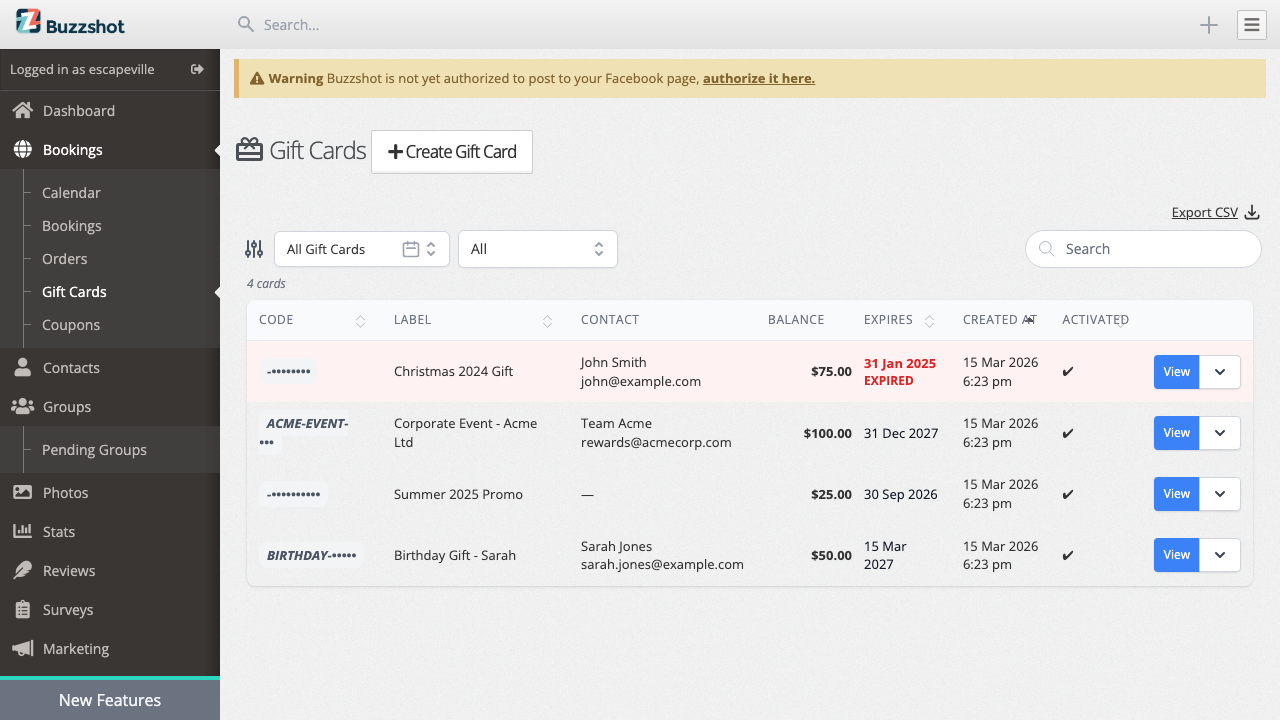
Go to Bookings > Gift Cards to see all your gift cards. The list shows each card's code, label, contact, balance, expiry date, creation date, and activation status.
You can filter the list by:
- Date range: Show cards created within a specific period, or select "All Gift Cards" to see everything.
- Status: Filter by Valid (activated and not expired), Deactivated, or Expired.
You can also search for a specific gift card by code, name, or email.
To export your gift cards, click the export button to download a CSV file. Spaces cards leave the money columns blank and show their balance in the spaces balance column.
Viewing Gift Card Details
Click on any gift card in the list (or click View) to see its detail page.
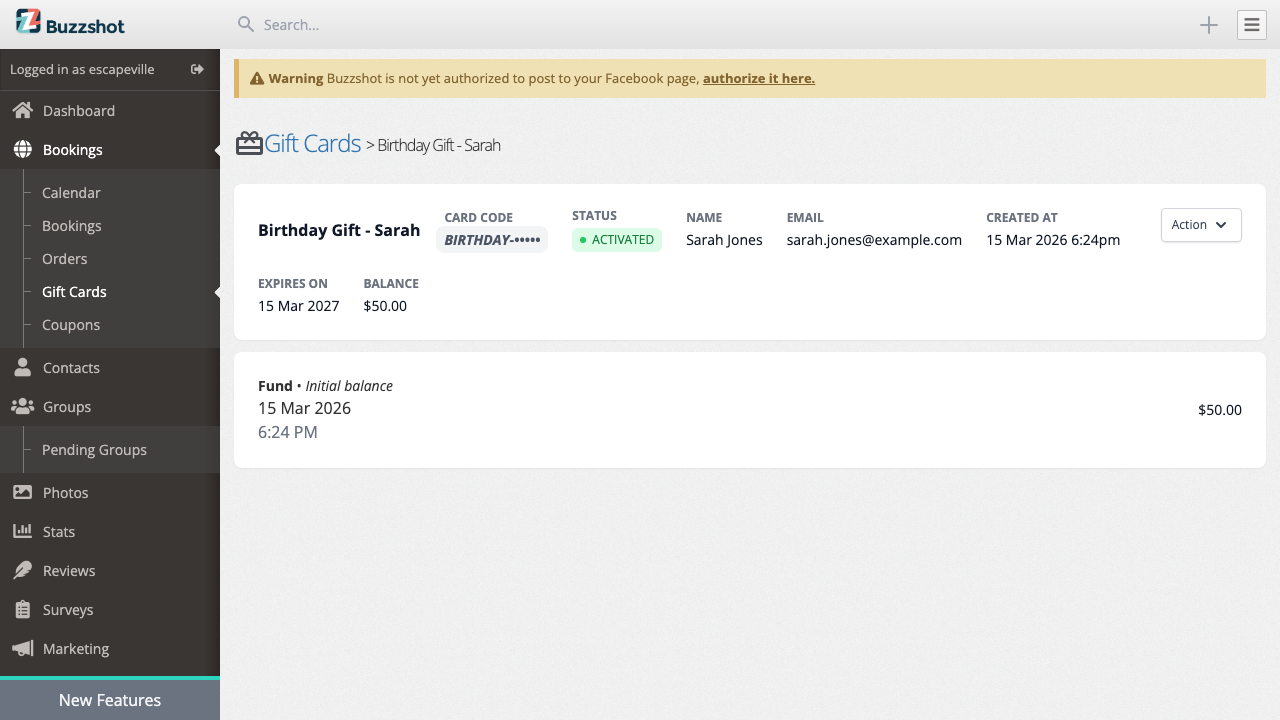
The detail page shows:
- All card details at the top: code, status, name, email, creation date, valid from date, expiry, and current balance.
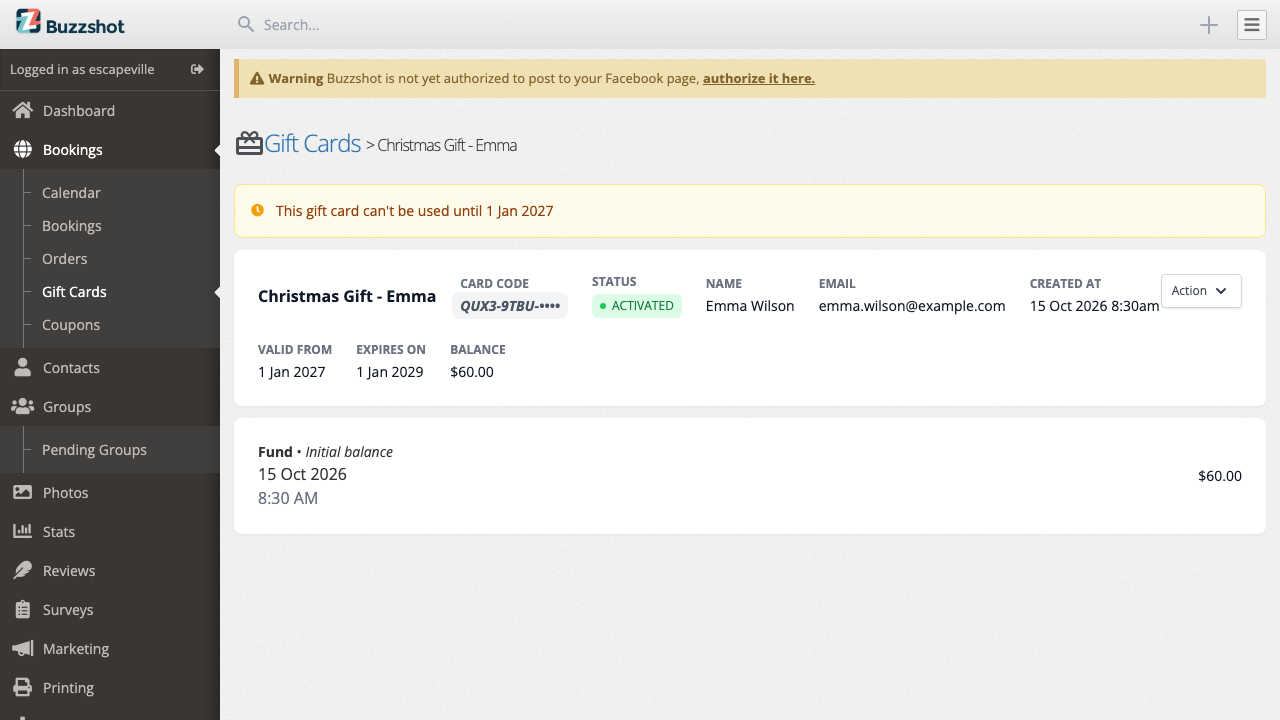
- An amber notice reading "This gift card can't be used until" followed by the date, if the card's Valid from date has not arrived yet.
- A transaction history below, showing every time funds were added to or charged from the card. For a spaces card, the balance and every transaction are shown in spaces. Each transaction shows whether it was a Fund (money added) or Charge (money deducted), along with the date, time, and a description. If the charge was linked to an order, you will see a clickable link to that order.
Editing a Gift Card
From the gift card detail page, click Action > Edit to update the label, activation status, valid from date, expiry date, coupon settings, or contact details.
Note: You cannot change the gift card code after creation.
Adding Funds
To top up a gift card's balance:
- From the gift card detail page, click Action > Add funds.
- Enter the Amount to fund and a Description (e.g. "Top-up" or "Bonus credit").
- Click Save.
The new funds appear immediately in the transaction history and the balance updates.
For a spaces card, the form asks for Spaces to add instead, in whole spaces.
Charging a Gift Card Manually
You can manually deduct an amount from a gift card, for example if a customer pays in person using their gift card for something not processed through the booking widget.
- From the gift card detail page, click Action > Charge card.
- Enter the Amount to charge (up to the card's current balance) and a Description.
- Click Save.
For a spaces card, enter the Spaces to charge instead, for example when a customer uses the card to play a game you booked by phone.
Sending the Gift Card Email
If you created a gift card manually and want to email it to the recipient, or if you need to resend the email:
- From the gift card detail page, click Action > Send email.
- Review or change the Email Address.
- Customise the email content if needed using the email editor.
- Click Send Email.
Showing a spaces balance in your emails: To show a card's balance, use the Gift Card Balance (in money or spaces) variable in the email editor. It reads "$50" for a money card and "4 spaces" for a spaces card. If your gift card email puts a currency symbol before the gift card amount, a spaces card would show as "$4", so switch it to this variable before you sell or issue spaces cards. Check your email for gift cards bought online too (see Selling Gift Cards Online).
The email includes the gift card code and balance so the recipient knows how to use it. For a card bought online, it also includes the buyer's name and gift message, just like the email sent at checkout.
If your cards have a Valid from date, add the Gift Card Valid From Date variable to your gift card email so recipients know when they can use the card. The default email does not mention it.
You can also re-send the gift card email from the order detail page. Open the order, scroll to the Digital Deliveries section, and use the resend option there. This is useful when a customer purchased a gift card online and needs the delivery email sent again.
Deactivating a Gift Card
To prevent a gift card from being used (for example, if it was issued in error or reported as stolen), you can deactivate it:
- From the gift card detail page, click Action > Edit.
- Toggle Activated to off.
- Click Save.
A deactivated gift card cannot be redeemed at checkout, but its balance is preserved. You can reactivate it at any time by toggling Activated back on.
Gift Card Expiry
Gift cards can have an expiry date, after which they can no longer be redeemed. By default, gift cards have no expiry date. They remain valid indefinitely. If you want gift cards to expire automatically, you can configure a default expiry period in your booking site settings. Any default you set there will be applied to newly created gift cards, but you can always override it on individual cards.
Valid From Dates
A gift card can have a Valid from date, before which it cannot be used. This suits cards you sell in advance, such as Christmas presents that start working in the new year. Set the date on a single card when you create or edit it, or on your gift card Product so every card sold from it gets the date (see Selling Gift Cards Online). The expiry date cannot be earlier than the valid from date.
If you have set a default expiry period, a card with a valid from date expires that many months after the valid from date, not after the day it was bought. For example, with a 24-month default, a card valid from 1 January 2027 expires on 1 January 2029, whenever it was bought.
Until the date arrives, the card's detail page shows an amber notice. A card that is not valid yet is not marked as expired in the gift cards list.
Measuring Expiry Against the Visit Date
By default, a gift card's dates are checked against the day the customer uses it. Turn on Measure expiry against the visit date in Settings > Gift Cards to check them against the date being booked instead. Then a card can't be stretched past its expiry by booking a game far in the future. It also works the other way: a customer can use a card before its valid from date to book a visit on or after that date. Orders with no bookings are still checked against today.
Expired Gift Cards
Expired gift cards are highlighted in red on both the gift cards list and the detail page, with an "EXPIRED" label. You can filter for expired cards using the status filter.
Cross-Account Gift Cards
If your organisation has multiple accounts (for example, different locations or brands), you can allow gift cards purchased on one account to be redeemed on another. This means a customer who receives a gift card from your downtown location can use it to book at your westside location, or any other account you choose to accept cards from.
Requirements
To set up cross-account gift cards, you need:
- An organisation: Your accounts must be grouped under the same organisation.
- Organisation-wide access: Your user login must have access to all accounts in the organisation. If you only have access to some accounts, you will see a message explaining that you need broader access.
- Same currency: Money gift cards can only be accepted across accounts that use the same currency.
Spaces cards follow the same settings, with two differences: a spaces card that pays for any ticket type works across accounts whatever their currency, while a spaces card limited to chosen ticket types only works at the account that issued it.
Setting It Up
- Go to Settings > Gift Cards.
- Under Cross-Account Gift Cards, you will see a toggle for each other account in your organisation.
- Turn on the toggle for each account whose gift cards you want to accept at the current account.
- Click Save.
Repeat this for each account where you want cross-account redemption to work. The setting is one-directional. Turning on "Accept cards from Account B" on Account A does not automatically mean Account B accepts cards from Account A. You need to configure each account separately.
How It Works for Customers
From the customer's perspective, nothing changes. They enter the gift card code at checkout as normal. The system automatically checks both the current booking site and any accepted cross-account sites when looking up the code. If the gift card is found and has a balance, it is applied to the order.
Viewing Cross-Account Gift Cards in the Admin
When a cross-account gift card is used on an order, you can view the gift card details from the order page as usual. If you click through to the gift card itself and it belongs to a different account, you will be prompted to switch to that account (if you have access) so you can view or manage it there.
Gift Cards and Orders
When a customer uses a gift card on an order, the order details page in your admin shows a Gift Cards section. This section displays which gift cards were applied, how much was charged, and the remaining balance on each card. Staff can also manually add a gift card to an existing order or charge a gift card against an order from this page.
For a spaces card, the order page shows each ticket at full price with a Gift card (4 spaces) line under the subtotal, as the customer sees it. When you add a spaces card to an order, the When to charge choice does not apply: the spaces are used as soon as the order is booked. You cannot charge or refund a spaces card from the order page. To give spaces back, cancel the order or remove the card from it. A booking item where you have typed in a fixed total price never uses spaces.
Tips and Best Practices
- Configure an expiry date if regulations require it. Gift cards default to no expiry, but some jurisdictions require gift cards to have a stated validity period. If this applies to you, set a default expiry period in your booking site settings or set an expiry date on each card when you create it. Check your local regulations to be sure.
- Use labels for organisation. When creating gift cards for promotions or events, use the label field to group them (e.g. "Summer 2025 Promo", "Corporate Event: Acme Ltd"). Labels are for your team only and are not shown to customers.
- Sell gift cards online. Setting up a gift card Product is the easiest way to sell gift cards at scale. Customers buy them through your widget, choose a recipient, and the system emails them automatically. See Selling Gift Cards Online for the full setup.
- Use gift cards for refunds. Instead of refunding to a payment method, you can create a gift card and load it with the refund amount. This keeps the money within your business while still making the customer whole.