Gift Card PDFs
Buzzshot can turn each gift card into a PDF: a printable card showing the code, the value, who it is for, the buyer's message and the expiry date. Customers get the PDF attached to their gift card email, so they can print it and put it in a birthday card. Your staff can download the same PDF for any gift card, to print at the front desk or post.
You design the card once, and Buzzshot fills in each card's details. This article covers what the PDF is, where it goes and how to turn it on or off. To change how the card looks, see Designing Your Gift Card.
What the PDF Looks Like
Every gift card prints from the same design, with that card's own details filled in. Until you change the design, cards use Classic: a white A5 page with the value in large type, the code and the expiry date.
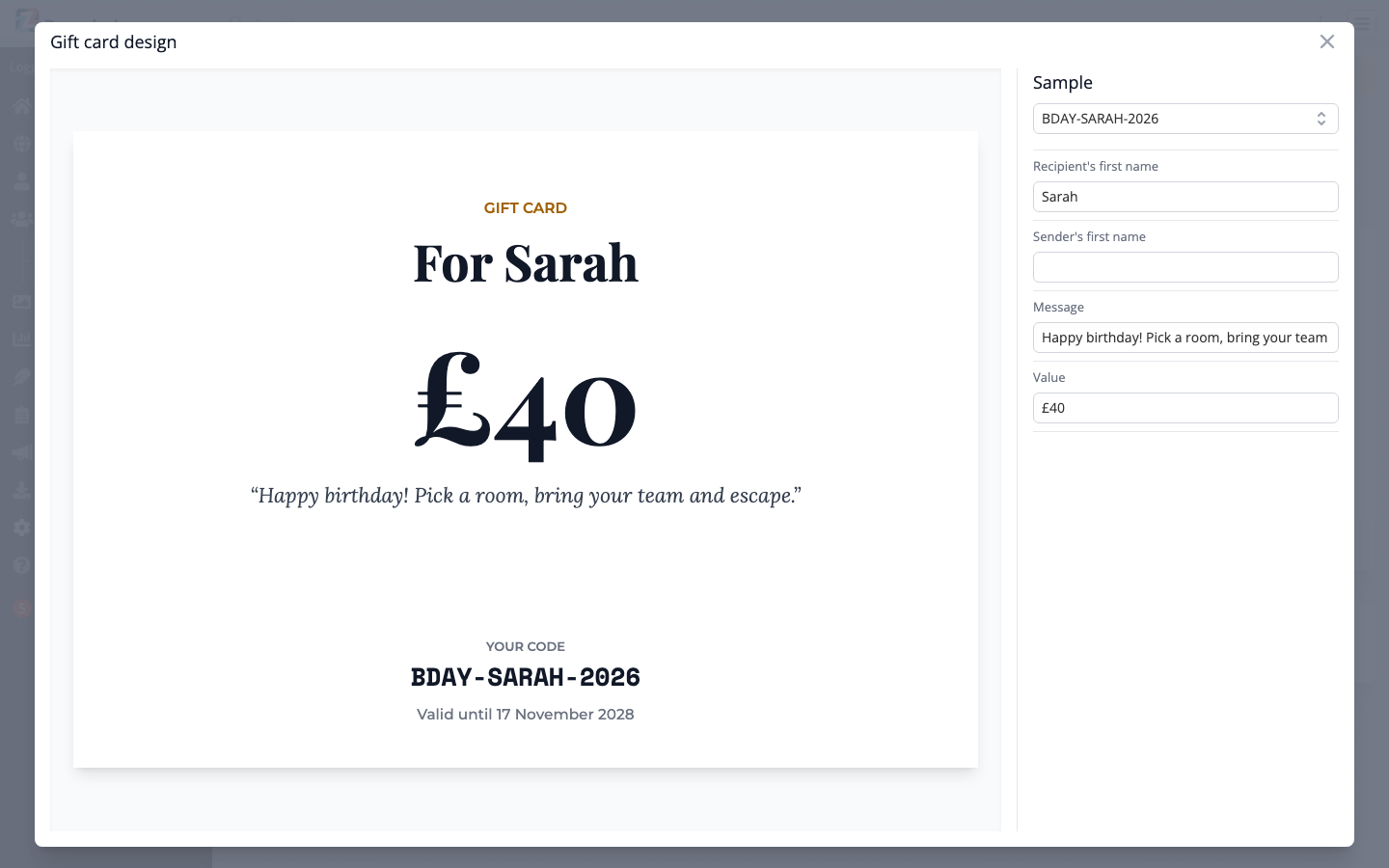
Lines with nothing to show are left out. A card with no gift message has no message line, and a card bought for yourself has no "From" line. A card with no expiry date has no "Valid until" line.
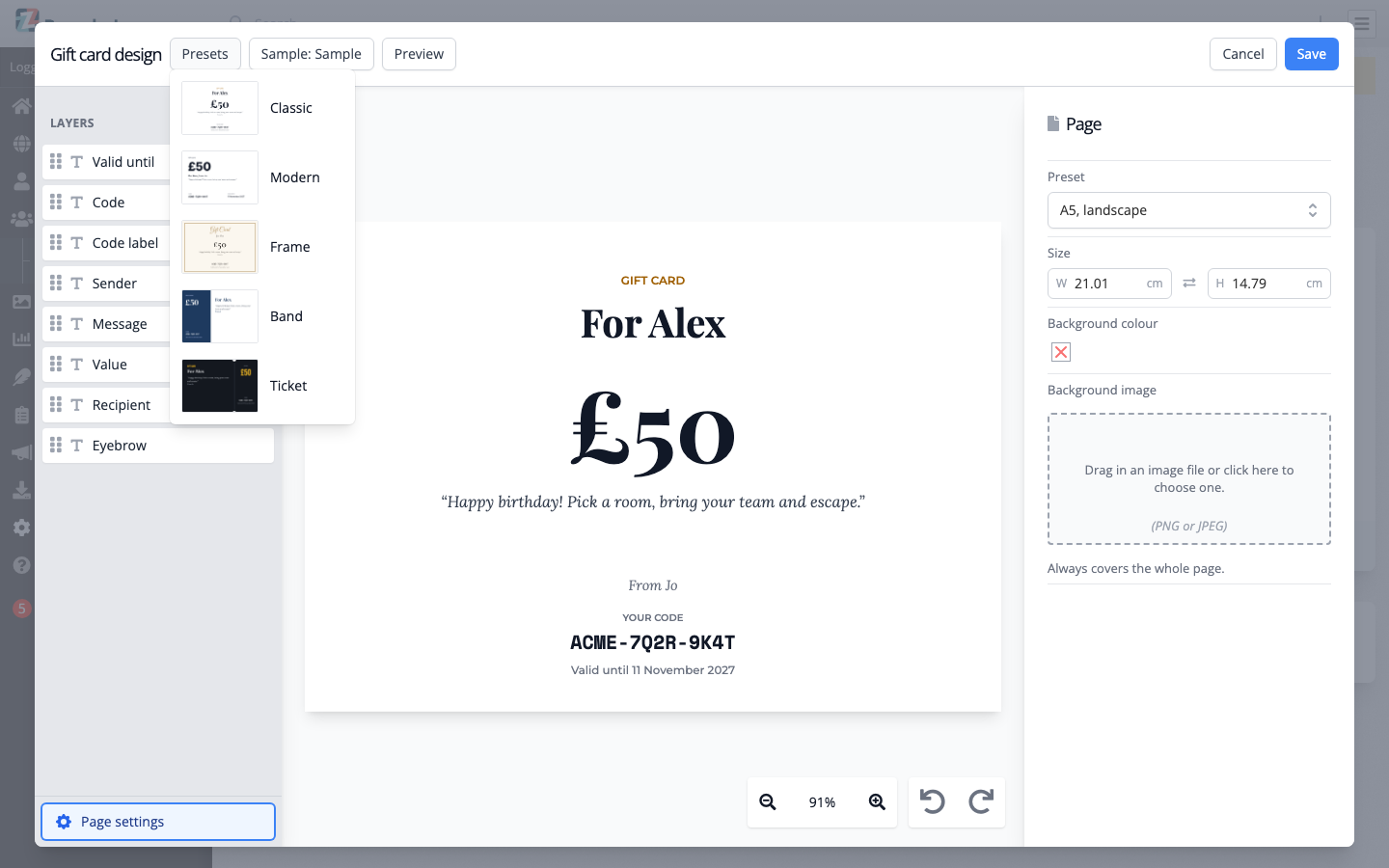
Buzzshot comes with five ready-made designs: Classic, Modern, Frame, Band and Ticket. You can pick one, change it, or build your own with your logo, pictures and fonts.
If you sell in more than one language, each card prints in the language it was bought in, where your design has text for that language. Otherwise it uses your main language.
Where Customers Get the PDF
The PDF is attached to the gift card email:
- Gift cards bought online. The recipient's gift card email carries the PDF, whether it goes straight after payment or on a date the buyer chose. See Selling Gift Cards Online.
- Gift cards you send yourself. When you use Action > Send email on a gift card's page, or resend a gift card from an order's Digital Deliveries section, the email carries the PDF too.
You can also download the PDF yourself, to print it or send it on (see Downloading a Gift Card's PDF).
The file is named after the card's code, for example gift-card-bday-sarah-2026.pdf.
Attaching the PDF to Gift Card Emails
- Go to Settings > Gift Cards.
- Turn on Attach a PDF to the gift card email.
- Click Save.
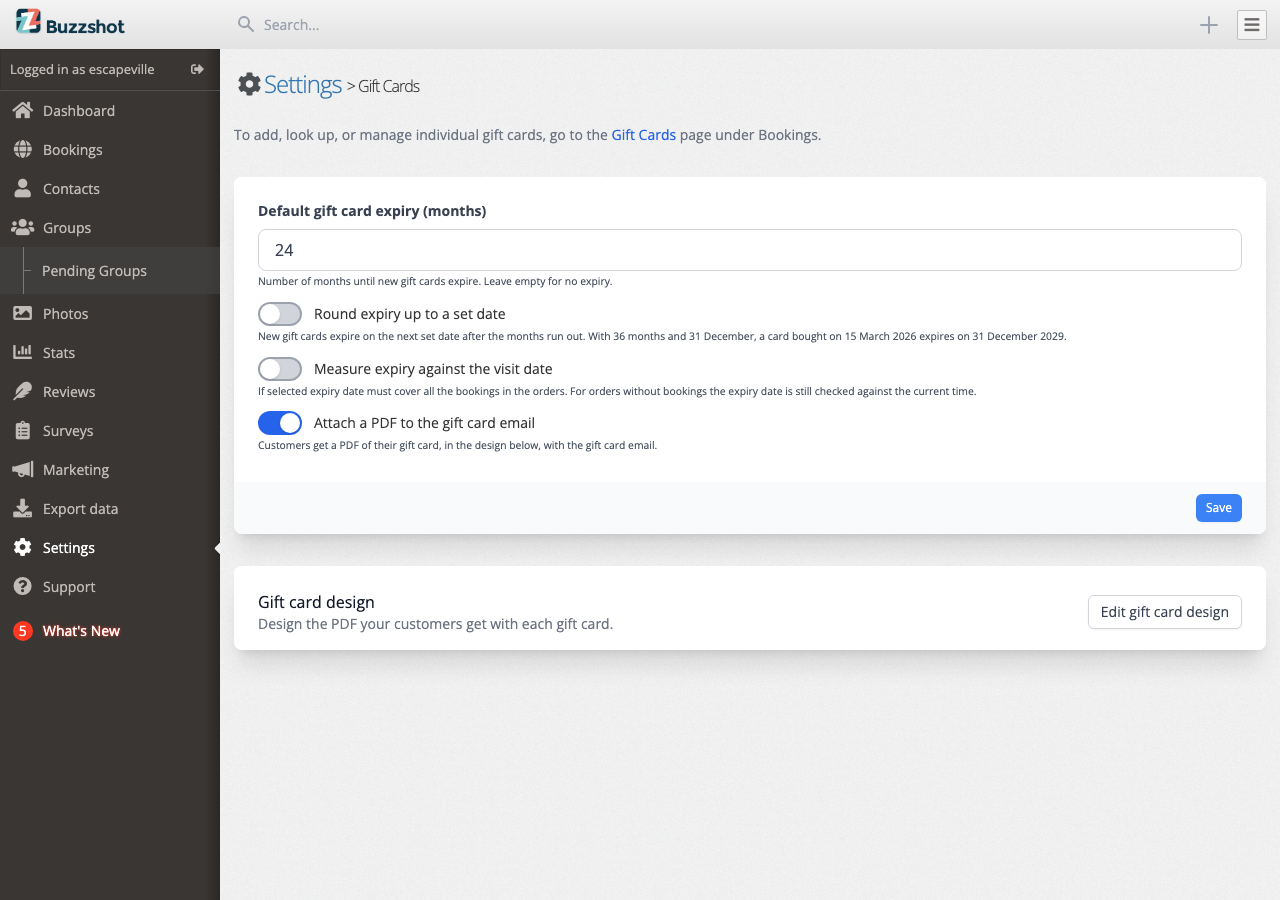
From then on, every gift card email carries the PDF. To stop attaching it, turn the setting off again. Your staff can still download the PDF from each gift card's page.
Downloading a Gift Card's PDF
To print a card yourself, for example for a customer buying a gift card at the front desk:
- Go to Bookings > Gift Cards.
- Open the gift card.
- Click Action > Download PDF.
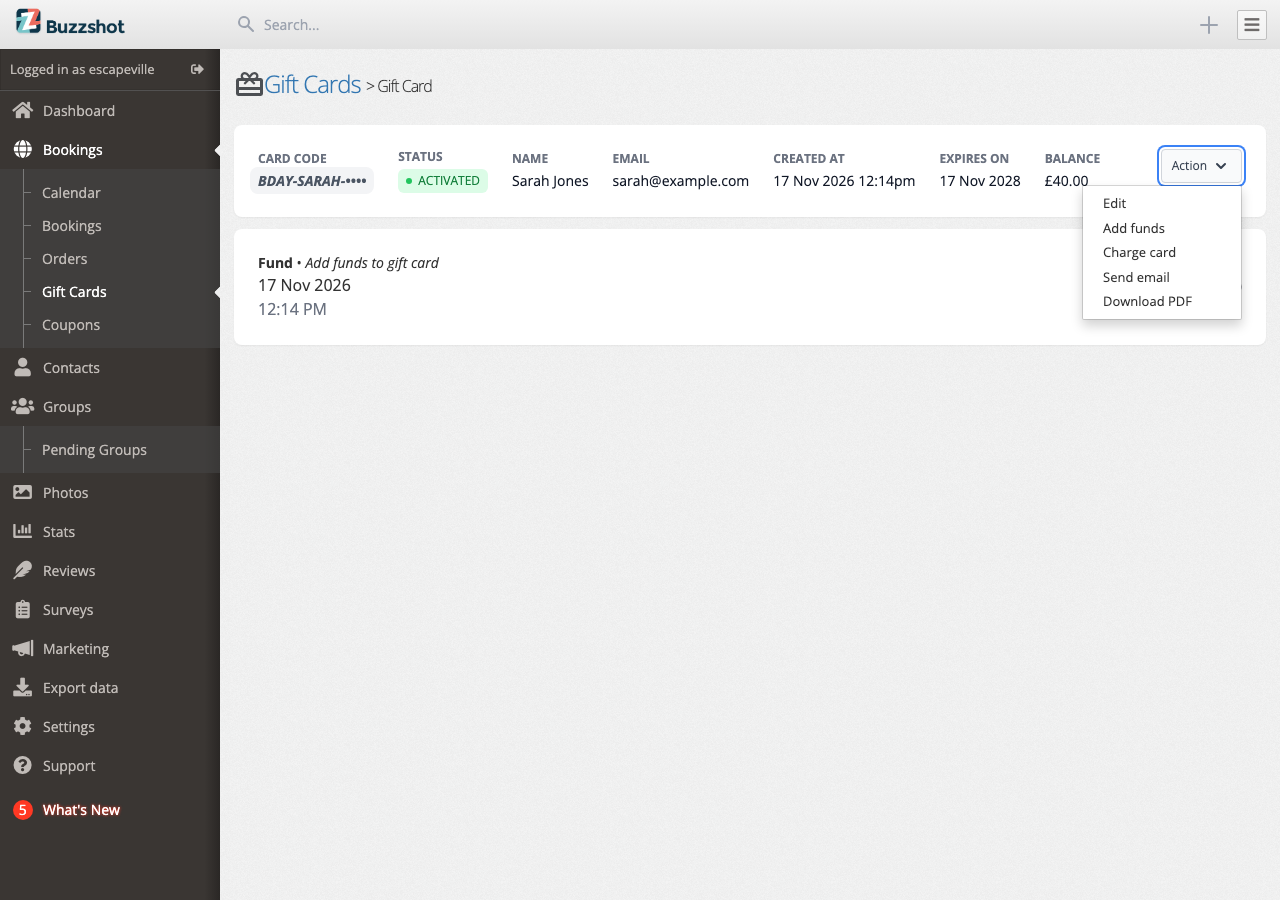
You can also download it straight from the list: click the arrow next to the card's View button and choose Download PDF.
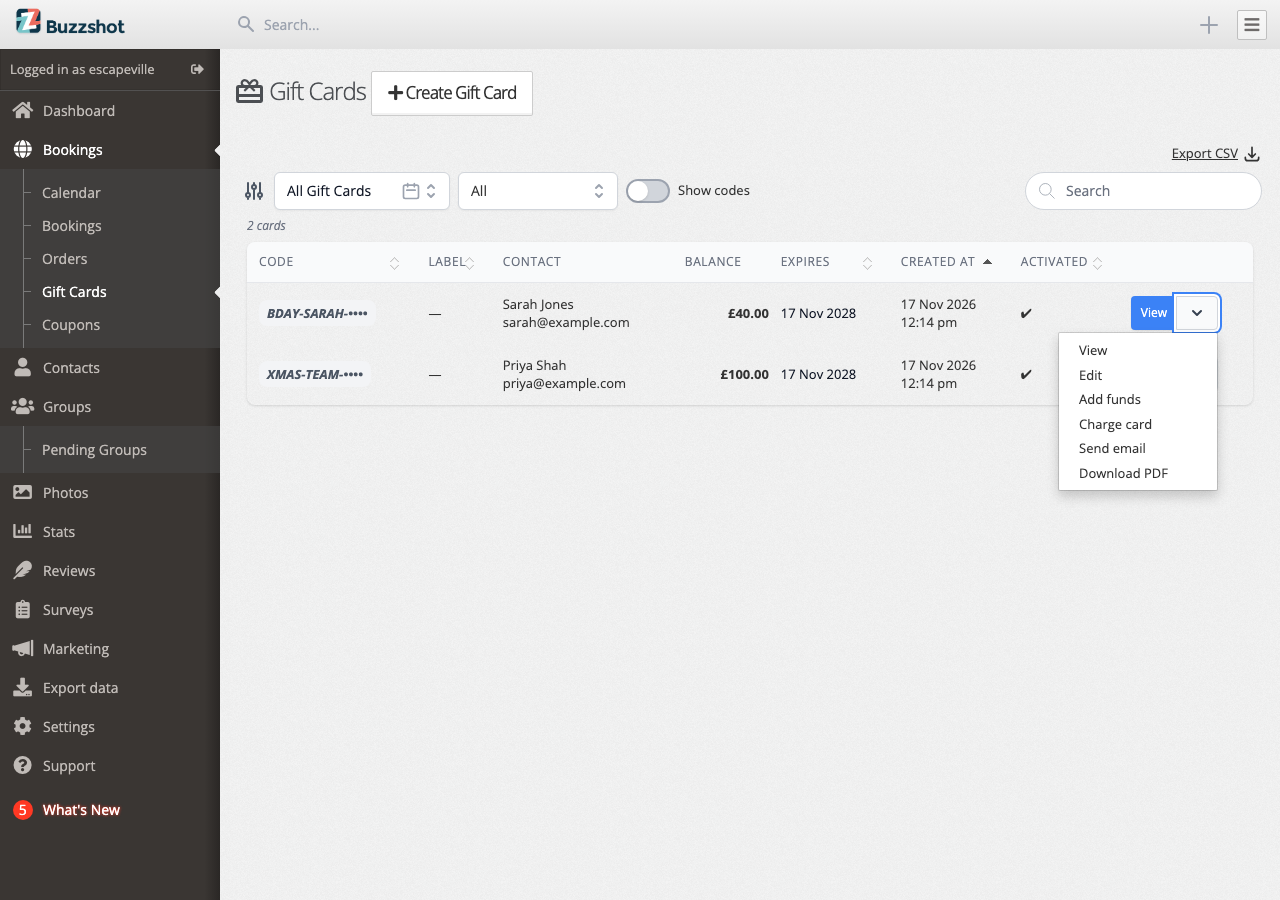
The PDF always uses your current design and the card's current details, so a card you have just edited downloads with its new expiry date.
Changing the Design
Go to Settings > Gift Cards and click Edit gift card design. You can start from one of the five ready-made designs, change the text, fonts and colours, add your logo and a background picture, and choose the page size. See Designing Your Gift Card for a full walkthrough.
Your new design applies to every PDF from then on, including cards sold before you changed it. PDFs already sent by email stay as they were.