Coupon Codes
Coupon codes (also known as promo codes or discount codes) let you create promotional discounts that customers can enter during checkout to receive a discount on their booking. Whether you are running a seasonal sale, rewarding loyal customers, or partnering with a local business, coupons give you full control over the discount amount, which bookings it applies to, and how many times it can be used.
Looking for gift cards? Gift cards carry a monetary balance and work like a payment method. See Gift Cards.
Looking for automatic discounts without a code? See Rules which let you change prices by day, time, or other conditions without requiring customers to enter a code.
How Coupons Work
A coupon in Buzzshot has two parts:
- The coupon itself -- defines the discount (how much, what it applies to, and any conditions).
- Coupon codes -- the actual codes customers type in at checkout. A single coupon can have many codes, all sharing the same discount rules.
For example, you might create a coupon called "Summer Sale" with a 15% discount, then add the codes "SUMMER15", "SUN15", and "BEACH15". All three codes give the same 15% discount, but you can track which code was used most, give different codes to different marketing channels, and set different expiry dates on each.
Creating a Coupon
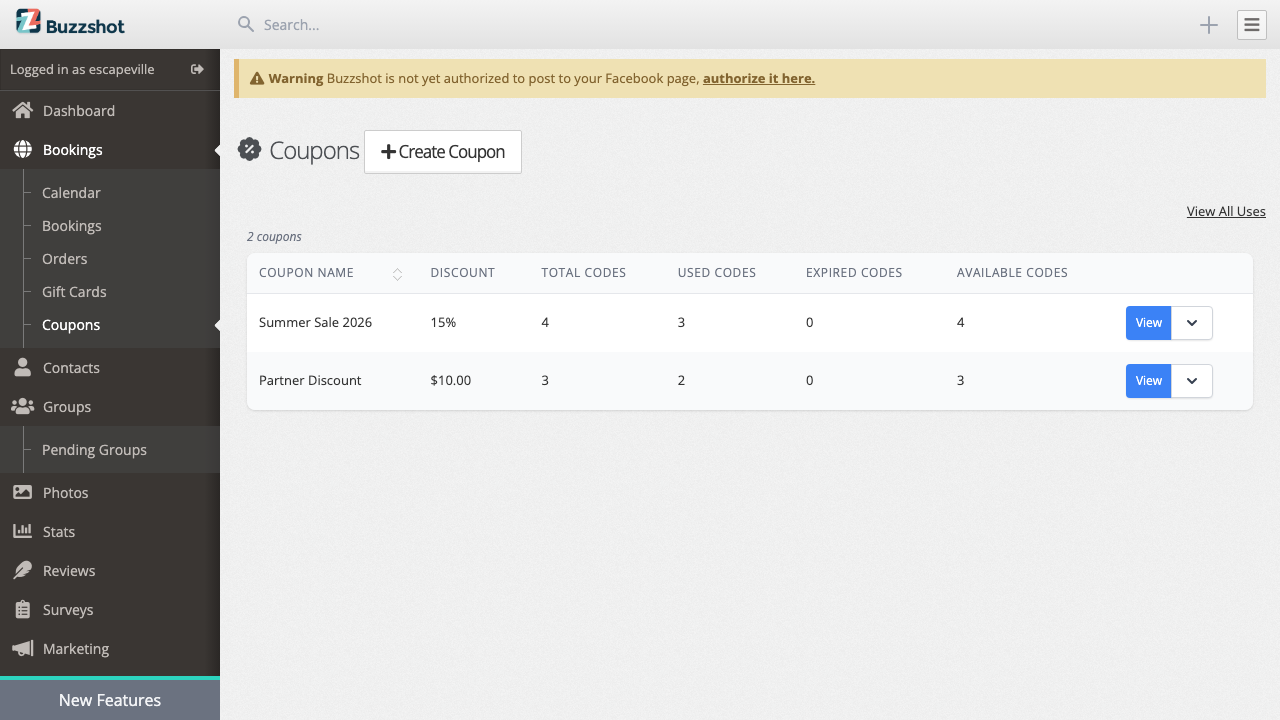
- Go to Bookings > Coupons in the admin area.
- Click Create Coupon.
- Fill in the coupon details (described below).
- Click Save.
You will be taken to the coupon's details page where you can see all its codes and usage statistics.
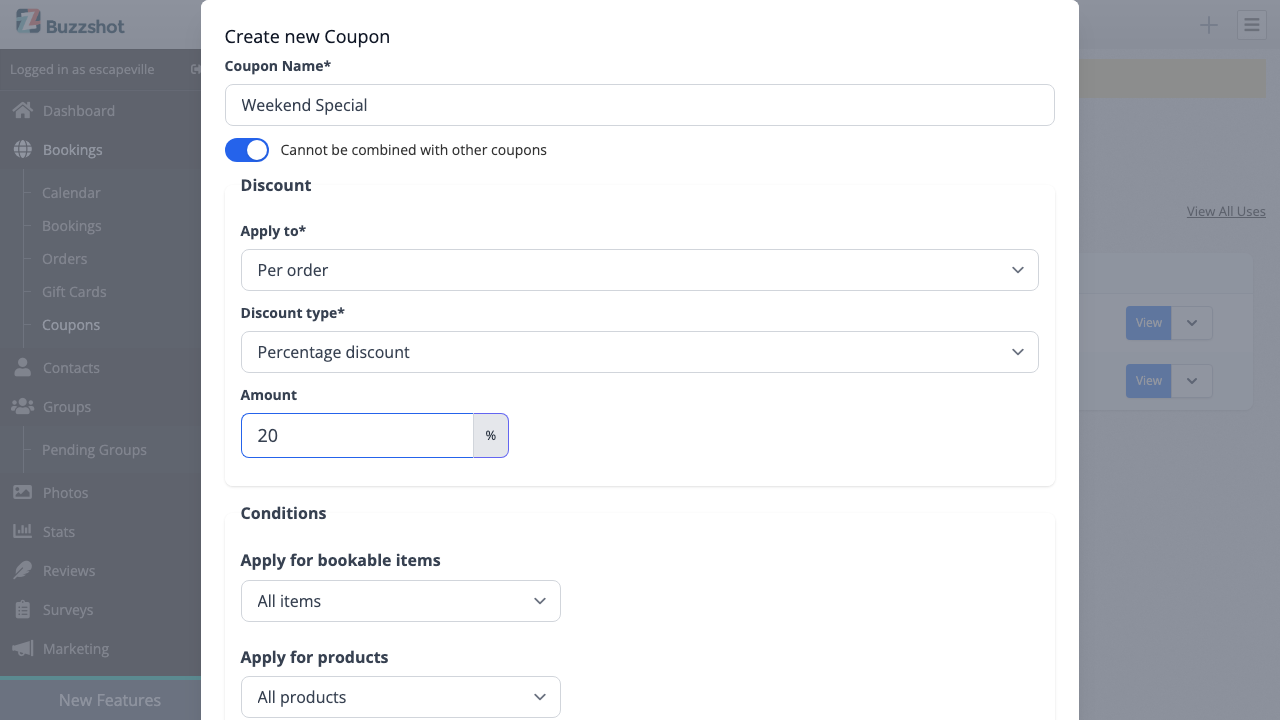
Coupon Name
Give the coupon a descriptive internal name, such as "Summer Sale 2026" or "Partner Discount -- Hotel ABC". This name is for your reference only -- customers do not see it.
Cannot Be Combined With Other Coupons
This toggle controls whether the coupon can be used alongside other coupons in the same order. When enabled (the default), customers can only apply one coupon to their order. Turn it off if you want to allow customers to stack this coupon with others.
Discount Settings
Apply To
Choose what the discount applies to:
| Option | What It Means |
|---|---|
| Per order | The discount applies once to the entire order. |
| Per booking | The discount applies separately to each booking (room) in the order. |
| Per ticket | The discount applies to each individual ticket in the booking. |
For most promotions, Per order is the simplest choice. Use Per booking if you want the discount to apply to each room separately (useful for multi-room orders). Use Per ticket if you want the discount on a per-person basis.
Important: Per Order with percentage discounts and gift cards/products. When using Per Order with a percentage discount, the discount applies to the entire order value including any gift cards or products in the cart. If you only want to discount the booking, use Per Booking instead.
Discount Type
| Type | How It Works | Example |
|---|---|---|
| Fixed value discount | Subtracts a set amount | $10 off |
| Percentage discount | Subtracts a percentage of the price | 15% off |
| Set exact price | Sets the price to a specific amount | Set price to $50 |
For Fixed value discount and Percentage discount, enter the discount amount in the Amount field.
For Set exact price, enter the total price you want customers to pay in the Total Price field. This is useful for special flat-rate offers or complimentary bookings (set to $0.00).
Applying Multiple Times
When you set Apply to to "Per ticket", an additional field appears:
- How many times to apply per booking? -- Limits how many tickets in a single booking receive the discount. Leave blank for unlimited. For example, setting this to 2 means only 2 tickets per booking get the discount, even if the customer books 6 tickets.
When you set Apply to to "Per booking", you will see:
- How many bookings to apply to per order? -- Limits how many bookings (rooms) in a single order receive the discount. Leave blank for unlimited.
Conditions
Conditions let you restrict when and where the coupon applies. These options appear based on your Apply to selection.
How booking-level conditions interact with Apply To. Conditions like Date, Time, Day of Week, and Number of People apply at the booking level. How they work depends on your Apply To setting:
- Per Booking or Per Ticket: All booking-level conditions work as expected -- each booking is checked individually.
- Per Order + Percentage discount: Booking-level conditions control which bookings' amounts feed into the discount calculation. If a booking does not meet the conditions, its value is excluded from the percentage calculation.
- Per Order + Fixed discount: Booking-level conditions do not apply. The fixed discount is applied to the order regardless of whether individual bookings meet the conditions. If you need booking-level conditions with a fixed discount, use Per Booking instead.
Apply for Bookable Items
Control which of your rooms or experiences the discount applies to:
- All items -- The discount applies to every bookable.
- Selected items -- The discount only applies to the specific rooms you select.
- All items except selected -- The discount applies to everything except the rooms you select.
- Don't apply to any bookings -- The discount does not apply to bookable items (useful if you only want it for products).
Apply for Ticket Types
When applying per ticket, you can choose which ticket types receive the discount:
- All types -- Every ticket type gets the discount.
- Selected types -- Only the ticket types you choose get the discount (e.g., only "Adult" tickets).
- All types except selected -- All ticket types except the ones you choose get the discount.
Apply for Products
Control whether the discount applies to standalone products:
- All products -- The discount applies to all product groups.
- Selected products -- Only the product groups you choose are discounted.
- All products except selected -- Everything except the selected product groups is discounted.
- Don't apply to any products -- The discount does not apply to standalone products.
Date and Time Restrictions
You can limit the coupon to bookings within a specific date range, on certain days of the week, or during certain time windows. These conditions are based on the booking's scheduled date and time, not when the customer places the order.
- Date range -- Set a "from" and "to" date to restrict the discount to bookings within that period.
- Day of week -- Toggle specific days on or off. For example, enable only Monday through Thursday for a weekday-only promotion.
- Time range -- Set a "from" and "to" time to restrict the discount to bookings in that window (e.g., morning sessions only).
Warning: Known issue with Per Order and date/time/day conditions. When a coupon is set to "Per Order" and has date, time, or day-of-week conditions, bookings outside the valid range may still receive a small partial discount on order-level fees (such as the processing fee). This can result in a minor unexpected discount even when no bookings qualify. Workaround: If your coupon uses date, time, or day-of-week conditions, set Apply To to "Per Booking" instead of "Per Order" to avoid this issue.
Number of People
Restrict the discount based on how many people are in the booking:
- Minimum people -- The booking must have at least this many people for the discount to apply.
- Maximum people -- The booking must have no more than this many people.
This is useful for promotions like "10% off for groups of 6 or more".
Creating the First Code
When you create a coupon, you can optionally create a code at the same time. You can also skip this and add codes later.
- Code -- The text customers will type at checkout (e.g., "SUMMER15"). Codes are automatically converted to uppercase.
- Valid from -- The date from which the code becomes active. Leave blank for immediately.
- Expires after -- The date after which the code stops working. Leave blank for no expiry.
- Maximum uses -- How many times this code can be used in total. Leave blank for unlimited.
Managing Coupon Codes
Once a coupon is created, you can manage it and its codes from the coupon details page.
Viewing Coupon Details
Click on any coupon in the list (or click View from the action menu) to see its details page. This page shows:
- The coupon name and discount summary
- The Apply To setting
- Total Codes and Available Codes counts
- A table of all codes with their status
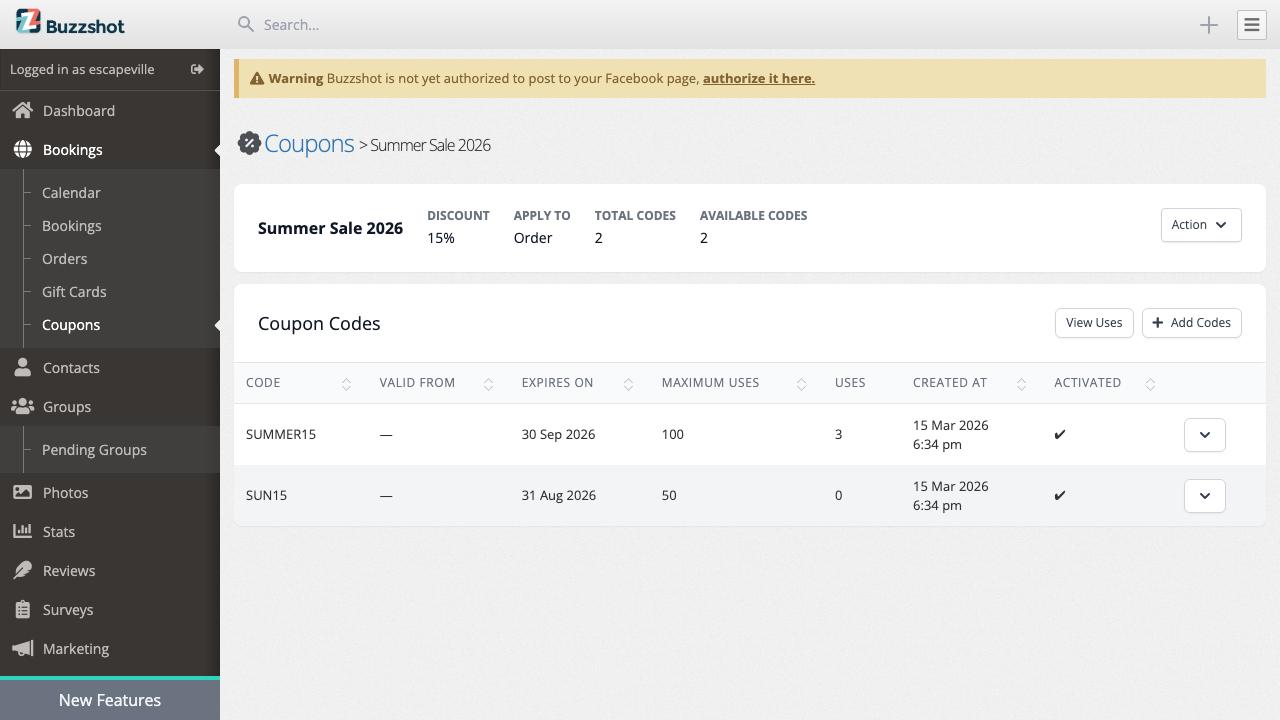
The codes table displays each code along with:
| Column | Description |
|---|---|
| Code | The code text |
| Valid From | When the code becomes active |
| Expires On | When the code expires |
| Maximum Uses | How many times the code can be used (blank means unlimited) |
| Uses | How many times the code has been used so far |
| Created At | When the code was added |
| Activated | Whether the code is currently active |
Adding More Codes
You can add codes to an existing coupon at any time:
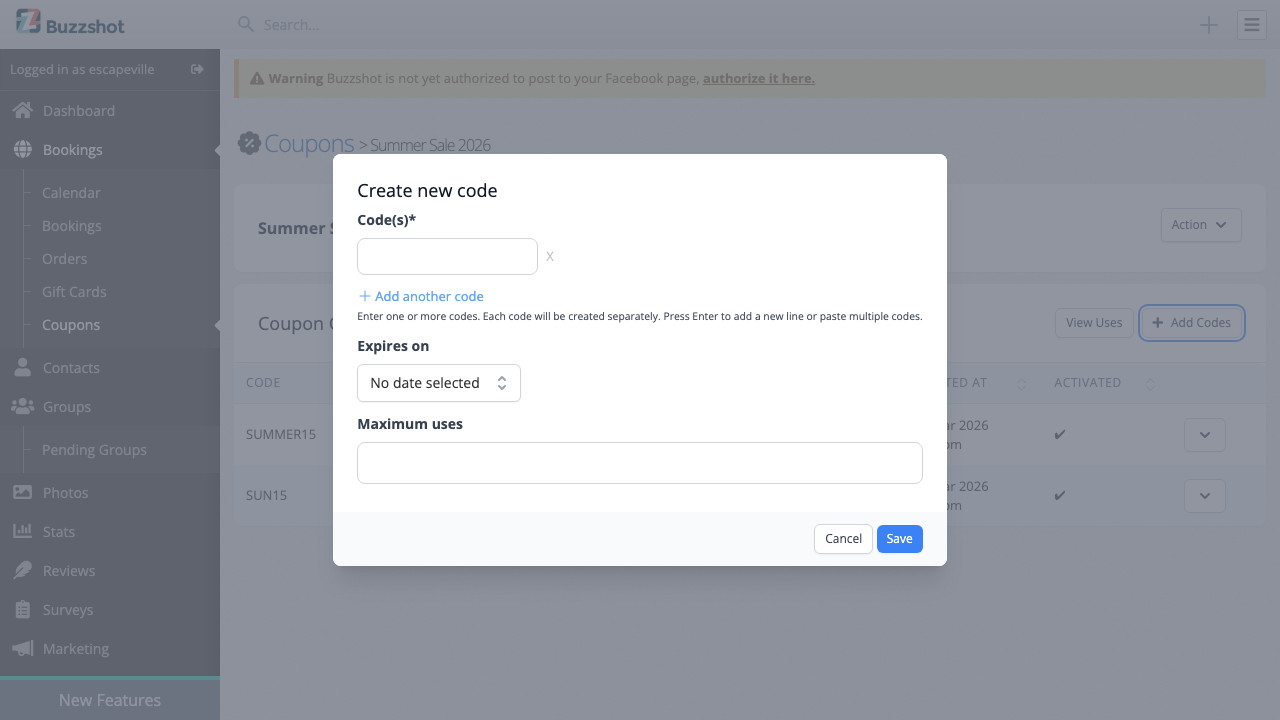
- From the coupon details page, click Add Codes.
- Enter one or more codes. You can add multiple codes at once -- press Enter or click "Add another code" to add additional lines.
- Optionally set Expires on and Maximum uses for this batch of codes.
- Click Save.
All codes added in the same batch share the same expiry date and usage limit.
Editing a Code
Click the action menu on a code and select Edit. You can change:
- Valid from -- When the code becomes active.
- Expires after -- When the code stops working.
- Maximum uses -- The total number of times the code can be used.
- Activated -- Toggle the code on or off. Deactivated codes cannot be used at checkout and will be removed from any existing carts.
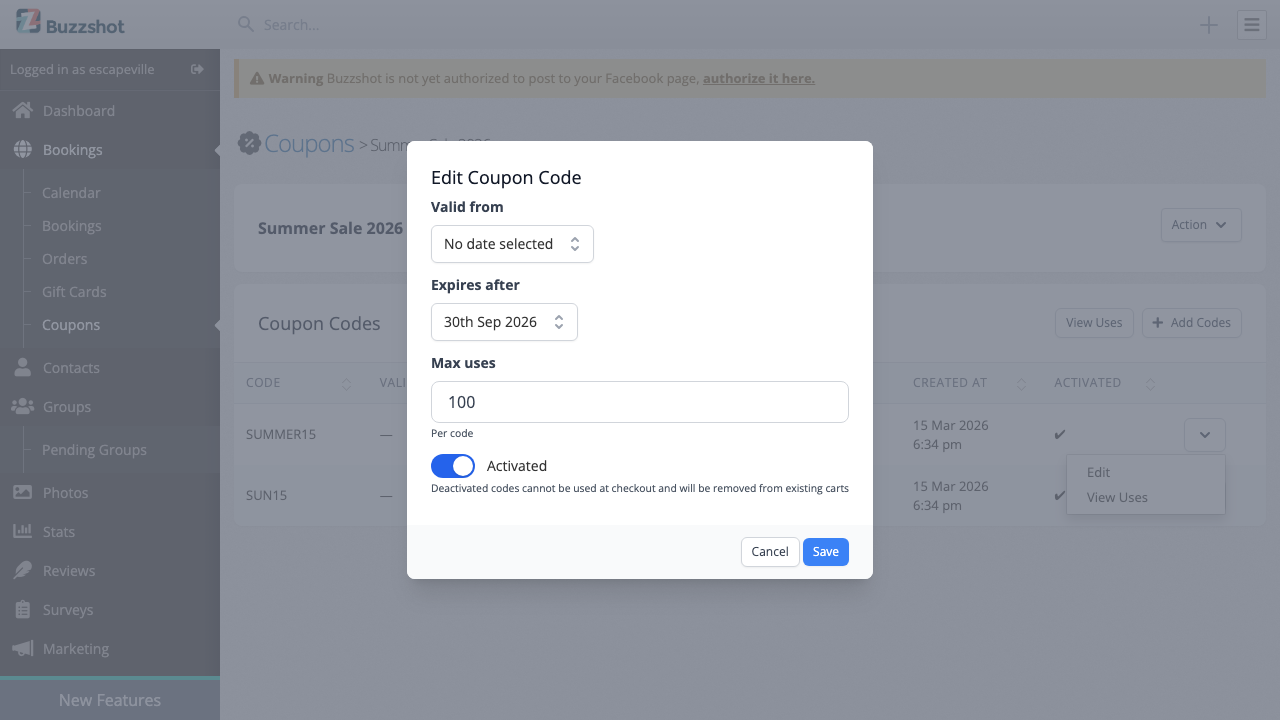
Note: You cannot change the code text itself after it has been created. If you need a different code, deactivate the old one and create a new one.
Editing a Coupon
To change the coupon's discount settings, name, or conditions:
- Click the Action menu on the coupon details page (or from the list).
- Select Edit.
- Update the fields and click Save.
Changes to the coupon affect all of its codes, since codes inherit the discount rules from their parent coupon.
Deleting a Coupon
To delete a coupon and all its codes:
- Click the Action menu on the coupon.
- Select Delete.
- Confirm the deletion.
Warning: Deleting a coupon is permanent. All codes belonging to the coupon will also be removed, and any codes currently in customer carts will be cleared. Past orders that used the coupon are not affected -- they retain their discount.
Generating Codes with Automations
Coupon codes can be automatically generated using the Generate Coupon Code action in Automations. This is useful for sending personalised coupon codes to customers based on triggers -- for example, sending a birthday discount code, a post-visit thank-you offer, or a reward after a customer's third booking. Each generated code is unique and tied to the coupon's discount rules.
How Customers Use Coupon Codes
During checkout, customers will see a field labelled "Discount code or gift card" on the cart page. They type their coupon code into this field and click Apply.
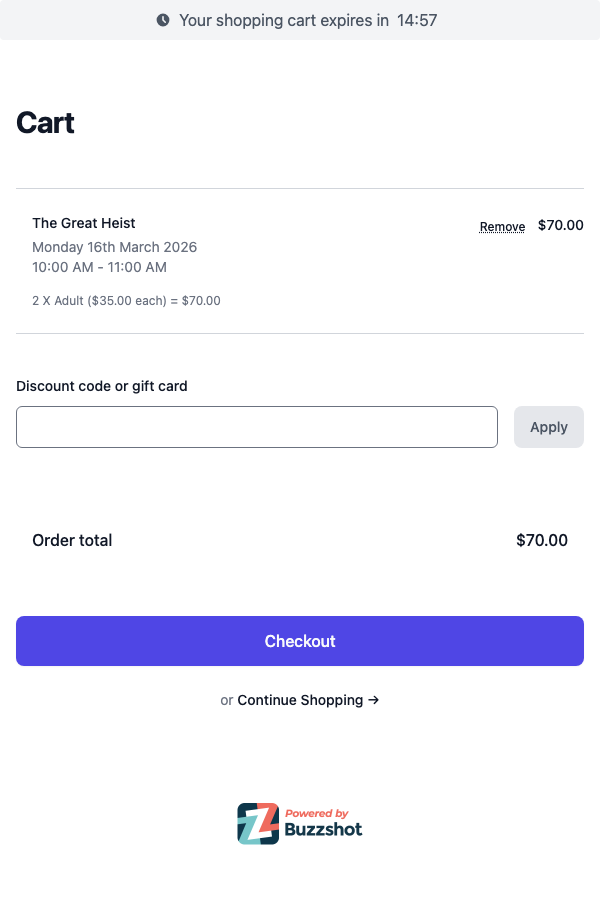
If the code is valid, the discount appears in the order summary and the coupon code is shown as a tag beneath the input field. Customers can remove a coupon by clicking the X on the tag.
A few things to be aware of:
- Coupon codes and gift card codes are entered in the same field. Buzzshot automatically identifies which type of code it is.
- Codes are not case-sensitive -- "summer15" and "SUMMER15" will both work.
- If a coupon is marked as non-combinable (the default), customers will see an error if they try to apply a second coupon.
- If a code has expired, has not yet reached its valid-from date, or has reached its maximum uses, the customer will see an error message.
Viewing Coupon Uses
You can track exactly how each coupon and code has been used.
All Uses
From the coupons list page, click View All Uses at the top right to see a log of every coupon redemption across all coupons.
Uses for a Specific Coupon
From the coupon details page, click View Uses to see all redemptions for that coupon.
Uses for a Specific Code
From the codes table on the coupon details page, click the action menu on a code and select View Uses to see just that code's redemptions.
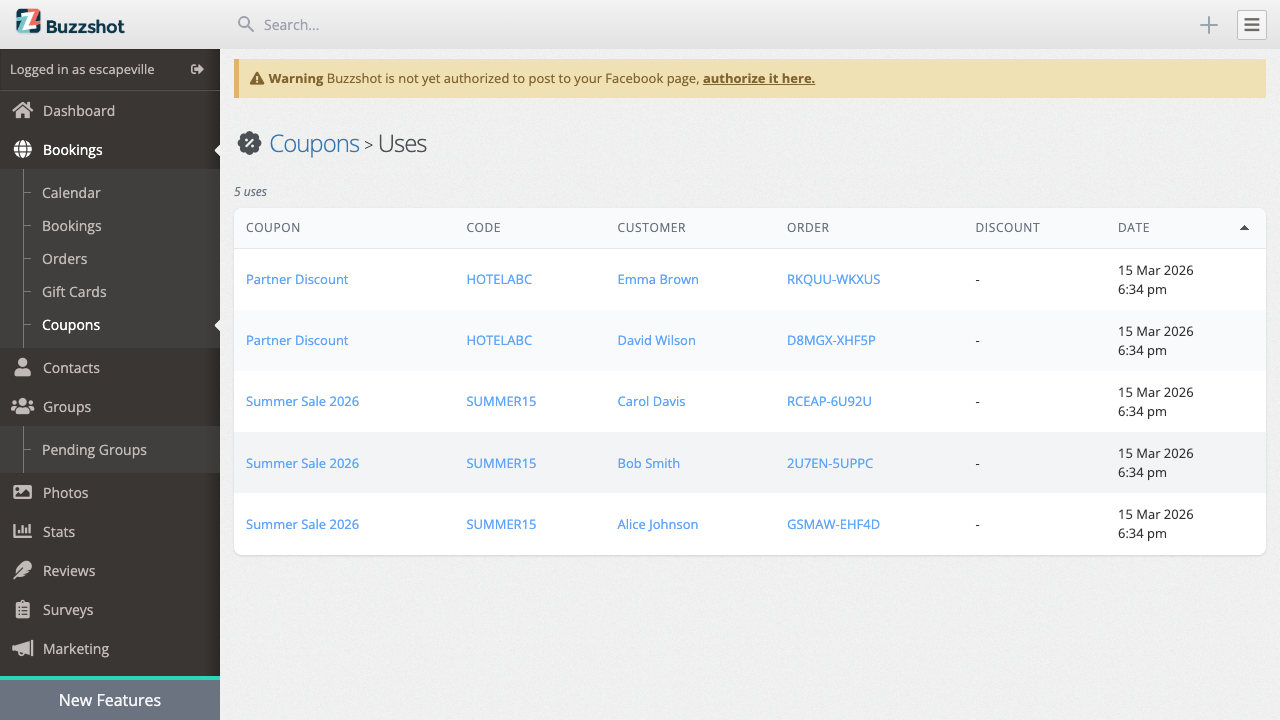
The uses table shows:
| Column | Description |
|---|---|
| Coupon | The coupon name |
| Code | The code that was used |
| Customer | The customer who used it |
| Order | The order reference number (click to view the order) |
| Discount | The discount amount applied |
| Date | When the order was placed |
Tips and Best Practices
- Choose code text carefully -- it cannot be changed after creation. If you make a mistake, deactivate the code and create a new one.
- Keep codes short and memorable. Customers need to type these manually. "SUMMER15" is better than "SUMMERSALE2026DISCOUNT15PERCENT".
- Use descriptive coupon names. The coupon name is internal only, so make it descriptive enough that you will remember what it was for months later. "Summer 2026 Instagram campaign -- 15%" is better than "Discount".
- Set maximum uses on promotional codes. If you are running a public promotion, always set a maximum uses limit to avoid unlimited redemptions.
- Use expiry dates. Every promotional code should have an expiry date. It is easy to forget about old codes, and customers may share them well beyond the intended promotion period.
- Give partners unique codes. When working with hotels, travel bloggers, or other partners, give each one a unique code under the same coupon. This lets you track which partnerships generate the most bookings.
- Consider combinability carefully. The default (non-combinable) prevents customers from stacking coupons. Only turn this off if you genuinely want to allow multiple discounts on the same order.
- Deactivate instead of deleting. If a code should no longer be used but you want to keep it for reporting purposes, deactivate it by editing the code and toggling Activated off rather than deleting the entire coupon.
- Check conditions carefully. Date, time, day-of-week, and people conditions apply to the booking's scheduled date and time, not when the customer is placing the order. Make sure your conditions match the bookings you intend to discount.
- Coupon codes and gift card codes share the same field. Make sure your coupon codes do not accidentally match any gift card codes. Buzzshot will prevent you from creating a coupon code that duplicates an existing gift card code (and vice versa).
- Review usage regularly. Use the View Uses feature to monitor how your promotions are performing. This helps you understand which campaigns and codes are driving bookings.