Holding a Slot Without Payment
Some customers want a time held before they can pay. Corporate groups are the usual case: the person with the company card is on holiday, the budget needs approving, or the group is still choosing between two dates. Rather than turn them away or block the slot and hope you remember to free it up, you can hold the slot with a deadline. If the customer pays, the hold turns into a normal booking. If the deadline passes with nothing paid, Buzzshot cancels the order and puts the slot back on sale by itself.
There is another way to keep a slot for someone: put a password on it, so the slot stays visible but only a customer you have given the password to can book it. A password never expires, so you have to remember to clear it. See Using the Bookings Calendar for how to set one.
How a hold works
A hold is an ordinary order that you leave unpaid, with an expiry date on it.
- The slot is taken. It disappears from your booking widget and shows on your calendar, so nobody else can book it and your staff can see it is spoken for.
- Nothing has been paid, so the customer is not committed and neither are you.
- At the deadline, if no payment has arrived, the order is cancelled and the slot goes straight back on sale.
You do not need to close the slot or set yourself a reminder to release it.
Step 1: Book the slot
From the calendar:
- Go to Bookings > Calendar.
- Click the slot you want to hold, then click Add Booking.
- Choose the products and how many of each, then click Add Booking.
- Fill in the customer's name and email on the Edit Booker Details screen and save.
You can also start from Bookings > Orders, click Create Order, enter the booker's details, then use Add Booking on the order.
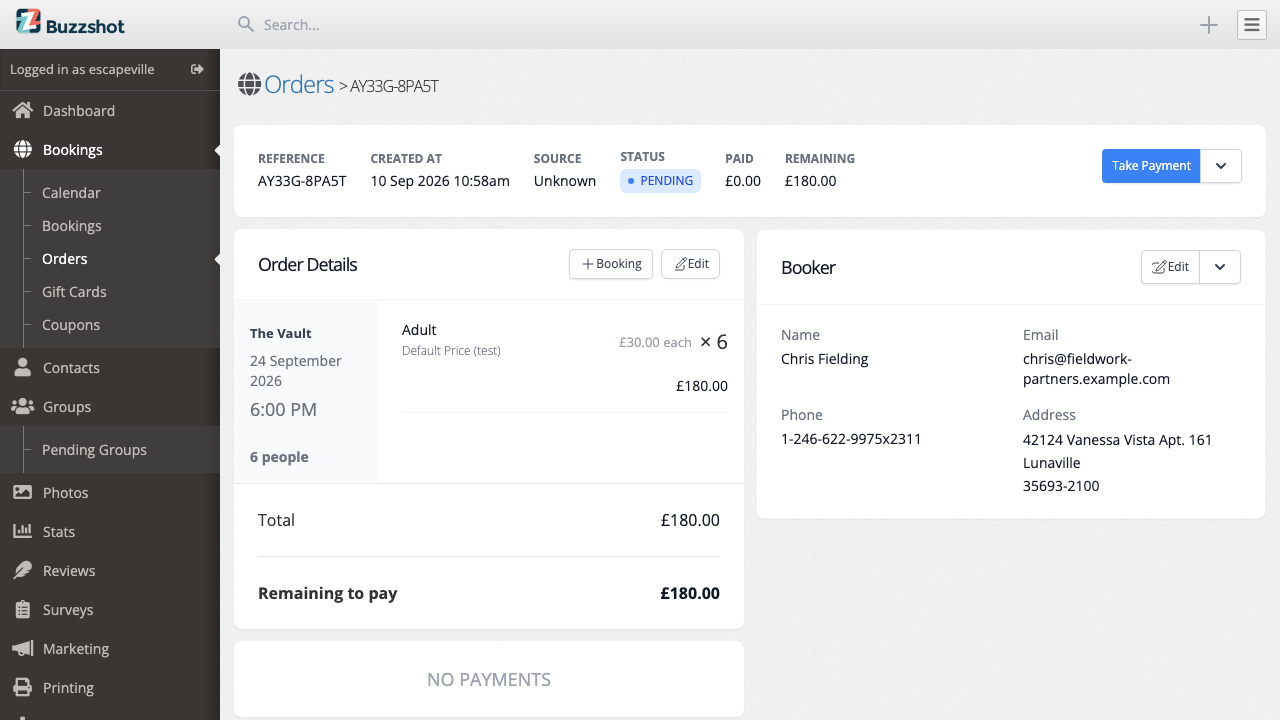
Either way the order is created as Pending and the slot is now held.
Step 2: Set the deadline
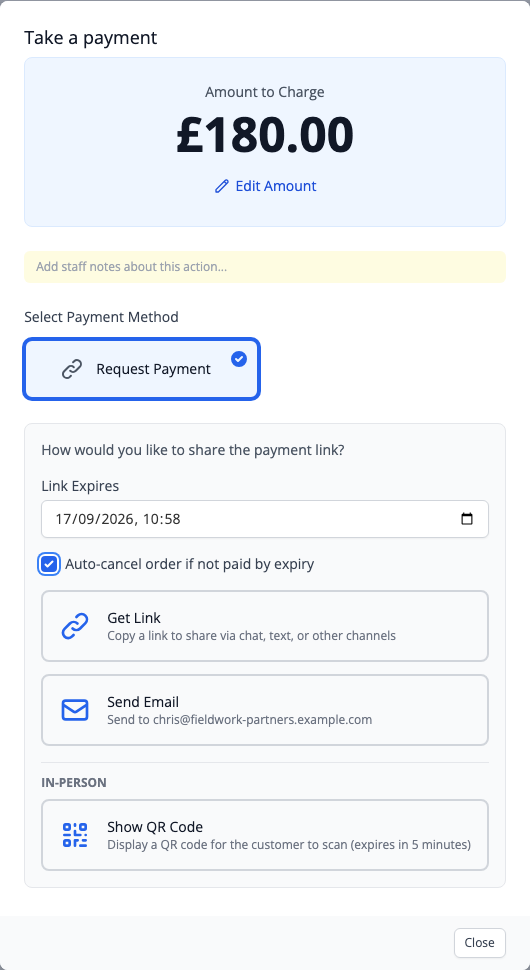
On the order page, click Take Payment, then choose Request Payment.
Fill in:
- Amount to Charge: what you are asking the customer for. This can be the full price or a deposit, whichever suits the enquiry.
- Link Expires: the date and time the hold ends. This is your deadline.
- Auto-cancel order if not paid by expiry: tick this. This is what turns an ordinary payment link into a hold that releases itself.
Then pick how to send it:
- Get Link copies a payment link you can paste into your own email, a chat or a text message.
- Send Email sends the customer a payment link email from Buzzshot, which you can edit before it goes.
Show QR Code is for taking payment from someone standing in front of you. It lasts five minutes and never sets a deadline, so it is no use for a hold.
The tick box only appears while the order is still Pending and nothing has been paid on it, so set the deadline before you take any money.
Buzzshot does not write the deadline into the email for you. If you want the customer to know when the slot is released, say so in the email text, for example "please pay by 5pm on Friday or we will release the slot".
What the customer sees
The customer gets a link that opens a payment page for the amount you asked for. They do not see the words "hold" or "expiry", and they cannot see your deadline unless you tell them.
If they pay the full amount (or the deposit, if your products use deposits) the order confirms itself, the deadline is dropped, and they get the usual confirmation email. Nothing else is needed from you.
If they open the link after the deadline it no longer works and tells them the payment link has expired.
What happens at the deadline
If nothing has been paid, Buzzshot cancels the order within a minute or two of the deadline. The booking comes off the calendar and the slot is back on sale. The cancellation is recorded in the order's history, so you can see later what happened and when.
The customer is sent your Cancelled Order email, if you have that email turned on. You will find it in Settings > Emails, where you can edit the wording or switch it off.
Any payment at all stops the automatic cancellation. If the customer pays only part of what you asked, the deadline is dropped and the order stays Pending, so it is then up to you to chase the balance or cancel it.
Checking, extending and removing a hold
An order with a deadline shows Expires At near the top of the order page.
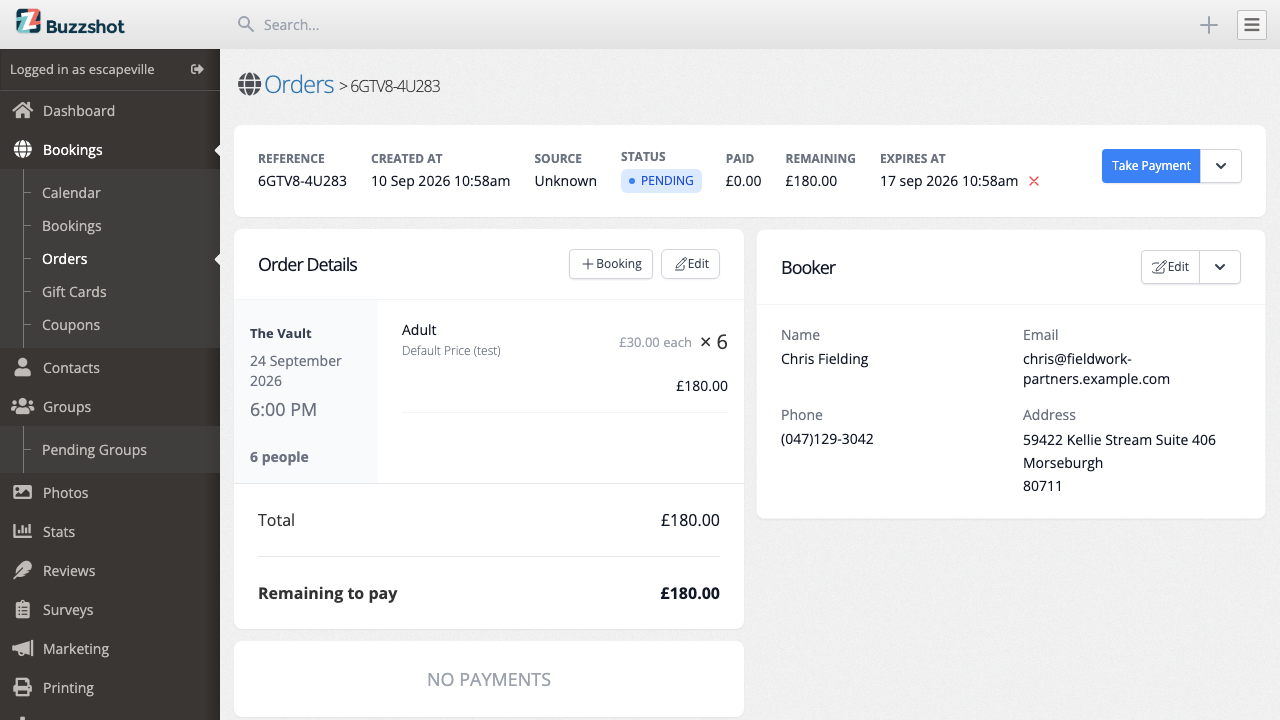
- To remove the deadline and keep the slot held indefinitely, click the cross next to the date. The order stays Pending until you confirm or cancel it yourself.
- To extend it, go through Take Payment > Request Payment again with a later date and tick the box again. The new date replaces the old one.
- To confirm the booking when the customer is ready, use Confirm Order. That clears the deadline, so a confirmed booking is never cancelled automatically.
Holding more than one date
The deadline belongs to the whole order, so every booking on that order is released together. When a group is choosing between dates, put each date on its own order so you can confirm one and let the others lapse. Once they choose, confirm the order they want and cancel the rest rather than waiting for the deadline.
Finding your holds
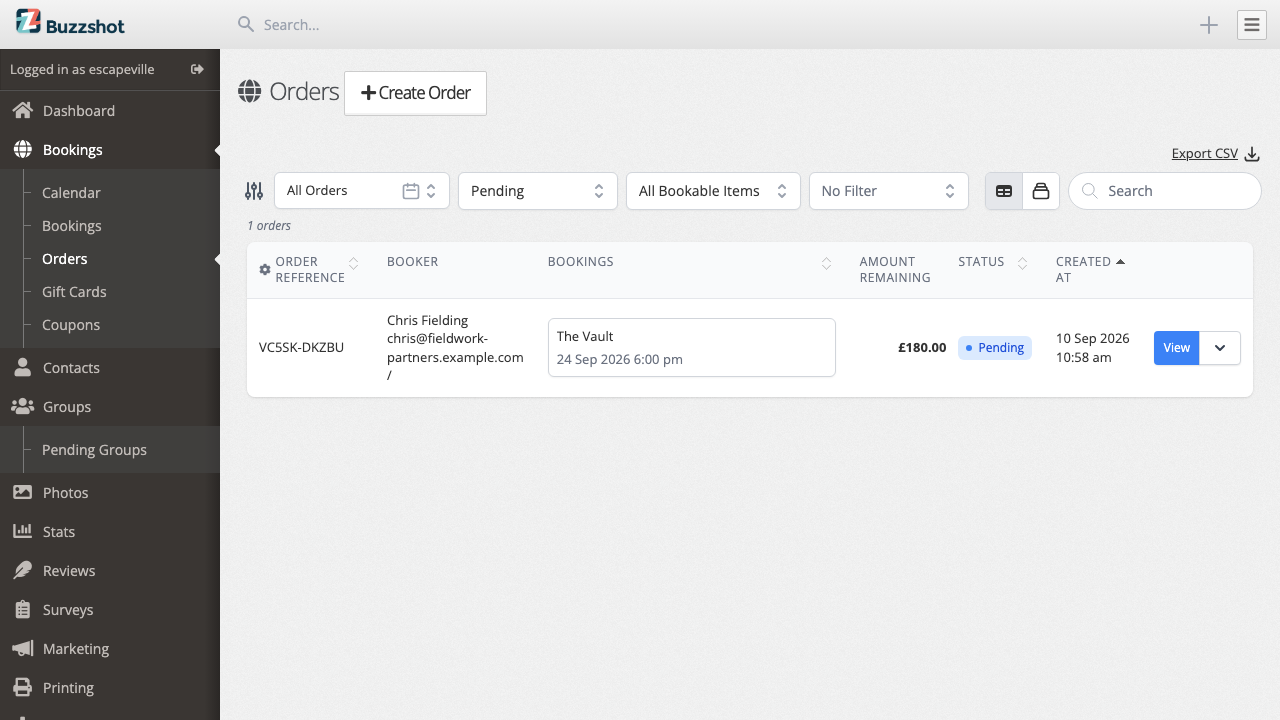
Go to Bookings > Orders and set the status dropdown above the table from All Statuses to Pending to list everything you are holding.
On the calendar a held slot looks like any other unconfirmed booking: the slot is pale with an orange border and the booking carries a Pending badge. See The Bookings Calendar for what the calendar colours mean.
If a hold lapses and the customer comes back
Open the cancelled order and click Reinstate Order. Buzzshot puts the booking back if the slot is still free, and warns you if somebody else has taken it in the meantime.