Reviews & Feedback settings page
After each game Buzzshot sends players a Thanks for Playing email and SMS. These messages can ask players for a review. Use the Reviews & Feedback page to choose which review sites players see, in which rooms and in what order, and how the request is worded.
Go to Settings > Reviews & Feedback.
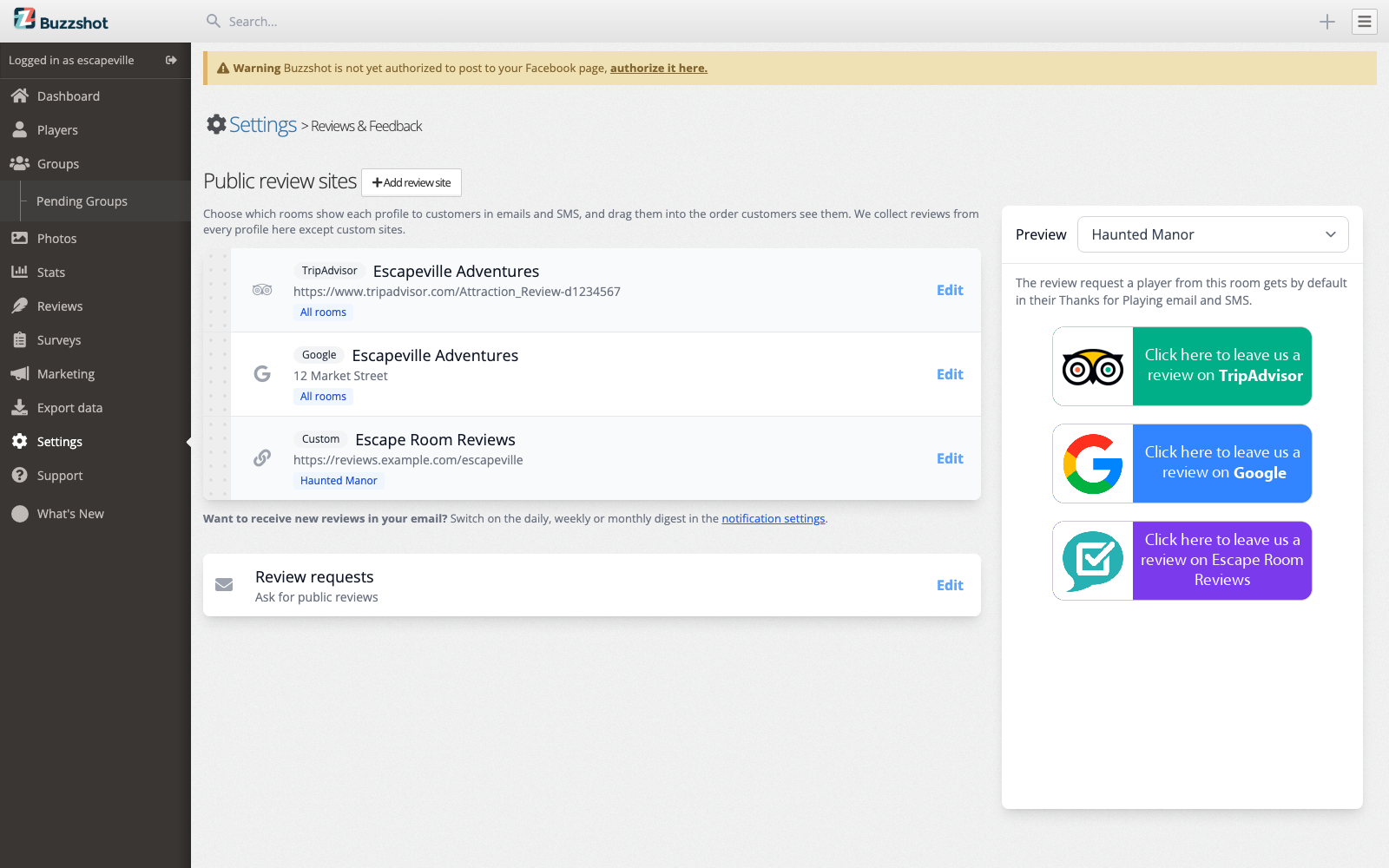
Public review sites
The list shows each review profile you have connected and the rooms that show it. Buzzshot can connect to Google, TripAdvisor, Yelp, Facebook and Morty. For these sites, the reviews people leave also appear on your Reviews dashboard. You can also add a custom site with your own link and logo. Players get a review button for it like any other site, but its reviews don't appear on the Reviews dashboard.
Add a review site
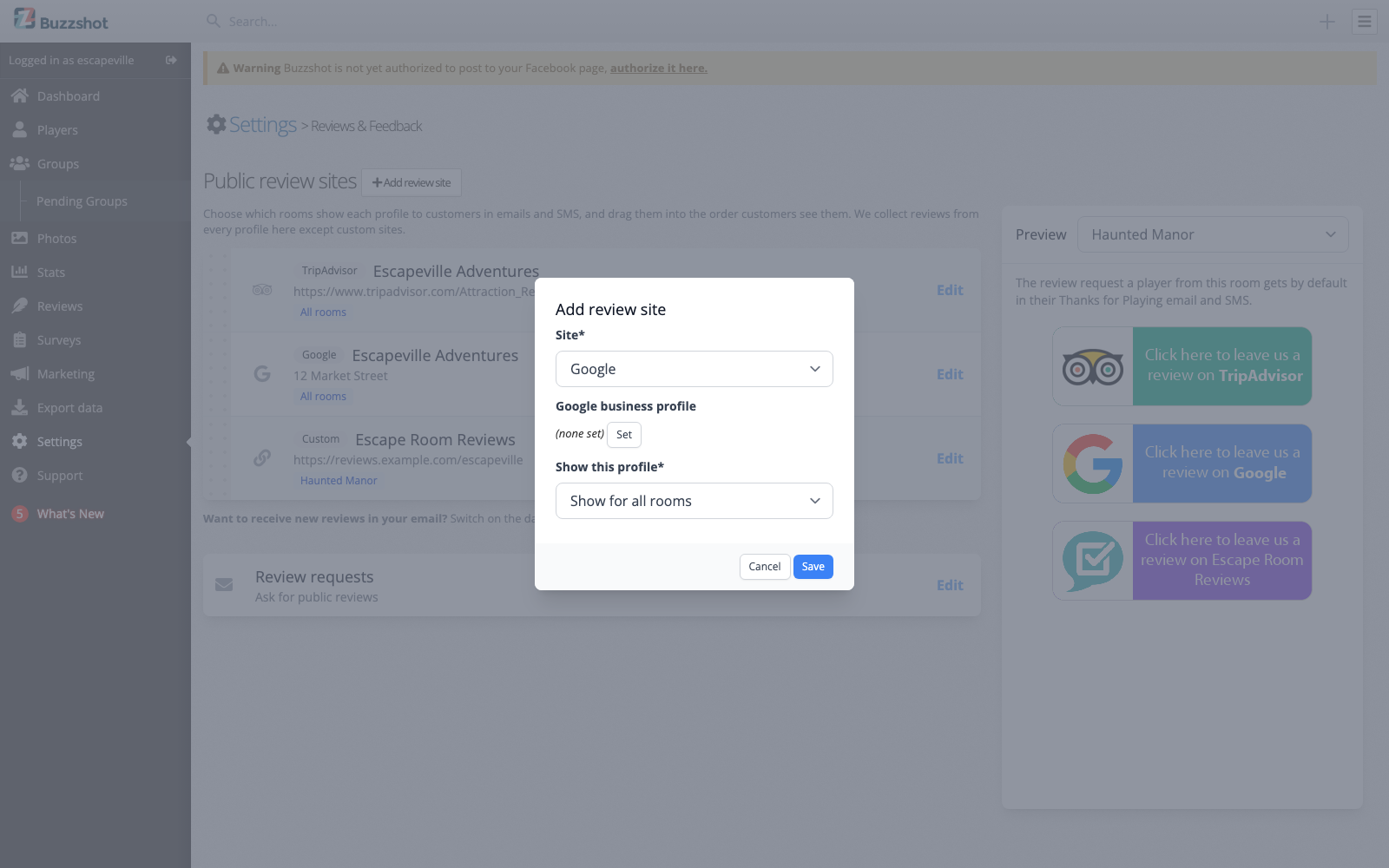
- Click Add review site.
- Choose the Site.
- Find your profile. For Google, click Set and search for your business. For the other sites, paste the link to your profile page.
- Under Show this profile, choose Show for all rooms, Show for some rooms (then pick the rooms) or Hide for all rooms.
- Click Save.
For Morty, paste the Morty game page for each room, since each Morty game is one of your rooms.
For a custom site, enter the name, the link and the button colour, and add a logo if you have one. The button says "Click here to leave us a review on" followed by the name.
Choose which rooms show a profile
If you have one profile for your whole business, show it for all rooms. If some rooms have their own profile (for example, rooms in a second venue with its own Google listing), show each profile for the rooms it belongs to.
Click Edit next to a profile to change its rooms, or to disconnect it.
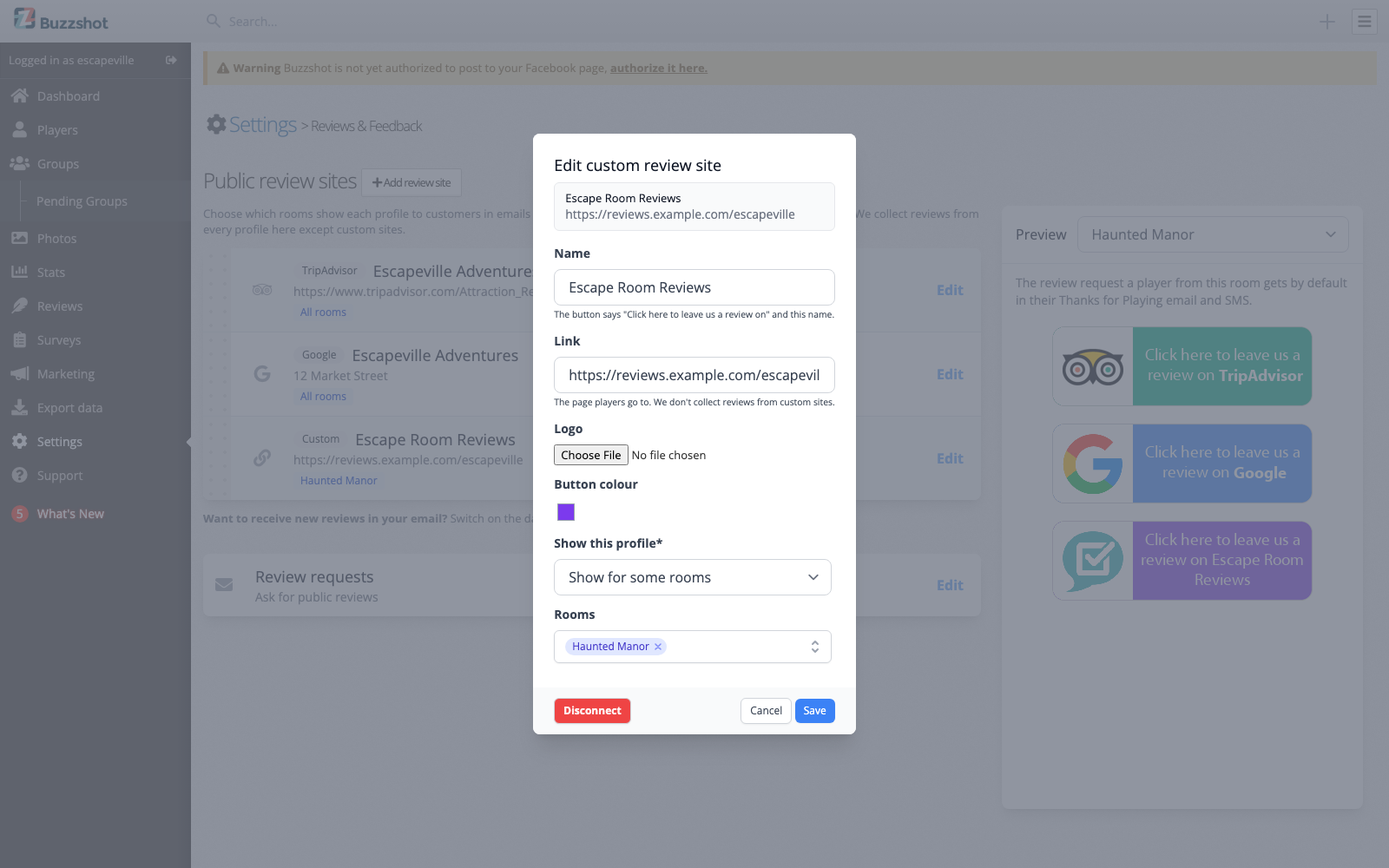
Choose Hide for all rooms to stop asking players to review a profile. Its reviews still appear on your Reviews dashboard.
Change the order of the review buttons
Players see the review buttons in the same order as the list. To change it:
- Drag a profile up or down by the dotted handle on its left.
- Click Save in the bar that appears above the list.
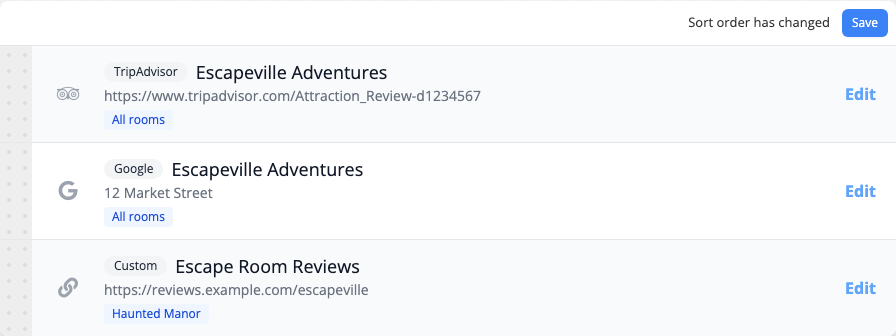
Put the site you most want reviews on at the top. A profile you add later goes to the bottom of the list.
Preview
The preview on the right shows the review buttons a player gets. Pick a room to see what players from that room get, which helps when rooms show different profiles.
Review requests
Click Edit next to Review requests to choose how players are asked.
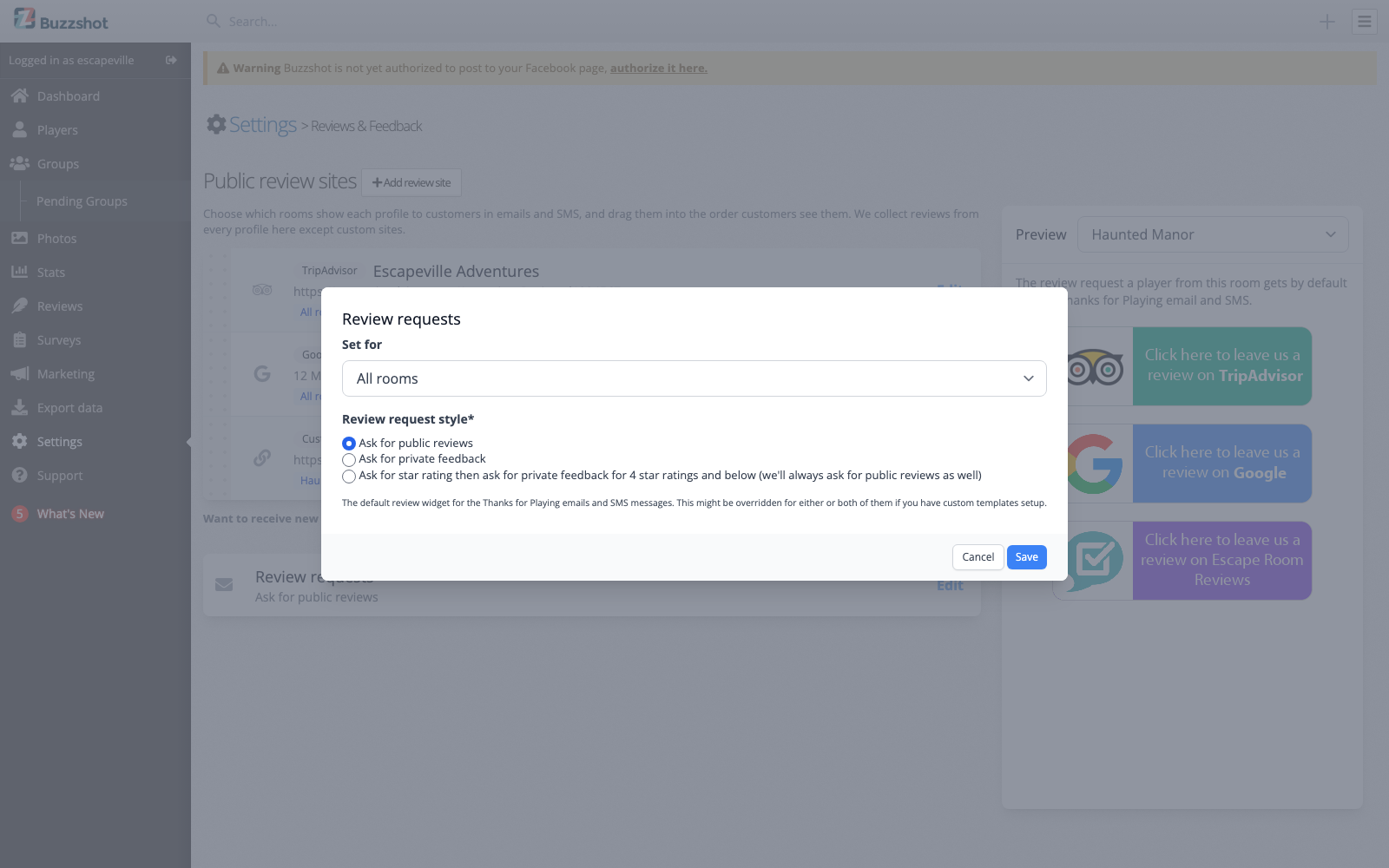
- Ask for public reviews: players see a button for each review site and go straight to it. Most businesses use this.
- Ask for private feedback: players see a button that sends feedback to you rather than posting it in public.
- Ask for star rating then ask for private feedback for 4 star ratings and below: players rate their game first. Players who give 5 stars see the review buttons. Players who give 4 stars or fewer are asked for private feedback, and still see the review buttons. With this style you can design the two pages players land on.
Use Set for to choose a different style for one room. Choose All rooms to set every room at once.
These settings apply to the default Thanks for Playing email and SMS. If you have customised those messages, your own version may show the review buttons differently.
Getting new reviews by email
To get an email of new reviews every day, week or month, switch on the reviews digest in the notification settings.
For help connecting a particular site, see Google, TripAdvisor, Facebook and Morty. For more ways to get reviews, see Getting more reviews.
Related Articles