Shared email blocks
A shared block is a part of an email that you build once and use in as many emails as you like. Most people start with a header carrying their logo and a footer with their address, but a block can be anything: opening hours, a gift card offer, a note about parking.
The point is that a shared block stays linked. Change it once and every email that uses it changes too, including automation emails that are already waiting to send. Without shared blocks, a new logo means opening every email and changing each one by hand.
If you have not used the email editor before, read Email editor first. This article assumes you know what rows, columns and the palette are.
Where blocks come from
You can use three kinds of block, and a badge shows which kind each one is:
- This account: blocks you made, or your own copy of one of the others.
- Your organisation's name: if you have more than one account under one organisation, blocks made for the whole organisation, which every account in it can use.
- Buzzshot default: blocks we provide for everyone.
Each block has a short code, such as header or legal_footer, and that is what an email uses to find it. If your account has its own block with a code, your emails use that. If not, they use your organisation's, and if there is none of those either, the Buzzshot default.
You can edit a block that comes from your organisation or from Buzzshot. Doing so gives your account its own copy of it, and your emails switch to that copy. Nobody else is affected: every other account keeps the block it had.
The Shared blocks page
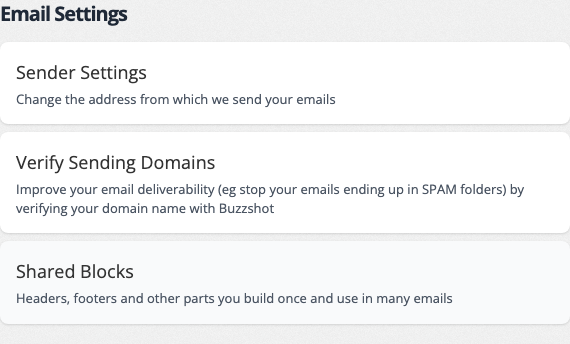
Go to Settings > Emails and click Shared Blocks, under Email Settings.
The page lists every block your account can use down the left. Under each name you will see its code and where it comes from. Click one to see it on the right, with a preview of how it looks in an email.
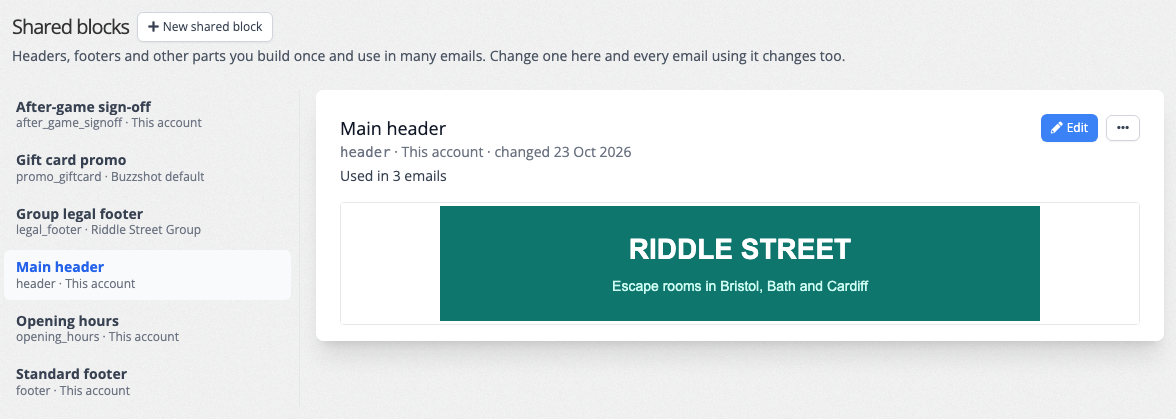
Under the block's name is how many of your emails include it, such as "Used in 3 emails". That covers your standard emails, each email step in your Automations, broadcasts you have not sent yet, and the emails for your subscribe forms and surveys.
Making a new block
- Click New shared block at the top of the page.
- Type a name for it, such as "Main header", and click OK. Buzzshot makes the block's code from this name.
- The block opens in the email editor with one empty row. Build it as you would any email.
- Click Save shared block.
You can also turn a row you have already built into a block. See Saving a row as a shared block below.
Editing a block
Select the block and click Edit. The block opens in the email editor, with a yellow bar across the top to remind you that you are changing a shared block.
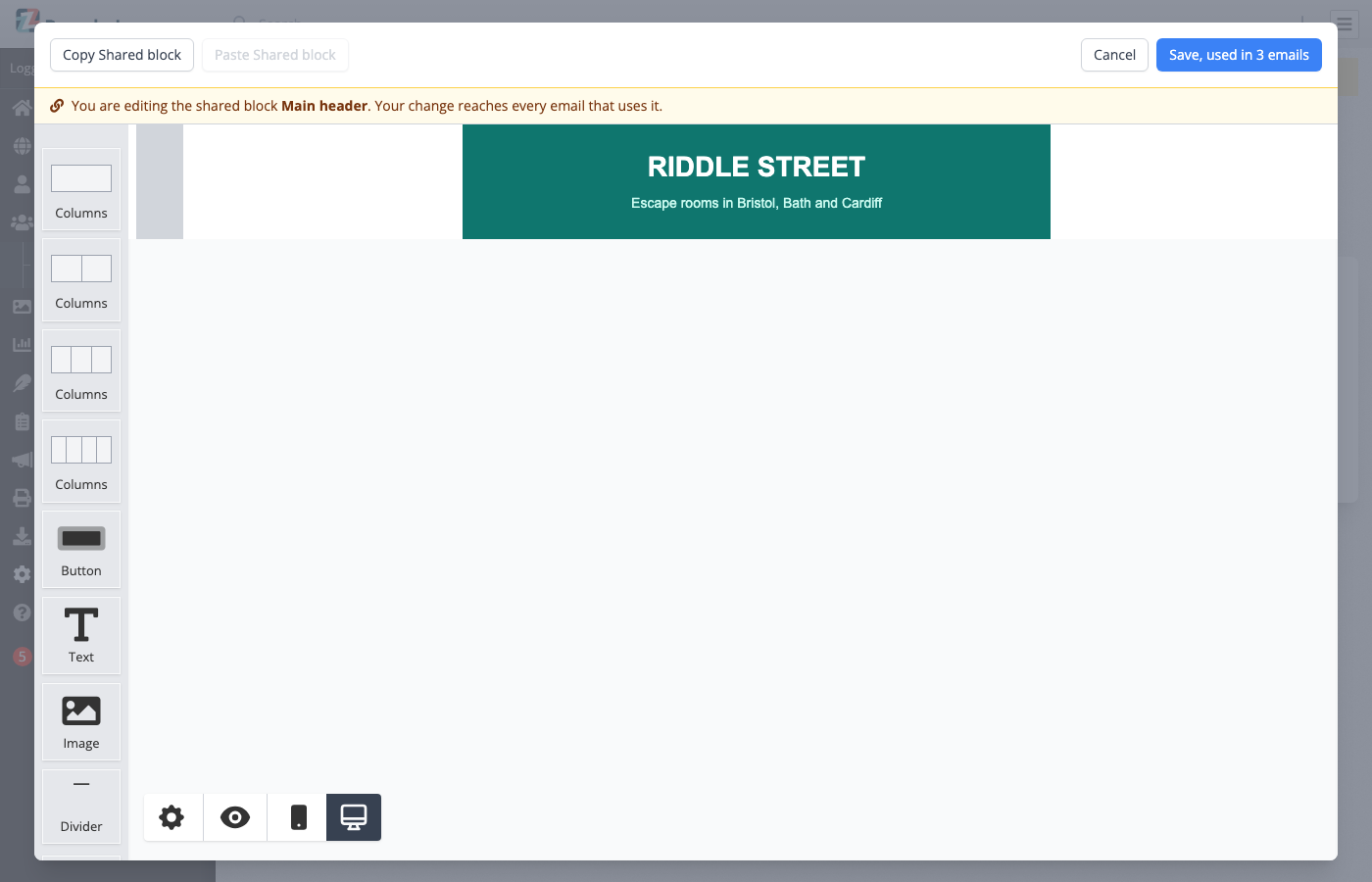
The save button tells you how many emails your change reaches, for example Save, used in 3 emails. When you save, every one of those emails changes straight away.
Blocks you get from your organisation or from Buzzshot
When you select a block that comes from your organisation or from Buzzshot, a yellow note says where it comes from.
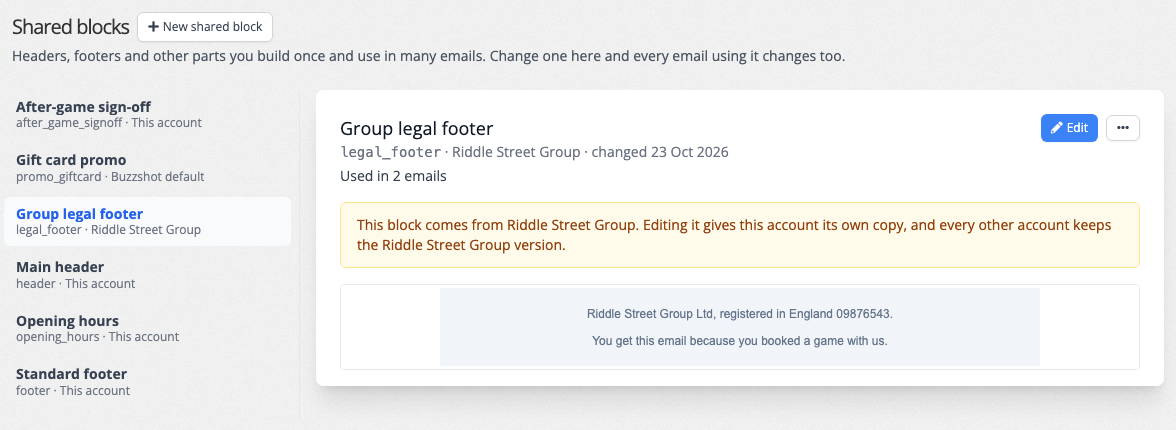
You can still click Edit. When you save, Buzzshot makes your account its own copy and your emails use that from then on. The save button reads Save for this account to make this clear.
Your copy then appears in the list as This account. If you change your mind, use Revert to in the ⋯ menu (below) to go back to the original.
The ⋯ menu
The ⋯ button beside Edit holds everything else you can do with a block.
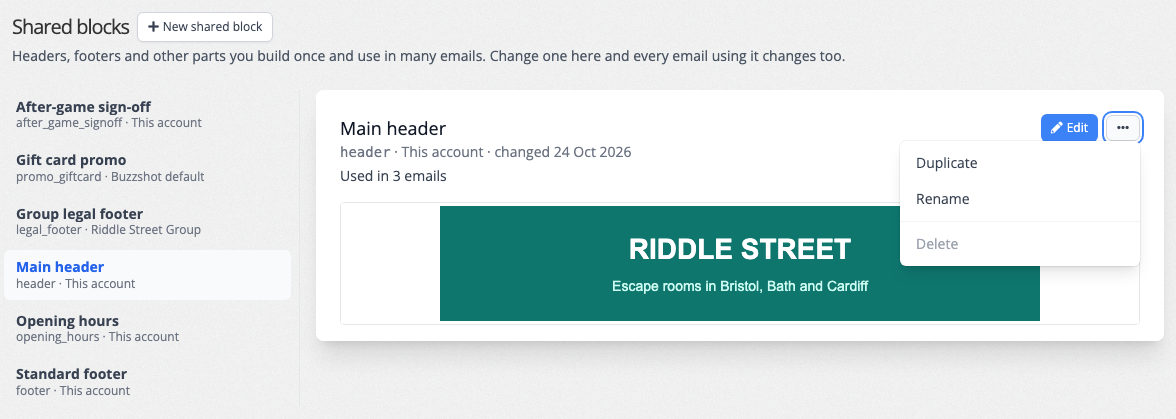
- Duplicate makes a new block for your account with the same content. Give it a name and it appears in the list. Emails using the original keep using the original. This is the way to make a second version of a block, such as a footer for a seasonal campaign.
- Rename changes the name you see. The code does not change, so every email using the block keeps working.
- Revert to appears instead of Delete when your block is your own copy of one from your organisation or from Buzzshot, for example Revert to Riddle Street Group. It deletes your copy, and your emails go back to using the original straight away.
- Delete removes a block that no email uses.
For a block you get from your organisation or from Buzzshot, the menu only offers Duplicate (and Copy to other accounts, below). You cannot rename or delete it from your account.
Deleting a block
You can only delete a block that no email uses. While emails still use it, Delete says how many, and you need to take the block out of those emails first, either by deleting its row or with Detach (below).
You cannot undo a delete from this page. If you deleted a block by mistake, get in touch and we can bring it back.
Using a block in an email
Adding a block
Open the email in the editor. Once your account has at least one shared block, you will find a Shared block tile near the bottom of the palette.
- Drag the Shared block tile onto the email, where you would drop a new row. Put a header at the top and a footer at the bottom.
- The new row asks you to Pick a shared block. Click the one you want.
A shared block always takes a whole row. It cannot sit inside one column next to other content.
How a shared block looks in an email
The block appears where it will appear in the email, looking as it will when sent. A dark bar above it gives its name, a badge saying where it comes from, and an Edit shared block button.
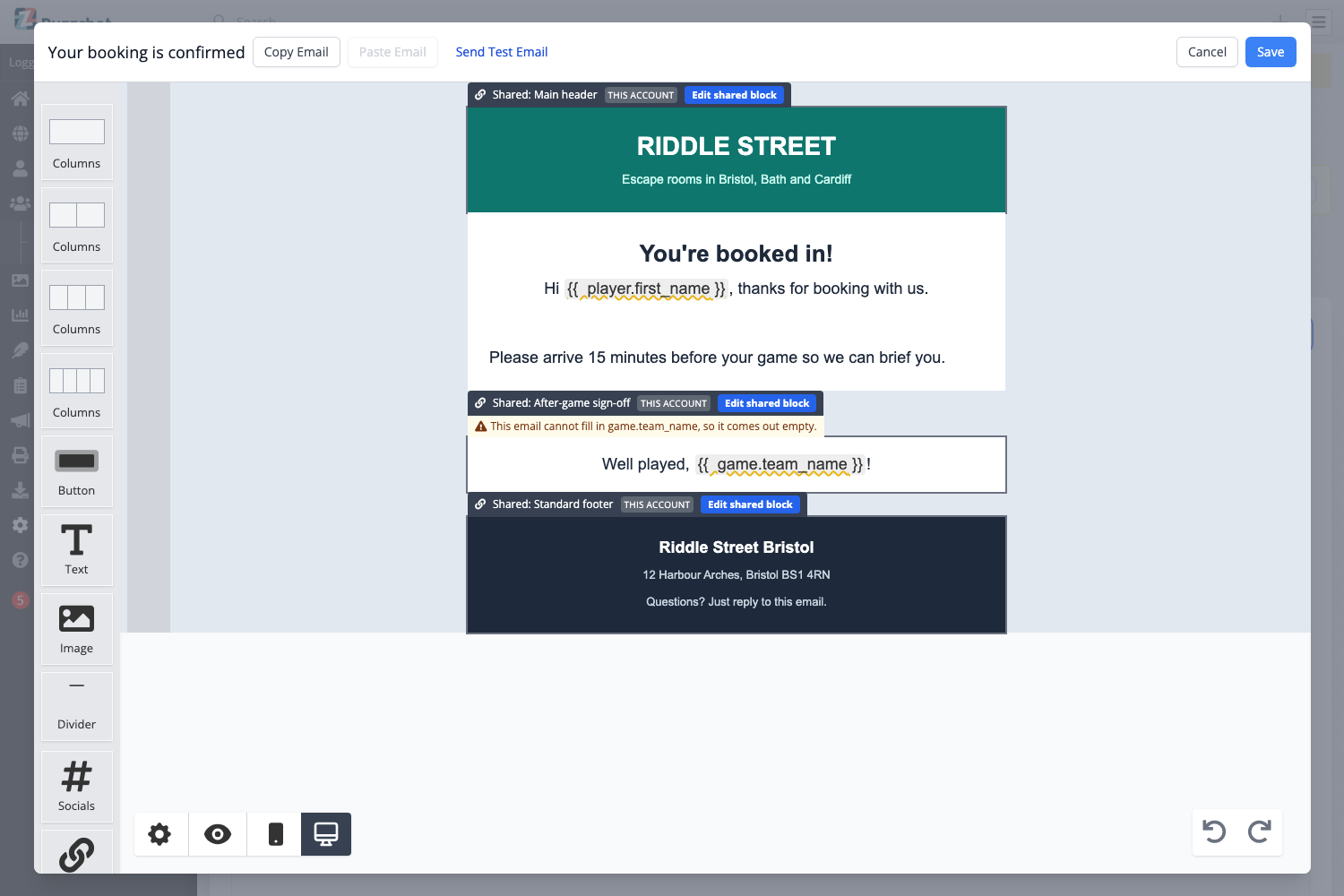
You cannot click into a shared block and type, so you cannot change it by accident. To change it, click Edit shared block. The block opens in its own editor on top of your email, and when you save, the email behind it updates without losing any changes you have not saved yet. For a block from your organisation or from Buzzshot the button reads Override for this account instead, because saving gives your account its own copy.
You can move, duplicate or delete a shared block in an email like any other row. Deleting it removes it from that email only; the block itself stays.
Variables and conditions inside a block are filled in from the email it sits in, so a block with a customer's first name works in any email that knows the customer.
Shared block settings and Detach
Click the grey strip at the left of a shared block to select it. Its settings appear on the right.
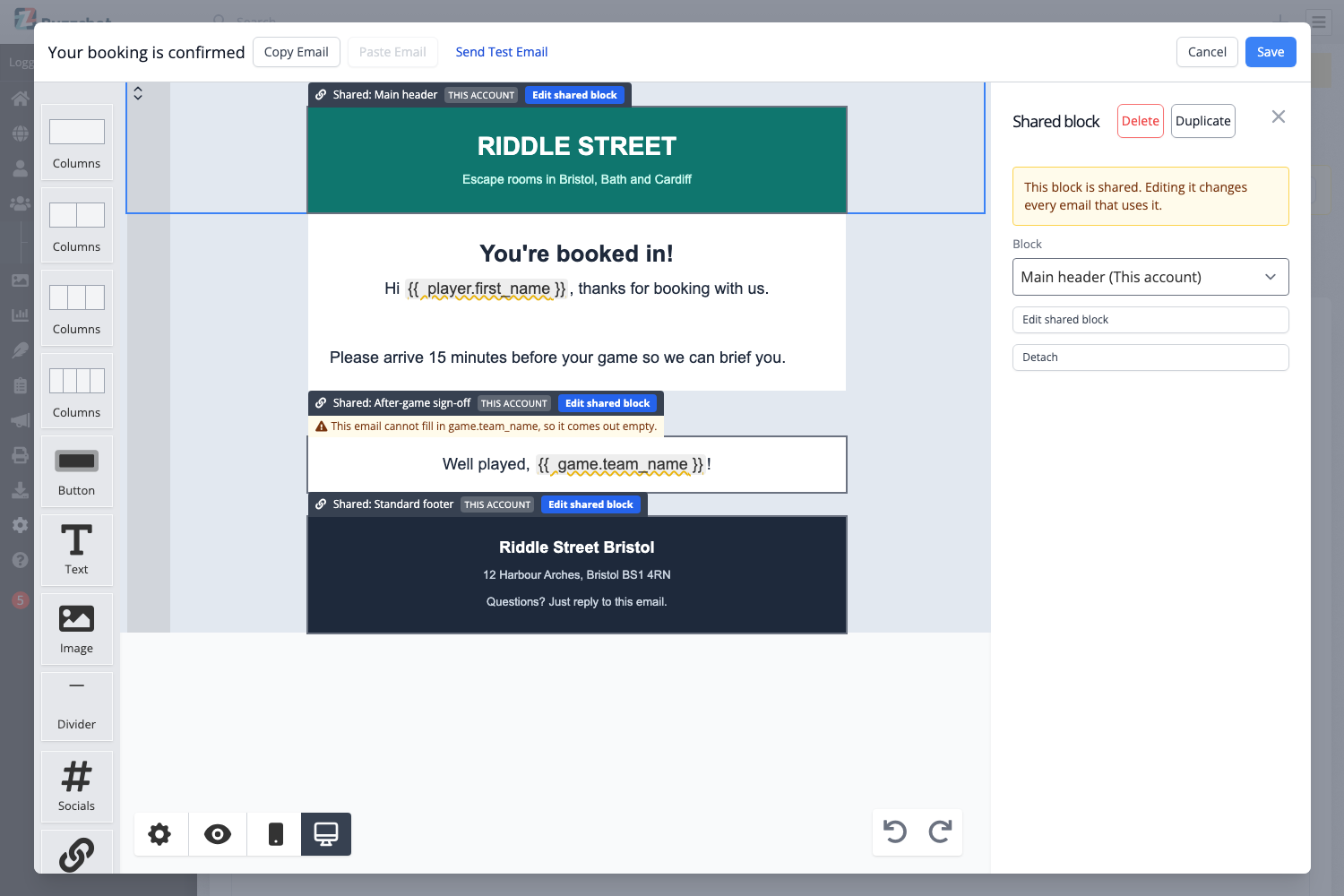
- Block lets you swap which shared block this row shows.
- Edit shared block opens the block for editing, as above.
- Detach turns the block into ordinary rows in this email only. You can then change them freely, but the link is gone: later changes to the shared block will not reach this email. Use it when one email needs a slightly different version of a block.
Saving a row as a shared block
If you have already built a header or footer in an email, you do not have to build it again. Click the grey strip at the left of the row to select it, then click Save as shared block at the bottom of its settings.
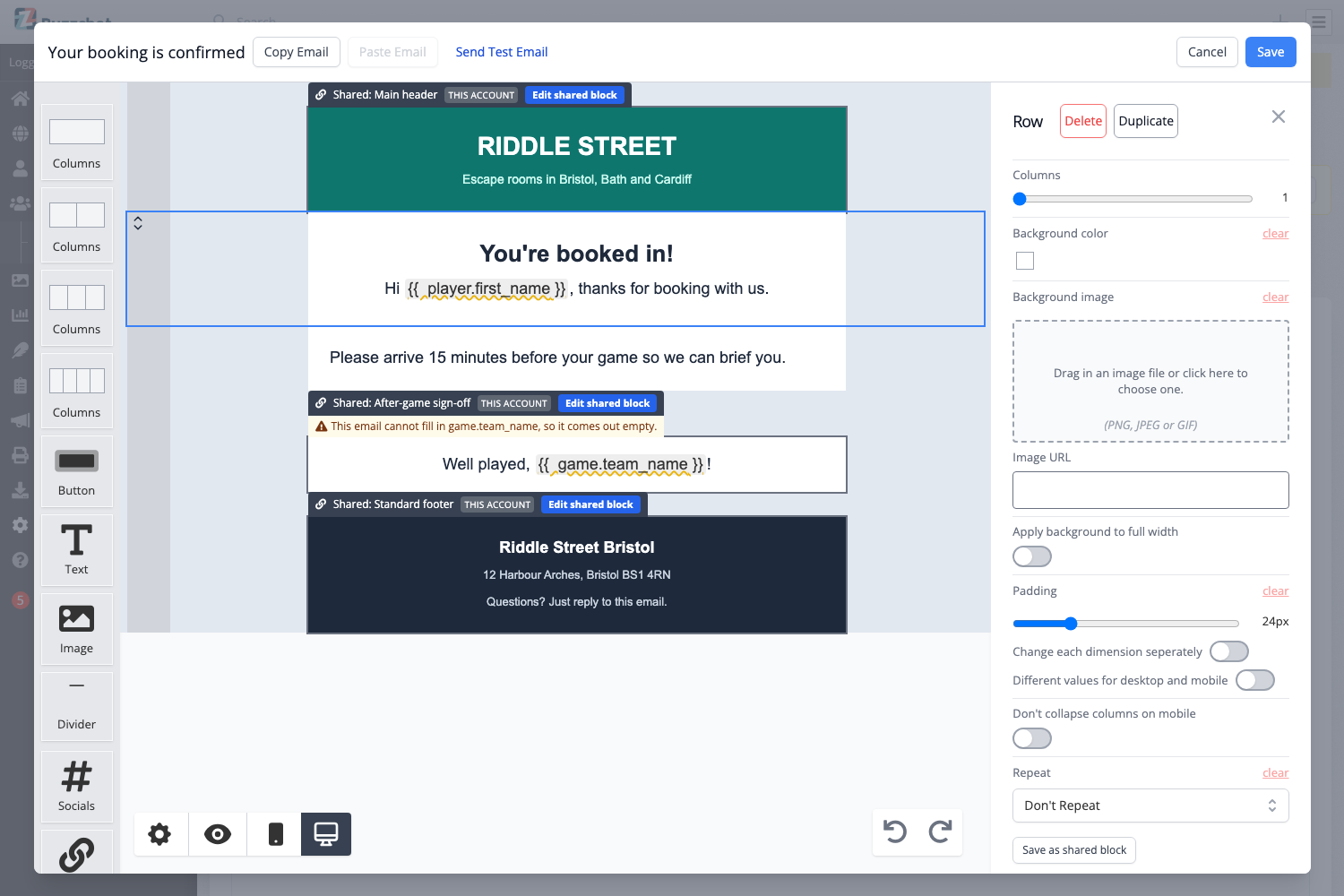
Give the block a name. Buzzshot saves the row as a new shared block, and the row in your email becomes that block. You can then add it to your other emails from the palette.
Blocks across several accounts
This section is for businesses with more than one account under one organisation, and for logins that can switch between them, such as a Master Login.
Copying a block to other accounts
If your login can change settings on other accounts in your organisation, the ⋯ menu has Copy to other accounts.
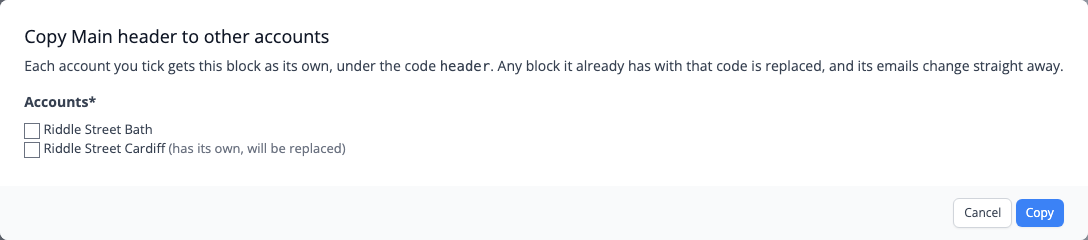
Tick the accounts and click Copy. Each one gets the block as its own, with the same code. If an account already has its own block with that code, the dialog says "has its own, will be replaced", and copying replaces it. Emails in those accounts change straight away.
A copy is a copy: later changes to your block do not reach the other accounts. If you want one block that every account shares, make it an organisation block instead.
Organisation blocks
A Master Login sees a second group at the bottom of the list, named after your organisation, such as Riddle Street Group blocks. These are the organisation's own blocks. Every account in the organisation can use them, and a change reaches every account that has not made its own copy.
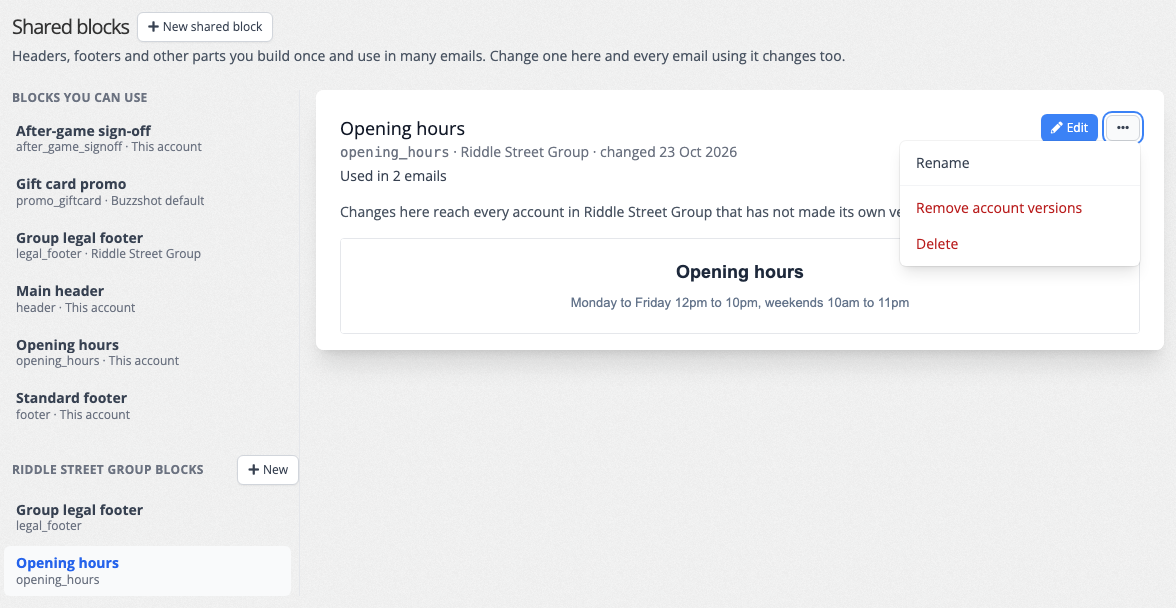
- Click New beside the heading to make an organisation block.
- Select one and click Edit to change it for the whole organisation.
- The ⋯ menu holds Rename, Delete and Remove account versions.
Remove account versions deletes every account's own copy of the block, so every account goes back to the organisation's version straight away. Before it does anything, Buzzshot names the accounts that have their own copy. It is greyed out when no account has one.
Delete removes the organisation's block. Accounts that have their own copy keep it. The rest go back to the Buzzshot default with the same code if there is one, and otherwise their emails show nothing where the block was.