Groups page
The Groups page lets you view and manage all teams that have visited your escape room. You can filter, sort, and search through your groups to find the information you need.
Table and card views
You can switch between table and card views using the  . We recommend the table view on desktop computers and the cards on a mobile but you can pick whichever you prefer.
Filtering Groups
Use the dropdown filters to narrow down your view: - All Groups - Shows every group regardless of status - Completed Groups - Shows only teams that have finished their game - Pending Groups - Shows teams that haven't completed yet
You can also filter by date ranges like "Yesterday", "Last Week", etc.
For anything more specific, such as teams who escaped in under 45 minutes or teams with a particular game master, use the Filter dropdown and choose New filter…. You can save a filter you use often and pick it by name next time. See Saved Filters.
Customising columns and sorting
When in table view tou can click the cog icon (⚙️) in the top left hand side of the table to select which colums you'd like to view. You can click on the column headers to update the sorting order.
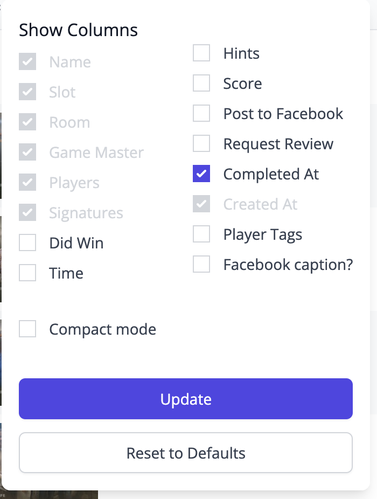
Reseting your columns and sorting
The system will remember the columns and sorting you selected before. Sometimes this gets confusing and you'll want to reset to the default. You can that like this:
- Look for the cog icon (⚙️) near the top of the groups list
- Click Reset to clear any custom sorting
- This will show groups by completion date rather than creation date
Changing many groups at once
Tick the box next to each group, or use Select all on page, to open a blue bar with actions. You can complete or archive all the selected groups together. See Complete groups in bulk and Bulk actions.
Searching Groups
Use the search box to find specific teams by name, room, or other details. Note that you can also use the combined search box at the top of the screen (available on all views not just in groups) to search all items in Buzzshot including groups.