Completing a Group
Once a team has finished playing, you complete their group. This tells Buzzshot the game is over and sends the team their photo and messages. Until you do, the group stays pending and players hear nothing.
You can complete a group in two ways:
- On the website: go to Pending Groups, which lists every group still waiting.
- In the Buzzshot app: tap Complete on the team, usually straight after the game.
Both do the same job, so use whichever suits your staff. The app calls groups "teams", but they are the same thing.
On the website
Pending Groups is the best place to complete groups, as it shows only the ones you still have to deal with. It's also a quick way to check that none were missed at the end of the day.
-
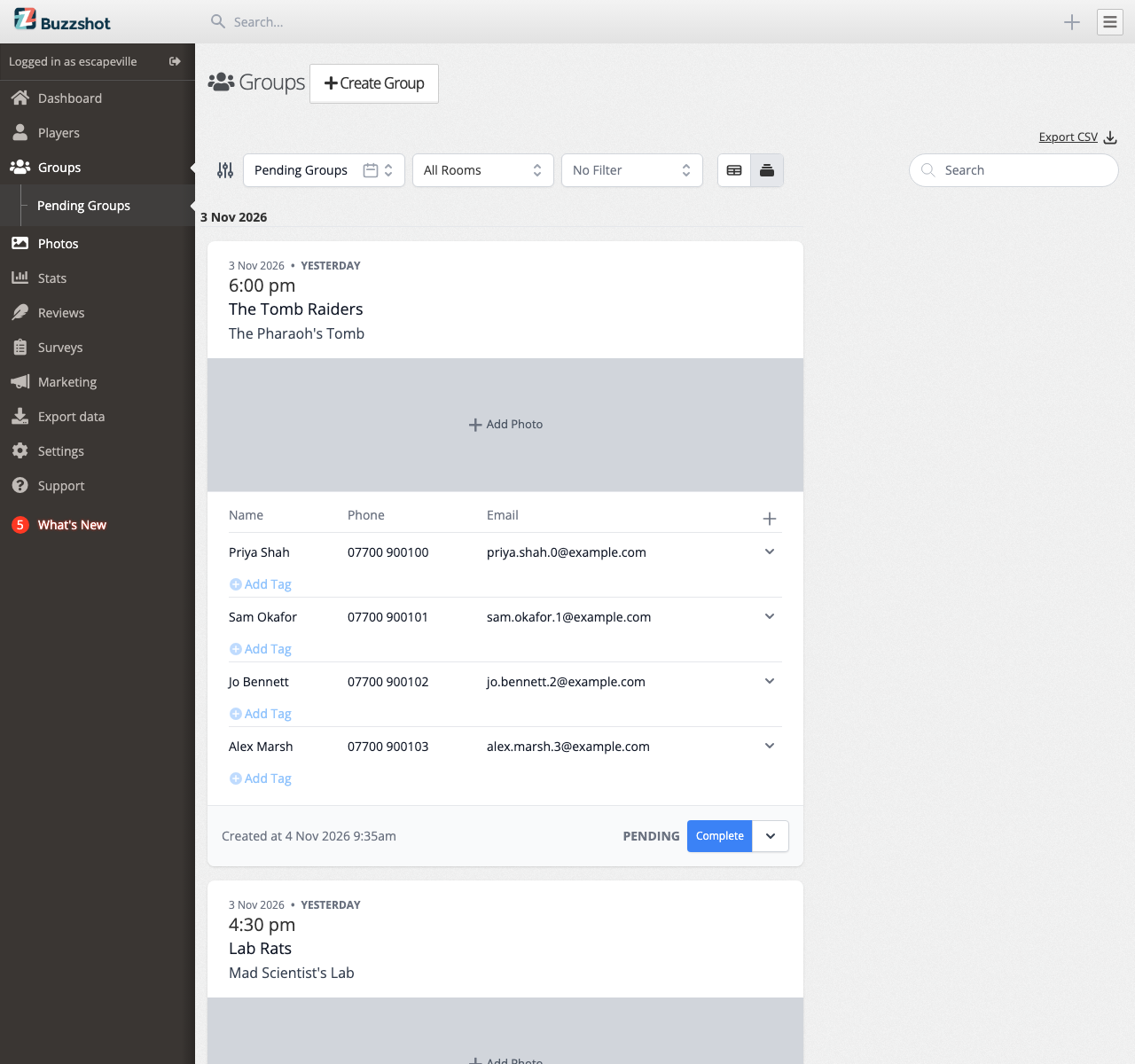
In the side menu, go to Groups > Pending Groups.
-
Find the group and click Complete. If you haven't added a photo yet, you can add one here or in the form that opens.
-
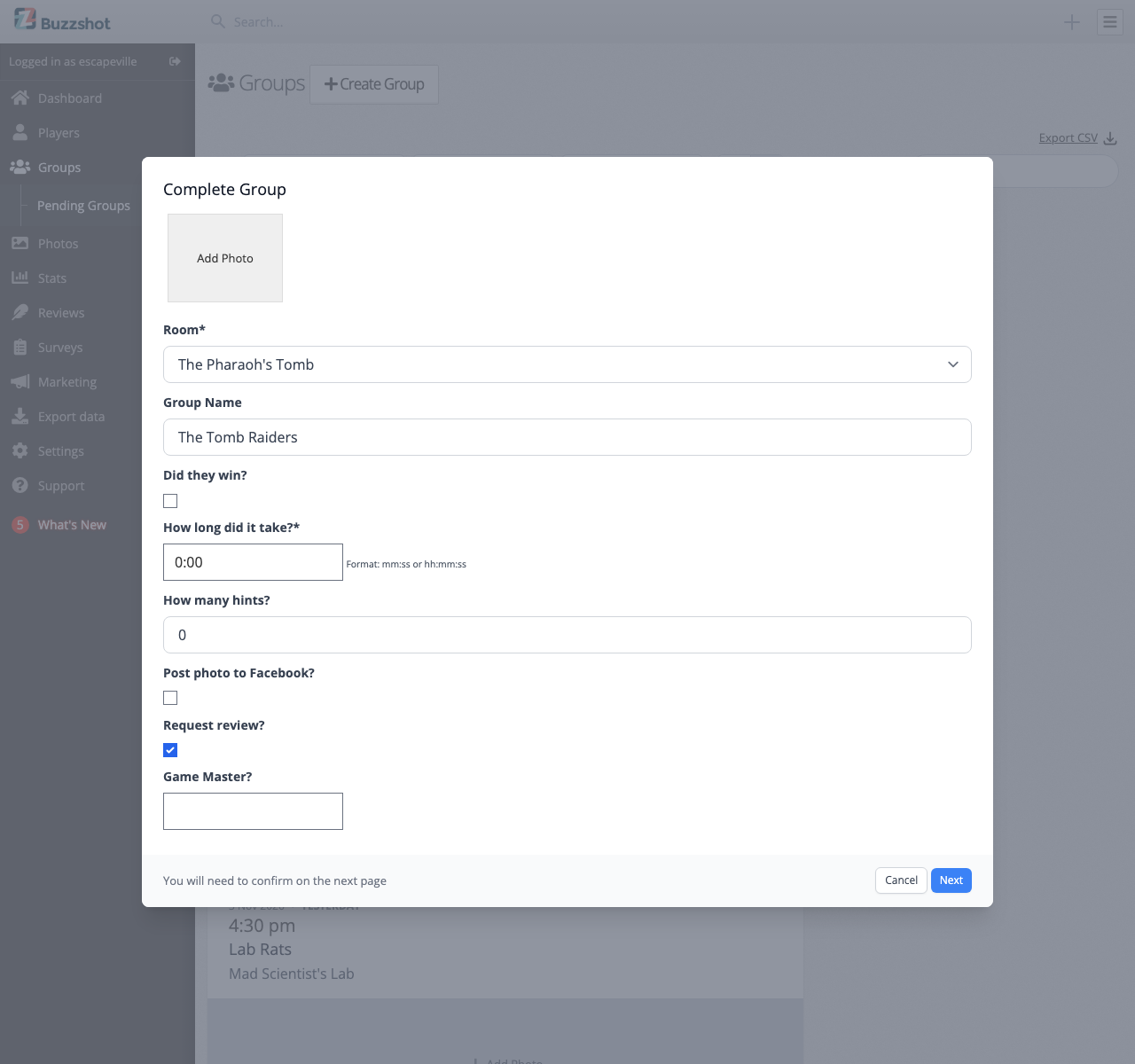
Fill in the form. The questions usually cover whether the team won, how long they took and how many hints they used. To change them, see Configuring Buzzshot.
-
Click Next.
-
Check the details, then click Complete Group.

The group now leaves Pending Groups and shows under Completed Groups on the Groups page.
Pending Groups lists games that have already started or that start within the next hour. To complete a group booked for later, find it on the Groups page. You can also click Complete on the group's own page, or choose Complete from a booking's action menu on the calendar.
Completing several groups at once
To complete many groups together, see Complete groups in bulk.
In the Buzzshot app
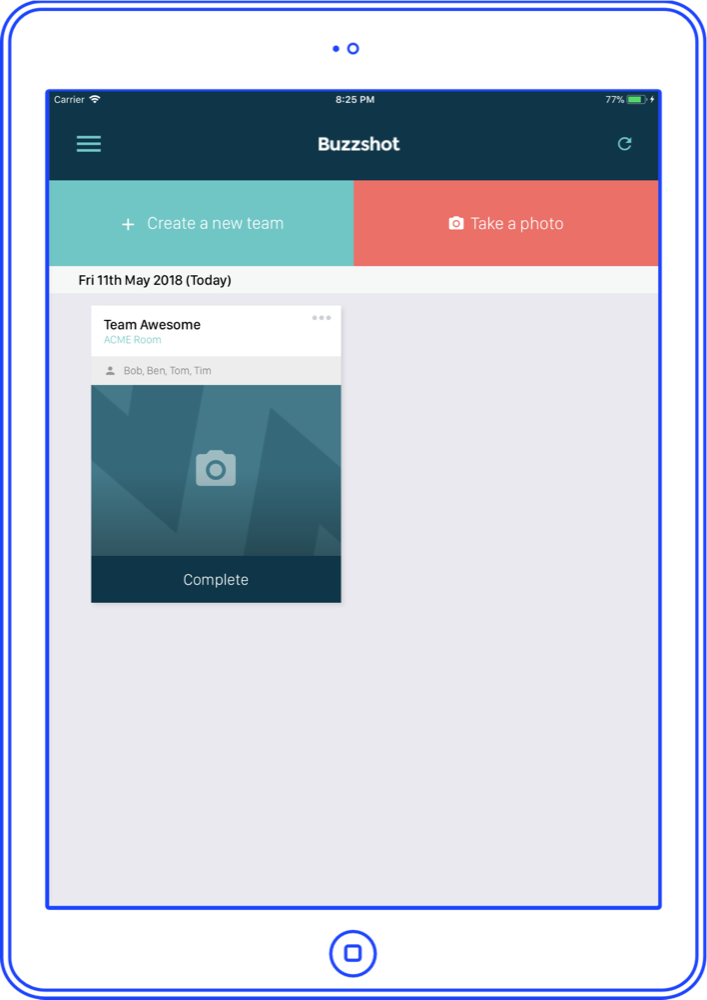
- Open the app. If you can't see the team, tap the refresh button at the top right.
- Add the team photo by tapping the camera icon on the team.
-
Tap Complete under the team.
-
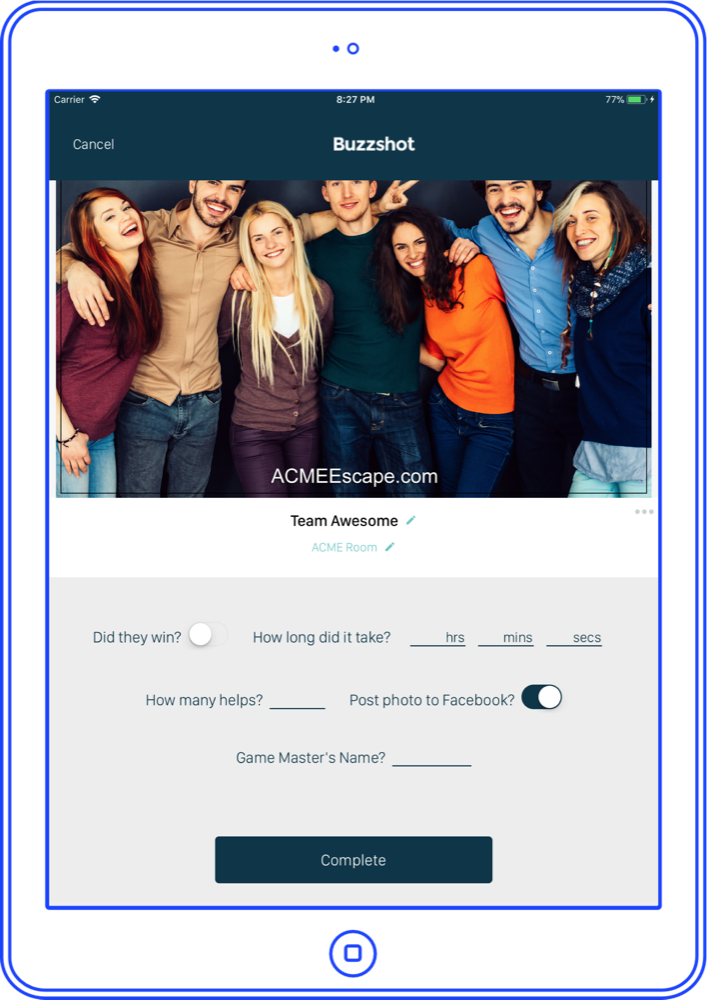
Answer the questions about the game.
-
Tap Complete, then Complete Team to confirm.
The team uploads to Buzzshot and leaves the app's list. See Using the Buzzshot App for the rest of the app's steps, including checking players in.
What happens next
When you complete a group, Buzzshot:
- Sends the team their photo and messages by email and SMS. These may not go out right away, depending on your account's settings. To change the wording, see Configuring Buzzshot.
- Posts the photo to Facebook, if you have left Post photo to Facebook? on. See Facebook Photos Integration.
- Starts any automations that use the Group completed trigger.
Add the photo before you complete the group. Both the website and the app warn you if there isn't one, because players may not get their messages without it.
Changing a group after completing it
On the website, find the group under Completed Groups and choose Action > Re-Complete. This lets you correct the details or change the photo.
Players may already have seen the old version. If the photo has gone to Facebook, changing it replaces the post. To send messages again, use Resend Emails or Resend SMSs in the same menu.
Groups that never played
If a group is stuck in Pending Groups because the team never played, don't complete it. Open the menu next to Complete and choose Archive instead. This hides the group and sends no messages, and you can unarchive it later. To archive several at once, see Complete groups in bulk.
If you can't complete a group
Some accounts limit who can complete groups. If your login doesn't have the Complete groups or events permission, your answers are saved but someone who has it must confirm them. See User permissions.
To complete an event rather than a single group, see Events.