Sharing a Dashboard
You can pin a dashboard to your team's menu, share it across an organisation, or send a public link to an investor or landlord who has no Buzzshot login.
Your own team
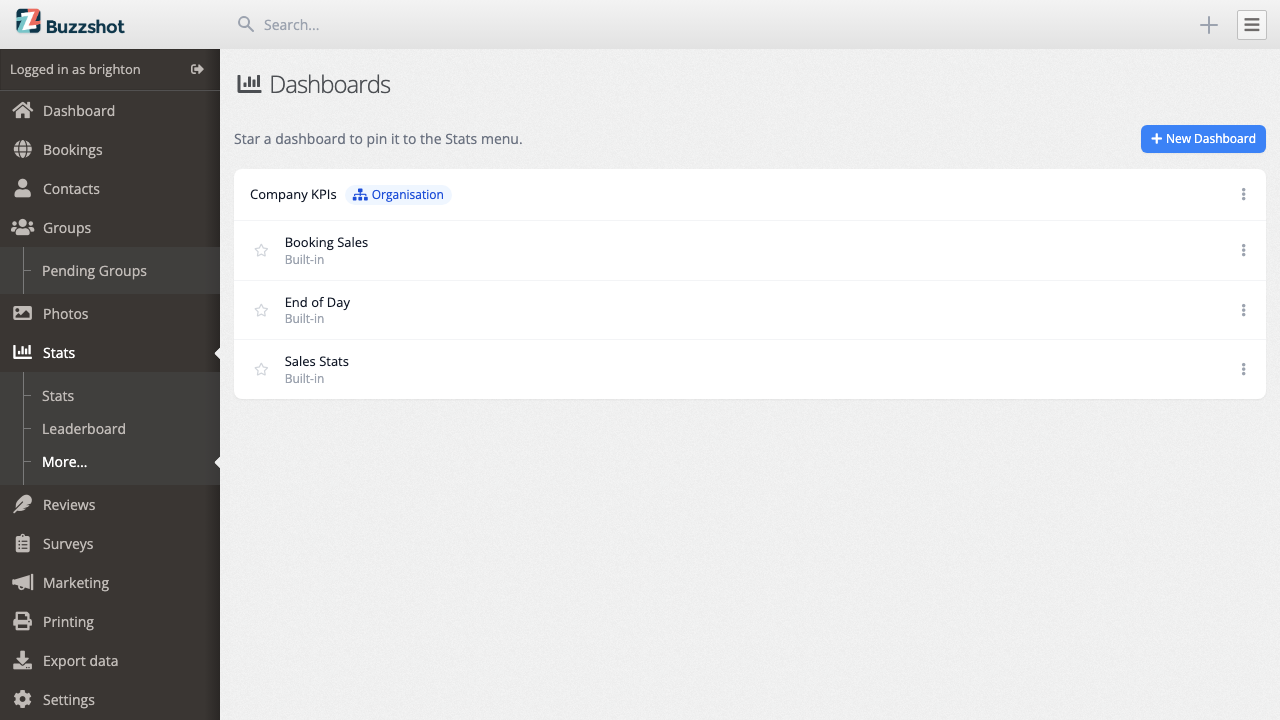
Star a dashboard in the list to show it under Stats in the menu for everyone on the account. Stars belong to the account, not to the person who set them. The star on an organisation-wide dashboard belongs to the organisation, so pinning it puts it on the menu for every account in the group, and only a master login can set it.
A colleague needs the View bookings & orders permission before a dashboard will open for them. See Users and Permissions.
Settings
Use the Settings button at the top of a dashboard to change the dashboard itself rather than its panels.
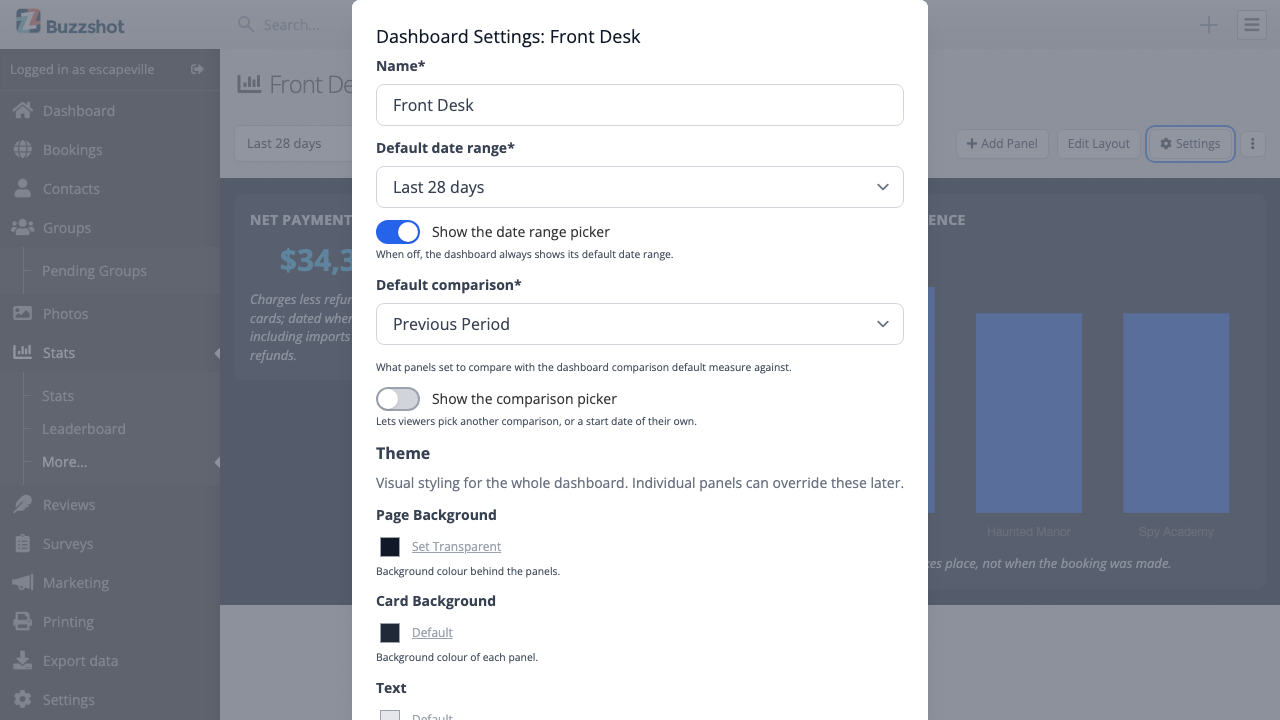
- Name. What shows in the list and the menu.
- Default date range. The period the dashboard opens on when nobody has chosen one: Today, Last 7 days, This Month, Next 7 days and the rest. Check this before sharing a link, because it is what the person opening the link will see. It only moves panels that follow the date picker; a panel pinned to its own period ignores it.
- Show the date range picker. On by default. Turn it off to pin the dashboard to its default range and hide the picker from whoever is looking, useful for a dashboard built to answer one question.
- Default comparison and Show the comparison picker. The dashboard's own comparison, and whether the viewer can change it. See Comparing Two Periods.
- Visibility, if you have it. See below.
- Theme. Colours and corner style.
Dashboards for a whole organisation
If your accounts are grouped into an organisation, and you are a master login, Settings carries a Visibility choice: This account only or Everyone in the organisation.
An organisation-wide dashboard appears on every account in the organisation. Each account sees its own data. Build an end-of-day dashboard once and every venue gets it.
The panels are shared, so only a master login can change them. Everyone else can read the dashboard, set the dates and download the data. They will not see the Add Panel or Edit Layout buttons. An account that wants its own version can clone it.
Organisation dashboards carry an Organisation badge in the list, on every account in the group, including accounts that never touched it. They cannot be given a public share link, because each account sees different data through them and a single link has no account to show. To share one outside Buzzshot, clone it to an account first.
Public share links
Use Share in the ⋮ menu at the top of a dashboard to create a page that anyone with the link can open.
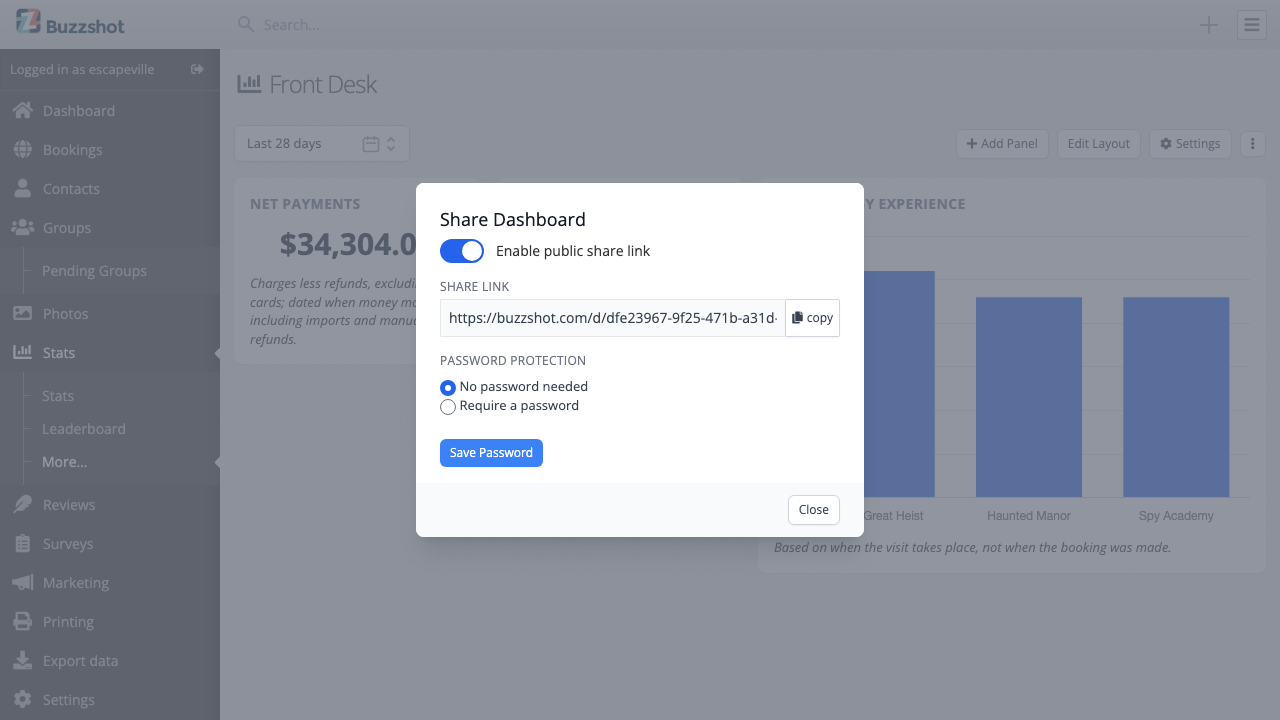
- Turn on Enable public share link. The link appears straight away and works immediately.
- Copy it. The address ends in
/d/followed by a long random code, which is the only thing protecting it. - To lock it down further, choose Require a password, type one and click Save Password. Anyone opening the link is asked for it before they see anything.
A shared dashboard shows a Shared badge next to its title as a reminder that it is public.
The person opening the link gets the panels, and the date picker if any panel follows it, so they can look at a different period. They cannot edit the dashboard, view other dashboards or access Buzzshot. The link is their only credential, so keep it private. Turning Enable public share link off disables it at once.
Where a link is too much, Download as CSV on a panel gives you a spreadsheet to send instead.
Colours
The Theme section of Settings sets four colours and a corner style:
- Page Background, behind the panels. It can be set transparent.
- Card Background, each panel.
- Text, for headings and labels.
- Accent, used for big numbers. Charts keep their own colours.
- Corner style, from Sharp corners to Very rounded.
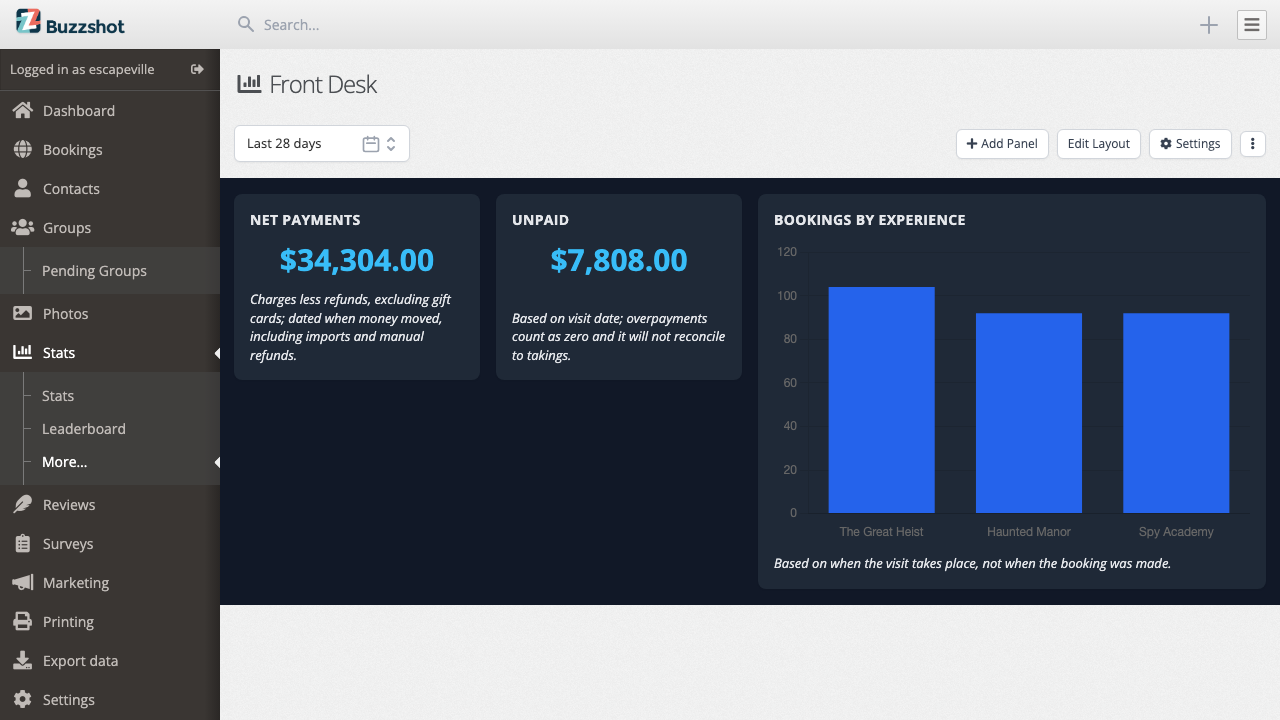
Most dashboards can use the default theme. Custom colours suit a public link that should match your brand, or a dashboard shown on an office screen. On a wall screen, a dark background with a bright accent is easier to read from across the room than the default white panels.
See also