Refunding and Cancelling a Booking
Cancelling and refunding are two separate things in Buzzshot Bookings. Cancelling frees the slot but gives no money back. Refunding gives money back but keeps the booking. A customer who can't come usually needs both, and you can do both in one go.
To start, open the customer's order: type their name, email address or order reference in the Search... box at the top of any page.
Refund and cancel a booking
- On the order, click Action > Add Refund.
- Check the Amount. It starts at the full amount paid, so change it if you're only giving part of it back.
- Check Refund to. This is normally the customer's card.
- Switch on Cancel the order?.
- Click Refund, then Confirm Refund, then OK.
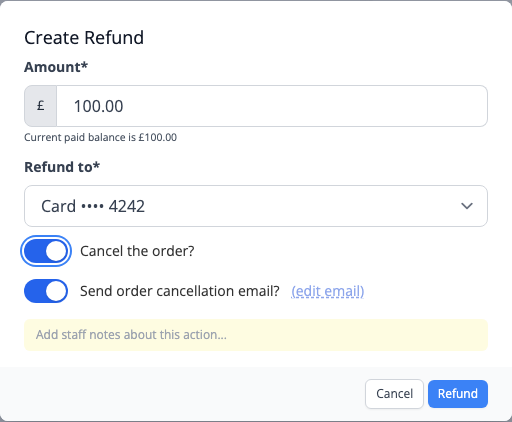
The money goes back to the customer's card, and it can take some days to reach their account. The slot is free to book again straight away, and the customer gets a cancellation email unless you switch that off.
Refund without cancelling
Follow the same steps, but leave Cancel the order? off. The booking stays, and the order shows the refunded amount as still to pay. If you're giving money back as a gesture and they don't owe it, lower the price: click Edit on the Order Details card, then Add fee/discount.
Refund to a gift card instead of money
You can give the customer credit to spend another time, so no money leaves your business. This works however they paid.
- On the order, click Action > Add Refund.
- Check the Amount.
- Under Refund to, choose New Gift Card.
- Leave Send gift card email? on to send the customer the code.
- Switch on Cancel the order? if they aren't coming.
- Click Refund, then Confirm Refund, then OK.
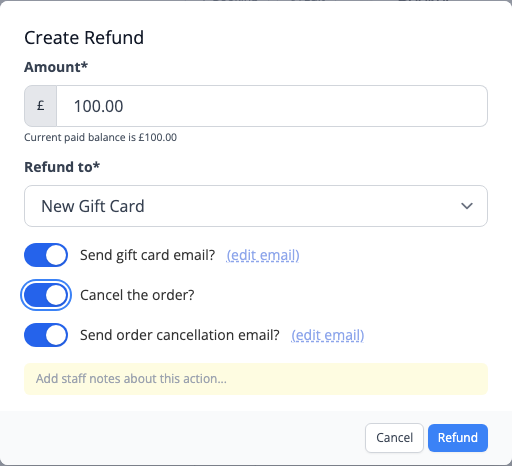
If they already used a gift card on this order, you can put the money back on it instead: choose that card under Refund to.
Cancel without refunding
- On the order, click Action > Cancel Order.
- Click Confirm Cancellation.
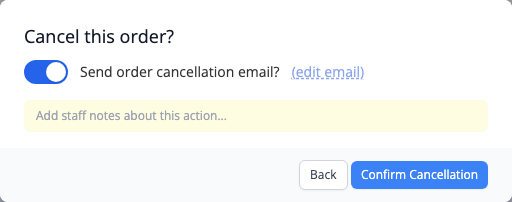
The customer gets no money back. If you need to refund them later, Action > Add Refund still works on a cancelled order.
If the customer's card was only held and not charged, there's nothing to refund. Cancelling removes the hold.
If they didn't pay by card
Refund to lists how the customer paid. If they paid in cash or by bank transfer, choose that payment: Buzzshot records the refund, and you hand the money back yourself.
Refund another way
If you're paying the customer back some other way, or the payment you want isn't listed, choose Manual refund under Refund to. Buzzshot records the refund, and you return the money yourself.
If the order has no payment to refund to, the form starts on New Gift Card, so check this choice if you meant to give money back.
Cancel one booking from an order
If a customer booked two rooms and only one is off, don't cancel the order, as that cancels both. Click Edit on the Order Details card, click Remove on that booking, and click Save Changes. Then use Action > Add Refund to give back the difference.
Undo a cancellation
Open the cancelled order and click Reinstate Order. Its bookings go back on the calendar. If someone else has taken the slot, Buzzshot warns you before overbooking it. Reinstating doesn't touch any refund you've given.
If you can't see these options
Your login may not allow it. Ask whoever manages your logins to check your access. See User logins and Access levels.
Related articles