For Staff: Using Buzzshot Bookings Day to Day
This guide is for the people who run your venue day to day: front desk staff, game masters and anyone who answers the phone. It covers the jobs you'll do most often in Buzzshot Bookings, such as checking who's coming in, taking a booking over the phone, taking payment, moving a booking and giving a refund.
It doesn't cover setting up rooms, prices or the booking widget. If that's your job, start with Getting Started with Buzzshot Bookings.
Can't see something in this guide? What you can do depends on your login. If a menu or button is missing, ask your manager to check your access (see User logins and Access levels).
Bookings and Orders
Two words come up all the time, and it helps to know the difference:
- A booking is one room at one time, for example "The Great Heist, Saturday 2pm, 4 people".
- An order is the whole purchase. It holds the customer's details, the payments, and one or more bookings. A customer who books two rooms back to back makes one order with two bookings.
Most of the jobs below happen on the order page, because that's where the money and the customer details live.
Seeing Who's Coming In
Go to Bookings > Calendar. It opens on today and shows every room side by side, with each booking in its time slot.
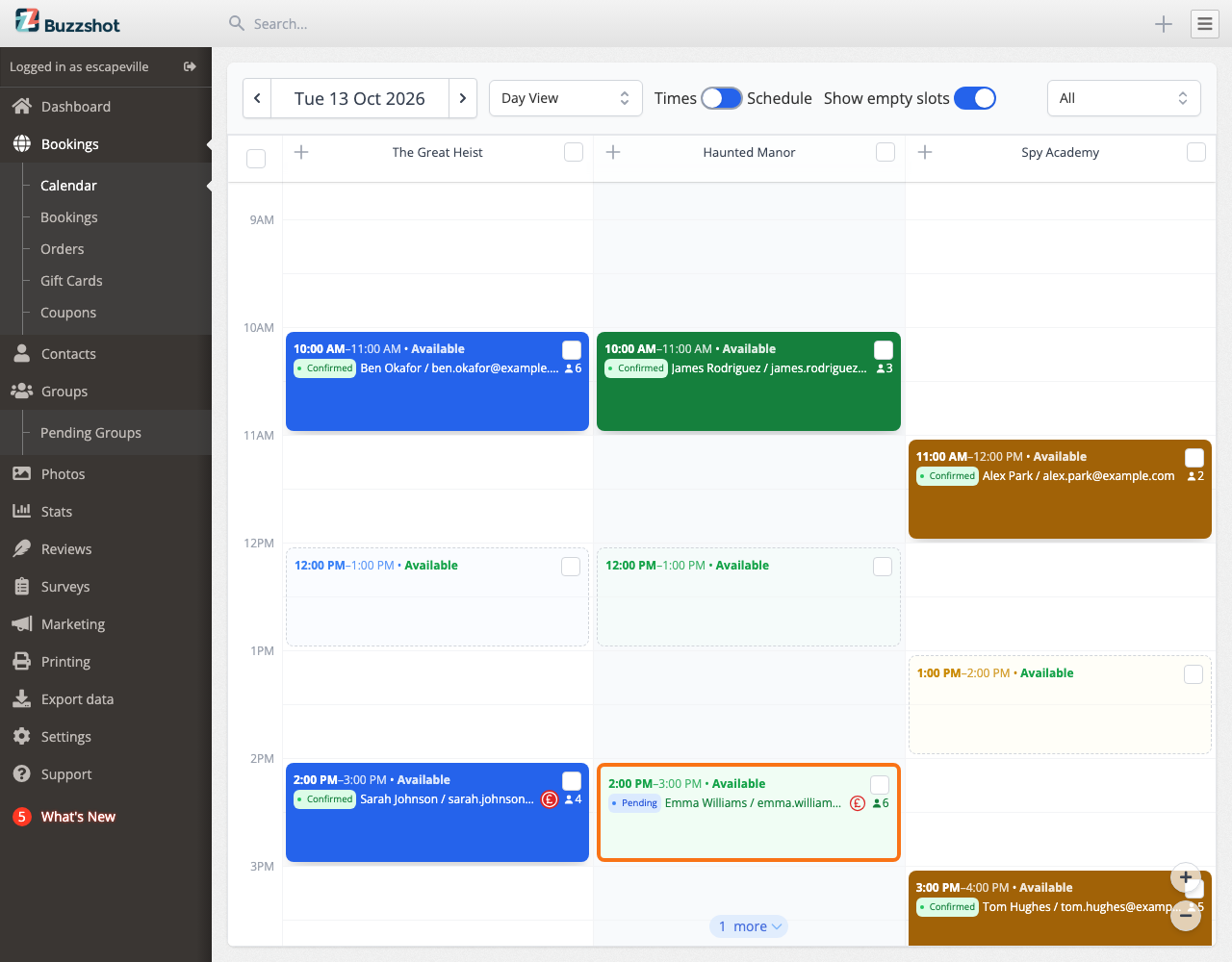
Each booking shows the customer's name, how many people are coming, and a status pill. A red currency symbol means the customer still owes money. Hover over it to see how much.
On a phone, the calendar opens in List view: one list of the day's games in time order, which is easier to read on a small screen.
Click any slot to open its details on the right. From there you can open the order, add a booking or edit the slot.
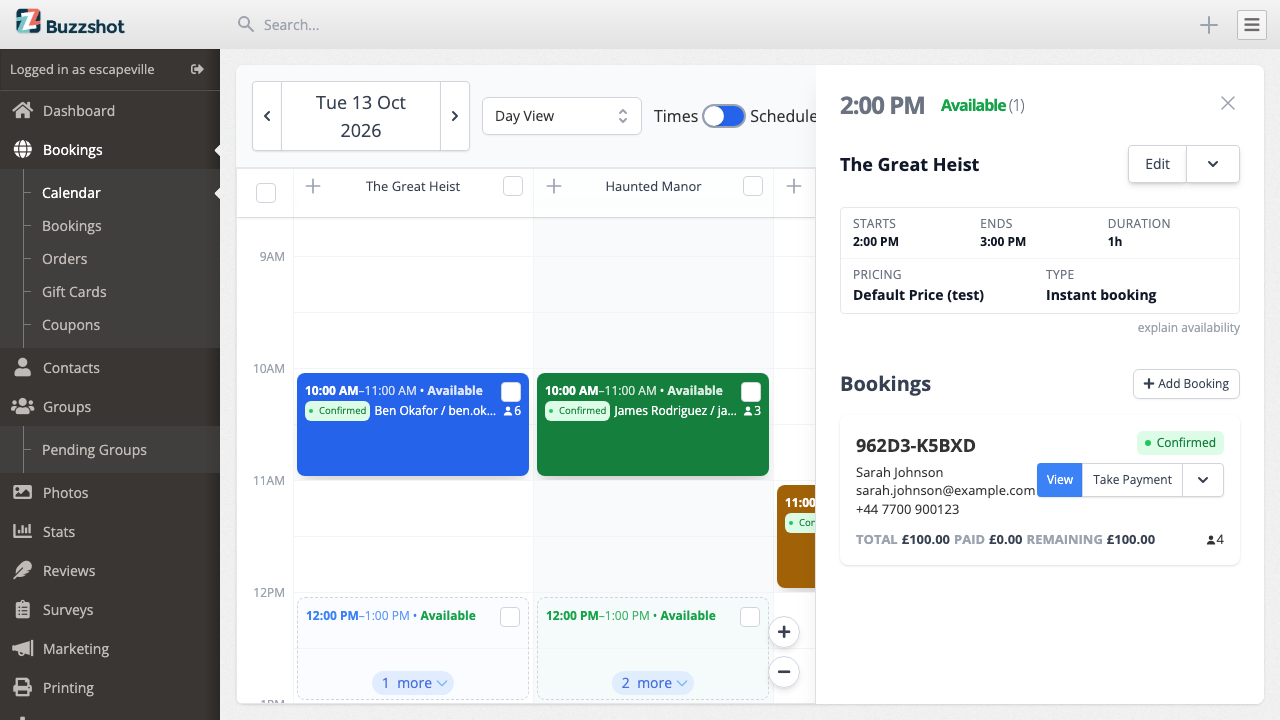
Using the Bookings Calendar explains every part of the calendar in detail.
Finding a Booking
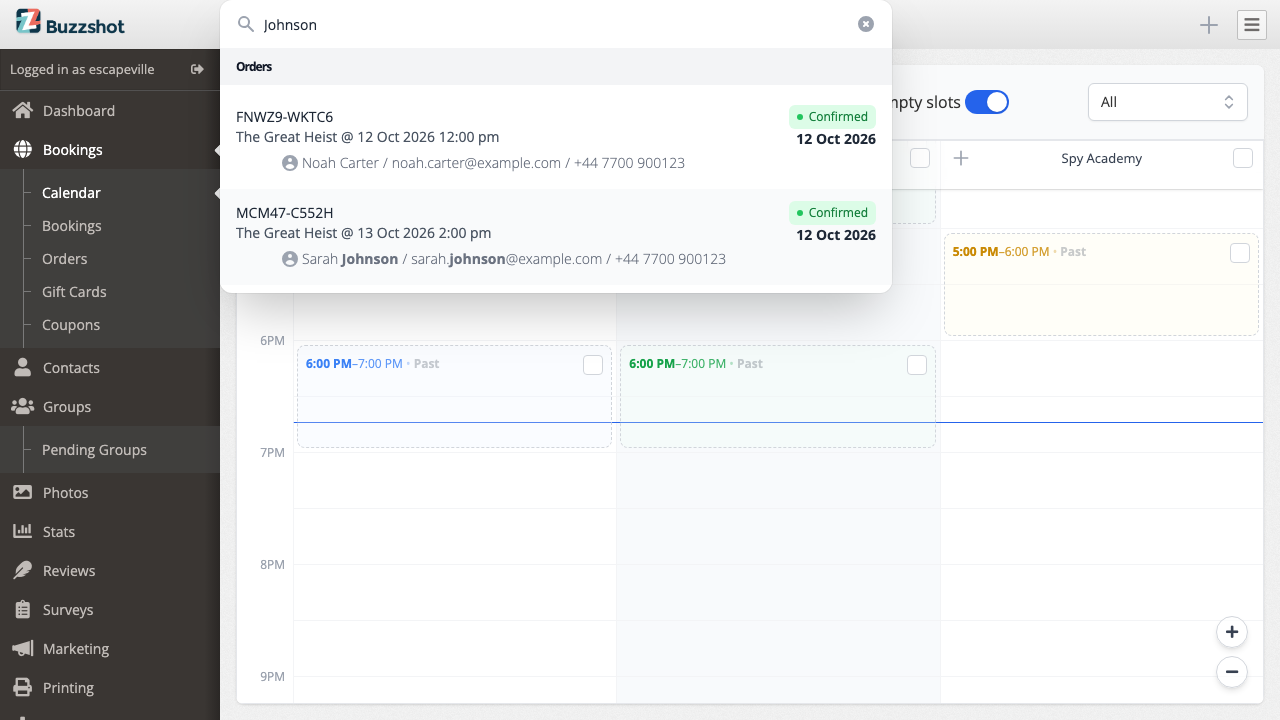
When a customer rings about an existing booking, type in the Search... box at the top of any page. You can search by:
- the customer's name, email address or phone number
- the order reference (the short code in their confirmation email)
- the room name
Results appear as you type, with matching orders under Orders. Click one to open it. The same search also finds gift cards, teams and past customers.
To browse rather than search, for example everything booked in one room next week, go to Bookings > Bookings and use the filters at the top. Bookings > Orders works the same way but lists whole orders, with what each customer has paid and still owes.
Taking a Phone or Walk-in Booking
- Go to Bookings > Calendar and find the day.
- Click the slot the customer wants.
- Click Add Booking.
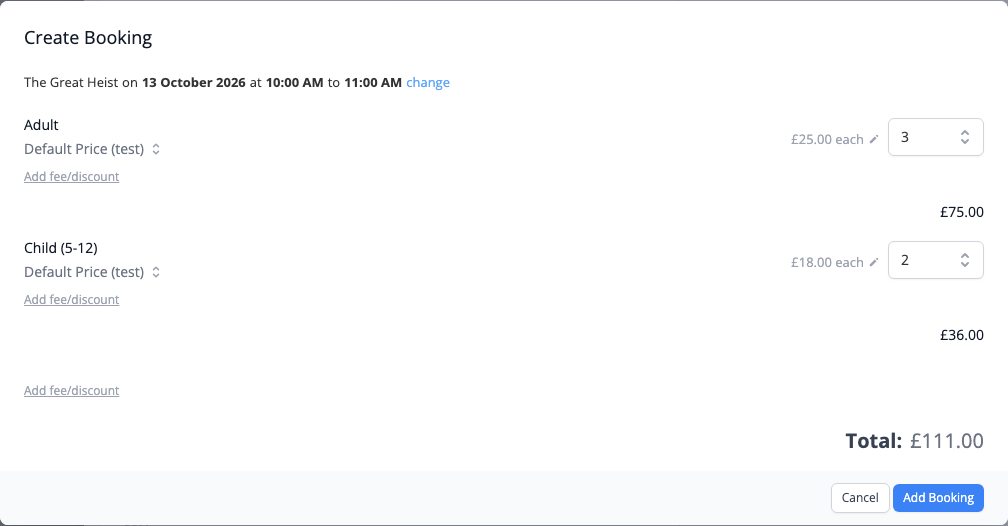
- Enter how many of each ticket they want. The total updates as you go.
- Click Add Booking.
- Fill in the customer's name, email and phone number, then click Save. Click Skip if you don't have their details yet, and add them later from the order page.
You land on the new order, which is Pending. A pending order holds the slot, so no one else can book it, but the customer has no confirmation yet. Next, either take payment or confirm the order (below).
You can also start from Bookings > Bookings > Create Booking, which asks you to pick the room and time first.
If Buzzshot warns about a clash (the slot is full, closed, in the past, or has no staff to run it), it asks before going ahead. Only click Force Changes if you're sure, for example when your manager has agreed to squeeze in an extra group.
Holding a slot for someone who can't pay yet? You can give them a deadline so the slot frees itself if they don't pay. See Holding a Slot Without Payment.
Taking Payment
On the order page, click Take Payment. If the button isn't there, open the Action menu next to it.
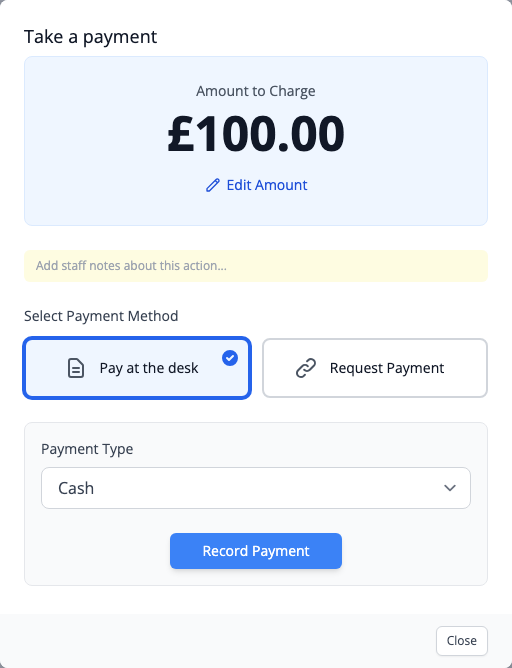
Pick how the customer is paying. You'll only see the options your venue uses:
- Card reader: choose the reader, ask the customer to tap or insert their card, and click Collect Payment.
- Card over the phone: type the card details the customer reads out, then click Collect Payment.
- Cash, card on your own machine, bank transfer and so on: Buzzshot just records these. Choose the payment type and click Record Payment. Make sure you have the money before you do.
- Request Payment: sends the customer a link to pay online. You can copy the link, email it to them, or show a QR code for them to scan at the desk.
To take a deposit or part payment, click Edit Amount before you pay.
Once the customer has paid in full (or paid the deposit your venue asks for), the order turns Confirmed by itself and the customer gets their confirmation email.
Confirming Without Payment
Some customers pay on the day. To confirm their booking now, open the order and click Action > Confirm Order. If it offers to take payment from a held card or gift card, choose Do not take payment. Then click Confirm. Leave Send booking confirmation email? switched on so they get their confirmation.
The money they owe still shows on the order and on the calendar, so whoever is on the desk when they arrive can take it.
Gift Cards and Coupon Codes
If a customer has a gift card or a discount code, open the order and click Action > Add Gift Card or Action > Add Coupon, then type the code. A gift card pays toward the order like any other payment. See Gift Cards and Coupon Codes.
When Customers Arrive
Each confirmed booking has a status: Confirmed, Arrived or No-show. When a group walks in, click the status pill (on the calendar or the order page) and choose Arrived. If they never turn up, choose No-show.
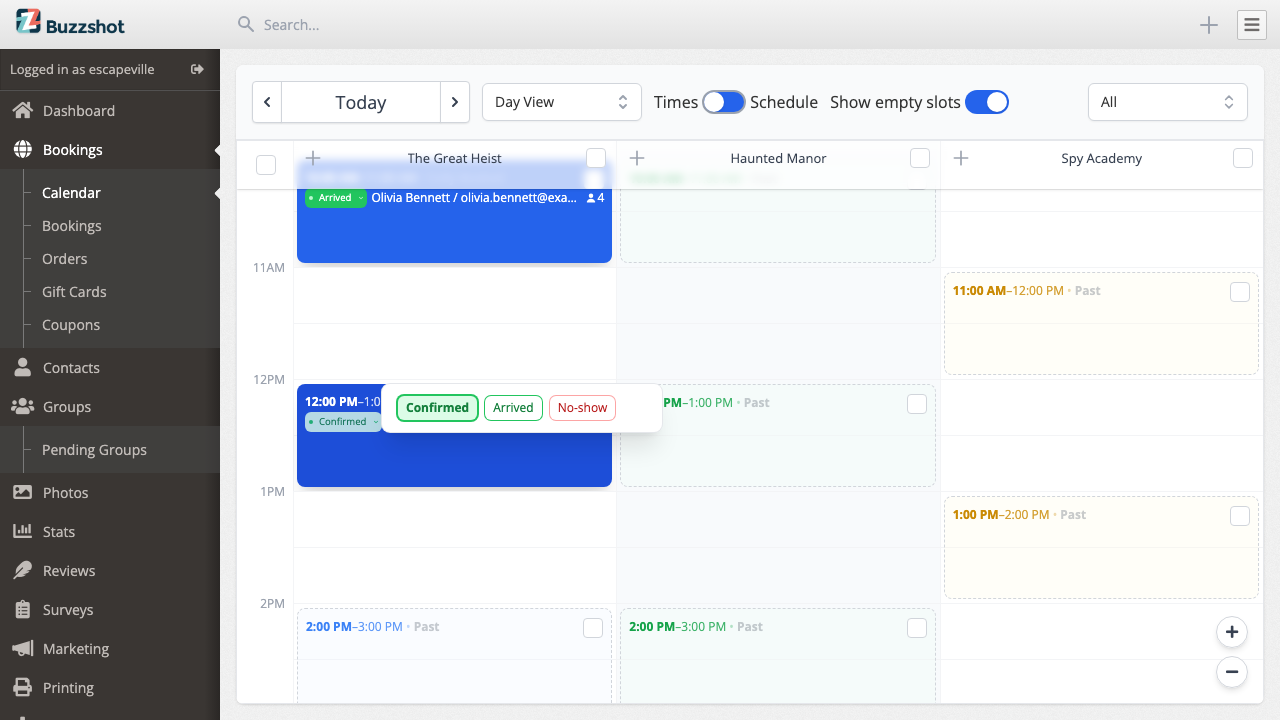
You can only change this on the day of the booking or afterwards.
If your venue uses Buzzshot waivers, the calendar shows how many players have signed, for example "3/4". The order page lists each player and when they signed. See Buzzshot Waivers.
Changing a Booking
Moving to Another Time or Room
- Click the booking's slot on the calendar.
- On the booking, click Reschedule (or find it in the ⋯ menu).
- Pick the new time, and the new room if needed.
- Leave Send order changed email? switched on to tell the customer.
- Click Save.
Don't use the slot's Move button for this. That moves the whole time slot, and every booking in it, rather than one customer.
Adding People, Tickets or Extras
- Open the order and click Edit on the Order Details card.
- Change the ticket numbers, or click + Booking or + Product to add more.
- Click Save Changes.
Send order changed email? is switched off here, so the customer doesn't hear about small fixes. Switch it on if you want them to get an updated confirmation.
If the price has gone up, the order shows the extra amount still to pay. Take it in the usual way.
Updating the Customer's Details
Click Edit on the Booker card on the right of the order page.
Leaving Notes for the Team
Notes keep everyone up to date about a customer: a birthday, an access need, a promise someone made on the phone.
- On the order page, find Change History and click Add Note.
- Type your note.
- Switch on Make the pinned note if the next person needs to see it.
A pinned note shows at the top of the order page and under the booking on the calendar, so the game master sees it on the day. Each order has one pinned note. Customers never see your notes.
Sending an Email Again
If a customer can't find their confirmation, open the order and click Action > Send Email. Buzzshot picks the right email for the order (for example the confirmation), and you can change the address it goes to before you click Send Email.
Cancelling and Refunding
Cancelling and refunding are separate. Cancelling frees the slot but gives no money back. Refunding gives money back but keeps the booking, unless you choose to cancel as well. Refunding and Cancelling a Booking covers both in more detail.
Cancelling an Order
- Open the order and click Action > Cancel Order.
- Leave Send order cancellation email? on to tell the customer.
- Click Confirm Cancellation.
The slot is free to book again straight away. Cancelling an order cancels every booking in it. To cancel just one booking from an order with several, click Edit on the Order Details card and Remove that booking instead.
Cancelled by mistake? Click Reinstate Order to bring it back.
Giving a Refund
- Open the order and click Action > Add Refund.
- Enter the amount. It starts at the full amount paid, but you can refund part of it.
- Choose where the money goes. The choices depend on how the customer paid:
- A card payment: refunds the customer's card.
- A cash or other manual payment: records the refund against that payment. You hand the money back yourself.
- New Gift Card: gives them credit to spend another time.
- Manual refund: just records it. Use this when the payment isn't listed and you pay them back some other way.
- Switch on Cancel the order? if they aren't coming any more.
- Click Refund, check the details, and click Confirm Refund.
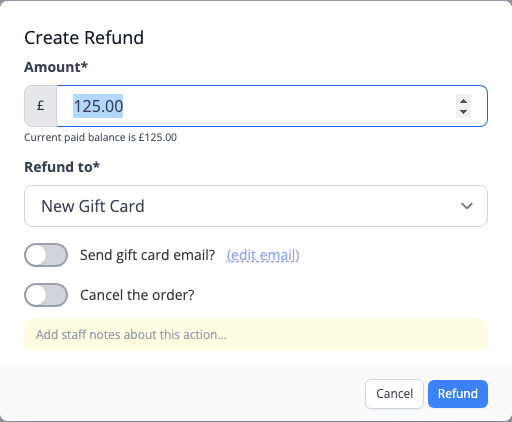
If Add Refund is greyed out, your login isn't allowed to give refunds. Ask your manager.
Booking Requests
If your venue uses Request to Book, some customers ask for a slot instead of booking it outright. Their order shows a yellow Request pill, and your venue gets an email about each one. To list them all, go to Bookings > Orders and filter by status.
- To accept, open the order and click Confirm Order. If the customer's card was held when they asked, choose Take full payment to charge it.
- To turn it down, click Action > Cancel Order. If their card was held, leave Release pre-authorized payments on so they aren't charged.
The customer gets an email either way.
Customers Part-way Through Booking Online
If a slot shows In Cart, a customer is booking it on your website right now. The slot details show how long until their cart runs out and the slot is released. If a cart has clearly been abandoned and someone at the desk wants that slot, click Expire Now to release it.
Related Articles
- Using the Bookings Calendar: every view and option on the calendar.
- Holding a Slot Without Payment: keeping a slot for someone who will pay later.
- Refunding and Cancelling a Booking: every refund choice, and what to do when something goes wrong.
- Gift Cards: selling, checking and using gift cards.
- For Staff: Shifts, Availability & the Time Clock: if your venue rosters staff in Buzzshot.
- Assigning Staff to Bookings: who's running each game.