Assigning Staff to Bookings
Once you've rostered your shifts, Buzzshot brings staffing and bookings together on your bookings calendar. Each booking shows who's on its team, and empty slots show whether you'd have the cover if a booking came in. You can let Buzzshot fill teams automatically, or step in and assign people yourself.
Staffing is a new, optional feature. If it isn't switched on for your account yet, get in touch and we'll enable it for you.
This article assumes you've already added your staff, set up your booking roles and qualifications, told each room which roles it needs, and published some shifts.
Seeing Staff on the Calendar
Go to Bookings > Calendar. Each slot shows a small stack of staff avatars next to it:
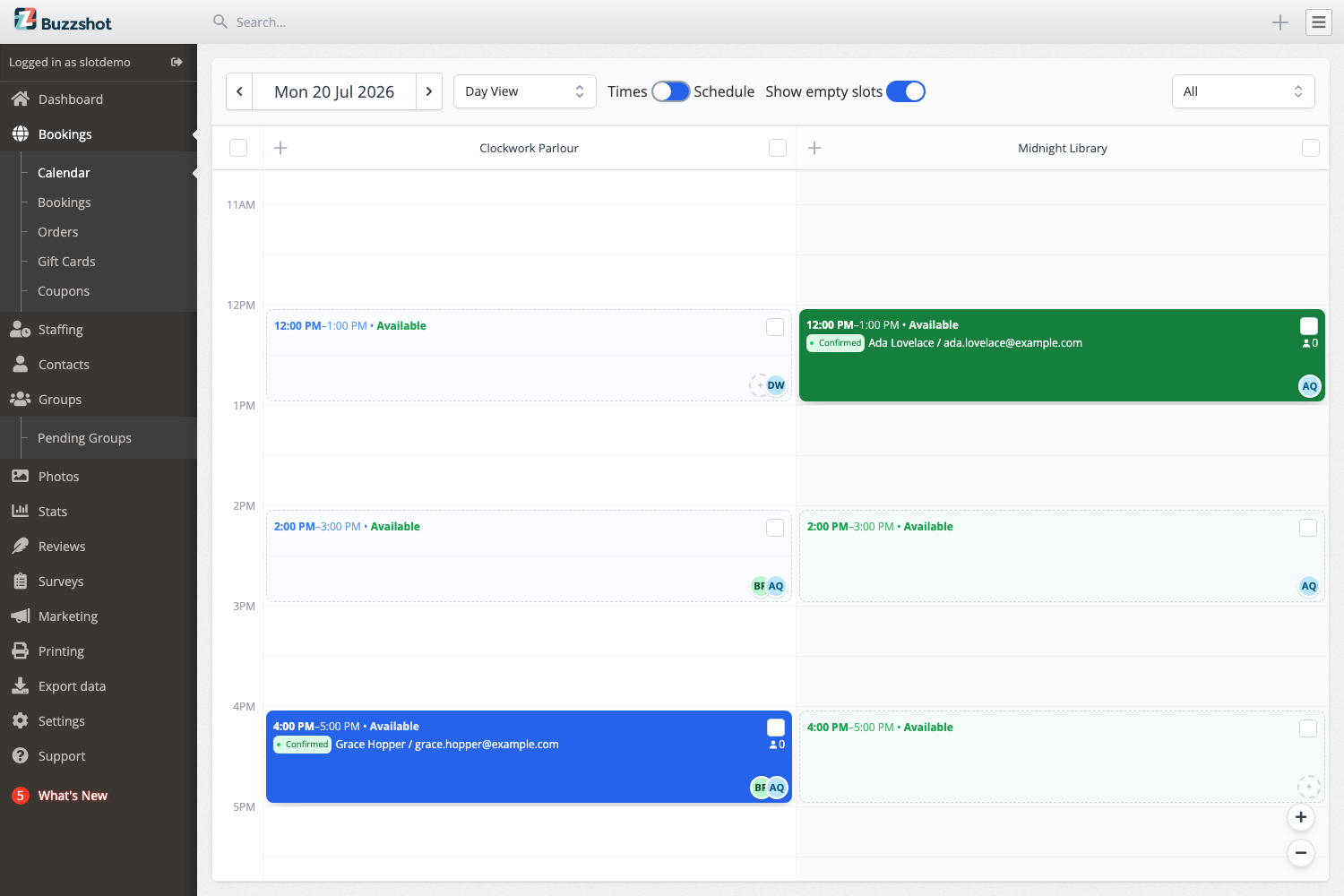
- Booked slots (highlighted) show the team assigned to that booking.
- Empty slots show the coverage you'd have if a booking came in: a preview of who Buzzshot would put on it.
Because staffing works per time slot, all the bookings in the same slot share one team. If two groups book the same room at the same time, you staff that slot once.
Automatic Staffing
When automatic staffing is switched on, Buzzshot fills each booking's roles for you as soon as the booking is made. It chooses people who are:
- On shift for that time,
- Qualified for the role, and
- Not already busy on another booking at the same time.
When more than one person could fill a role, Buzzshot decides who to pick in this order:
- Rostered before standby. Everyone on a normal (rostered) shift is used before anyone on standby. Standby staff are only called on once the rostered team is fully committed.
- Shift priority. Within that, each shift's priority applies: First pick people fill before Normal, and Last pick people are used only as a last resort.
- Staff priority. If it's still a tie, your overall staff ordering decides who's picked first.
You don't have to do anything for this to happen. Open the calendar and the teams are already there. You only need to step in when you want to change who's on a booking.
Checking Coverage at a Glance
Click the avatar stack on any slot to open its staffing panel. It gives you a one-line verdict of how well the slot is covered:
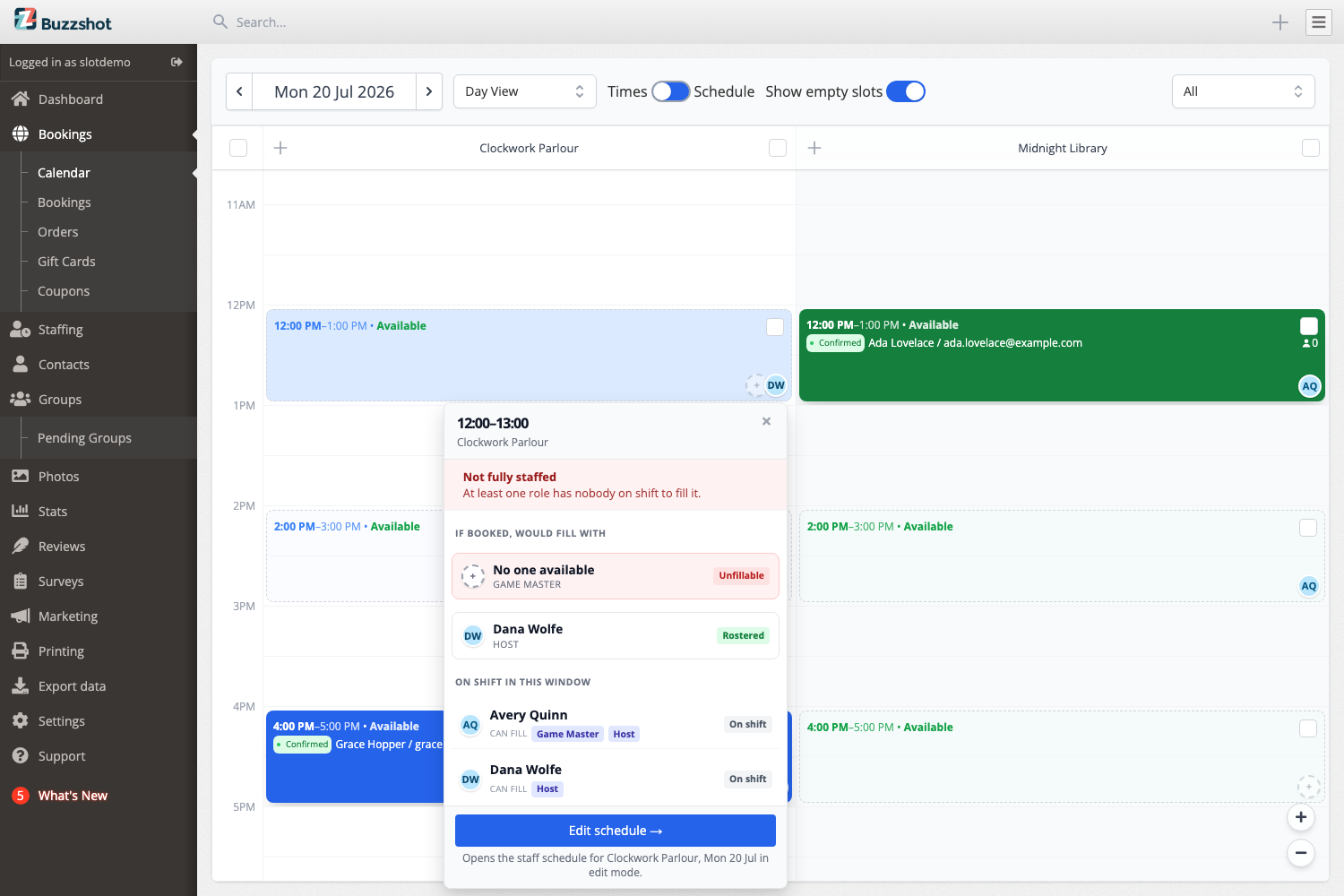
- Fully staffed (green): every role is filled by someone on a rostered shift.
- Standby cover only (amber): a role can only be filled by a standby staff member.
- Not fully staffed (red): at least one role has no one to fill it.
For a booked slot, the panel lists each role and who's on it, with buttons to change the team. For an empty slot, it shows who's on shift for that window and, if automatic staffing is on, who would fill each role if a booking came in.
Roles that need more than one person show as, for example, Game Master · 1 of 2, so you can see how many of each you still need.
Only Selling What You Can Staff
Out of the box, staffing tells you about problems but never stops a booking coming in. If you would rather only offer sessions you have the people to run, turn on Staff availability affects bookings in Settings > Staffing.
With it on, the staff on shift cap what each slot can sell. A slot nobody qualified can cover stops being offered altogether, and a room that could otherwise take two groups at once offers one if you only have the team for one. Your booking page and your calendar both follow the same numbers.
Two settings shape how far this reaches:
- Availability horizon (days), on the same page, is a hard cap on how far ahead staff cover limits bookings. Inside it, your rota decides what you can sell. Beyond it, slots are offered on room capacity alone, so you can keep taking bookings months out and settle the rota nearer the time.
- Standby shifts count as cover while there is still enough notice to call someone in. Once a slot is closer than that notice, its standby cover no longer counts towards it.
A day with nobody rostered sells nothing. Inside the horizon, every day is measured against the staff on shift for it. A week with no published shifts has no cover, so its slots are blocked. Roster the week and publish it before your customers come looking.
To check why a particular slot is offering what it is, click the slot on the calendar to open its details panel, then click explain availability at the bottom. The breakdown lists every limit on that slot, staff included, so you can see which one is holding it back.
Assigning and Changing Staff by Hand
From a slot's staffing panel you can:
- Assign a staff member to a role.
- Unassign someone to take them off the booking.
- Swap one person for another.
By default the picker shows the people who are on shift and qualified for the role. Turn on Show all staff to see everyone (including people who are off shift, not yet qualified, or already busy) so you can make a call when you need to. Buzzshot will still warn you when someone isn't the obvious choice, but it trusts you to override.
Warning Signs
Buzzshot flags a team when something isn't right, so problems are easy to spot before the day arrives:
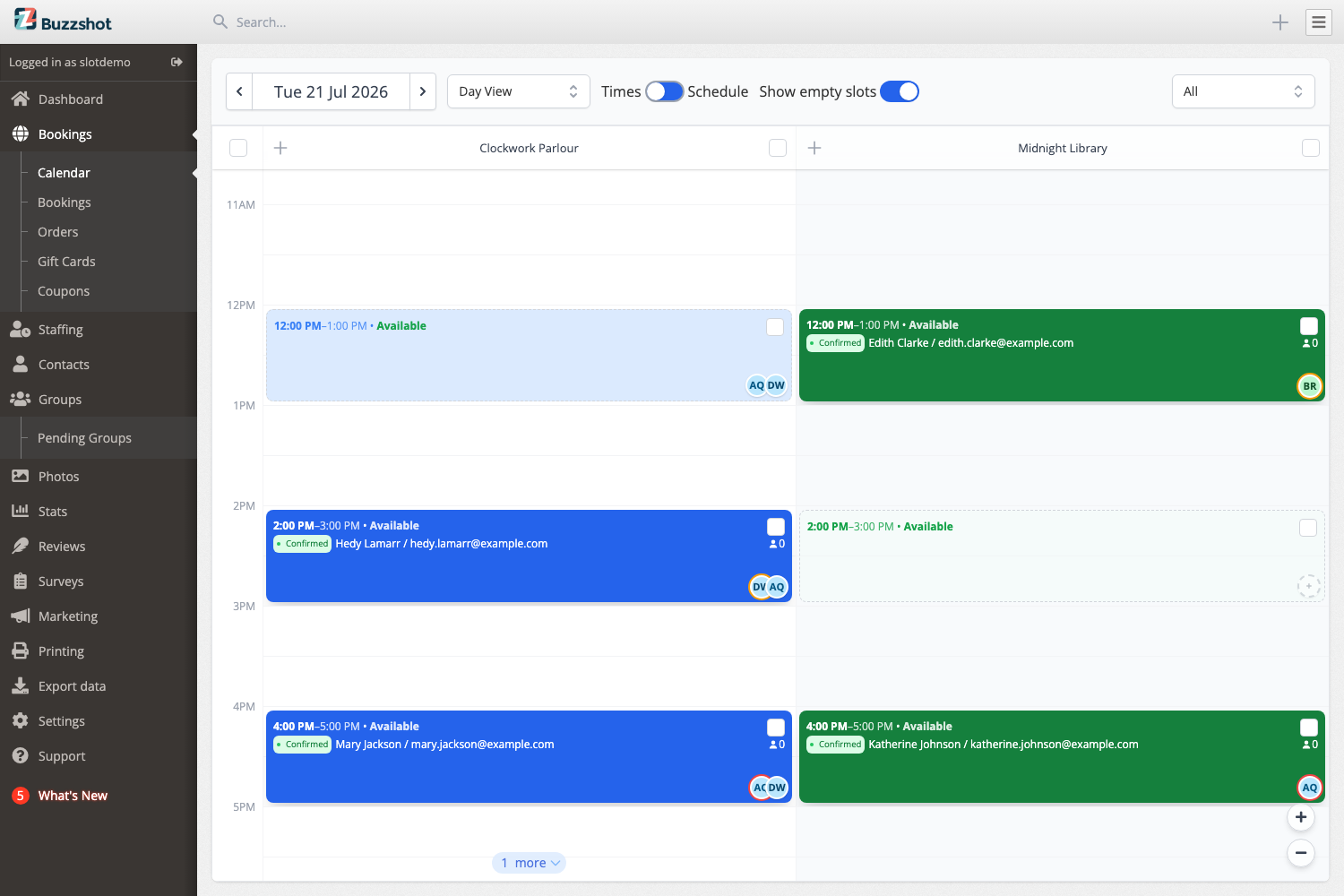
- Off shift (amber): someone is assigned who isn't rostered to work that time.
- Missing qualification (amber): someone is filling a role they aren't qualified for.
- Over capacity (red): the same person is on two bookings at once, so neither is really covered.
- Unfilled (red): a role still has no one on it.
These are indicators to help you spot problems early. They make it obvious where you need to roster more people or move someone around before the day arrives.