How Staffing Affects What Customers Can Book
Out of the box, Staffing warns you when a slot is short of staff but never stops a customer booking it. If you would rather only sell sessions you have the people to run, turn on Block slots when staff can't be assigned. Buzzshot then checks your shifts before it offers a slot, and a slot nobody can run stops selling.
This article explains what counts as cover, how bookings use it up, and what to check before you turn the setting on.
Staffing is a new, optional feature. If it isn't switched on for your account yet, get in touch and we'll enable it for you.
The Settings
Go to Settings > Staffing. You'll find these in the Availability section:
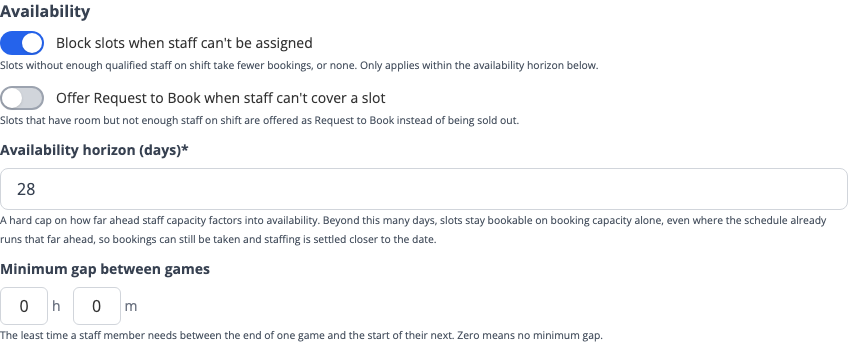
- Block slots when staff can't be assigned: slots with nobody to run them stop selling. Off by default.
- Offer Request to Book when staff can't cover a slot: appears once the setting above is on. Customers can ask for these slots instead of finding them sold out. See What Customers See below.
- Availability horizon (days): how far ahead staff cover limits your bookings. The default is 28 days. See How Far Ahead It Applies below.
- Minimum gap between games: the least time a staff member needs between one game and their next. A person still inside their gap can't cover a slot.
The other setting that matters here is Auto-assign staff to bookings, at the top of the same page. See How Bookings Use Up Cover below.
What Counts as Cover
A slot has cover when Buzzshot can fill every role the room needs. For each role, it looks for a staff member who is:
- On a shift for the whole slot. A shift that ends at 5:30pm doesn't cover a game from 5:00pm to 6:00pm.
- On a shift that covers this room. A shift whose type only covers other rooms, or no rooms, doesn't count.
- Qualified for the role, if the role requires a qualification.
- Free at that time, and not still inside their minimum gap from another game.
A few things catch people out:
- Standby shifts count while there is still enough notice to call the person in. Once the slot is closer than that notice, the shift stops counting.
- Draft shifts don't count until you publish them. Shifts from a regular schedule on the Regular page count without publishing.
- Unconfirmed and declined shifts still count. If someone declines a shift, the slot keeps selling until you take them off the shift or replace them.
- The Availability page plays no part. What staff enter there helps you build the schedule. Only the shifts you roster decide what sells.
- Rooms with no roles are never limited. If a room has no roles on its Staffing tab, Buzzshot has nothing to check, so it sells as normal.
How Bookings Use Up Cover
One team runs a whole slot. Bookings in the same slot share a team, so a room that takes three bookings at once can sell all three with one Game Master.
Rooms running at the same time compete for your staff. If one Game Master is on shift and two rooms have a 2:00pm slot, both are on sale until a customer books one. The other then stops selling, because your Game Master is busy. The same goes for slots that overlap without starting together.
This only works with Auto-assign staff to bookings on. Staff are used up when they are assigned, so with auto-assign off, both rooms keep selling until you assign someone by hand. If you turn on blocking, we recommend turning on auto-assign too.
A customer's cart holds staff as well as the room. If they don't finish booking, the staff are free again when the cart expires.
If one person can look after several bookings in a role, such as a Host greeting two bookings at once, raise Assignments per staff member for that role on the room's Staffing tab.
What Customers See
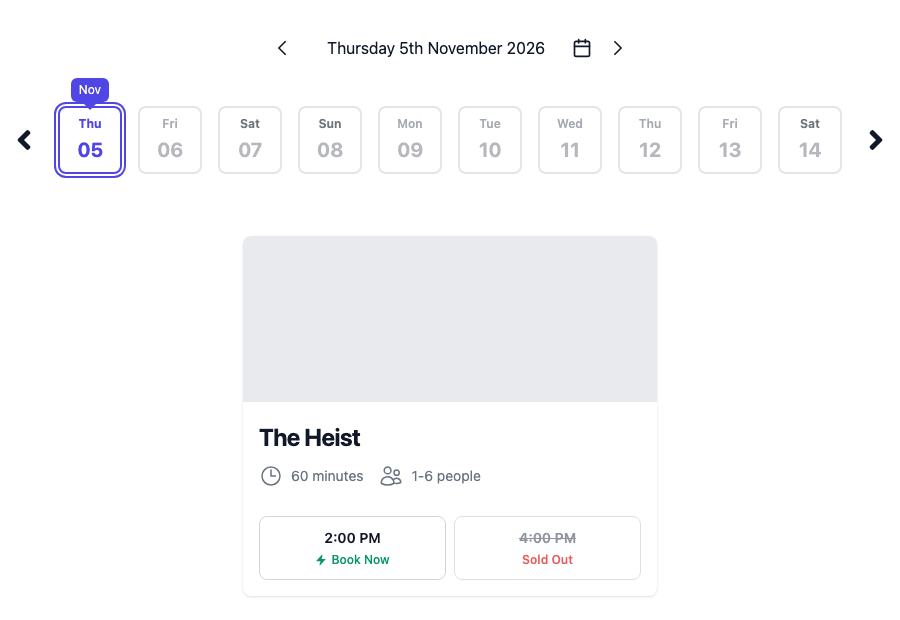
A slot with no cover looks the same as a sold out slot on your booking page.
If you'd rather not lose the enquiry, turn on Offer Request to Book when staff can't cover a slot. A slot with room but nobody to run it then shows as a request:
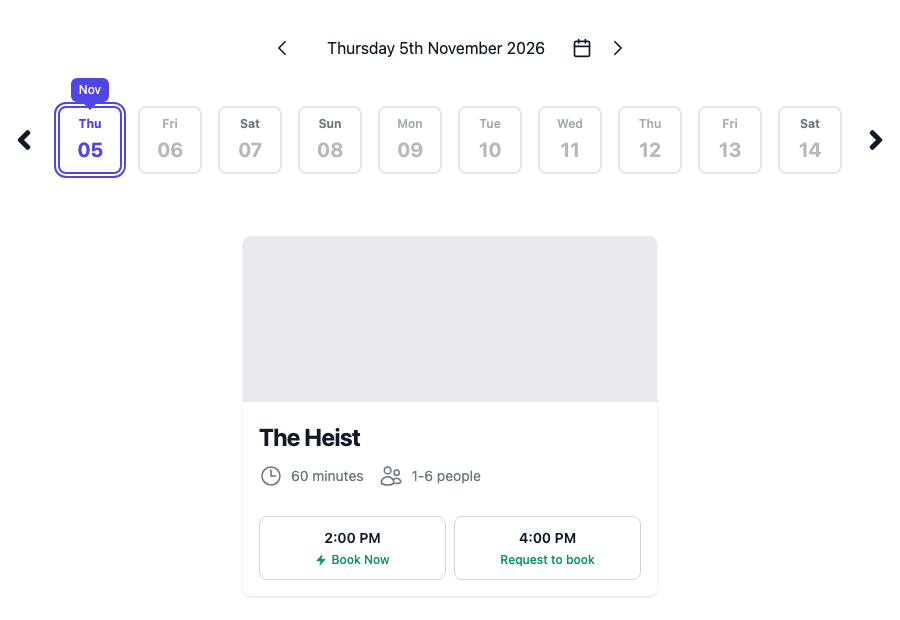
The customer's booking arrives as a normal booking request, which you confirm or decline. Confirming doesn't roster anyone, so assign someone to the slot or add a shift yourself.
- A slot only becomes a request when nobody can cover it. If a team is free, the slot sells instantly as usual.
- This applies after your rules and slot settings, so a slot you've set to Instant Booking still becomes a request when nobody can cover it.
- Call to Book slots stay Call to Book, and show as sold out with no cover.
How Far Ahead It Applies
The Availability horizon stops staff cover limiting bookings too far ahead. Inside the horizon, your shifts decide what you can sell. Beyond it, slots are offered on room capacity alone, even if you've already rostered that far, so you can take bookings months out and settle the rota nearer the time.
Set it to roughly how far ahead you reliably roster.
A day with nobody rostered sells nothing. Inside the horizon, every day is measured against the shifts for that day. A week you haven't rostered has no cover, so all its slots stop selling, on any room with roles.
Before You Turn It On
The setting takes effect as soon as you save it. To avoid your booking page emptying overnight, check these first:
- Every room you want limited has its roles set on its Staffing tab.
- Your shifts are published, or set up as a regular schedule, as far ahead as your horizon.
- Your staff have the qualifications their rooms' roles require, and their shift types cover the right rooms.
- Auto-assign staff to bookings is on.
Bookings you already have stay as they are.
When Your Team Takes a Booking
These limits apply to your team too. If someone adds a booking to a slot with no cover, Buzzshot warns about a conflict and asks before going ahead. They can click Force Changes to book it anyway, then sort out who will run it. If you offer Request to Book for these slots, the slot still has room, so there is no warning.
Why Isn't This Slot Selling?
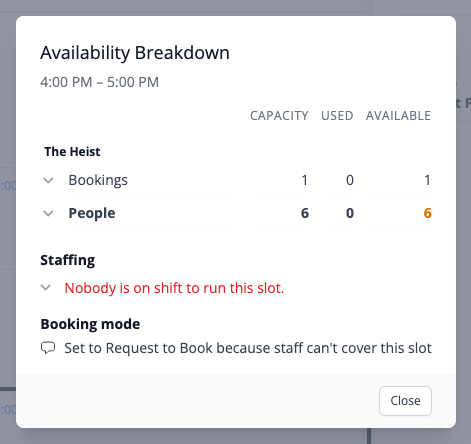
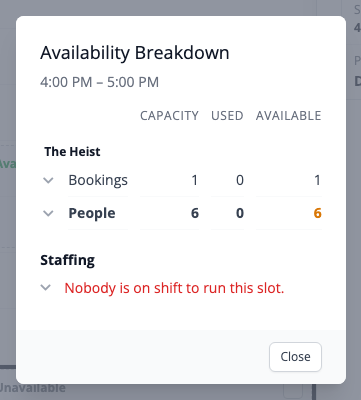
Go to Bookings > Calendar, click the slot, then click explain availability at the bottom of the panel. The Staffing section says what's holding it back:
| What it says | What to do |
|---|---|
| Nobody is on shift to run this slot. | Roster someone, and publish the change. |
| Staff are on shift, but the roles this slot needs can't all be filled. | Click the line to see who's on shift. They may be busy on another booking, or missing a qualification. |
| Staff are working at this time, but none of their shifts cover this slot. | Check the shift ends after the slot does, and that its type covers this room. |
| Only standby cover, and there isn't enough call-in notice left for this slot. | Roster someone directly, or shorten the notice if you can call them in sooner. |
If a slot has become a request because of staffing, the Booking mode section says so: