Shift Types
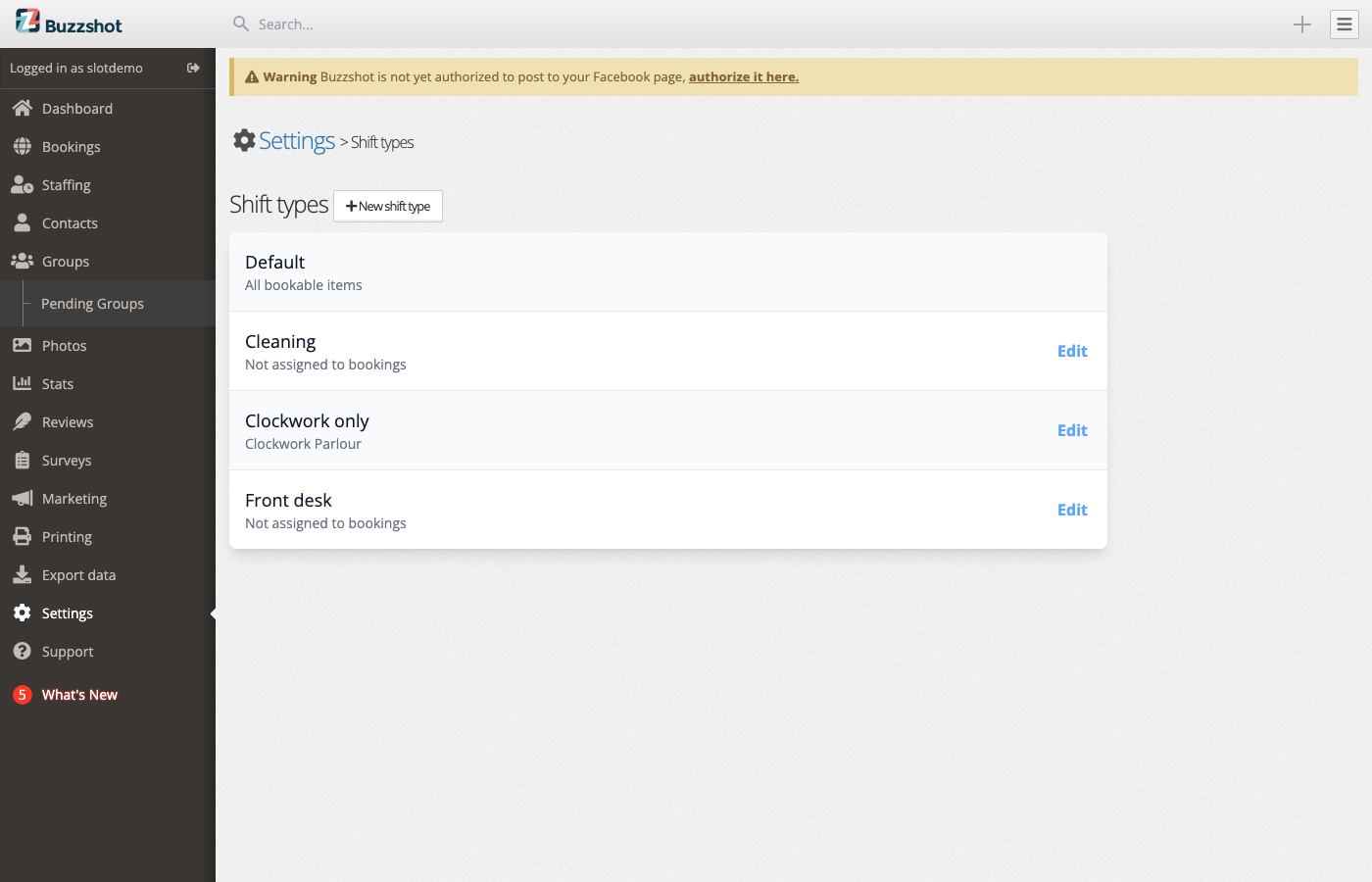
A shift type is a named kind of shift, such as Front desk, Cleaning or Party host. You set one up once, then pick it whenever you add a shift. Its name shows on the shift wherever it appears, so you can tell a cleaning shift from one running games at a glance.
Each shift type also decides which bookings its shifts can staff. A front desk shift might run no games at all, while another type might cover only one of your rooms.
Staffing is a new, optional feature. If it isn't switched on for your account yet, get in touch and we'll enable it for you.
A shift type is not the same as a booking role. A booking role is a job a booking needs done, such as Game Master or Host. A shift type says what a whole shift is for. See Booking Roles & Qualifications for booking roles.
The Default Shift Type
The list always starts with Default. A shift you haven't given a type is a Default shift, and it can staff any of your bookable items. You can't edit or delete Default, and you can't give another shift type that name.
Until you create a shift type, the schedule doesn't label your shifts. Once you have at least one, shifts without a type show Default on the schedule so you can tell them apart.
Creating a Shift Type
- Go to Settings > Shift types.
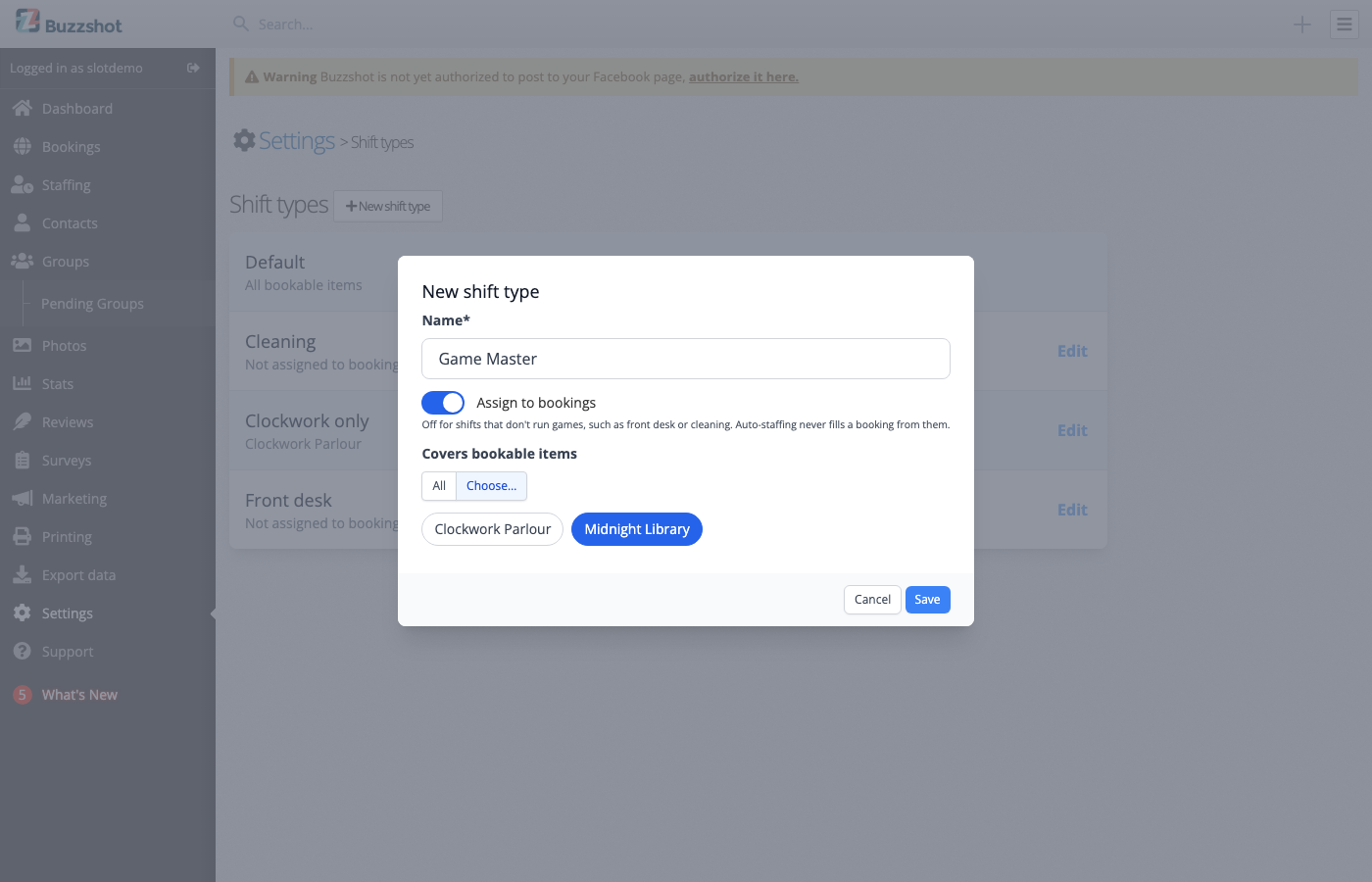
- Click New shift type.
- Enter a Name, such as "Front desk".
- Choose whether to Assign to bookings. It is on by default. Turn it off for shifts that don't run games, such as front desk or cleaning. Auto-staffing never fills a booking from a shift whose type has this off.
- If Assign to bookings is on, set Covers bookable items:
- All: staff on this shift can be assigned to any bookable item.
- Choose…: only the bookable items you pick. Click each one to select it.
- Click Save.
The list shows what each type covers: All bookable items, the names of the items you picked, or Not assigned to bookings.
Giving a Shift a Type
When you add or edit a shift on the staffing calendar, pick its Shift type in the shift panel. Default comes first, followed by your own types. You can pick a type for shifts on a regular schedule in the same way.
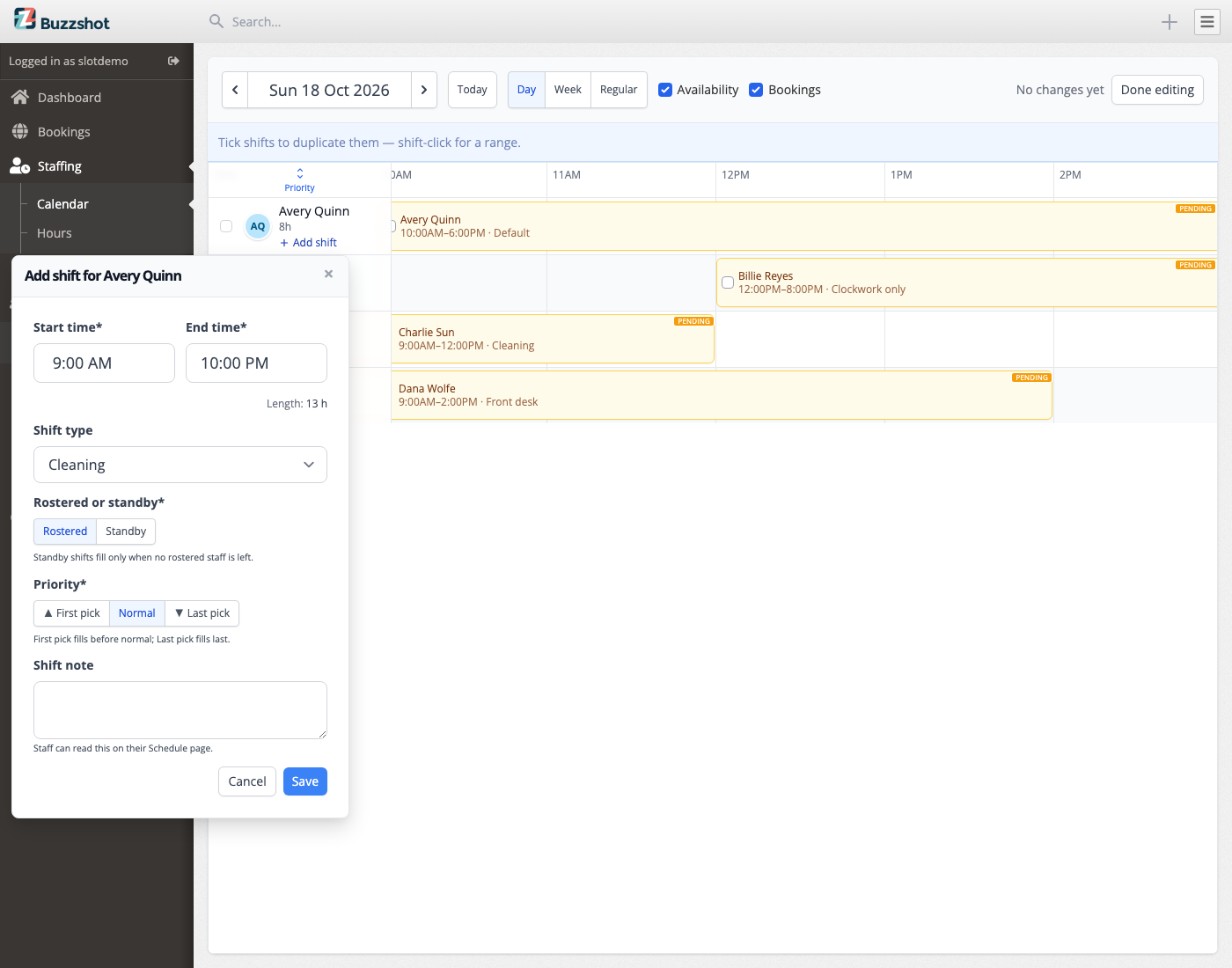
The Shift type picker appears only once you have created at least one shift type.
A shift's type sits alongside its other settings. A cleaning shift can still be Standby, and it still has a Priority.
The type's name then shows on the shift's bar on the staffing calendar, in the shift's details panel, on the regular schedule, and on the staff member's own Schedule page.
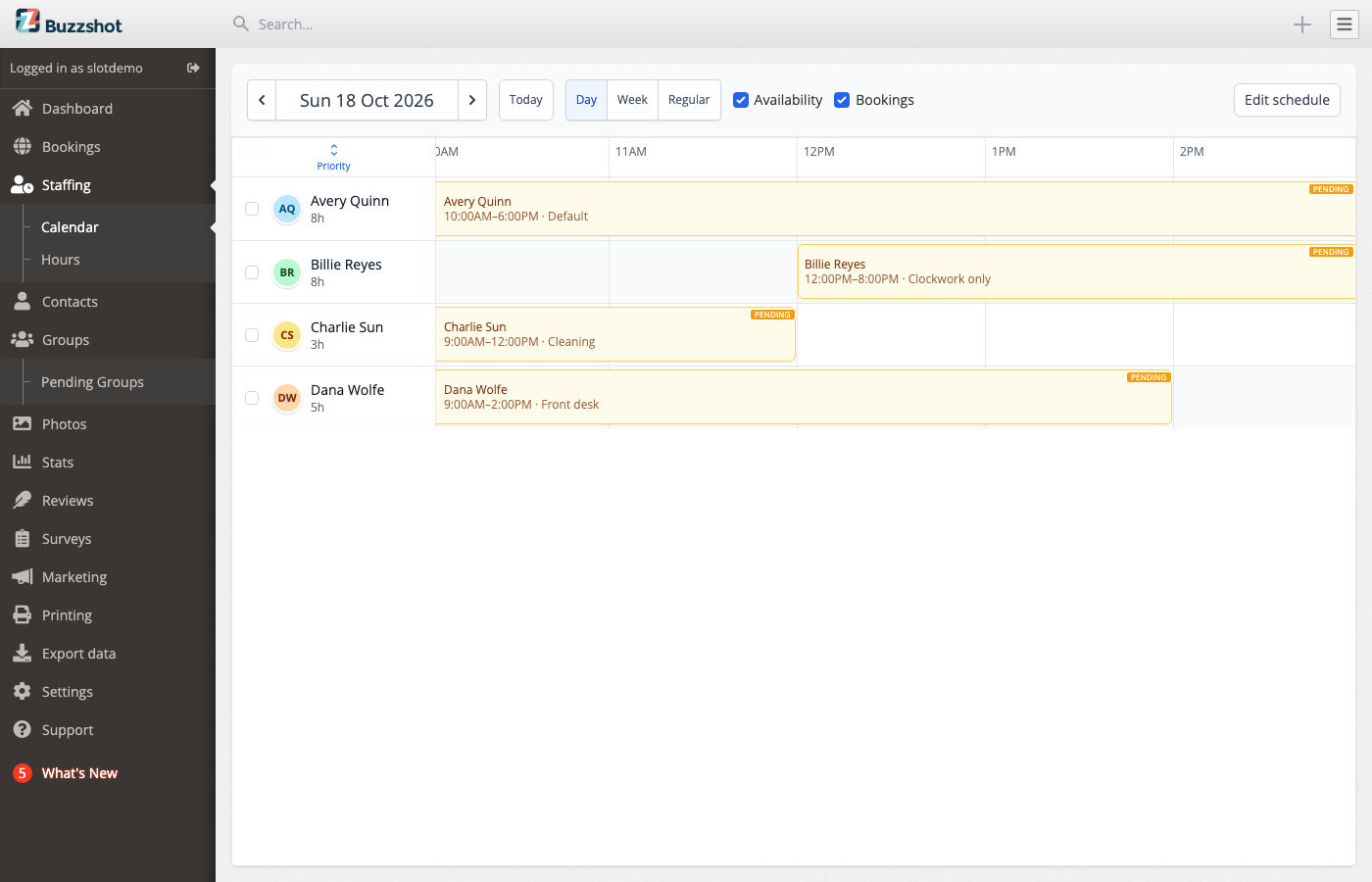
When Buzzshot works out who can staff a booking, it only looks at shifts whose type covers that booking's bookable item. Someone working a shift that runs no games, or a shift that covers a different item, shows as Unavailable for that slot in the Coverage panel on the bookings calendar. See Assigning Staff to Bookings.
Changing a Shift Type
To change a shift type, go to Settings > Shift types and click Edit next to it.
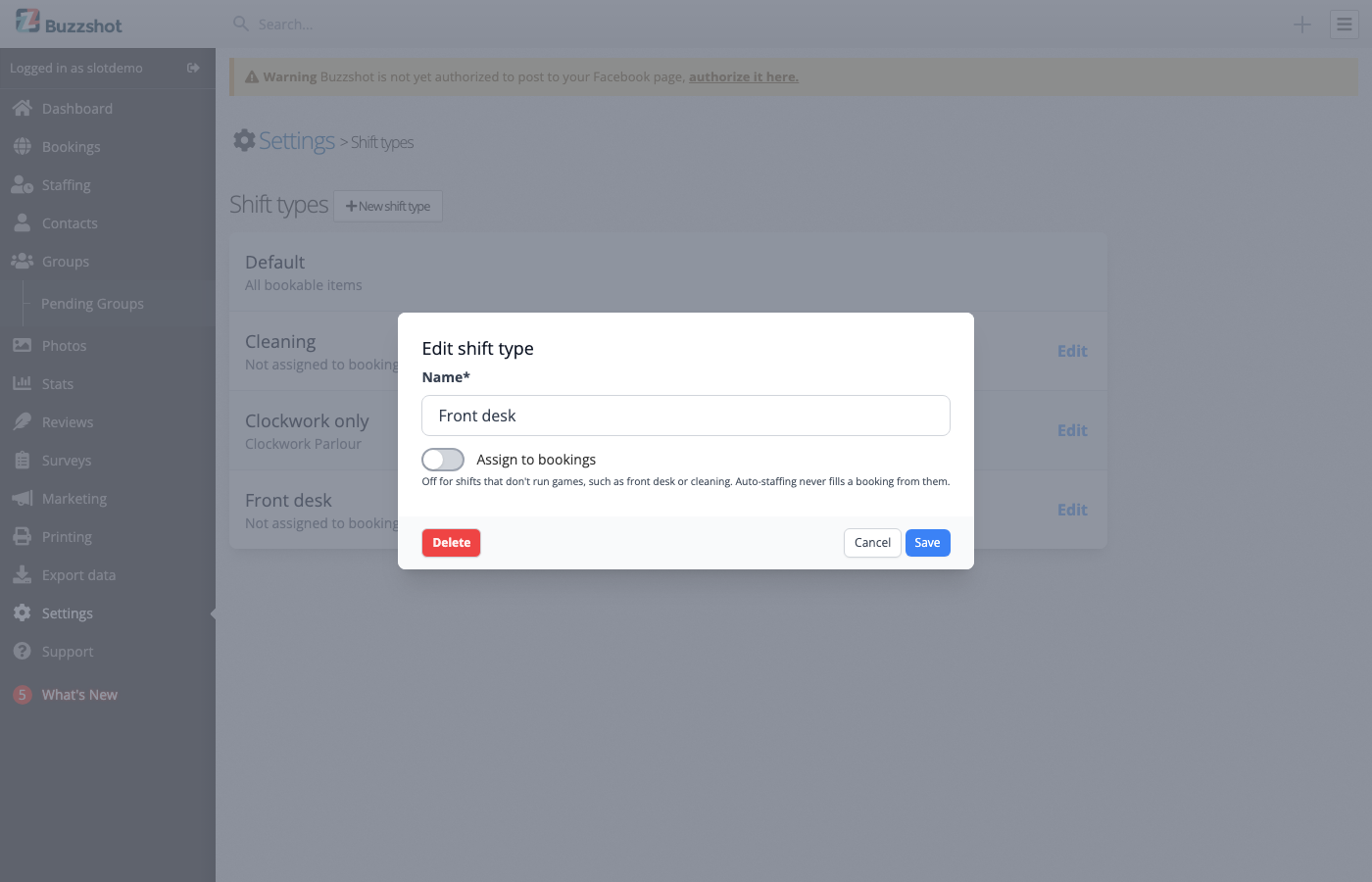
A change to what a type covers applies straight away to every shift of that type, past and future. Staff already assigned to a booking stay assigned. Bookings that still need staff use the new setting the next time Buzzshot fills them.
If you rename a type, the new name shows on every shift of that type.
Deleting a Shift Type
Open the shift type and click Delete, then confirm.
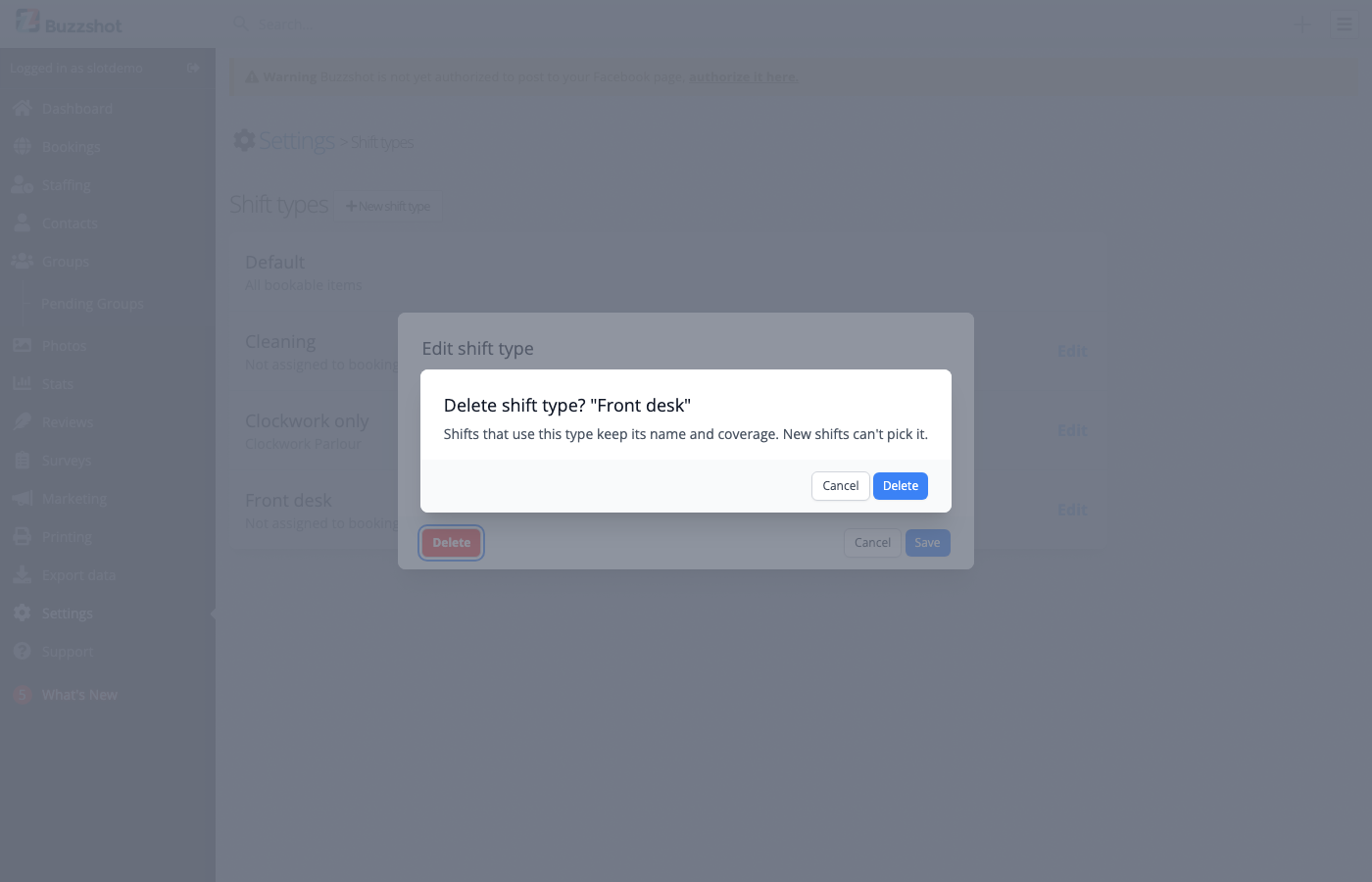
Shifts that already use the type keep its name and what it covers, so your past and planned schedule doesn't change. You can't pick the type for any new shift.
Related Articles