Staff Members
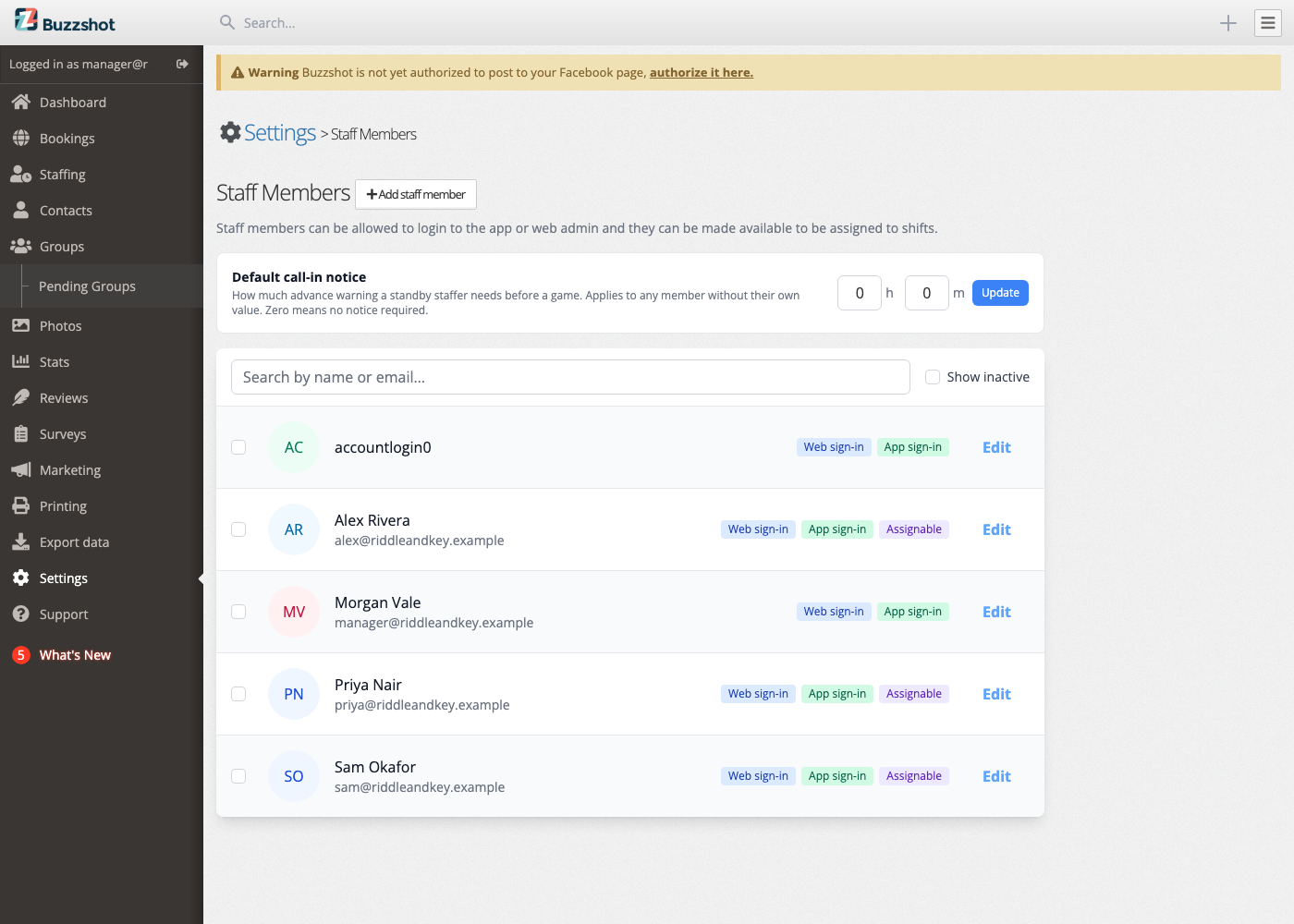
The Staff Members page is where you manage everyone on your team: the people who sign in to your admin, the game masters who run your rooms, and the staff you put on shifts and assign to bookings. You add each person once and choose what they can do.
Staffing is a new, optional feature. If it isn't switched on for your account yet, get in touch and we'll enable it for you.
You'll find it under Settings > Staff Members.
Not seeing a Staff Members page? The Staff Members page replaces the older Users page. If your admin still shows Settings > Users instead, see User Logins and Access Levels for that version.
Adding a Staff Member
- Go to Settings > Staff Members.
- Click Add staff member.
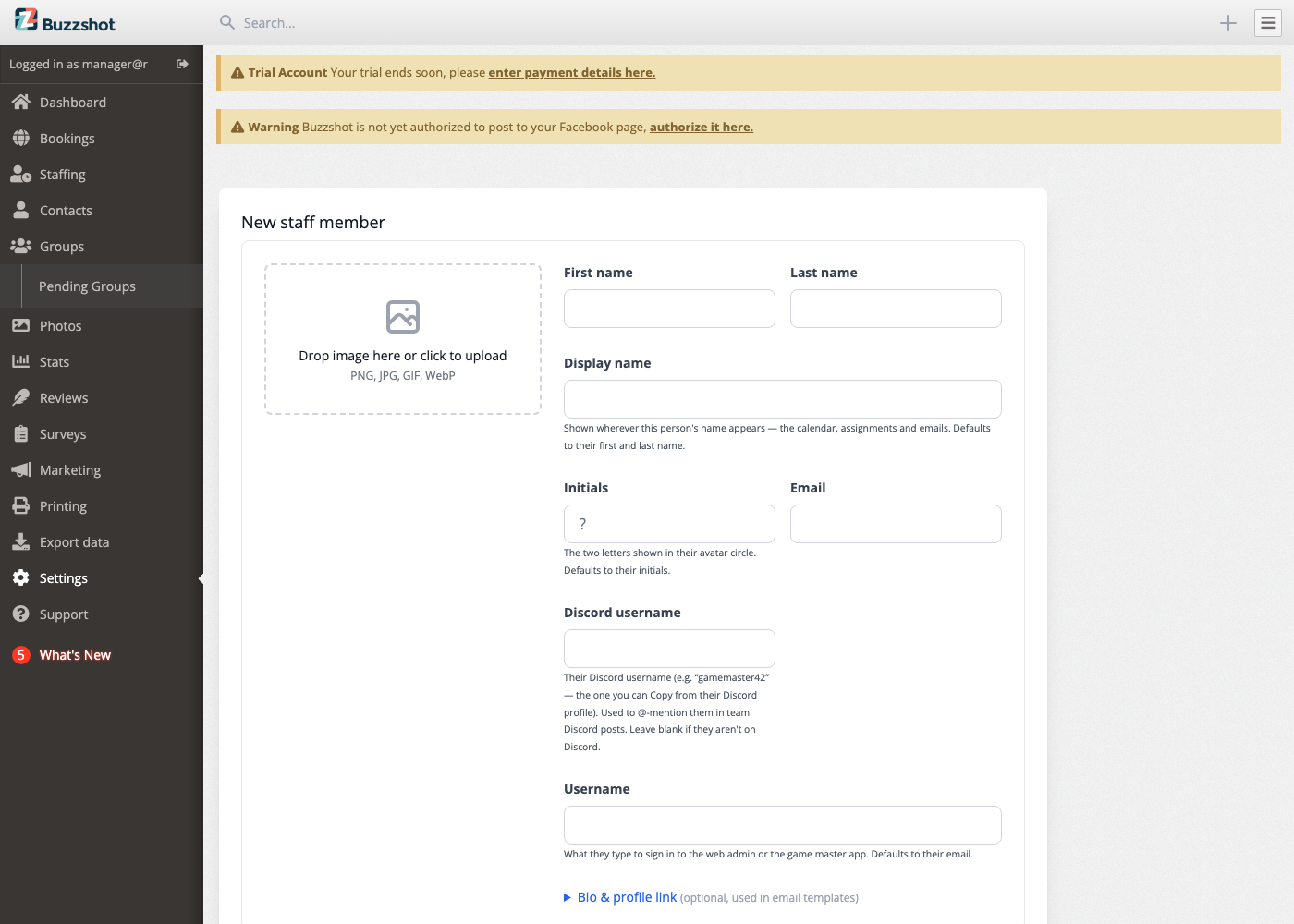
- Fill in their First name (and optionally last name and email).
- Decide what this person can do. See the three choices below.
- Click Save.
When you add someone who can sign in, Buzzshot emails them a link to set their own password, so you don't need to hand out passwords yourself.
Display Name and Initials
By default, a person is shown everywhere by their first and last name, and their avatar circle shows their initials. If you'd like to change either, use the Display name and Initials fields:
- Display name is shown wherever this person's name appears: the staffing calendar, assignments, and emails. Set it if someone goes by a name that's different from their legal name; once you do, only the display name is shown.
- Initials are the two letters shown in their avatar circle.
Both are optional. Leave them blank and Buzzshot uses the person's name automatically.
The Three Things You Decide
For each person you decide three things, independently of each other. Someone might have all three turned on, or just one.
-
Sign in to the web admin: Turn this on if the person needs to log in to your Buzzshot admin (the dashboard, bookings, settings, and so on). When you turn it on you also choose their permissions: which parts of the admin they're allowed to use. Someone with only a few permissions might see just the bookings calendar, while a manager sees everything.
-
Sign in to the game master app: Turn this on if the person uses the Game Master app to run games and finish games with players. Anyone who can sign in to the web admin automatically gets the game master app too (they use the same email and password), so you only need this on its own for game masters who never touch the admin.
-
Can be assigned to bookings & shifts: Turn this on so the person can be scheduled. Only people with this turned on appear on the staffing calendar, can be put on shifts, and can be assigned to bookings. A game master who runs rooms but is scheduled by hand doesn't need this; someone you roster onto shifts does.
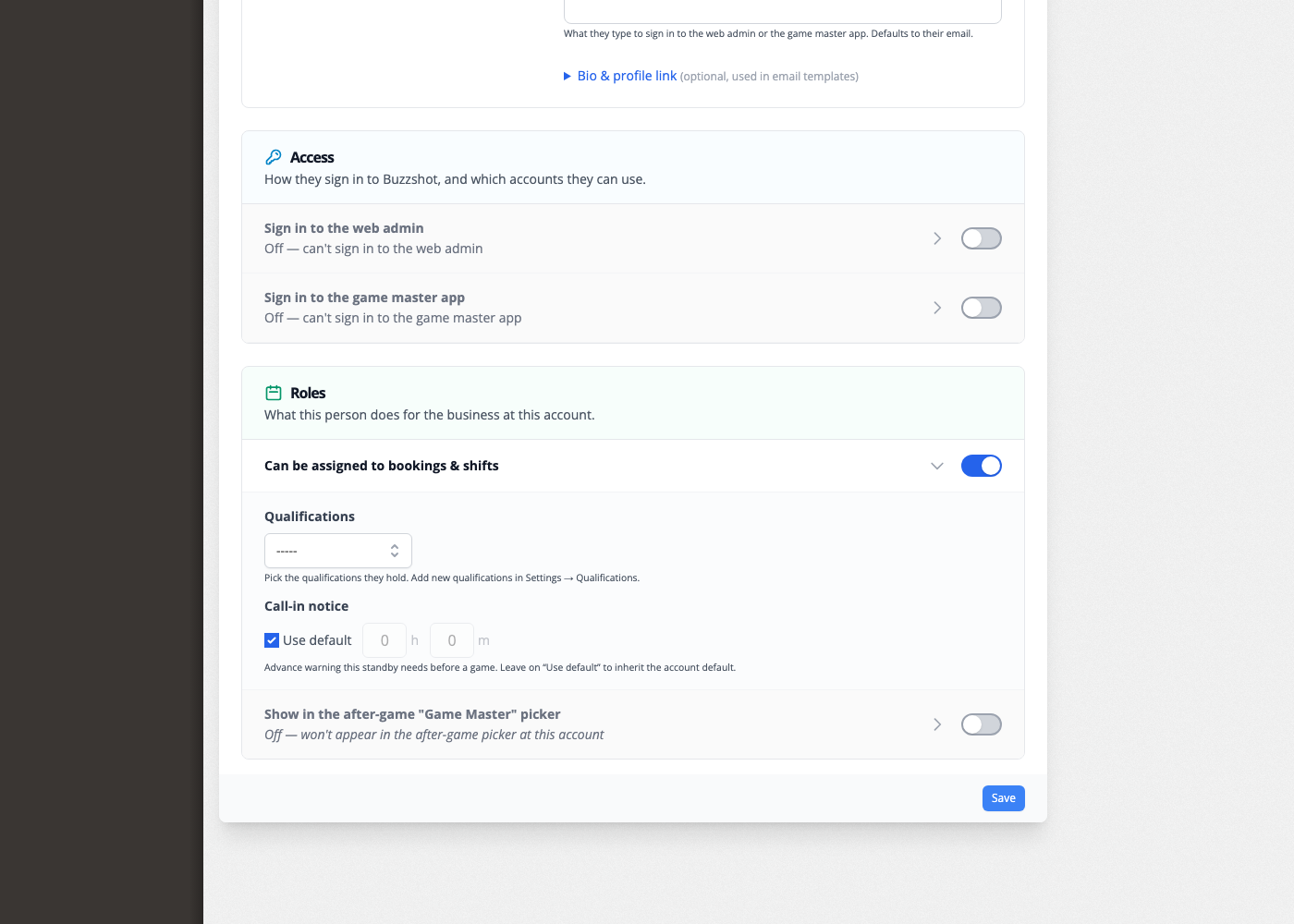
At least one of these three must be on. Otherwise there'd be nothing for the person to do.
Qualifications
When you mark someone as Can be assigned to bookings & shifts, you can also give them qualifications. A qualification records which roles a staff member is able to cover, for example "Game Master Certified" or "Front of House". Buzzshot uses these when it works out who can be assigned to a booking or shift, so it never puts someone in a role they aren't qualified for.
You set up the list of qualifications (and booking roles) first, then tick the ones that apply to each person. For how to create qualifications and booking roles, see Booking Roles & Qualifications.
Editing, Deactivating and Reactivating
To edit someone, click their row on the Staff Members page. You can change their name, adjust their sign-in access and permissions, or update their qualifications at any time.
When someone leaves, make them inactive. Their history (past games, shifts, and so on) stays intact, but an inactive staff member can't sign in, won't appear on the staffing calendar, and won't be assigned to bookings.
Inactive staff are hidden from the list by default so it only shows your current team. To see them again, tick Show inactive. From there you can reactivate anyone who returns. Reactivating switches their sign-in back on, and you can then fine-tune their permissions and whether they can be assigned to bookings and shifts.
How This Fits with Staffing
The Staff Members page is where you decide who can be assigned to bookings and shifts. That setting is the gateway to the rest of the staffing tools:
- Only staff members with Can be assigned to bookings & shifts turned on show up on the staffing calendar, where you build shifts. See The Staffing Calendar.
- Only those staff members can be assigned to bookings. See Assigning Staff to Bookings.
If a staff member isn't showing up when you try to schedule or assign them, the first thing to check is that Can be assigned to bookings & shifts is turned on for them here.
For a broader picture of how staffing works end to end, see Staffing Overview.
A Note on Permissions
When you turn on Sign in to the web admin, you choose exactly which parts of the admin that person can use: for example the bookings calendar, settings, reports, or marketing tools. Give each person only the permissions they need to do their job.