Set up DMARC for your email sending domain
DMARC is a short record in your domain's DNS settings. It tells mail providers that email sent from your domain, including the booking confirmations and payment requests Buzzshot sends for you, is genuine. Providers increasingly refuse mail from domains without one. Microsoft already does: email to Outlook.com, Hotmail, Live and MSN addresses is not delivered, and your customer sees nothing.
You fix it by adding one record. The setting we ask for changes nothing about how your email reaches anyone else.
Do you need this?
Go to Settings → Emails → Verify Sending Domains and look at the Status and DMARC policy columns. If your domain is verified but needs this, your email settings pages also show a banner.
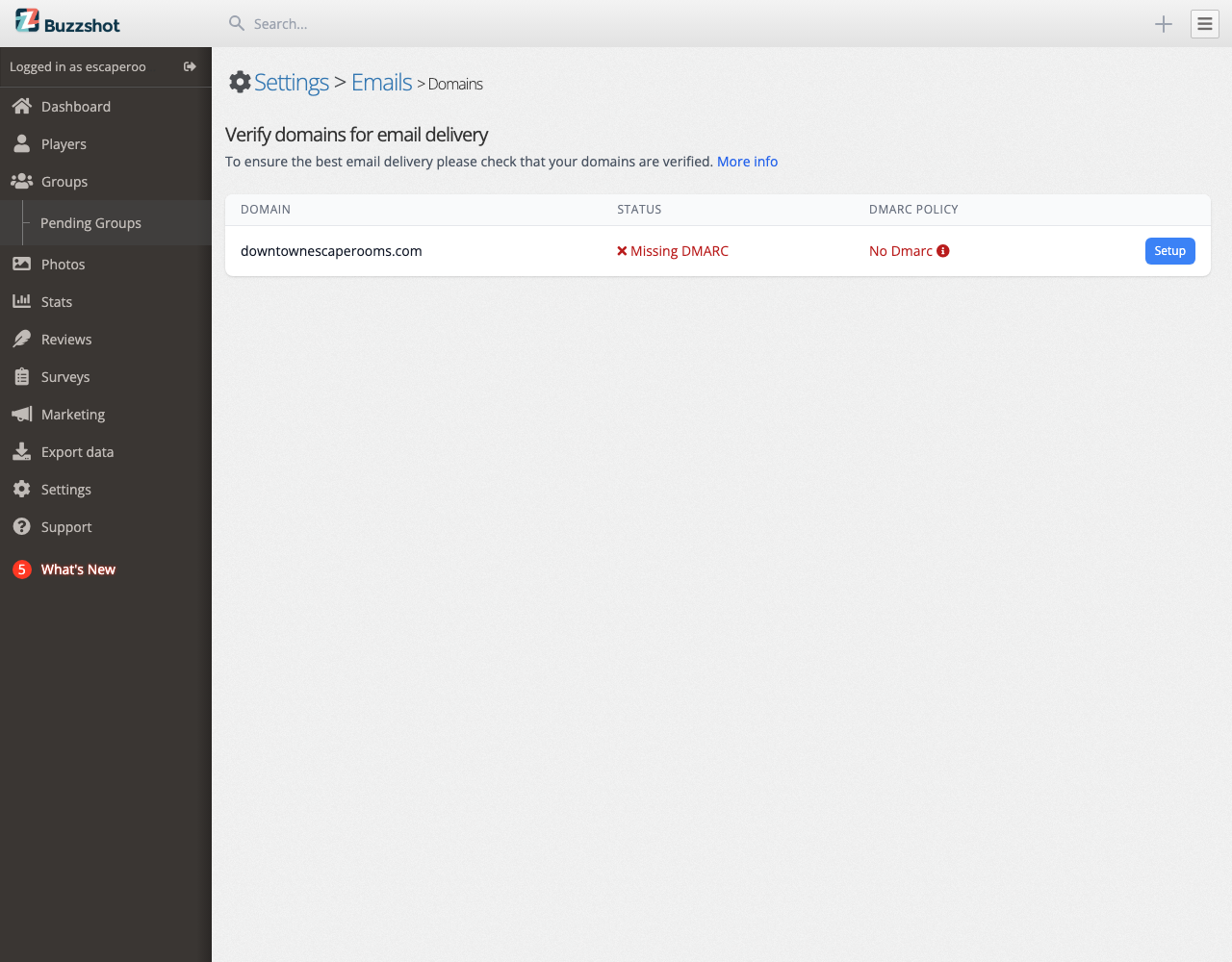
- Missing DMARC, with a policy of No Dmarc: you need this article.
- Invalid DMARC: you have a record, but it does not work. Click Setup to see what is wrong, then follow Fix a record that does not work below.
- Verified, with a green tick beside a policy of None, Quarantine or Reject: you already have DMARC. There is nothing to do. None is the name of the policy, and it does not mean DMARC is missing.
Without DMARC, customers with Outlook or Hotmail addresses may never receive your emails, including their booking confirmations.
Before you start
- If your domain shows Unverified on the same page, follow Verify your domain first.
- You need to log in to the company that looks after your domain's DNS settings. That is usually the company you bought the domain from, or whoever runs your website. If someone else looks after it, send them this page.
Step 1. Check whether you already have a DMARC record
Do this before you add anything. A domain can have only one DMARC record, and adding a second one could make both stop working.
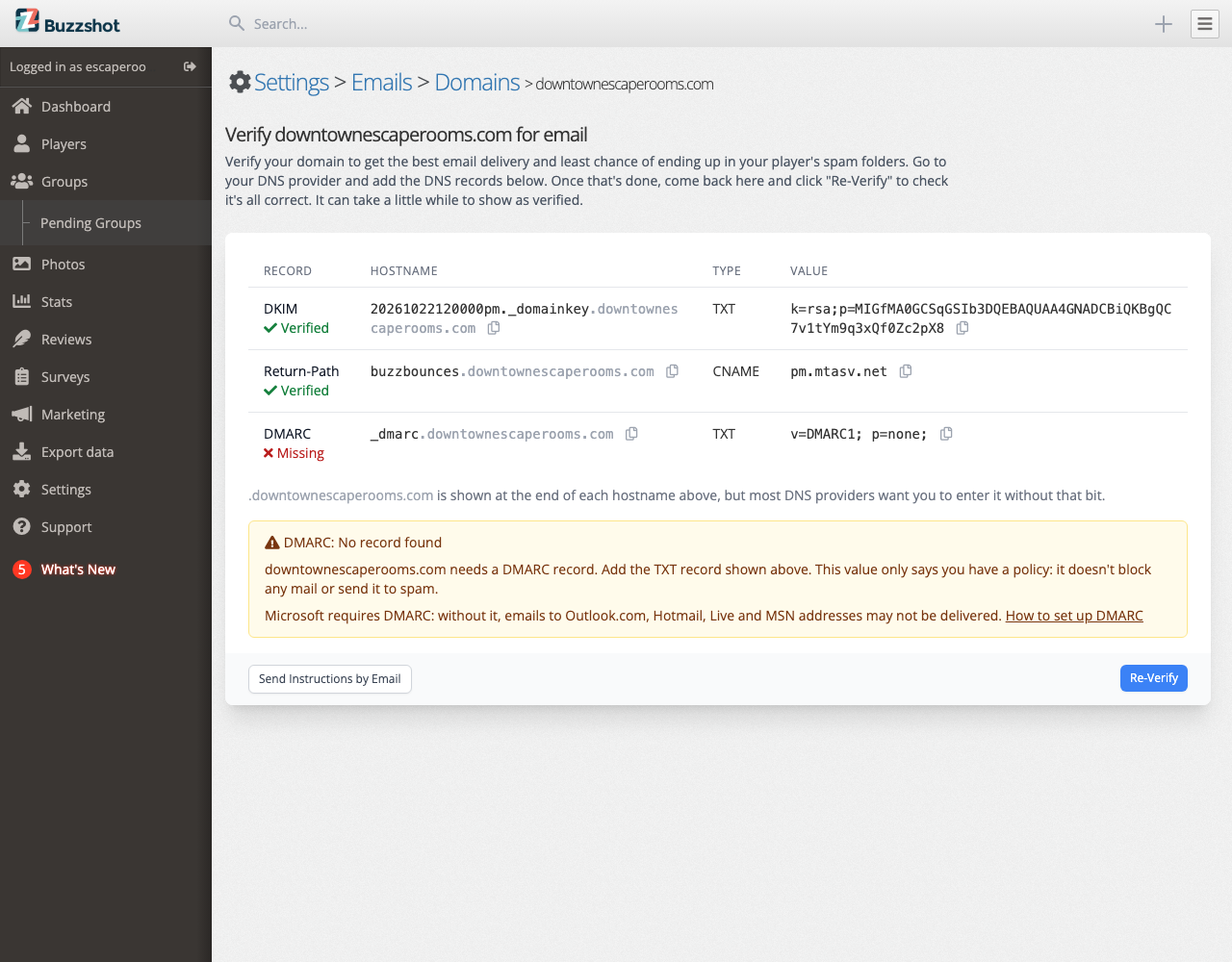
Click Setup next to your domain. The DMARC row shows what Buzzshot found. If it says Missing, Buzzshot found no record. To be sure, log in to your DNS settings and look through the list of records for a TXT record named _dmarc.
- You find one: do not add another. Leave it as it is, and go to Step 3 to check it in Buzzshot.
- You do not find one: go to Step 2.
Step 2. Add the DMARC record
Add one new TXT record with these values. The DMARC row on your domain's page shows the same values, with a button to copy each one:
| Field | Value |
|---|---|
| Type | TXT |
| Name (or Host) | _dmarc |
| Value (or Content) | v=DMARC1; p=none; |
| TTL | Leave the default |
p=none is the gentlest setting. It tells other email servers to deliver your mail as normal. It does not block anything and does not send anything to spam. It only tells Microsoft that you have a policy.
Not sure where your DNS settings are? These guides show where each company keeps them, and each has a Step 4 with the exact clicks for adding the DMARC record, after a check for an existing one:
- GoDaddy
- Cloudflare
- Namecheap
- IONOS
- 123 Reg
- Squarespace
- Wix
- Hostinger
- Fasthosts
- Amazon Route 53
- Bluehost
Step 3. Check it in Buzzshot
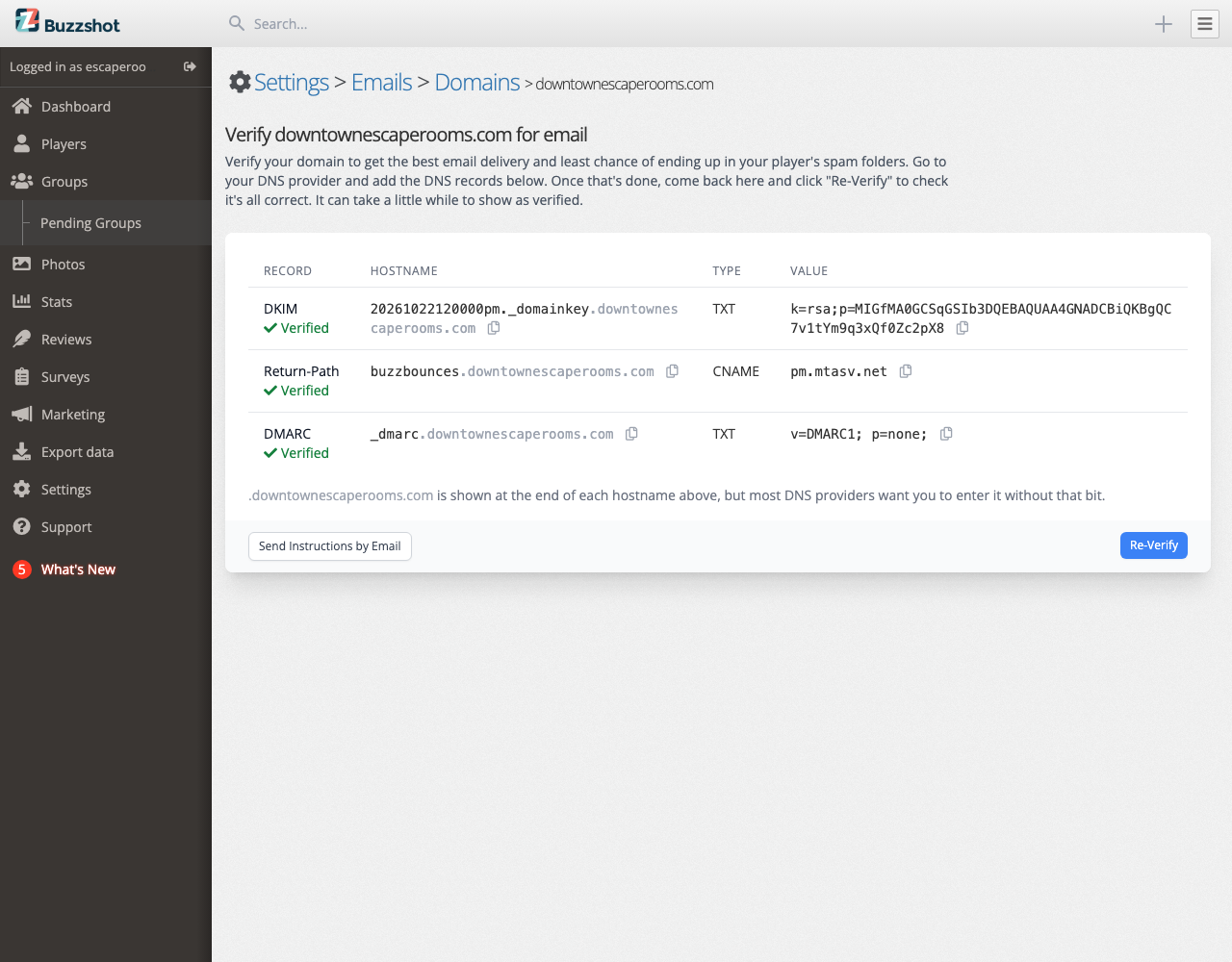
Go back to Settings → Emails → Verify Sending Domains. Click Setup or Details next to your domain, whichever it shows, then click Re-Verify. The DMARC row now shows Verified, with the record Buzzshot found.
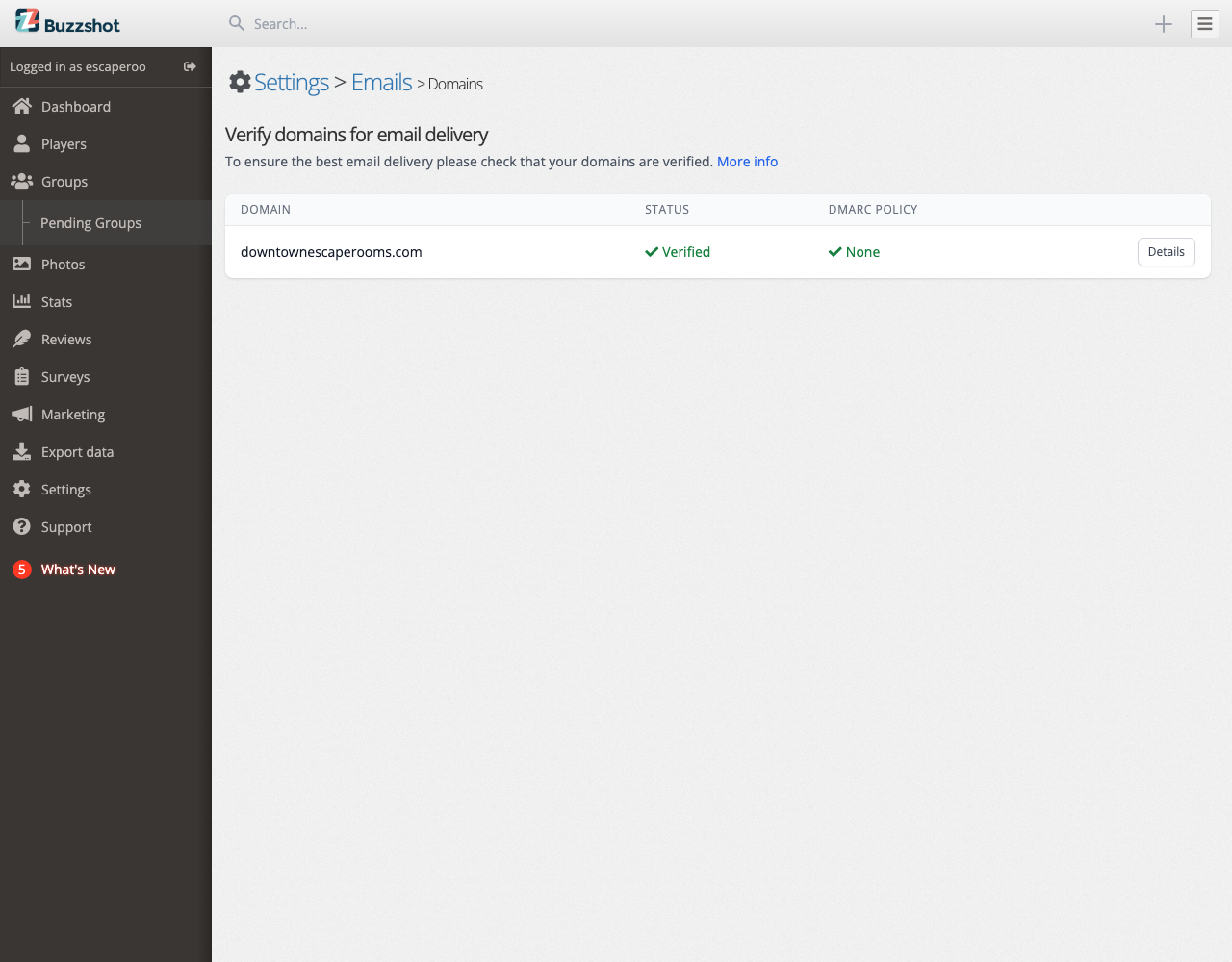
Go back to the list. Status now shows Verified, and DMARC policy shows None with a green tick. None is the policy you just set, so this means you are done.
Buzzshot usually sees a new record within minutes, though a change to DNS can take up to 24 hours to spread. If it still says Missing, wait a while and click Re-Verify again. Buzzshot also checks once a day by itself.
Fix a record that does not work
If the DMARC row shows Invalid, the warning below it says why:
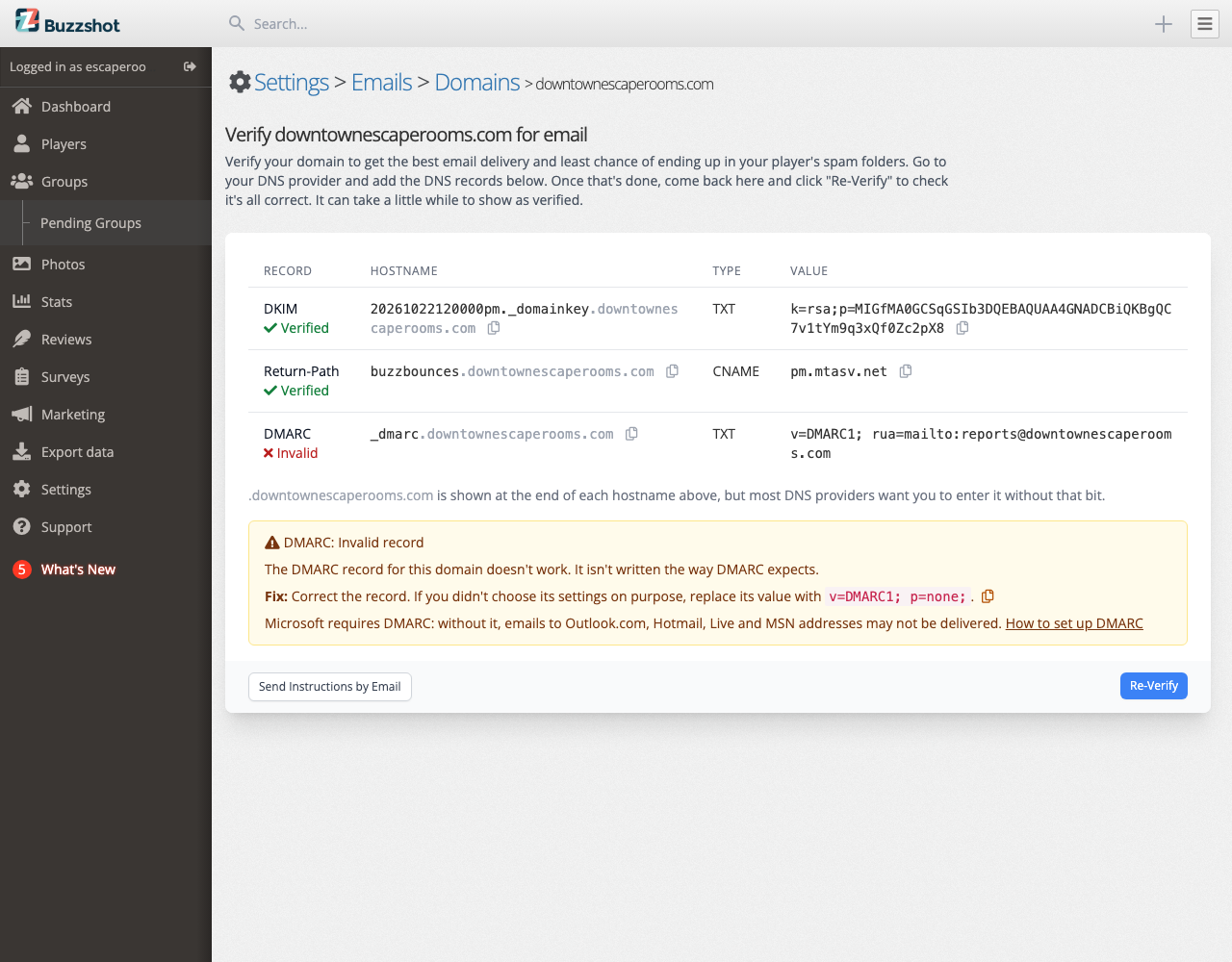
- More than one record: delete all but one. Keep the one you or your email provider meant to use.
- Anything else: correct the record. If you did not choose its settings on purpose, replace its value with
v=DMARC1; p=none;.
Then click Re-Verify.
Optional: receive DMARC reports
You can add a reporting address to the value, and email providers then send reports on the mail they received from your domain. The reports are files meant for software, not people, and sent to your own inbox they can fill it. Most owners do not need them. If you want them, Postmark's free DMARC monitoring turns them into a weekly email you can read. Sign up there, and it gives you the reporting address to add to your record.
Moving to a stricter policy later
Leave the policy at None unless you have a reason to change it. The stricter settings, Quarantine and Reject, tell other servers to spam-folder or refuse any mail from your domain that is not verified. If you move to one of them, every service that sends as your domain must be verified first, including the one you use for your regular email, and your domain must show Verified in Buzzshot. If not, email Buzzshot sends for you will be lost. See Verify your domain.
Troubleshooting
- It still says Missing after 24 hours: check that the record's type is TXT, that the name is
_dmarcand nothing more, and that the value starts withv=DMARC1.- It says Could not check: Buzzshot could not reach your domain's DNS just then. Your record may be fine. Click Re-Verify again later.
- If you are stuck, email support@buzzshot.com or book a one-to-one call with the Buzzshot team, who can go through it with you.